How to Export Canva to PowerPoint in Minutes
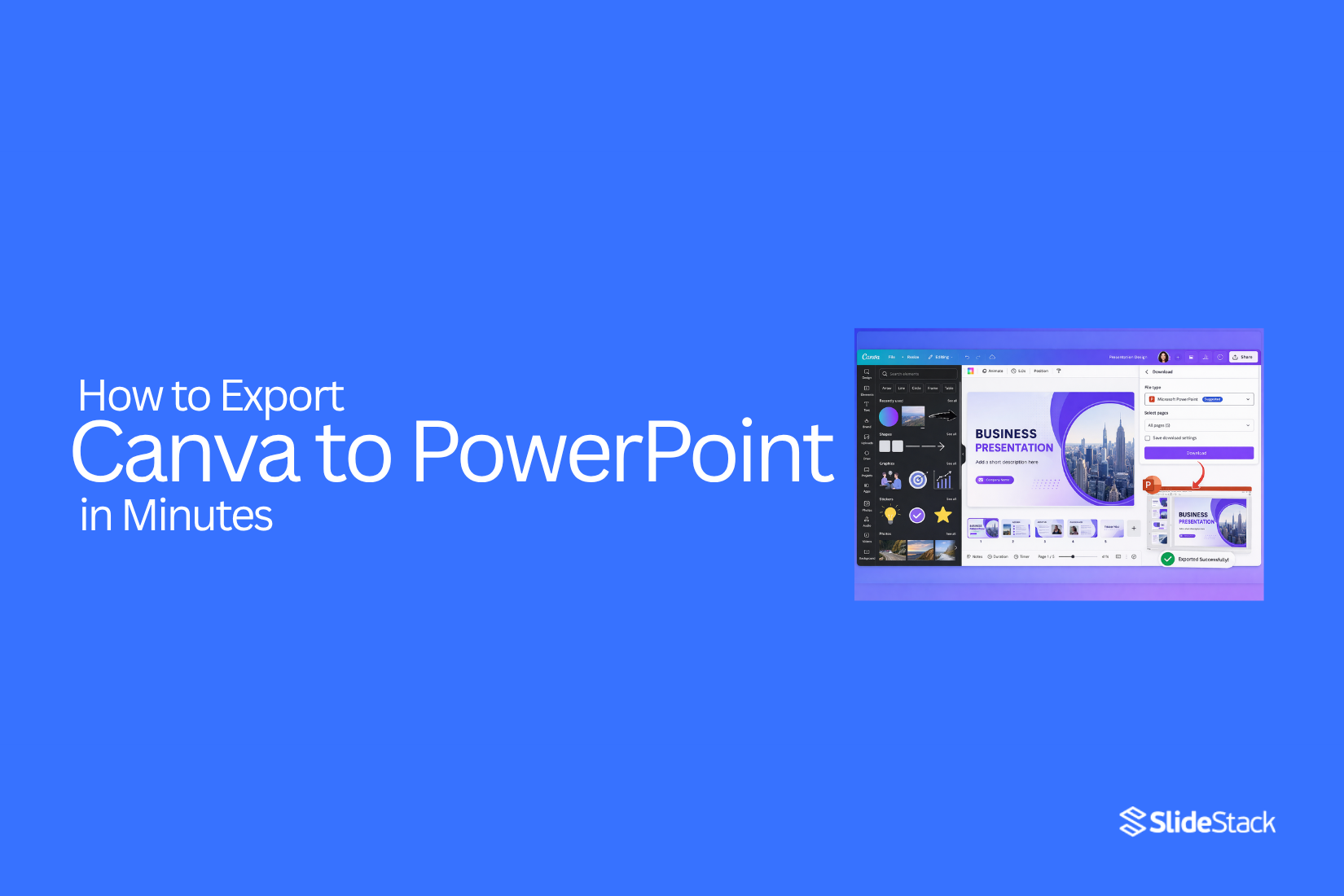
Many users design slides in Canva because it feels simple and quick compared to traditional tools like PowerPoint. After finishing a design, the next step often becomes moving it into PowerPoint. The need comes from PowerPoint still being widely used for presenting slides, especially in Slide Show mode, along with stronger offline control and built-in presentation tools.
This process is not always smooth. Formatting can shift and slide elements may not look the same after export. This guide explains how to export Canva to PowerPoint, what issues may appear, and how to keep your slides clean and ready to present.
Can You Export Canva to PowerPoint?
Yes, Canva lets you export your design to PowerPoint format. This makes it easy to move your slides into PowerPoint for editing or presenting.
You can keep your layout, images, and text in place during the export. After downloading, open the file in PowerPoint and make small edits if needed.
Some design elements may shift a little. A quick review in PowerPoint helps fix spacing or alignment issues.
When to Export Canva Designs to PowerPoint
There are moments when a Canva design needs to move into PowerPoint. A team meeting is one of them. Slides need to match a shared company format. PowerPoint makes that easier.
Another time is client work. Some clients only use PowerPoint. Sending a Canva file may not fit their setup. Exporting keeps things smooth for them.
Editing needs also matter. PowerPoint gives more control over slide elements. You can adjust layouts, move items, and add effects without limits from a design tool.
File sharing can also drive the choice. PowerPoint files open on many devices without extra steps. This helps when working across teams or offices.
Presentation settings matter too. Live presentations often rely on PowerPoint tools like slide timing and presenter view. Canva files may not offer the same control in those moments.
Why Export from Canva to PowerPoint?
Many people start their design work in Canva. It feels simple and quick. Slides come together with little effort. But sharing or presenting work often needs more than Canva alone.
PowerPoint gives more control during live presentations. Slides can move with smoother timing. Animations can feel more precise. This helps the message stay clear while speaking to an audience.
File sharing also becomes easier. PowerPoint files work on most office systems. Teams can open, edit, and review without extra steps. This reduces confusion during collaboration.
Editing flexibility matters too. PowerPoint allows deeper slide adjustments. You can fine-tune layouts, spacing, and effects without the limits that some tools may have.
Different situations call for different tools. Canva helps with fast design work. PowerPoint supports structured presenting and team use.
How to Export Canva Presentation to PowerPoint
To export Canva slides to PowerPoint, you use the built-in export option. The file is saved in PPTX format, which opens in PowerPoint and stays editable.
Step 1 – Open Your Canva Design: Start by opening Canva in your browser. Go to your dashboard and pick the design you want to export. Check that all slides are ready and arranged in the correct order.
Step 2 – Open the Export Menu: Look at the top right corner of the screen. Click Share or Download to open the export options menu.
Step 3 – Choose PowerPoint Format: In the file type list, select Microsoft PowerPoint (.pptx). This sets your design to a PowerPoint-ready format.
Step 4 – Select Pages: You can choose all slides or only specific slides from your design. This controls what appears in the exported file.
Step 5 – Download the File: Click the Download button to start the export. Canva processes the file and saves it to your device.
After downloading, open the file in PowerPoint. The slides remain editable, and you can adjust text, images, and layout inside PowerPoint.
What Happens During Export from Canva to PowerPoint
Exporting a Canva design to PowerPoint turns your work into editable slides. The layout changes into a format that PowerPoint can read. Some parts stay close to the original design. Other parts shift or lose detail during the process.
You may notice small differences in spacing and style after the export. These changes depend on how complex the original design is and which features were used in Canva.
What Transfers Properly
Text boxes usually move into PowerPoint without major issues. Headings and body text stay readable in most cases. Basic shapes like rectangles, circles, and lines also transfer well.
Images usually keep their quality and position. Slide structure also stays similar, so each page still follows the same order.
Simple layouts with fewer effects tend to move across with fewer changes. This makes the PowerPoint file easier to adjust after export.
Elements That May Change
Fonts may change if PowerPoint does not support the original font from Canva. This can affect spacing and layout.
Animations do not carry over. PowerPoint does not read Canva animation settings. Complex layouts may shift. Items can move slightly from their original position. Spacing between elements can look uneven. Alignment may also change after export. Some visual effects, like gradients or transparency, may appear different or less smooth.
Common Issues
Exporting Canva designs to PowerPoint can lead to a few simple problems. These usually appear in layout, text style, and image quality. Some elements may move slightly or look different. Fonts, spacing, and animations are often affected. Most of these issues can be corrected inside PowerPoint with basic tools.
1. Font Substitution Problem: A font used in Canva may not exist in PowerPoint. The text then appears in a different font, which changes the look of the slide.
Fix: Change the font in PowerPoint to a similar option, like Arial or Calibri. You can also install the original font on your device.
2. Misaligned Elements: Slide items may shift from their original position after export. This affects layout balance.
Fix: Use PowerPoint alignment tools. Select elements and align them using center, left, or right options.
3. Missing Animations: Canva animations do not appear in PowerPoint. Motion effects are not transferred between platforms.
Fix: Add animations again inside PowerPoint using the Animations tab.
4. Image Quality Issues: Images may look less sharp or slightly stretched after export.
Fix: Use high-resolution images. Resize using corner handles to keep proper proportions.
5. Broken Slide Layout: Some grouped elements may separate or lose structure.
Fix: Group the elements again inside PowerPoint. Rebuild the layout when needed to restore order.
How to Export Canva to PowerPoint Without Losing Formatting
Formatting breaks often happen during export. Text shifts. Spacing changes. Fonts look different. Slides that look clean in Canva may appear messy in PowerPoint. This happens because both tools handle design elements in different ways. A few design choices before export can reduce these issues.
Use Standard Fonts
Stick to basic fonts that exist in both Canva and PowerPoint. Arial, Calibri, and Times New Roman work well. You should avoid decorative fonts. Some fonts do not transfer correctly. They get replaced or reshaped. That changes your layout. Keep font sizes consistent across slides. Large changes in size can push text out of place after export.
Keep Layouts Simple
Simple layouts hold their shape better during export. Use clear spacing between elements. Avoid stacking too many text boxes in one slide. Keep alignment consistent. Left-aligned or center-aligned layouts transfer more smoothly than mixed alignment styles. Busy layouts often break when moved into PowerPoint. Clean structure reduces that risk.
Use High-Quality Images
Low-quality images can blur or shift after export. Use high-resolution images in Canva. Avoid stretching small images to fill large spaces. Keep image placement stable. Do not overlap too many elements on top of images. That can cause layout shifts later.
Avoid Canva-Specific Features
Some Canva features do not carry over well to PowerPoint. Avoid elements like complex animations, special effects, and certain grouped graphics. PowerPoint may not read these features the same way. That leads to missing elements or broken layouts after export. Stick to basic shapes, text, and images. These transfer more reliably.
Use SlideStack Templates Inside Canva
SlideStack templates are built with export in mind. They follow clean structure rules that work in both Canva and PowerPoint. Use them as a starting point inside Canva. Build your slides on a stable framework instead of designing freely without structure. This approach keeps design consistent from creation to presentation. It reduces fixing work after export and keeps your slides ready for delivery.
How to Open Canva Files in PowerPoint
Start in Canva and open your design. Make sure the file is ready for download. Download the file as a PowerPoint file. Choose the .pptx format. Save it to your device. Open Microsoft PowerPoint on your computer. Go to the main screen. Bring the Canva file into PowerPoint. Use the Open option or drag the file into the app. The slides will load into PowerPoint. Check each slide. Some layout shifts may appear. Adjust text, images, and spacing so everything looks clean and clear.
Common Issues When Exporting Canva to PowerPoint
Moving a design from Canva to PowerPoint can cause a few changes. The slide may not look the same after export. Small shifts can affect the final result.
Font Changes After Export
Fonts often look different in PowerPoint. Canva may use fonts that are not installed in PowerPoint. The system then swaps them with similar ones. This can change spacing and style. Text may look wider or tighter than before.
Layout or Alignment Issues
Elements may move out of place after export. Boxes, icons, and text can shift slightly. Even a small shift can affect the slide balance. This usually happens because Canva and PowerPoint use different layout systems.
Missing Animations
Animations created in Canva do not carry over. PowerPoint does not read Canva animation settings. Slides that had movement will appear static. Any motion effects need to be added again inside PowerPoint.
Image Quality Loss
Images can lose sharpness after export. This often happens when compression is applied. Some fine details may look softer. Large images may also appear resized, which affects clarity on the slide.
Final notes:
Exporting Canva slides to PowerPoint is simple, but the result is not always perfect. The file moves over in PPTX format and stays editable. That helps with updates, team sharing, and live presentations.
Small changes can appear after export. Fonts may shift. Layouts may move slightly. Images can lose sharpness. Animations from Canva do not transfer into PowerPoint. These issues are normal and part of how both tools handle design differently.
Most problems can be fixed inside PowerPoint. Simple adjustments to alignment, font choice, and spacing usually restore a clean look. High-quality images and simple layouts reduce extra work after export.
Using standard fonts, clear structure, and stable slide design helps keep formatting closer to the original Canva version. PowerPoint then becomes a strong space for presenting, while Canva stays useful for fast design work.
Both tools work best together when each one is used for its strength.
FAQs
1. Can Canva files open directly in PowerPoint?
Yes. Canva lets you download designs in PPTX format. PowerPoint can open these files without extra tools.
2. Why does my Canva design look different in PowerPoint?
PowerPoint and Canva use different design systems. Fonts, spacing, and layouts may shift during export.
3. Do Canva animations work in PowerPoint?
No. Canva animations do not transfer. You need to add animations again inside PowerPoint.
4. What file format should I use to export from Canva?
Use the Microsoft PowerPoint (.pptx) format. It keeps slides editable in PowerPoint.
5. How can I fix font changes after export?
Replace missing fonts in PowerPoint with similar ones like Arial or Calibri. You can also install the original font if needed.
6. Why are my images blurry after exporting?
Low-resolution images or compression during export can reduce quality. Use high-resolution images in Canva before exporting.
7. Can I edit Canva slides after opening in PowerPoint?
Yes. The slides remain editable. You can change text, images, and layout inside PowerPoint.
8. What is the best way to avoid formatting issues?
Use simple layouts, standard fonts, and high-quality images. Avoid complex Canva features that may not transfer well.


You may also be interested in ...

How To Create An Eye-Catching Portfolio
If you’re looking to create an eye-catching portfolio, this post will come in handy. In this article, you can find the easies...
23 Jun, 2024

How To Easily Create An Infographic
Infographics are the perfect way to make a presentation that will impact an audience, but their design and composition might...
08 Jun, 2024

PowerPoint Template Tips & Tricks You Ne...
PowerPoint seems to be an unknown world for many people, especially those who have been assigned to create a presentation out...
08 Jun, 2024