How to Change or Remove Animations in PowerPoint: A Step-by-Step Guide
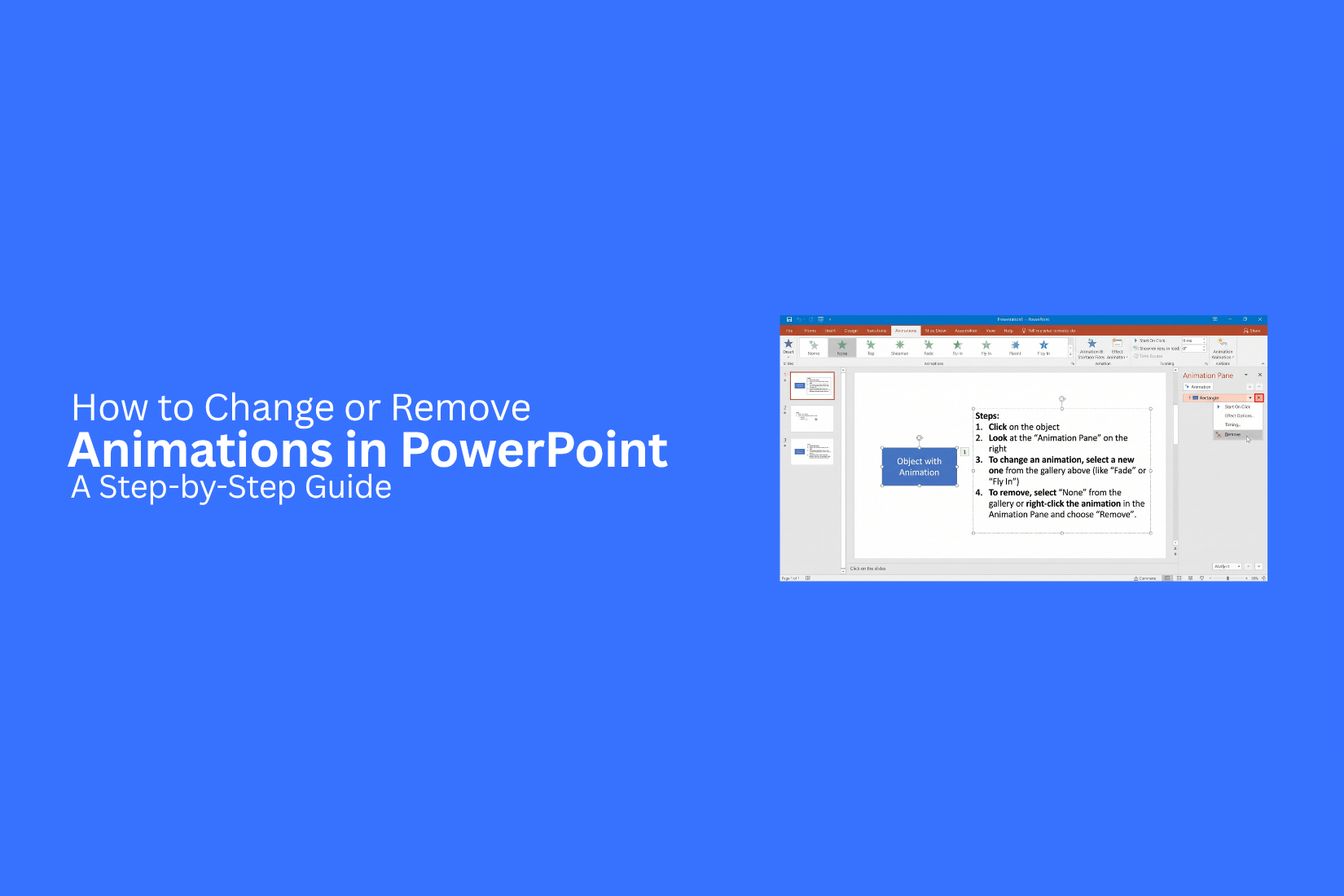
PowerPoint animations can help control how content appears on a slide. But the wrong effect, timing, or order can distract your audience. An animation may also play before you want it to or remain after you try to remove it.
These issues can make a slide harder to follow. They can also create problems during a live presentation. Finding the right animation settings may take time, especially with several effects on one object.
PowerPoint gives you several ways to change, reorder, disable, or remove animations. You can also manage effects from the Animation Pane. This guide shows you how to change or remove animations step by step. It also covers common problems, Mac instructions, and tips for managing effects.
What Are Animations in PowerPoint?
Animations in PowerPoint are effects that control how objects appear, move, or leave a slide. You can add them to text, images, shapes, charts, and other objects. For example, text can appear one line at a time. An image can enter from the side. A shape can move across the slide. An object can also fade out after it has been shown. PowerPoint groups animations into different types. Some effects control how an object enters the slide. Others control actions during the slide or how an object leaves it.
Animations can help control the order of information on a slide. They can also guide the audience from one point to the next. Too many effects can make a slide harder to follow, so each animation should have a clear purpose. You can change an animation's effect, timing, direction, or order. You can also remove an animation from an object without deleting the object itself.
How to Change an Animation in PowerPoint
PowerPoint lets you change an animation after you add it to an object. You can pick a different effect, change its direction, or adjust how it starts. These changes help you control how an object appears or moves on a slide.
Start by selecting the object that has the animation. Then open the Animations tab on the PowerPoint ribbon. You can see the animation applied to the selected object and choose a different effect from the available options.
For more control, open the Animation Pane. It shows all animations on the slide in the order they play. Select the animation you want to edit. Use the options in the Animations tab to change its settings. You can also adjust the animation timing. Set options such as Start, Duration, and Delay based on how you want the effect to play. Use Preview to check the result before moving on. Changing an animation does not remove the object from the slide. It only changes how that object behaves during the presentation.
How to Change Animation Settings
PowerPoint lets you adjust how an animation starts, how long it runs, and how many times it plays. These settings help you control the timing and movement of objects on a slide.
Start by selecting the object with the animation. Then open the Animations tab from the top menu. You can use the options in the Timing group to change the animation settings.
Change the Start Setting
The Start menu controls how the animation begins. It has three main options:
• On Click: The animation starts after you click the slide.
• With Previous: The animation starts at the same time as the previous animation.
• After Previous: The animation starts after the previous animation ends.
Choose the option that fits your slide sequence.
Change the Duration
The Duration setting controls how long the animation takes to play. A shorter time makes the effect play faster. A longer time makes it play more slowly. Select the animation and enter a value in the Duration box. For example, use a short duration for a simple entrance effect. Use a longer duration for an effect that needs more time to play.
Add a Delay
The Delay setting adds extra time before the animation starts. Select the animation, then enter a value in the Delay box. This works well for slides with several animated objects. Each object can start at a set time, which helps create a clear sequence.
Change the Animation Order
Use the Animation Pane to control the order of multiple effects. Open the Animations tab and select Animation Pane. A list of animations will appear on the side of the screen. Select an animation and use the up or down controls to change its position in the list. You can also adjust the start, duration, and delay settings from the Animation Pane. This gives you more control over how each effect plays.
Preview Your Changes
Click Preview on the Animations tab to see how the effects play. Check the timing and order of each animation. Make small changes until the slide plays in the order you want. A simple sequence often works better than using too many effects on one slide.
How to Change the Order of Animations
PowerPoint plays animations in a set order. The order can affect how your slide looks during a presentation. You can change the order to control which object appears first, next, or last. The Animation Pane gives you a clear view of every animation on the slide. It also lets you change the order without changing the animation effect itself.
Open the Animation Pane
Start by opening the slide with the animations you want to edit.
- Select the Animations tab.
- Click Animation Pane.
- A panel will appear on the right side of the PowerPoint window.
- Find the animations listed in the order they will play.
Each item in the pane matches an animated object on your slide. The numbers next to the objects show their play order.
Move an Animation Up or Down
You can move one animation to a new position in the list.
- Open the Animation Pane.
- Select the animation you want to move.
- Click Move Earlier to move it up.
- Click Move Later to move it down.
- Check the list to see the new position.
You can also drag an animation to another spot in the Animation Pane. This gives you more control over its exact position.
Reorder Multiple Animations
Several animations may need to play in a specific sequence. You can adjust each one until the list matches your slide plan. Select an animation in the Animation Pane. Use Move Earlier or Move Later to change its position. Repeat the steps for the other animations. Check the numbers beside each object after making changes. They show the order in which PowerPoint will play the effects.
Preview the Animation Order
Preview your slide after changing the order. This helps you check how the animations work together.
- Open the Animations tab.
- Click Preview.
- Watch the slide from the start.
- Check the order of each animation.
- Return to the Animation Pane and make any needed changes.
A quick preview can help you spot an animation that starts too early or too late. Keep adjusting the order until the slide follows the flow of your presentation.
How to Remove an Animation From a PowerPoint Object
PowerPoint lets you remove animations from objects without deleting the objects themselves. You can remove one effect, manage effects from the Animation Pane, or clear several animations at once. The right method depends on how many objects you need to edit.
Remove an Animation From One Object
Removing an animation from one object takes just a few clicks. This works well for a slide with only one effect you no longer need.
- Open your PowerPoint presentation.
- Go to the slide with the animated object.
- Click the object.
- Open the Animations tab.
- Click None in the animation options.
The animation is removed from the selected object. The object stays on the slide with its text, image, shape, or other content unchanged.
Remove an Animation Using the Animation Pane
The Animation Pane gives you a clear list of all effects on a slide. It helps you find and remove a specific animation, especially on slides with several animated objects.
- Select the Animations tab.
- Click Animation Pane.
- Find the animation linked to the object.
- Click the animation in the pane.
- Press Delete on your keyboard.
The selected effect disappears from the Animation Pane. The object remains on the slide.
The pane also helps you spot animations that are easy to miss. Each effect appears in the order it plays on the slide.
Remove Multiple Animations
You can remove several animations at once by selecting multiple objects. This saves time on slides with many animated items.
- Open the slide with the animations.
- Hold Ctrl on Windows or Command on Mac.
- Select each object with an animation you want to remove.
- Open the Animations tab.
- Select None.
PowerPoint removes the animations from the selected objects. Their content and position stay the same. For a slide with many effects, the Animation Pane can give you more control. Select each effect you no longer need and press Delete. This lets you keep the animations that still support your presentation.
How to Remove All Animations From a PowerPoint Slide
Removing animations from a PowerPoint slide only takes a few steps. You can select the animated objects and remove their effects from the Animation Pane. This keeps the slide content but stops the objects from moving or appearing with effects.
Select Animated Objects
Start by opening the slide with the animations. Click an object that has an animation, such as text, an image, or a shape. You can also select several objects on the slide. Hold Ctrl on Windows or Command on Mac and click each object you want to check. Look for objects that have an animation number beside them. These numbers show the order of the animation effects on the slide.
Remove Animations From the Animation Pane
Open the Animations tab in PowerPoint. Select Animation Pane to show the list of effects on the right side of the screen. Click an animation in the pane. Press Delete on your keyboard to remove it. Repeat this step for each animation listed in the pane. You can also select multiple effects in the pane and delete them together. The objects will stay on the slide. Only their animation effects will be removed.
Check the Slide for Remaining Animations
After removing the effects, review the slide from the Animations tab. Check the Animation Pane again and make sure no effects remain. Run the slide in Slide Show view. Watch the text, images, shapes, and other objects as the slide appears. This final check helps confirm that the slide no longer has unwanted animations. The slide content should remain in place without any movement or entry effects.
How to Disable Animations in PowerPoint
PowerPoint lets you hide animations without removing them from your slides. This is useful for presentations that need a static view. You can turn off animations for a single presentation or keep them disabled until you need them again.
Turn Off Animations During a Presentation
PowerPoint has a setting that stops animations from playing during Slide Show mode. Your animation settings stay on the slides.
Follow these steps:
- Open your PowerPoint presentation.
- Select the Slide Show tab.
- Click Set Up Slide Show.
- Find the Show options section.
- Select Show without animation.
- Click OK.
Start the slide show. Your slides will appear without animation effects. This setting does not remove the animations. It only stops them from playing during the presentation. You can turn the setting off later to bring the animations back.
Use the Show Without Animation Option
The Show without animation option is useful for a presentation that needs a still view. It keeps your original animation settings in place.
To use it:
- Open the presentation.
- Go to Slide Show.
- Select Set Up Slide Show.
- Check Show without animation.
- Select OK.
- Start the slide show.
The slide content stays the same. Objects keep their animation effects and timing settings. PowerPoint simply skips those effects during the slide show.
Disable Animations Without Deleting Them
Deleting animations removes the effects from your slides. Disabling them gives you more control. You can keep the work you have already done and turn the effects back on later.
The Show without animation setting is the easiest way to do this for a presentation. It works without changing the animation settings on individual objects. This approach also helps you keep different versions of the same presentation. You can present the static version now and switch the setting off later to use the animations again.
How to Remove Animations From All PowerPoint Slides
Removing animations from a full PowerPoint presentation takes a few steps. You can check each slide and remove its effects one by one. The Animation Pane also helps you find objects that still have animations. A full check helps make sure no effects are left behind. This is useful for presentations that have many slides or animated objects.
Remove Animations Slide by Slide
Start with the first slide and work through the presentation.
- Open the PowerPoint presentation.
- Select the first slide.
- Click an object that has an animation.
- Open the Animations tab.
- Select None from the animation options.
- Repeat these steps for other animated objects on the slide.
- Select the next slide and repeat the process.
This method gives you control over each object. It also lets you keep any animation that you still want to use. For a large presentation, this process can take time. The Animation Pane can help you spot animated objects more easily.
Find Animated Objects With the Animation Pane
The Animation Pane shows the animation effects on the current slide. It gives you a list of animated objects and their effects.
To use it:
- Select a slide.
- Open the Animations tab.
- Select Animation Pane.
- Review the list that appears on the side of the slide.
- Select an animation from the list.
- Remove the animation.
- Repeat the process for the other items in the list.
The pane can make hidden or hard-to-spot animations easier to find. It also gives you a quick view of the effects applied to the slide.
Check the Entire Presentation
After removing the animations, review every slide from start to finish. Look for objects that still have animation effects. Play the presentation in Slide Show mode. Watch for objects that appear, move, disappear, or change during the presentation. Go back to any slide that still has an effect. Open the Animation Pane and remove the remaining animation. A final review helps keep the presentation consistent. It also reduces the chance of an unwanted animation appearing during the slide show.
Read also: How to Remove Animation Effects from Canva Slides
How to Change or Remove Animations in PowerPoint on Mac
PowerPoint for Mac lets you change, edit, or remove animations from slide objects. You can replace an animation, change its timing, or remove it from an object. The Animation Pane also helps you manage multiple effects on the same slide.
Change an Animation
You can replace an existing animation without removing the object from your slide.
- Open your PowerPoint presentation on your Mac.
- Select the text, image, shape, or other object with the animation.
- Open the Animations tab.
- Select a different animation from the available options.
- Preview the new effect on the slide.
The new animation replaces the previous effect. Your object stays in the same position on the slide.
Adjust Animation Settings
You can change how an animation starts and how long it runs. These settings help control the way the effect plays during your presentation.
- Select the animated object.
- Go to the Animations tab.
- Open the animation settings for the selected effect.
- Change the Start option based on how you want the effect to play.
- Set the Duration to control how long the animation runs.
- Set a Delay to add time before the animation starts.
- Preview the animation to check the result.
You can also use the Animation Pane to view and manage animations on a slide. This is useful for slides with several animated objects.
Remove an Animation
Removing an animation keeps the object on the slide. It only removes the effect linked to that object.
- Select the animated object.
- Open the Animations tab.
- Select None from the animation options.
- Preview the slide to make sure the effect is gone.
You can repeat these steps for other objects on the slide. This gives you control over which elements stay animated and which appear without an effect.
Read also: How to Remove Animations from PowerPoint and Google Slides – Step-by-Step Guide
Common Problems With PowerPoint Animations
PowerPoint animations can behave in ways that make slide editing confusing. An effect may not change, the Animation Pane may be hard to find, or an object may play more than one effect. These issues often come from the way effects are added or set up. A few simple checks can help you find the cause and fix it.
The Animation Does Not Change
You select a new animation, but the old effect still plays. The object may have more than one effect. PowerPoint can keep an earlier effect even after you add a new one. Open the Animation Pane and select the object. Check the list of effects linked to it. Remove the old effect before adding the new one. Also check that you have selected the correct object. A text box, shape, or image may sit over another object. Selecting the wrong item can make it seem like the animation did not change.
The Animation Pane Is Missing
The Animation Pane gives you a list of effects on the slide. It also helps you manage their order and timing. Open the Animations tab on the PowerPoint ribbon. Look for Animation Pane and select it. The pane should appear on the side of the PowerPoint window. If you still cannot find it, make sure you are editing the slide in the normal editing view. Some PowerPoint views do not show the same editing tools.
Multiple Animations Are Applied to One Object
One object can have more than one animation. For example, a shape may have an entrance effect and an exit effect. Extra effects can also be added by mistake. Open the Animation Pane to see every effect linked to the object. Select an effect you do not need and remove it. Check the object after each change. This makes it easier to see which effect is causing the issue.
The Animation Plays at the Wrong Time
An animation may start too early or too late. This often relates to its start setting or delay. Open the Animation Pane and select the effect. Check the Start setting. PowerPoint lets an effect start On Click, With Previous, or After Previous. Check the Delay and Duration settings too. A delay adds extra time before the effect starts. Duration controls how long the effect runs.
The Animation Still Appears After Removal
You remove an animation, but the object still moves during the slide show. Another effect may still be linked to the same object. Open the Animation Pane and look for any remaining effects. Select each unwanted effect and remove it. Also check nearby objects. A similar shape or text box may have its own animation. It can look like the original object is still animated, even though its effect has been removed. Run the slide show after making the changes. This helps confirm that the unwanted effect is gone.
Tips for Managing PowerPoint Animations
PowerPoint animations can help control how content appears on a slide. A few simple rules can keep your slides clear and easy to follow. Use animation with a clear purpose and keep the effects easy to track.
Use Simple Animation Effects
Choose basic effects that support the content. Fade, Appear, and simple motion effects are often easier to follow than complex effects. Match the effect to the type of content. A subtle entrance effect can bring in a heading or image without taking attention away from the main point. Avoid effects that spin, bounce, or move objects in many directions unless they serve a clear purpose.
Keep Animation Timing Consistent
Set similar timing for animations that serve the same role. This gives the slide a steady flow. Check the Start, Duration, and Delay settings in the Animation Pane. Keep delays short and use similar durations for related objects. This makes each part appear at a clear point during the presentation.
Avoid Too Many Animations on One Slide
Too many effects can make a slide hard to follow. Each animated object adds another movement for the audience to track. Use animation only on objects that need it. A slide with a few well-timed effects is easier to read than one where every text box, image, and shape moves.
Preview Animations Before Presenting
Preview each animated slide before you present it. This helps you spot timing issues, unwanted effects, or animations that appear in the wrong order. Use the Preview option in the Animation Pane to check the full sequence. Run the slide in Slide Show view as well. Watch how each object enters, moves, or exits. Make any needed changes before presenting.
Final Notes
PowerPoint gives you several ways to manage animations. You can change an effect, adjust its timing, reorder animations, or remove them from an object. The Animation Pane makes it easier to view and manage multiple effects on a slide. For a clean presentation, review each animated slide before presenting. Check the animation order, Start setting, Duration, and Delay. Remove effects that do not support the slide content.
You can also use Show without animation to present slides without playing the effects. This keeps the animation settings in place for later use. A quick review can help you catch unwanted effects and timing issues. Keep the animation setup simple so your slides stay clear and easy to follow.
FAQs
Can I change an animation without deleting the object?
Yes. Select the object, open the Animations tab, and choose a different effect. The object stays on the slide.
How do I remove an animation in PowerPoint?
Select the animated object, open the Animations tab, and select None. The object stays on the slide, but its animation is removed.
How do I remove an animation using the Animation Pane?
Open Animations > Animation Pane. Select the animation you want to remove in the pane, then press Delete on your keyboard.
Can one object have multiple animations?
Yes. An object can have more than one effect. Open the Animation Pane to see all effects linked to the object. Remove any effects you no longer need.
How do I change the order of animations in PowerPoint?
Open the Animation Pane and select an animation. Use Move Earlier or Move Later to change its position in the list. You can also drag an animation to a new spot.
How do I stop animations from playing without removing them?
Go to Slide Show > Set Up Slide Show. Select Show without animation, then click OK. The animation settings stay on the slides.
How do I remove all animations from a PowerPoint slide?
Open the Animation Pane and remove each animation from the list. You can also select animated objects and choose None from the Animations tab.
Why does an animation still play after I remove it?
Another animation may still be linked to the same object. Open the Animation Pane and check for remaining effects. Nearby objects may also have their own animations.
How do I change animation timing in PowerPoint?
Select the animated object and use the Start, Duration, and Delay settings in the Animations tab. These settings control how and when the effect plays.
Can I remove animations from all PowerPoint slides?
Yes. Review each slide and remove its animations. The Animation Pane can help you find effects on each slide.




You may also be interested in ...

How To Create An Eye-Catching Portfolio
If you’re looking to create an eye-catching portfolio, this post will come in handy. In this article, you can find the easies...
23 Jun, 2024

How To Easily Create An Infographic
Infographics are the perfect way to make a presentation that will impact an audience, but their design and composition might...
08 Jun, 2024

PowerPoint Template Tips & Tricks You Ne...
PowerPoint seems to be an unknown world for many people, especially those who have been assigned to create a presentation out...
08 Jun, 2024