How to Save One Slide as an Image in PowerPoint
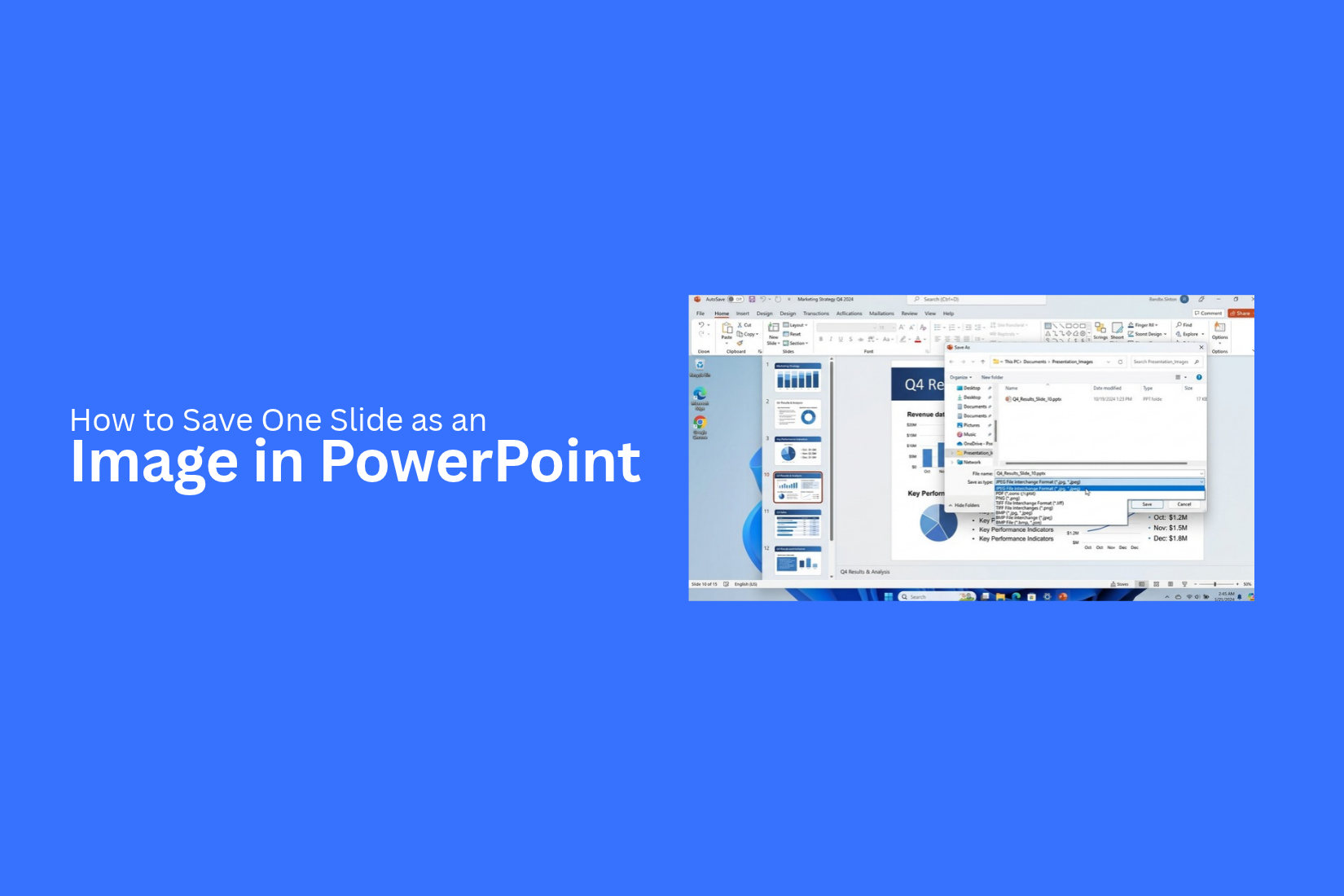
Need to share a single PowerPoint slide as an image? You may want to post it online, add it to a document, or send it to someone who does not use PowerPoint. Saving the entire presentation just to get one slide can take extra time. The wrong export settings may also affect the image quality, text, or background.
PowerPoint lets you save a single slide as an image without exporting every slide. You can choose a file format like PNG or JPEG based on your needs. This guide explains how to save one slide as an image, keep it clear, and fix common export problems across different devices.
Why Save a PowerPoint Slide as an Image?
Saving a PowerPoint slide as an image makes it easy to share and reuse your content. You can send it by email, add it to a document, or post it on social media. The image keeps the slide's text, colors, shapes, and layout in one file.
This option also helps you share a single slide without sending the full presentation. For example, you can save a chart, quote, or key point as a PNG or JPEG file. This makes it easy for others to view the content without opening PowerPoint.
How to Save One Slide as an Image in PowerPoint
PowerPoint lets you save a single slide as an image. You can use this image in a report, email, website, or social media post. You do not need to export the entire presentation.
To save one slide as an image, follow these steps:
- Open your PowerPoint presentation.
- Select the slide you want to save.
- Click File in the top menu.
- Select Save As or Export, based on your PowerPoint version.
- Choose a folder to store the image.
- Select an image format, such as PNG or JPEG.
- Click Save or Export.
- In the pop-up window, select Just This One or Current Slide Only.
PowerPoint will save the selected slide as an image file. You can now use it without opening the original presentation.
How to Save a PowerPoint Slide as PNG or JPG
PowerPoint lets you save a single slide as an image. You can use PNG or JPG for this task. Both formats work well for sharing slides in emails, adding images to documents, or posting content online.
Follow these steps to save one slide as an image:
- Open your PowerPoint presentation.
- Select the slide you want to save.
- Click File in the top menu.
- Select Save As or Export, based on your PowerPoint version.
- Choose a folder to save the image.
- Open the file type menu and select PNG or JPG.
- Click Save or Export.
- PowerPoint will ask whether you want to save all slides or only the current slide. Select Just This One.
Your selected slide is now saved as an image. Open the saved file to check that the text, images, and layout look right.
Which format should you choose?
• PNG: Use this format for sharp text, clear graphics, and charts. It also works well for slides with transparent elements.
• JPG: Use this format for photos and smaller image files. It works well for sharing images online.
For slides with lots of text, charts, or shapes, PNG is often the better choice. JPG is a good option for slides that contain many photos.
How to Save a PowerPoint Slide as a High-Quality Image
PowerPoint lets you save a slide as an image without exporting the entire presentation. The process is simple, and you can choose an image format that fits your needs.
- Open your PowerPoint presentation and select the slide you want to save.
- Click File in the top menu.
- Select Save As or Export, depending on your PowerPoint version.
- Choose a folder for your image file.
- Open the file type menu and select PNG or JPEG.
- Click Save or Export.
- Select Just This One or Just This Slide if PowerPoint asks whether to export one slide or the entire presentation.
PNG is a good choice for slides with text, charts, and shapes. It keeps edges clear and supports transparent backgrounds in some cases. JPEG works well for slides with photos, but it may reduce image quality through compression.
How to Save One PowerPoint Slide as an Image on Different Devices
PowerPoint lets you save a single slide as an image on different devices. The steps may vary based on your device and the version of PowerPoint you use. You can save the slide in formats like PNG or JPEG. These formats work well for documents, websites, and social media posts. The key is to select only the slide you want to save. This helps you avoid exporting the entire presentation.
Common Problems When Saving PowerPoint Slides as Images
Saving a single PowerPoint slide as an image can cause a few issues. The exported file may include every slide, look blurry, or show changes in fonts and backgrounds. Most of these problems have simple fixes.
PowerPoint Exports All Slides
PowerPoint may save every slide in the presentation instead of just the one you need. This often happens during the export process.
To save one slide, select the slide first. Go to File > Save As or File > Export, based on your PowerPoint version. Choose an image format, such as PNG or JPEG. Select the option to save Just This One when PowerPoint asks which slides to export.
The Image Looks Blurry
A saved slide may look sharp in PowerPoint but blurry as an image. This can happen if the export uses a low resolution or the image is enlarged after saving.
Use PNG for slides with text, charts, and shapes. Keep the image at its original size to avoid a loss of quality. For large displays or print use, check the export resolution before saving the slide.
Fonts or Elements Look Different
Some fonts, icons, or shapes may look different in the exported image. This can happen if a font is missing or an element does not render as expected.
Check the slide in PowerPoint before exporting it. Use fonts that are available on your computer. Review the saved image to make sure the text, shapes, and other elements match the original slide.
The Background Appears Incorrectly
The saved image may show a different background than the one in PowerPoint. A transparent area may also appear with an unexpected color in some image viewers.
Check the slide's background settings before exporting. Use a solid background color if you need the same look across different apps. Open the exported image in another viewer to check how the background appears.
Tips for Saving PowerPoint Slides as Images
Saving a PowerPoint slide as an image is simple, but a few checks can help you get better results. The right file format, clear text, and proper file names make your images easier to use and share.
Choose the Right File Format
PowerPoint supports several image formats. PNG works well for slides with text, charts, and shapes. It keeps these elements sharp and clear. JPEG is a good choice for slides with photos. It can also create smaller files. Pick the format that fits your needs.
Check Text and Visual Elements
Review the slide before saving it as an image. Make sure the text is easy to read. Check that charts, shapes, icons, and pictures look clear. Small text may be hard to read in the final image. Keep enough space between elements so the slide does not look crowded.
Use a Clear File Name
Give each image a name that describes its content. For example, use Q3-Sales-Report.png instead of Slide1.png. A clear name helps you find the right image later. It also makes file sharing easier, especially when you save images from several slides.
Review the Image Before Sharing
Open the saved image and check it carefully. Look for missing text, cut-off content, blurry pictures, or layout changes. Make sure the image shows the full slide. A quick review helps you catch errors before you add the image to a report, website, email, or social media post.
Final Notes
Saving one slide as an image in PowerPoint makes it easy to share key information without sending the full presentation. You can export a single slide as a PNG or JPEG file and use it in reports, emails, websites, or social media posts.
Choose PNG for clear text, charts, and shapes. Use JPEG for slides with photos and smaller file sizes. Check the saved image before sharing it. Make sure the text, pictures, background, and layout look right.
With the right format and a quick review, you can save a PowerPoint slide as an image and use it with confidence.
FAQs
1. How do I save one slide as an image in PowerPoint?
Open your presentation and select the slide you want to save. Go to File, then choose Save As or Export. Select PNG or JPEG as the file format. Click Save and choose the option to export only the current slide.
2. Should I save a PowerPoint slide as PNG or JPG?
PNG works well for slides with text, charts, and shapes. It keeps these elements clear. JPG is a good choice for slides with photos and smaller file sizes.
3. How do I save a PowerPoint slide as a high-quality image?
Select the slide and export it as a PNG file. Check the export settings and keep the image at its original size. Open the saved file to check the text, pictures, and layout.
4. Can I save a PowerPoint slide as an image without saving all slides?
Yes. PowerPoint lets you export a single slide as an image. Select the slide you need and choose the option to save only the current slide during export.
5. Why does my saved PowerPoint slide look blurry?
The image may look blurry due to low export resolution or enlargement after saving. Try using PNG for slides with text and charts. Check the image size before adding it to another document.
6. Can I use a PowerPoint slide image in a document or on social media?
Yes. You can add a saved slide image to a report, email, website, or social media post. Choose PNG for clear text and graphics, or JPG for slides with photos.
7. Why does the background look different in my saved slide image?
The background may look different due to export settings or the image viewer. Check the slide's background settings before exporting. Open the saved image in another viewer to check its appearance.
8. How should I name a saved PowerPoint slide image?
Use a short name that describes the slide's content. For example, Q3-Sales-Report.png is more useful than Slide1.png. Clear file names help you find and organize images later.




You may also be interested in ...

How To Create An Eye-Catching Portfolio
If you’re looking to create an eye-catching portfolio, this post will come in handy. In this article, you can find the easies...
23 Jun, 2024

How To Easily Create An Infographic
Infographics are the perfect way to make a presentation that will impact an audience, but their design and composition might...
08 Jun, 2024

PowerPoint Template Tips & Tricks You Ne...
PowerPoint seems to be an unknown world for many people, especially those who have been assigned to create a presentation out...
08 Jun, 2024