How to Print a Presentation in Canva
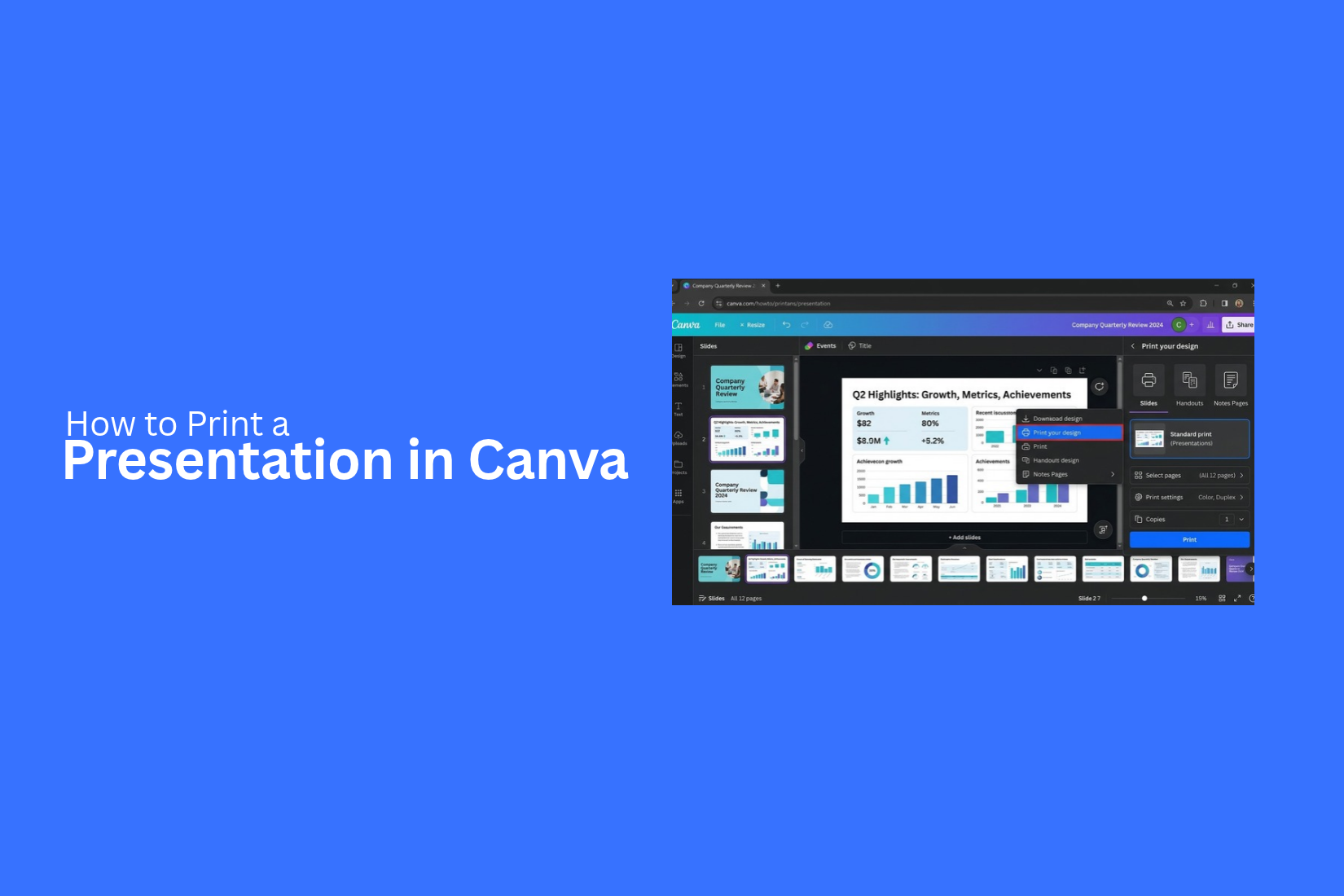
Creating a presentation in Canva is simple, but printing it can take a few extra steps. You may face issues with slide size, page layout, image quality, or print settings. These problems can affect how your slides look on paper.
A few simple adjustments can help you get better print results. This guide explains how to print a presentation in Canva, from opening your design to choosing the right print settings. You will also learn how to print multiple slides on one page, include speaker notes, and customize page options. Plus, we will cover common printing problems and ways to fix them so your printed slides look clear and complete.
What to Know Before Printing a Canva Presentation
A few simple checks can help you get better results from a printed Canva presentation. Before sending your slides to a printer, review the page size, layout, and content. These details can affect how your slides look on paper.
• Check the Page Size: Make sure your presentation size matches the paper you plan to use. A standard 16:9 slide may not fit well on an A4 or Letter page. You may need to adjust the layout to prevent unwanted white space or cropped content.
• Review the Slide Layout: Check the position of text, images, charts, and other elements. Keep all key content within the page edges. Leave enough space around the edges to prevent important details from being cut off.
• Check Text and Image Quality: Make sure all text is easy to read. Use clear images and avoid low-quality graphics. Small text may look fine on a screen but become hard to read on paper.
• Choose the Right File Format: PDF Print is a good choice for high-quality printing. It helps keep the layout and text in place. It also gives you options for print settings, such as crop marks and bleed.
• Review Colors and Backgrounds: Colors may look different on paper than they do on a screen. Check the slide backgrounds and text colors. Use enough contrast to keep the content clear. Also, check whether large background areas may use too much ink.
• Check the Number of Slides: Decide how many slides you want on each printed page. You can print one slide per page or place multiple slides on a single sheet. This choice affects the page count and text size.
These checks can help prevent common printing issues. Once your slides are ready, you can export them from Canva and choose the print settings that match your needs.
How to Print a Presentation in Canva
Printing a presentation in Canva is simple. You can save your slides as a PDF and print them from your computer. Canva also lets you adjust the page size and layout before downloading the file. Follow these steps to prepare your slides for printing.
Open Your Presentation in Canva
Start by opening Canva and signing in to your account. Go to the homepage and find the presentation you want to print. You can use the search bar to find it by name. Click the presentation to open it in the editor. Review your slides to make sure everything is ready. Check the text, images, charts, and other design elements. Make any needed changes before moving to the next step.
Check Slide Size and Page Layout
Slide size plays a key role in how your presentation looks on paper. Check the page size before downloading your file. A standard widescreen presentation uses a 16:9 ratio. A 4:3 layout is another option for older display formats. Also, review the layout of each slide. Keep text and images inside the page edges. Leave enough space around the content to prevent important details from getting cut off during printing.
Download Your Presentation as a PDF
Canva lets you save your presentation in PDF format. This file type keeps your slide layout, text, and images in place.
Follow these steps to download your presentation:
- Click the Share button in the top-right corner of the Canva editor.
- Select Download from the menu.
- Open the File Type dropdown.
- Choose PDF Standard or PDF Print.
- Select the pages you want to download.
- Click Download to save the PDF to your device.
PDF Print is a good choice for high-quality printed slides. PDF Standard works well for basic printing and smaller file sizes.
Choose Print Settings
After downloading the PDF, open it on your computer. Use a PDF reader to access the print options. Press Ctrl + P on Windows or Command + P on Mac to open the print window.
Check the main settings before printing:
• Printer: Select the printer you want to use.
• Page Range: Choose all pages or enter specific slide numbers.
• Paper Size: Select a paper size that matches your needs, such as A4 or Letter.
• Orientation: Choose landscape or portrait based on your slide layout.
• Color: Select color or black and white.
• Page Scaling: Choose a suitable fit option to keep the full slide visible on the page.
You can also check the print preview. This helps you spot layout issues before using paper and ink.
Print Your Presentation
Your presentation is now ready to print. Check that the printer has enough paper and ink. Make sure it is connected to your computer and selected in the print window.
Click Print to start the process. Review the first few pages to check the text, colors, and images. Look for missing content or cut-off edges. A test print can help you catch these issues before printing the full presentation. Once everything looks right, print the remaining slides. You can use the printed pages for meetings, classroom lessons, handouts, or personal reference.
How to Print Multiple Slides on One Page in Canva
Printing multiple slides on one page can help save paper. It also makes it easier to review a full presentation. Canva lets you download your slides as a PDF. You can then use your printer settings to place several slides on one sheet.
Follow these steps:
- Open your presentation in Canva.
- Click the Share button in the top-right corner.
- Select Download from the menu.
- Choose PDF Print as the file type.
- Select all the slides you want to print.
- Click Download to save the PDF.
- Open the PDF on your computer.
- Go to the print menu and look for the Multiple Pages per Sheet option.
- Choose how many slides you want on each page, such as 2, 4, or 6.
- Check the print preview and click Print.
The preview helps you see how the slides will look on paper. Choose a layout that keeps the text and images easy to read.
How to Print Canva Slides With Speaker Notes
Speaker notes help presenters keep track of key points during a talk. They can include extra details, reminders, or short explanations for each slide.
Canva's standard PDF Print download does not include speaker notes as part of the slide pages. You can check the presentation's available export options to see whether a notes layout is offered.
Here is one way to prepare your notes for printing:
- Open your presentation in Canva.
- Review the speaker notes linked to each slide.
- Copy the notes into a separate document.
- Add the related slide number or title above each set of notes.
- Arrange the notes in the same order as your presentation.
- Print the document from your preferred word processor.
You can also print your slides and notes as separate documents. Keep them together so you can match each note with the right slide during your presentation.
How to Customize Canva Presentation Print Settings
Canva handles the design and PDF export. Your computer's print dialog controls many of the final print settings. These options help you prepare your presentation for different paper sizes and printing needs.
Choose Page Orientation
Page orientation controls how content appears on the printed page. There are two common options:
• Portrait: The page is taller than it is wide. This works well for documents and vertical layouts.
• Landscape: The page is wider than it is tall. This suits most widescreen presentations.
A 16:9 presentation usually works best with landscape printing. It gives your slides more room and helps preserve their original shape.
Select Paper Size
Paper size affects how your slides fit on the printed page. Check the paper loaded in your printer before choosing a size.
Common paper sizes include:
• Letter: 8.5 × 11 inches. This is a common choice in the United States.
• A4: 8.27 × 11.69 inches. This size is used in many other countries.
• Legal: 8.5 × 14 inches. This provides extra space for longer layouts.
Choose a paper size that matches your printer. The PDF page size and printer paper size should also work well together.
Adjust Margins and Scaling
Margins control the blank space around the printed content. Scaling changes how large or small the slides appear on the page.
Check these settings before printing:
• Margins: Choose standard or custom margins based on your layout.
• Fit to Page: Shrinks or expands the content to fit the available space.
• Actual Size: Prints the PDF at its set size.
• Custom Scale: Lets you set a specific print size.
Avoid shrinking the slides too much. Small text can become hard to read. Check the preview to make sure no text or images are cut off.
Choose Color or Black-and-White Printing
Your printer may offer color, grayscale, and black-and-white options. The right choice depends on the purpose of your printed slides.
Color printing works well for presentations that use charts, images, and color-coded sections. It helps keep the original design clear.
Black-and-white printing can reduce ink use. It also works well for text-based slides and simple handouts. Check that the text and background have enough contrast before printing.
Set the Number of Copies
The number of copies controls how many sets of your presentation the printer produces.
Find the Copies field in the print dialog. Enter the number of sets you need. You can also turn on the Collate option to print each full set in the correct slide order.
For example, printing three copies of a 10-slide presentation gives you three complete sets. Check the preview and copy count before starting the print job.
Common Canva Presentation Printing Problems and How to Fix Them
Printing a Canva presentation may not always go as planned. Some slides may look blurry, text may get cut off, or design elements may not appear in the printed copy. These problems can affect the final result. Here are some common printing issues and ways to fix them.
Blurry Images and Text
Blurry images and text can make your printed slides hard to read. This often happens when images have low resolution or the PDF is downloaded with poor quality. To fix this issue, use high-quality images in your slides. Avoid stretching small images to fill large areas. Download your presentation as a PDF with the best available print quality. Open the PDF before printing to check how the images and text look.
Slides Getting Cut Off
Some parts of your slides may get cut off during printing. This can happen if text, images, or other design elements sit too close to the page edges. Keep important content away from the edges of each slide. Leave enough empty space around text and images. Also, check the print preview before printing. Make sure the full slide fits within the selected paper size.
Incorrect Page Orientation
The wrong page orientation can change how your slides appear on paper. For example, a landscape slide may print in portrait mode. This can leave large blank areas or cut off parts of the design. Check the page orientation in your printer settings. Select landscape for wide slides and portrait for vertical layouts. Match the orientation to your presentation size before starting the print job.
Missing Fonts or Elements
Sometimes, fonts, images, or design elements may not appear in the printed version. This can happen due to font issues or problems during PDF export. Check your downloaded PDF before printing. Make sure all text, images, shapes, and other elements are visible. Use fonts that display correctly in the PDF. You can also download the file again if some elements are missing.
PDF Download and Printing Issues
A PDF may fail to download or may not print correctly. The file could be incomplete, or your printer may have trouble reading it. Start by downloading the PDF again from Canva. Make sure the download finishes before opening the file. Use a PDF reader to open and print it. Check that your printer is connected and has enough paper and ink. You can also try printing a single page to test the file.
Best Practices for Printing Canva Presentations
A few simple steps can help you get better results from your printed slides. Follow these practices before sending your presentation to the printer.
1. Use high-quality images: Add clear images with good resolution. This helps prevent blurry visuals on paper.
2. Check slide dimensions: Make sure your presentation size matches the paper size you plan to use.
3. Keep content within the slide edges: Leave enough space around text, images, and other design elements. This helps prevent parts of your slides from getting cut off.
4. Choose the right PDF settings: Download your presentation as a PDF with print quality in mind.
5. Review every slide: Open the PDF and check each page. Look for missing text, images, fonts, or other elements.
6. Check printer settings: Select the correct paper size, page orientation, and print layout.
7. Print a test page: Print one slide first. Check its colors, text, and layout before printing the full presentation.
8. Use clean and readable designs: Avoid very small text and crowded layouts. Keep enough space between different elements.
9. Check ink and paper: Make sure your printer has enough ink and paper before starting a large print job.
10. Keep a copy of the PDF: Save the final PDF on your device. You can use it again without downloading the presentation from Canva.
Final Notes
Printing a Canva presentation takes more than clicking the Print button. You need to check the slide size, page layout, image quality, and printer settings before starting. Downloading your slides as a PDF helps keep the design and content in place. You can also print multiple slides on one page to save paper or prepare separate notes for your presentation.
Review the PDF before printing the full set. Check for missing elements, blurry images, small text, and cut-off edges. A test print can help you spot problems early. With the right settings and a few simple checks, you can prepare clear, readable printed slides for meetings, classes, and other uses.
Frequently Asked Questions
1. Can I print a presentation directly from Canva?
Yes. You can download your Canva presentation as a PDF and print it from your computer. Open the PDF, select your printer, and adjust the print settings before starting.
2. What is the best file format for printing a Canva presentation?
PDF Print is a good option for high-quality printing. It helps keep text, images, and slide layouts in place.
3. Can I print multiple slides on one page in Canva?
Yes. Download your presentation as a PDF. Open the file and select the Multiple Pages per Sheet option in your printer settings. You can choose 2, 4, or 6 slides per page.
4. Can I print Canva slides with speaker notes?
Canva's standard PDF Print download does not include speaker notes on the slide pages. You can copy your notes into a separate document and print them alongside your slides.
5. How do I print a Canva presentation in black and white?
Download your presentation as a PDF and open the print dialog. Select the grayscale or black-and-white option under color settings. Check the preview before printing.
6. What paper size should I use for a Canva presentation?
Letter and A4 are common choices. Select a paper size that matches your printer and presentation layout. Landscape orientation usually works well for widescreen slides.
7. Why are my Canva slides blurry after printing?
Blurry slides may result from low-quality images or poor PDF export settings. Use high-resolution images and download your presentation as PDF Print. Review the PDF before printing.
8. How can I prevent Canva slides from getting cut off during printing?
Keep text and images away from the slide edges. Match the PDF page size with your printer paper size. Use the Fit to Page option and check the print preview before printing.




You may also be interested in ...

How To Create An Eye-Catching Portfolio
If you’re looking to create an eye-catching portfolio, this post will come in handy. In this article, you can find the easies...
23 Jun, 2024

How To Easily Create An Infographic
Infographics are the perfect way to make a presentation that will impact an audience, but their design and composition might...
08 Jun, 2024

PowerPoint Template Tips & Tricks You Ne...
PowerPoint seems to be an unknown world for many people, especially those who have been assigned to create a presentation out...
08 Jun, 2024