How to Import SVG Files into Google Slides (Easy Guide)
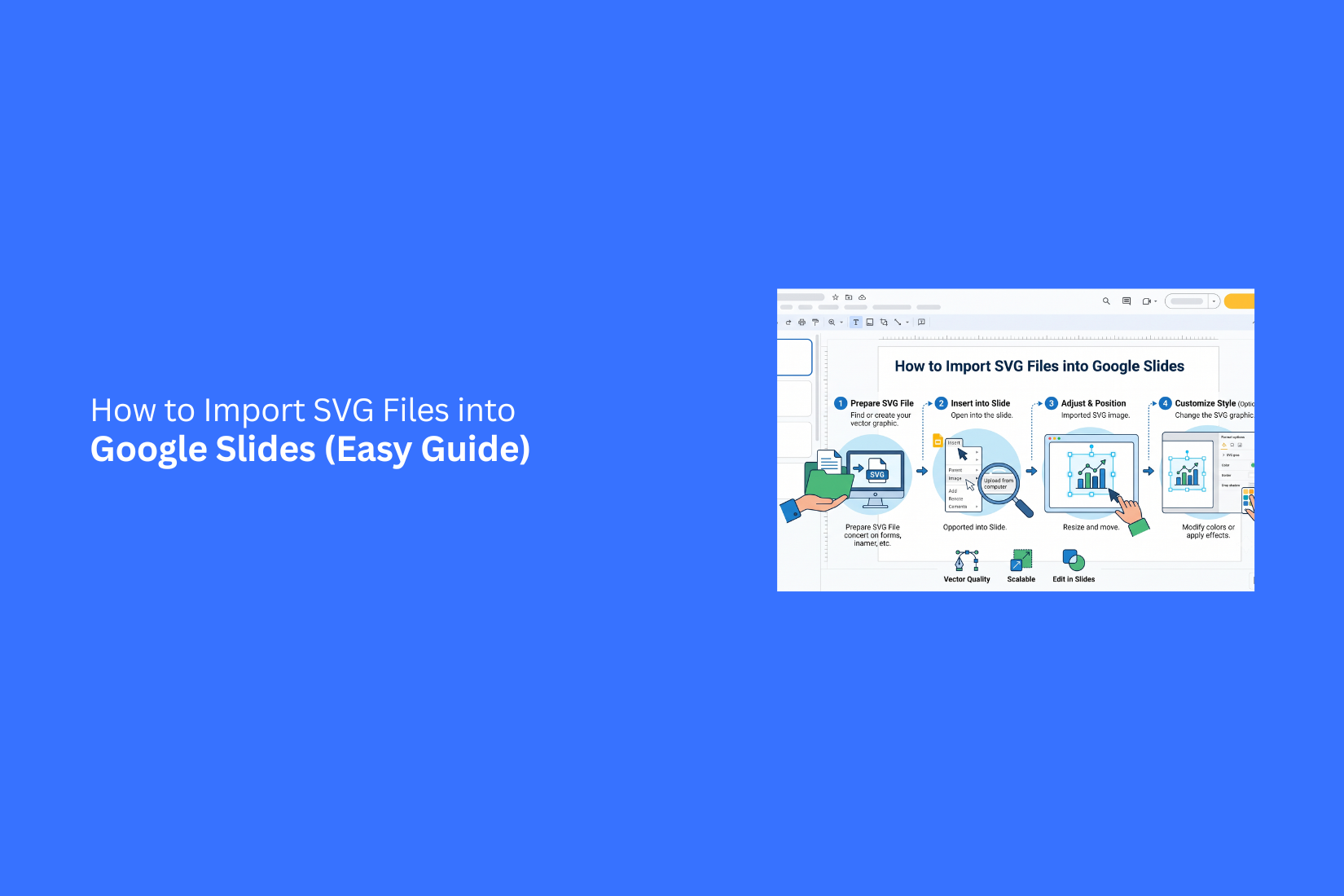
Many users have SVG files but struggle to add them to Google Slides. The process can feel confusing, especially for those who want to use clear graphics in their presentations. A wrong step may lead to upload errors or display issues and slow slide work. This guide shows simple ways to import SVG files into Google Slides. You will learn different methods, ways to adjust SVG images, and fixes for common problems. It also covers file choices and tips to help you use SVG files with more ease. The article explains how SVG files work and answers common questions about editing and compatibility. These steps help you create better slides with flexible visual elements.
What Is an SVG File?
An SVG file is a type of image file used for graphics. SVG stands for Scalable Vector Graphics. It uses lines, shapes, and paths to create images instead of pixels. SVG files work well for presentations because they keep their quality at any size. A graphic can be resized without becoming blurry or losing detail. In Google Slides, SVG files are useful for adding clean graphics to slides. They can be used for icons, logos, illustrations, diagrams, and other visual elements. These files help create clear slide designs while keeping graphics sharp and easy to edit.
Does Google Slides Support SVG Files?
Yes, Google Slides supports SVG files. SVG stands for Scalable Vector Graphics. These files keep their quality even after resizing. This makes them useful for logos, icons, charts, and other visual elements. Google Slides lets you add SVG files to your slides through the image upload option. You can place them into your presentation just like other image formats. The file stays sharp, even after you adjust its size.
SVG files also give you more control over your slide design. They work well for clean graphics that need a clear look. Many designers use SVG images because they can resize them without losing detail. There are a few limits to know. Google Slides may not allow direct editing of every SVG feature. Some advanced SVG effects may not appear the same after adding the file. For basic graphics, SVG files work well and help create neat presentations.
Why Use SVG Files in Google Slides?
SVG files are a great choice for Google Slides because they keep their quality at any size. You can resize an SVG image without making it blurry or pixelated. This makes them useful for logos, icons, diagrams, and custom graphics. SVG files also give you more control over your slide design. You can adjust the size, position, and look of the graphic to match your presentation style. They help keep slides clean because they often have sharp lines and clear details.
Another benefit is that SVG files usually have a small file size compared to some other image formats. This helps your presentation load smoothly and keeps your slides organized. Using SVG files can make your Google Slides presentations look more polished. They are a helpful option for creating slides with clear graphics and a consistent design.
How to Import SVG Files into Google Slides
SVG files are useful for adding clear graphics to your slides. They keep their quality even after resizing. Google Slides lets you add SVG files in a few simple ways. You can upload them from your device, use the image menu, or add them from Google Drive.
Method 1: Drag and Drop an SVG File
The drag-and-drop method is one of the easiest ways to add an SVG file to Google Slides. Open your Google Slides presentation first. Then, find the SVG file on your computer. Click the file and hold the mouse button. Drag it into your slide area and release it. Google Slides will place the SVG image on the slide. You can move it, resize it, or adjust its position to fit your design. This method works well for users who already have the SVG file saved on their computer. It saves time because you do not need to open extra menus.
Method 2: Insert an SVG Using the Image Menu
Google Slides also has an image menu that lets you upload SVG files. Open the slide where you want to add the graphic. Click Insert in the top menu. Select Image, then choose Upload from computer. Find your SVG file and select it. The SVG file will appear on your slide. You can edit its size and placement after adding it. This method gives you more control over the upload process. It is helpful for keeping your slide elements organized.
Method 3: Import an SVG from Google Drive
You can also add an SVG file stored in Google Drive. Open your presentation and select the slide you want to edit. Click Insert, choose Image, and select Drive. Find your SVG file in Google Drive and click to add it. This option works well for teams that store design files online. It also makes it easier to access SVG files from different devices. After importing the file, adjust the size and position to match your slide layout.
How to Resize and Position SVG Images
After adding an SVG file to Google Slides, you can adjust its size and placement to match your slide design. SVG images stay clear even after resizing, so you can make them larger or smaller without losing quality. To resize an SVG image, click the image on your slide. Small handles will appear around the edges. Drag a corner handle inward to make the image smaller or outward to make it larger. Using the corner handles helps keep the image shape correct. You can also enter exact size values for better control. Right-click the SVG image and select “Format options.” Open the “Size & Rotation” section to adjust the height and width. This helps create a consistent look across multiple slides.
Positioning an SVG image is simple. Click and drag the image to move it to a new location. Google Slides also shows guide lines to help you place the image in the center or align it with other elements. For a cleaner layout, use the alignment tools in Google Slides. Select the image, click “Arrange,” and choose an alignment option. You can place the SVG on the left, right, center, top, or middle of the slide. A well-sized and properly placed SVG image can make your slide look neat and balanced. Small adjustments can help the image fit better with your text and other design elements.
Can You Edit SVG Files in Google Slides?
Google Slides lets you add SVG files to your presentations, but the editing options are limited. You can change the size, position, and color of some SVG images. These options help you adjust the look of an SVG file without changing its original design. Google Slides does not work like a full SVG editing tool. You cannot edit each shape, line, or path inside an SVG file after adding it. The file stays as a single image element on the slide. For more detailed changes, edit the SVG file in a design tool before adding it to Google Slides. After making the changes, upload the updated SVG file to your presentation. Using SVG files in Google Slides works well for icons, logos, diagrams, and simple graphics. The format keeps images clear even after resizing, which helps maintain a clean slide design.
Common SVG Import Problems and How to Fix Them
SVG files usually work well in Google Slides, but some issues may appear during the upload process. These problems can affect how the file looks or prevent it from working correctly. Here are common SVG import problems and simple ways to fix them.
SVG File Won't Upload
An SVG file may fail to upload because of file errors or unsupported formats. Start by checking that the file ends with the “.svg” extension. A damaged file can also stop the upload. Try opening the SVG in another design tool and save it again. A fresh export can fix many upload issues. Large SVG files may also create problems. Reduce the file size by removing extra elements or unused details before adding it to Google Slides.
Missing Fonts
Some SVG files use fonts that are not available on your device. This can change the text style or remove text from the design. To fix this issue, convert text into shapes before exporting the SVG. This keeps the design style the same even if the font is missing. Another option is to use common fonts that are easy to access across different devices.
Broken Graphics
Broken graphics can happen if the SVG has complex layers, effects, or unsupported elements. Parts of the design may look missing or misplaced. Open the SVG in a design app and check each layer. Remove extra effects and export the file again. A simpler SVG structure often works better in Google Slides. Keep only the elements needed for the final design.
Colors Look Different
SVG colors may change after importing into Google Slides. This can happen because different programs read color settings in different ways. Check the SVG color mode before exporting the file. Using standard color settings can help keep colors closer to the original design. You can also edit the colors after adding the SVG to your slide. This helps match the design with your presentation style.
Tips for Using SVG Files in Google Slides
SVG files can help create clean and sharp visuals in Google Slides. A few simple steps can help you get better results while adding and editing these files.
Choose the Right SVG File
Pick an SVG file that matches your slide topic and design style. A simple graphic often works better than a file with too many details. Clear shapes and balanced designs help keep your slides easy to read.
Check the File Size
Large SVG files may slow down your presentation. Use files that have the right level of detail for your slides. This helps your presentation open and run smoothly.
Keep Your Slide Design Consistent
Use SVG graphics that match your colors, fonts, and overall layout. A consistent design makes your slides look more organized. Avoid adding too many different graphic styles on one slide.
Edit SVG Elements Carefully
SVG files can offer editing options inside Google Slides. Adjust the size and position to fit your layout. Keep the original shape and quality of the graphic while making changes.
Use SVG Files for the Right Purpose
SVG files work well for icons, logos, charts, and simple illustrations. They are a good choice for visuals that need clear lines and shapes. Choose other image formats for photos or detailed images.
Preview Your Slides Before Sharing
Review each slide after adding SVG files. Check the placement, size, and overall look. A quick review helps you find small design issues before presenting.
SVG vs PNG: Which Format Should You Use?
SVG and PNG are two common image formats used in Google Slides. Both can add visuals to your presentation, but they work in different ways. SVG files are best for graphics that need to stay sharp at any size. They are made with lines, shapes, and paths instead of fixed pixels. This means logos, icons, charts, and simple illustrations keep their quality even after resizing. PNG files use pixels to create images. They work well for photos, screenshots, and detailed graphics. However, resizing a PNG too much can make the image look blurry. SVG files also give you more editing options in Google Slides. You can change their size without losing quality. Some SVG graphics can also be edited after converting them into shapes. PNG files are easier to use for most images. They are a good choice for photos or visuals that do not need size changes.
Choose SVG if you need:
• Clear graphics at different sizes
• Editable design elements
• Logos, icons, or diagrams
Choose PNG if you need:
• Photos or screenshots
• Simple image placement
• A format that works with most tools
The right choice depends on your slide content. SVG is a strong option for clean designs, while PNG works better for detailed images.
Best Websites to Download Free SVG Files
Finding the right SVG file can make your Google Slides presentation more creative and visually clear. Many websites offer free SVG graphics for different needs, such as icons, illustrations, shapes, and design elements. A good SVG file should have clean details and a high-quality design. It should also keep its quality after resizing. This makes SVG files a useful choice for Google Slides because you can adjust their size without making them blurry.
Here are some websites where you can download free SVG files:
Artbubbles
Artbubbles offers a collection of free SVG files, illustrations, and design resources for different creative projects. The platform includes graphics that can be used for presentations, crafts, and other design needs. You can find ready-to-use SVG files that are easy to add to Google Slides. These files help you create more engaging slides without designing every element from scratch. Before using any SVG file, check the usage rules to make sure it fits your project needs.
Freepik
Freepik provides a wide range of SVG graphics, icons, and illustrations. You can search for designs based on topics, styles, or categories. Many files are available in editable formats, which makes them useful for Google Slides projects. Review the license details before using any resource for business or commercial purposes.
SVG Repo
SVG Repo is a popular source for free SVG icons. It includes thousands of icons covering topics like business, education, technology, and more. The simple designs work well for presentations. You can download the SVG files and add them to Google Slides without losing image quality.
Flaticon
Flaticon offers many SVG icons in different styles. It is useful for finding small visual elements that improve slide design. You can find icons for topics like charts, devices, people, tools, and business concepts. Check the license requirements before using the files.
Openclipart
Openclipart provides free vector graphics from a community of creators. The collection includes simple illustrations, symbols, and decorative designs. These SVG files can help you add visual elements to Google Slides without creating graphics manually.
Vecteezy
Vecteezy offers free SVG files, icons, and vector designs. The website includes different styles for various presentation needs. Some files may have specific usage rules, so review the license information before adding them to your slides. Choosing the right SVG source helps you find quality graphics for your presentations. Always check the file format and usage rights before downloading. A well-designed SVG file keeps its quality and gives you more flexibility while creating Google Slides presentations.
Final Notes
SVG files are a useful option for creating clear graphics in Google Slides. They keep images sharp, allow easy resizing, and work well for icons, logos, diagrams, and simple illustrations. Adding SVG files is simple with methods like drag and drop, image upload, and Google Drive. Small adjustments to size, position, and layout can make your slides look more organized. Some SVG files may have upload or display issues. Checking file size, fonts, colors, and design elements can help prevent common problems. Choosing the right image format also matters. SVG works best for clean graphics, while PNG is a better choice for photos and detailed images. With the right file and proper use, SVG images can support clear and professional Google Slides presentations.
FAQs
Can I add SVG files to Google Slides?
Yes, you can add SVG files to Google Slides. You can upload them from your computer, add them from Google Drive, or drag and drop them into your slide.
Do SVG files keep their quality in Google Slides?
Yes, SVG files keep their quality after resizing. They use vector shapes instead of pixels, which helps keep graphics clear at different sizes.
Can I edit an SVG file in Google Slides?
Google Slides allows basic changes like resizing, moving, and adjusting some colors. It does not provide full editing options for individual SVG shapes or paths.
Why is my SVG file not uploading to Google Slides?
An SVG file may not upload because of file errors, large size, or unsupported elements. Check the file extension, reduce extra details, and export the file again if needed.
Can I change the color of an SVG file in Google Slides?
Some SVG files allow color changes in Google Slides. The available options depend on how the SVG file was created.
Is SVG better than PNG for Google Slides?
SVG is better for logos, icons, charts, and simple graphics because it stays clear after resizing. PNG works better for photos and detailed images.
Where can I find free SVG files for Google Slides?
You can find free SVG files on websites that offer icons, illustrations, and vector graphics. Always check the usage rules before adding them to your presentations.
Why do SVG colors change after importing into Google Slides?
SVG colors may change because different tools read color settings differently. Check the color settings before exporting the file and adjust the colors after adding the SVG if needed.





You may also be interested in ...

Tips To Create A Great Infographic
Infographics Have been around for a while, but not many people know about them or are their preferred presentation choice. If...
08 Jun, 2024

3 Steps To Create The Best Presentation...
Presentations are something wonderful when well done, you can captivate an audience or be super interested in what another pe...
23 Jun, 2024

3 Tips For Your Next Presentation You MU...
PowerPoint presentations are perfect for explaining a topic and communicating your ideas with a visual aid. But most people s...
08 Jun, 2024