How to Export Canva Slides as a PDF
Creating a presentation in Canva is easy, but saving it as a PDF can raise a few questions. You may not know which download option to choose or how to keep your slides in the right format. Small export errors can also affect fonts, images, page size, and slide quality.
A PDF makes your presentation easier to share, print, and view on different devices. However, the wrong settings may lead to blurry images, missing design elements, or a large file.
This guide explains how to export Canva slides as a PDF. You'll learn how to choose the right PDF format, export selected slides, add speaker notes, reduce file size, and fix common export problems.
Why Export Canva Slides as a PDF?
Exporting Canva slides as a PDF makes your presentation easier to share, view, and print. A PDF file keeps your slides in a fixed layout. This helps preserve the text, images, colors, and other design elements.
There are several reasons to save your Canva presentation as a PDF:
• • Easy sharing: PDF files are simple to send through email, messaging apps, or cloud storage. Others can open them on most devices.
Consistent layout: Your slides keep their original size, fonts, images, and spacing. This helps prevent unwanted design changes.
• Simple printing: A PDF is a good choice for printing slides. You can select page size, orientation, and print settings before saving.
• Smaller file size: PDF files can be easier to store and share than some presentation files. The size depends on the images and other content.
• Easy viewing: People can read your slides without opening Canva. Most computers, phones, and tablets support PDF files.
A PDF is also useful for sharing a final copy of your presentation. It lets others view your work without making direct changes to the original Canva design.
What to Check Before Exporting Canva Slides
A quick review can help you avoid errors in your PDF file. Check each slide before exporting. Pay close attention to the layout, text, images, and page settings. These small checks can help your slides look clear and professional.
Review Slide Layout and Design
Start by reviewing the layout of each slide. Check the position of text, images, shapes, and other elements. Make sure everything is aligned and easy to read.
Look for any objects that extend beyond the slide edges. Check for uneven spacing and overlapping elements. Keep the design consistent across all slides. Use the same font styles, colors, and heading sizes throughout the presentation.
Also, review the slide order. Make sure every slide appears in the right place. Remove any blank or unwanted slides before exporting.
Check Fonts, Images, and Graphics
Fonts and images affect how your slides look in a PDF. Review all text to catch spelling errors and missing content. Make sure the font size is large enough to read. Use clear font styles across the presentation.
Next, check the images and graphics. Look for blurry images, missing elements, or low-quality graphics. Make sure each image fits its space. Check that charts, icons, and other visual elements appear as expected.
Pay attention to text boxes as well. Long text may get cut off or extend beyond its box. Adjust the size or position to keep all content visible.
Verify Slide Size and Page Orientation
Check the slide size before exporting your presentation. Canva offers different design sizes. A standard 16:9 layout works well for most widescreen presentations. A 4:3 layout may suit older display formats.
Also, check the page orientation. Most presentation slides use landscape orientation. Make sure the PDF keeps the same layout as your original design.
The right size and orientation help prevent unwanted white space, cropped content, and layout changes in the exported file. Once these details look right, you can move on to the PDF export process.
How to Export Canva Slides as a PDF
Canva lets you save your presentation as a PDF in a few simple steps. You can export the full slide deck or select specific pages. It also offers two PDF formats: PDF Standard and PDF Print. Follow these steps to save your Canva presentation as a PDF.
Open Your Canva Presentation
Start by opening Canva and signing in to your account. Go to the Projects section or use the search bar to find your presentation. Click the design to open it in the editor.
Check that all slides are ready for export. Review the text, images, fonts, and slide layouts. Make any final changes before moving to the download settings.
Select the Share and Download Options
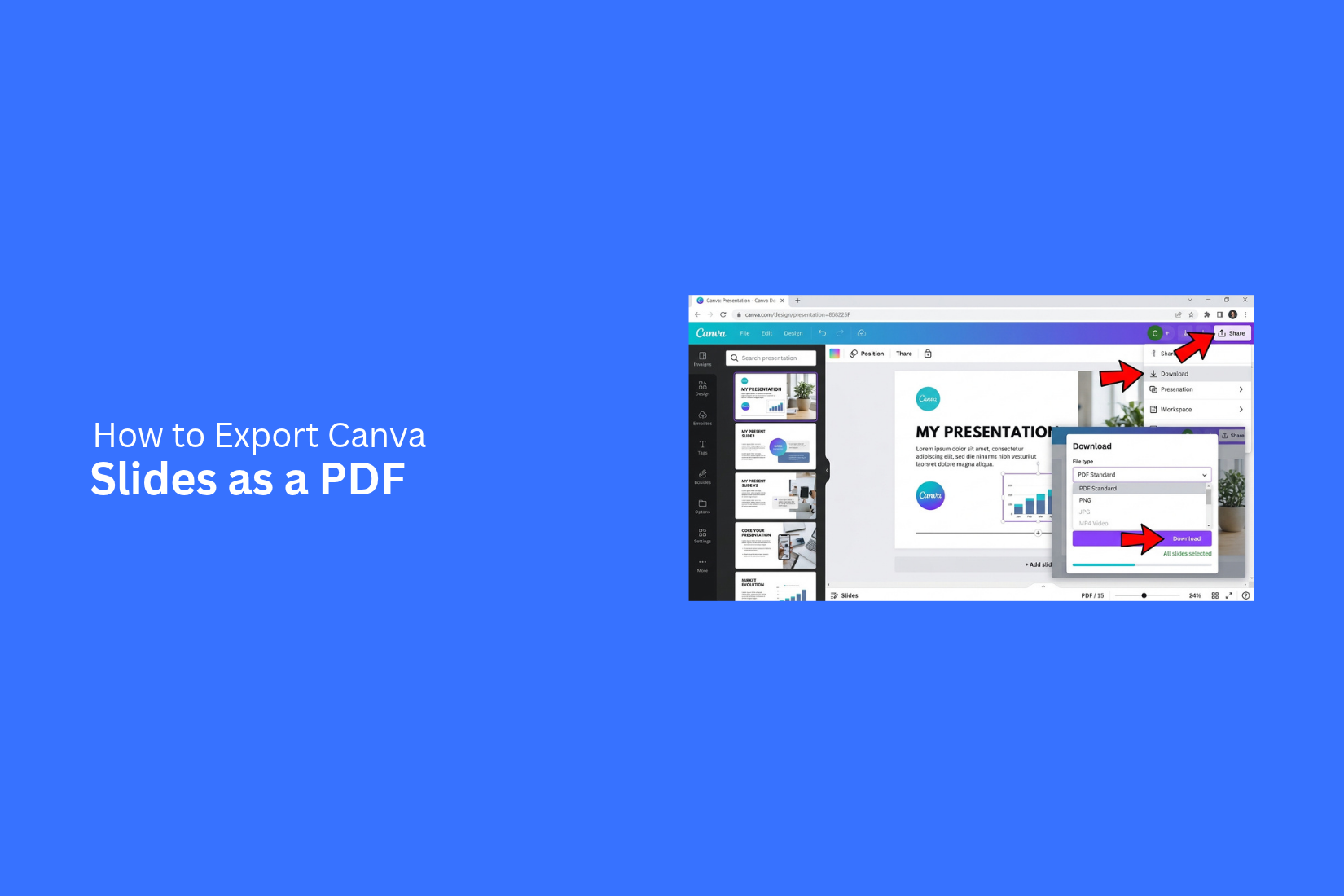
Once your presentation is open, look at the top-right corner of the editor. Click the Share button to open the sharing menu.
Find and select Download from the available options. Canva will open a panel with different file formats and export settings. You can use this panel to choose how your presentation will be saved.
Choose PDF Standard or PDF Print
Canva offers two PDF formats for presentations. The right choice depends on how you plan to use the file.
- PDF Standard: Choose this option for digital use. It creates a smaller file that is easier to share through email, messaging apps, or online platforms.
- PDF Print: Choose this option for printing. It is designed for better print quality and works well for physical copies.
Select the format that matches your needs. PDF Standard is a good choice for sharing slides online. PDF Print works better for printed presentations.
Select the Pages You Want to Export
You do not have to export every slide in your presentation. Canva lets you choose specific pages for your PDF file.
Open the Select pages option in the download panel. You can select all pages or choose only the slides you need. This helps you create a shorter PDF without changing the original presentation. Check your page selection before moving to the next step. Make sure no required slide is missing.
Adjust Additional Download Settings
Canva may show extra settings based on the selected PDF format. These options help you control the final file.
Review the available settings before downloading. You may see options such as:
• Crop marks and bleed: Useful for print designs that need trimming after printing.
• Flatten PDF: Combines design elements into a single layer. This can help keep the layout consistent across different devices.
• Include notes: Adds presentation notes to the exported file if this option is available.
• Color profile: Lets you select a color setting for print output.
The available options may vary based on your design and selected format. Choose the settings that match your needs.
Download Your PDF File
After reviewing the format, page selection, and extra settings, click the Download button.
Canva will process your presentation and save the PDF file to your device. The download may take a few moments, depending on the file size and number of slides.
Open the downloaded PDF to check the results. Review each page to make sure the text, images, and layouts look right. Your Canva presentation is now saved as a PDF and ready to share or print.
How to Export Selected Canva Slides as a PDF
You may not need every slide in your Canva presentation. Perhaps you only want to share a few key slides with a client, teacher, or team member. Canva lets you select specific pages before downloading your presentation as a PDF.
Follow these steps to export selected slides:
- Open your presentation in Canva.
- Click the Share button in the top-right corner.
- Select Download from the menu.
- Choose PDF Standard or PDF Print as the file type.
- Find the Select pages option in the download settings.
- Choose the slides you want to include in your PDF. You can select individual pages or enter their page numbers.
- Review your selection to make sure the correct slides are included.
- Click Download to save the PDF to your device.
Your downloaded PDF will contain only the slides you selected. The original Canva presentation will stay unchanged. You can repeat these steps to create different PDF files from the same presentation.
How to Export Canva Slides as a PDF with Multiple Slides per Page
A PDF with multiple slides on each page can save paper and make your presentation easier to review. This layout is also useful for handouts and printed notes.
Canva does not offer a direct option to place several presentation slides on one PDF page during export. You can use a simple workaround to get the same result.
- Open your presentation in Canva.
- Download the slides as a PDF using the PDF Standard or PDF Print option.
- Open the downloaded PDF in a PDF reader that supports multiple pages per sheet.
- Select the Print option.
- Find the page layout or pages per sheet setting.
- Choose how many slides you want on each page. For example, select 2, 4, or 6 slides per page.
- Check the print preview to review the layout.
- Select Microsoft Print to PDF or another PDF printer.
- Click Print and save the new PDF file.
Your new PDF will display multiple presentation slides on each page. Review the text size and slide layout before sharing or printing the file.
How to Export Canva Slides with Speaker Notes
Speaker notes help you keep track of key points during a presentation. They can include extra details, reminders, or talking points that do not appear on your slides. You can also include these notes in your exported PDF.
Follow these steps to export Canva slides with speaker notes:
- Open your presentation in Canva.
- Click the Share button in the top-right corner.
- Select Download from the menu.
- Choose PDF Standard or PDF Print as the file type.
- Look for the Include notes option in the download settings.
- Turn on the option to add your speaker notes.
- Review your other export settings.
- Click Download to save the PDF to your device.
Your PDF will include the slide content and speaker notes. Open the file to check that everything appears as expected.
Note: Speaker notes may appear on separate pages from your slides. Check the PDF layout before sharing it with others.
How to Make Your Canva PDF Smaller
Large PDF files can take up more storage space and may be harder to share through email or messaging apps. Canva offers a few ways to reduce the size of your PDF export. You can adjust these settings before downloading your slides.
1. Choose PDF Standard Instead of PDF Print
Canva offers two common PDF export options: PDF Standard and PDF Print.
• PDF Standard: Creates smaller files. It works well for sharing slides online, sending emails, and viewing on screens.
• PDF Print: Creates higher-quality files for printing. These files are often larger.
Choose PDF Standard for a smaller file that you plan to share online.
2. Compress Images Before Uploading
Large images can increase your PDF file size. Resize or compress images before adding them to your Canva slides. This can help reduce the final file size without changing the overall layout.
3. Remove Unused Elements
Check your slides for extra images, graphics, and other elements. Remove anything that does not add value to the presentation. Fewer large elements can help keep the exported file smaller.
4. Limit High-Resolution Images
High-resolution images use more storage space. Use image sizes that match your slide dimensions. This helps keep the PDF file size under control while keeping your slides clear.
5. Compress the PDF After Exporting
Canva does not always provide a direct file compression setting for every PDF export. You can use a PDF compression tool after downloading the file.
Upload your PDF to a trusted compression tool. Select a suitable compression level. Then download the smaller file and review its quality.
6. Check the Final PDF
Open the compressed PDF and review each page. Make sure the text is readable and the images look clear. Check that no slide content is missing or cut off.
A smaller PDF is easier to share and store. However, avoid too much compression. Your slides should remain clear and easy to read.
Common Problems When Exporting Canva Slides as a PDF
Exporting Canva slides as a PDF is usually simple. However, a few issues can affect the final file. Some design elements may go missing. Images may look blurry, or the PDF may have the wrong page size. Knowing how to fix these problems can help you create a clean file.
Missing Fonts or Design Elements
Missing fonts can change the look of your slides. Some text may appear in a different style. Other design elements, such as icons, shapes, or images, may not appear as expected.
To avoid this issue, check the fonts and design elements before exporting. Make sure all text is visible. Review each slide to spot missing items. You can also use fonts available in Canva to reduce font display issues.
Blurry Images and Graphics
Blurry images can make your PDF look unprofessional. This often happens when you use low-quality images or export the file with settings that reduce image quality.
Use high-resolution images in your slides. Avoid stretching small images to fill large spaces. Canva also offers different PDF export options. Choose a suitable option based on how you plan to use the file. For print, select PDF Print. For digital sharing, PDF Standard is often a suitable choice.
Incorrect Page Size or Orientation
The wrong page size can affect how your slides appear in the PDF. Some content may look stretched or cut off. The page orientation may also differ from your intended layout.
Check the design size before exporting. Make sure it matches your presentation needs. Review the slide layout and confirm that all text, images, and shapes fit within the page. This helps prevent unwanted changes in the exported file.
Large PDF File Size
A PDF with large images and graphics can take up a lot of storage space. It may also take longer to upload, download, or share.
You can reduce the file size by using smaller image files. Remove images or design elements that are not needed. You can also select PDF Standard instead of PDF Print for digital sharing. This can help create a smaller file without making major changes to the slide design.
Missing or Incorrect Slides
Sometimes, the exported PDF may not include all the slides. You may also find slides in the wrong order. This can happen if you select the wrong page range during export.
Before downloading, check the page selection settings. Select all pages if you want to export the full presentation. Review the slide order in the editor. After downloading, open the PDF and check that every slide appears in the correct order.
Best Practices for Exporting Canva Slides as a PDF
A few simple steps can help you get better results from your Canva PDF export. Start by reviewing the full presentation. Check the text, images, fonts, and page layout. Make sure every slide looks the way you want.
Use high-quality images and graphics to keep the slides clear. Keep the text easy to read. Avoid placing key content too close to the page edges. This helps prevent text and images from being cut off.
Choose the right PDF format for your needs. PDF Standard works well for online sharing. PDF Print is a better choice for printed presentations. Also, check the page size and orientation before downloading.
After exporting, open the PDF and review every page. Look for missing fonts, blurry images, layout changes, or missing slides. Fix any issues in Canva and export the file again. A final check helps ensure your PDF is ready to share or print.
Final Notes
Exporting Canva slides as a PDF is a simple way to share and print your presentation. Canva gives you two main options: PDF Standard for digital sharing and PDF Print for physical copies. You can also select specific slides, include speaker notes, and use other settings to manage your file.
Before sharing your PDF, review each page. Check the text, images, fonts, slide order, and page size. Make sure nothing is missing or cut off. A quick review can help you create a clear PDF that is ready to share, view, or print.
Frequently Asked Questions
1. Can I export Canva slides as a PDF for free?
Yes. Canva lets free users export presentations as PDF files. Open your presentation, click Share, select Download, and choose PDF Standard or PDF Print.
2. What is the difference between PDF Standard and PDF Print in Canva?
PDF Standard creates smaller files for online sharing and screen viewing. PDF Print is designed for physical printing and offers better print quality.
3. Can I export only selected slides from Canva?
Yes. Open the Download settings and select the pages you want to export. You can choose individual slides or enter specific page numbers.
4. How do I export Canva slides with speaker notes?
Open the Download panel and choose a PDF format. Look for the Include notes option and turn it on. Then click Download to save your file.
5. Can I export Canva slides with multiple slides on one PDF page?
Yes. Download your presentation as a PDF first. Open it in a PDF reader, select Print, and choose the Pages per Sheet setting. You can then save the result as a new PDF.
6. Why are my Canva PDF images blurry?
Blurry images may result from low-quality source images or reduced export quality. Use high-resolution images and select PDF Print for better print results.
7. How can I reduce the size of a Canva PDF?
Choose PDF Standard for a smaller export. You can also compress images before uploading them to Canva. Another option is to use a PDF compression tool after downloading the file.
8. Can I edit a Canva presentation after exporting it as a PDF?
The original Canva presentation remains editable. However, the exported PDF does not offer the same editing features as the Canva design. Open your original project in Canva to make changes.
9. How do I save a Canva PDF to my computer?
Open your presentation, click Share, and select Download. Choose PDF Standard or PDF Print, adjust the settings, and click Download. The file will be saved to your device.
10. Can I share a Canva PDF without giving access to my Canva design?
Yes. Download your presentation as a PDF and share the file. Others can view the PDF without needing access to your original Canva design.



You may also be interested in ...

How To Create An Eye-Catching Portfolio
If you’re looking to create an eye-catching portfolio, this post will come in handy. In this article, you can find the easies...
23 Jun, 2024

How To Easily Create An Infographic
Infographics are the perfect way to make a presentation that will impact an audience, but their design and composition might...
08 Jun, 2024

PowerPoint Template Tips & Tricks You Ne...
PowerPoint seems to be an unknown world for many people, especially those who have been assigned to create a presentation out...
08 Jun, 2024