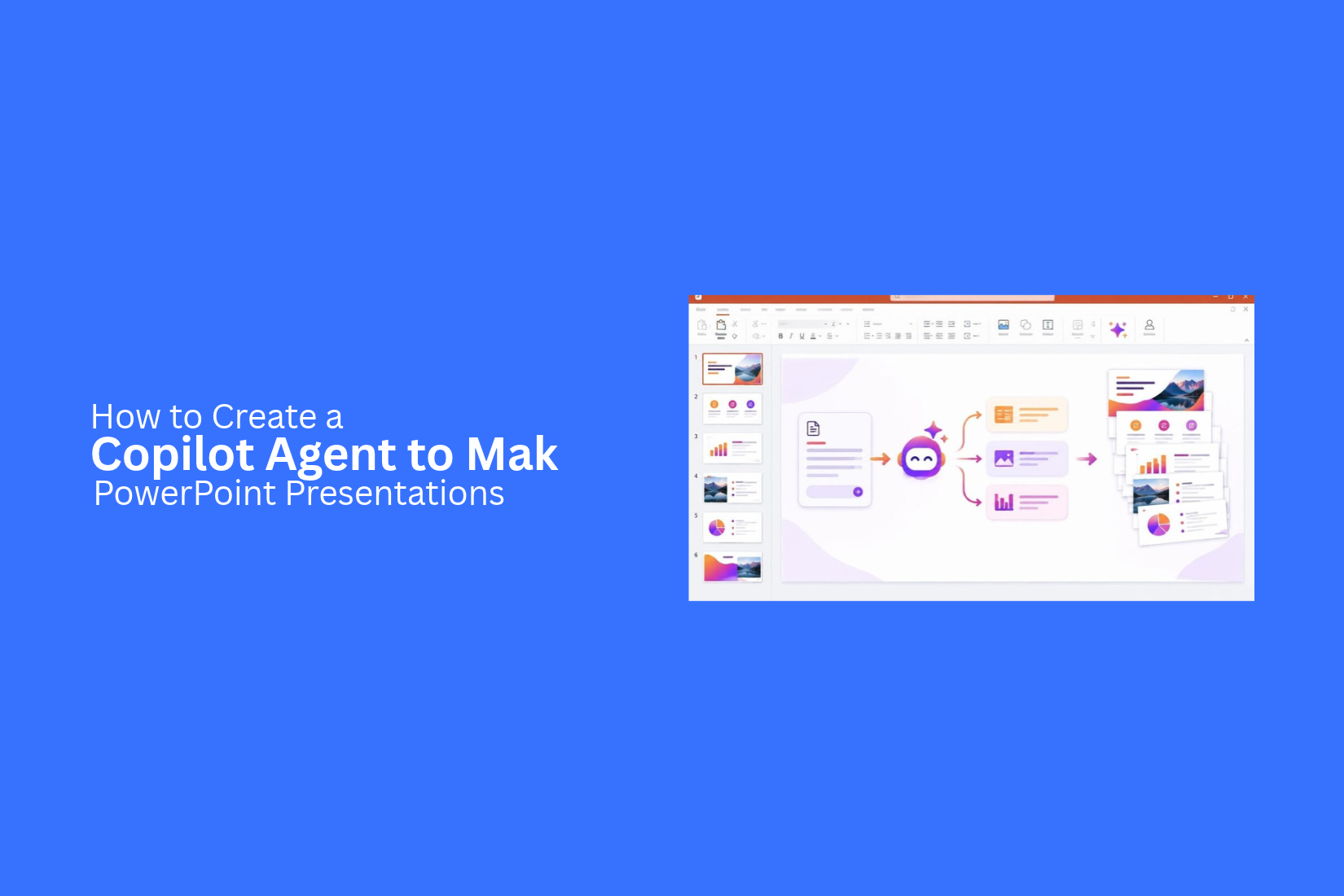
How to Create a Copilot Agent to Make PowerPoint Presentations
Creating a PowerPoint presentation takes more than adding text to slides. You need to plan the message, organize ideas, write clear slide content, and choose useful visuals. Repeating these tasks for each new presentation can take a lot of time.
That time can add up, especially for people who create presentations often. It can also make it harder to keep slide structure, content, and design consistent across projects.
A Copilot agent can support parts of this process. This guide explains what you need, how to create and set up an agent in Microsoft Copilot Studio, and how to use it for presentation tasks. You will also learn to customize the agent, connect it with PowerPoint, fix common issues, and get better results.
What Is a Copilot Agent for PowerPoint Presentations?
A Copilot agent is an AI assistant that can help with specific tasks in PowerPoint. It can follow instructions, use the information you provide, and help prepare presentation content. You can set up an agent for tasks like creating slide outlines, writing slide text, organizing key points, or suggesting visuals.
Unlike a regular Copilot chat, an agent can be set up for a specific purpose. For example, you can create an agent that helps build business presentations. It can follow your preferred slide structure, tone, and content rules. This gives you a more focused way to work on presentations. You can spend less time preparing content and more time reviewing your slides.
What You Need to Create a Copilot Agent
Creating a Copilot agent for PowerPoint presentations requires a few basic things. You need access to Microsoft Copilot and a clear idea of what you want the agent to do. For example, your agent can help create slide outlines, organize key points, or prepare content for each slide.
Start with a clear goal for your agent. Decide what type of presentations it will create and who will use them. You should also prepare any files or reference materials that can help the agent understand your needs. A clear set of instructions will help your Copilot agent produce content that matches your presentation goals.
How to Create a Copilot Agent to Make PowerPoint Presentations
Microsoft Copilot Studio lets you build a custom AI agent for specific tasks. You can set its role, add instructions, connect reference files, and choose the actions it can perform. You can create an agent that helps plan presentations, write slide content, suggest titles, and organize key points. You can also connect tools to support tasks such as creating and saving presentation files. Follow these steps to set up your own Copilot agent for PowerPoint presentations.
Step 1: Open Microsoft Copilot Studio
Start by opening Microsoft Copilot Studio in your web browser. Sign in with your Microsoft work or school account. You need access to Copilot Studio to create and manage agents. Your available features may depend on your Microsoft license and organization settings. After signing in, you will see the Copilot Studio workspace. This is where you can create agents, manage existing ones, and set up their features.
Step 2: Start Creating a New Agent
Open the agent creation area and select the option to create a new agent. Microsoft may show different creation options based on your workspace. You can start with a blank agent or use the AI-assisted setup option. The blank option gives you more control over each setting. The AI-assisted option can help you set up the agent with a short description of its purpose. For a PowerPoint presentation agent, either option can work. A blank agent is a good choice if you want to set each instruction and feature yourself.
Step 3: Add the Agent Name and Description
Give your agent a clear name. The name should explain what the agent does. For example, you can use PowerPoint Presentation Assistant. Next, write a short description of its main purpose. This helps define the tasks the agent should handle.
Here is an example:
Agent Description:
"This agent helps users create PowerPoint presentations. It can plan slide structures, write slide content, suggest titles, create speaker notes, and organize information into clear sections."
Keep the description focused on the main tasks. You can add more detailed rules in the instruction section.
Step 4: Write Instructions for Presentation Creation
Instructions define how your agent should respond and complete tasks. This is one of the most important parts of the setup. Tell the agent what type of work it should do, how it should organize information, and what kind of output you expect.
For example, you can use these instructions:
Agent Instructions:
"You are a PowerPoint presentation assistant. Your main task is to help users create clear and well-organized presentations.
Follow these rules:
- Ask about the presentation topic and its purpose.
- Identify the target audience.
- Create a suitable slide outline.
- Write short and clear content for each slide.
- Use relevant headings and subheadings.
- Suggest charts, images, and diagrams where needed.
- Add speaker notes for each slide if requested.
- Keep the content relevant to the presentation topic.
- Use a consistent tone and writing style.
- Review the slide content before sharing the final result."
You can change these instructions based on your needs. For example, you can set separate rules for business reports, sales presentations, educational slides, or project proposals.
Step 5: Add Knowledge Sources and Reference Files
Knowledge sources give your agent information to use while answering questions. They can help it create content based on your existing documents and materials. Open the knowledge section in Copilot Studio. Add the available sources that contain useful information for your presentation tasks.
You can use reference materials such as:
• Word documents with company information.
• PDF files with research or reports.
• Product descriptions and service details.
• Brand guidelines and writing rules.
• Existing presentation content.
For example, upload a company profile if you want the agent to create business presentations based on your company information. Check that the files contain accurate and useful details. Also, make sure the agent has permission to access the selected sources.
Step 6: Configure Agent Topics and Actions
Topics and actions help your agent handle different tasks. They also let you control how it responds to user requests. Start by setting up topics for common presentation tasks. You can create topics such as:
• Create a new presentation outline.
• Write content for PowerPoint slides.
• Create speaker notes.
• Suggest presentation titles.
• Summarize a long document.
• Recommend charts and visual elements.
Next, configure the actions your agent needs. These actions can connect it to other tools and services.
For example, you can use Power Automate to build a workflow that takes approved slide content and creates a PowerPoint file. The exact setup depends on the actions, connectors, and permissions available in your environment. Keep each topic focused on one task. This makes it easier to test the agent and improve its responses.
Step 7: Test and Publish Your Copilot Agent
Your agent is almost ready. Before publishing it, test its responses with different presentation requests.
Open the test panel in Copilot Studio. Enter a few sample prompts, such as:
• Create a 10-slide presentation about digital marketing.
• Write an outline for a business proposal.
• Create speaker notes for a sales presentation.
• Turn this report into a PowerPoint slide outline.
Review the responses. Check the slide order, writing quality, and accuracy of the information. Make changes to the instructions, knowledge sources, or actions if needed. Also, test any connected workflow that creates or saves a PowerPoint file. Check the final file to make sure its content and layout are correct.
Once the tests are complete, select the publish option in Copilot Studio. Follow the prompts to make the agent available through your chosen channel. Your Copilot agent is now ready for use. You can continue to update its instructions, add new knowledge sources, and adjust its actions as your presentation needs change.
How to Customize Your Copilot Agent for Better Slides
A Copilot agent works better with clear instructions. You can set rules for slide design, content length, and presentation style. These rules help the agent create slides that match your needs. You can also give it different instructions for business reports, sales pitches, or training sessions. A few custom prompts can help improve the quality of the slide content.
Set Presentation Design and Formatting Rules
Start by setting clear design rules for your Copilot agent. Tell it how each slide should look. You can set rules for fonts, colors, text size, spacing, and layout. You can also ask it to use a clean design with a clear title and short text.
For example, give your agent instructions to:
• Use the same font style across all slides.
• Keep the text easy to read.
• Use a consistent color scheme.
• Add enough space between text and images.
• Avoid placing too much content on one slide.
• Use charts and visuals to explain key points.
These rules help keep the slides consistent. They also make the presentation easier to read.
Define Slide Structures and Content Length
Your Copilot agent needs clear rules for slide structure. Tell it how to organize the content from start to finish. This helps the agent create a logical flow.
For example, you can ask it to follow this structure:
- Title slide with the presentation topic.
- Introduction with the main purpose.
- Key points or background details.
- Main content with supporting information.
- Examples, charts, or data.
- Final slide with key takeaways.
You should also set a text limit for each slide. Ask the agent to use one main idea per slide. Keep titles short and use brief bullet points. This makes the content easier to read during a presentation.
Add Instructions for Different Presentation Types
Not every presentation has the same purpose. A business report needs a different structure from a sales pitch or a training deck. Your Copilot agent should know the type of presentation you want to create.
You can add separate instructions for different presentation types.
For a business presentation, ask the agent to use a formal tone and focus on key results. For a sales presentation, tell it to highlight customer needs, product features, and benefits. For a training presentation, ask it to use simple explanations, examples, and step-by-step instructions.
You can also set rules for academic presentations, project proposals, and marketing reports. These instructions help the agent match the content to the audience and purpose.
Use Custom Prompts to Improve Slide Content
Custom prompts help you control how your Copilot agent writes slide content. A clear prompt tells the agent what to include, what to avoid, and how to present the information.
For example, you can use prompts like these:
• "Create a 10-slide business presentation with short titles and clear bullet points."
• "Rewrite this slide content in simple language without changing the main meaning."
• "Turn the key data into a short summary with a suitable chart suggestion."
• "Create an introduction slide that explains the purpose of this presentation."
• "Add practical examples to support the main points."
You can also ask the agent to review its own output. Tell it to check for repeated ideas, long paragraphs, unclear titles, and missing details. This gives you more control over the final slides and helps you create content that fits your presentation goals.
How to Connect Your Copilot Agent with PowerPoint
A Copilot agent can help you create and manage PowerPoint presentations. You can connect it with Microsoft 365 Copilot, work with existing PowerPoint files, and automate common tasks. Each option serves a different purpose. The right setup depends on how you want your agent to handle presentation work.
Use Microsoft 365 Copilot with PowerPoint
Microsoft 365 Copilot works with PowerPoint to help you create and edit slides. You can use natural language prompts to request changes or generate new content. Start by opening PowerPoint and signing in with your Microsoft 365 account. Open Copilot from the ribbon. Enter a prompt that explains what you need.
For example, you can ask Copilot to:
• Create a presentation from a Word document.
• Write slide titles and key points.
• Add speaker notes to slides.
• Rewrite text in a shorter format.
• Suggest images for specific topics.
• Adjust the tone of your presentation.
Your Copilot agent can also help prepare the content before you move it into PowerPoint. This gives you more control over the slide structure and final design.
Work with PowerPoint Files and Templates
Your Copilot agent can work with existing PowerPoint files and templates. This helps you keep a consistent look across your presentations. You can provide a PowerPoint file as a reference. The agent can use its content to prepare new slide text, organize key points, or suggest changes. Templates also help maintain a consistent design. Use a company template or a custom PowerPoint theme as your starting point. Your agent can help organize the content around the template's layout.
Here are a few ways to use PowerPoint files and templates:
• Reuse existing content: Create a new presentation from an older PowerPoint file.
• Follow a template: Use the same slide layouts, fonts, and colors.
• Update slide content: Replace old text with new information.
• Maintain consistency: Keep headings, body text, and other slide elements in a similar style.
Review the final slides after adding the content. Some layouts may need manual changes to fit the text and visuals.
Automate Presentation Tasks with Power Automate
Power Automate can connect your Copilot agent with other Microsoft 365 apps and services. It helps you run tasks without repeating the same steps each time. You can create a flow that starts after a specific action. For example, a new Word document can trigger a flow that sends its content to your presentation workflow.
Here are some tasks you can automate:
• Collect content: Gather information from forms, documents, or other sources.
• Send notifications: Alert team members after a presentation file is ready.
• Save files: Store completed PowerPoint files in SharePoint or OneDrive.
• Manage approvals: Send a presentation to a manager for review.
• Organize files: Move completed presentations into the right folders.
You can build these flows in Power Automate and connect them with supported Microsoft 365 services. The exact steps depend on your workflow and the apps you use. Test each flow before using it for regular work. Check that the right content reaches your presentation workflow and that files are saved in the correct place.
Common Problems When Creating PowerPoint Presentations with Copilot Agents
Copilot agents can help create PowerPoint slides, but the results may not always match your needs. You may face errors during content creation, get incorrect details, or see changes in slide design. Some issues may also occur while using the agent with PowerPoint. Knowing these problems can help you find the cause and fix it.
Agent Fails to Generate Slide Content
Sometimes, a Copilot agent may fail to create slide content. It may return an error, leave slides empty, or stop before completing the task. This can happen due to unclear instructions or missing source files. The agent may also lack access to the data it needs.
Try these steps to fix the issue:
- Write clear instructions about the topic and slide content.
- Check that all required files are uploaded and accessible.
- Break large tasks into smaller requests.
- Ask the agent to create a few slides at a time.
- Start a new request if the current task stops responding.
Incorrect or Missing Presentation Information
A Copilot agent may add incorrect facts or leave out key details. This can affect the quality of your presentation. It may also create slides that do not match your source material.
Review the generated content before using it. Compare key facts, figures, names, and dates with your original files.
Here are some ways to reduce these errors:
- Give the agent accurate source material.
- Tell it to use only the information in your uploaded files.
- Add clear instructions about which details to include.
- Check numbers, names, dates, and other key facts.
- Ask the agent to revise any missing or incorrect content.
Inconsistent Slide Design and Formatting
Your presentation may have different font sizes, colors, spacing, or layouts across slides. Some slides may look clean, while others may have too much text or poorly placed elements.
This often happens because the agent does not follow a consistent design style throughout the deck.
You can improve the results with these steps:
- Provide a PowerPoint template or reference slide.
- Set clear rules for fonts, colors, and layouts.
- Ask the agent to use the same design style across all slides.
- Keep text short and use a consistent heading structure.
- Review each slide and fix any formatting differences.
Problems with PowerPoint Integration
You may also face issues while using a Copilot agent with PowerPoint. The agent may not connect to the app, access the right files, or complete an action inside your presentation.
These problems can relate to account access, app settings, or feature support.
Try the following steps:
- Check that you are signed in to the correct Microsoft account.
- Make sure your account has access to the required Copilot features.
- Update PowerPoint to the latest available version.
- Check your internet connection.
- Review the agent's permissions and access to required files.
- Restart PowerPoint and try the task again.
A quick review of the agent's instructions, source files, and output can help you find the cause of many errors. Always check the final presentation before sharing it or using it in a meeting.
Tips for Getting Better Results from a PowerPoint Copilot Agent
A PowerPoint Copilot agent can help you create presentations with less manual work. The quality of its output depends on the instructions you provide. Clear directions help the agent understand your needs and produce slides that match your goals.
Here are some tips to get better results from your Copilot agent.
1. Give the Agent a Clear Role
Start by telling the agent what you want it to do. For example, assign it the role of a business presentation assistant or a sales presentation creator. A clear role helps the agent focus on the right tasks.
2. Define Your Target Audience
Tell the agent who will view the presentation. A presentation for company leaders may need a different tone than one for students or customers. Share details about the audience so the agent can use suitable language and content.
3. Provide Clear Instructions
Avoid short or unclear prompts. Explain what you want the agent to create. Include the topic, purpose, slide count, and key points. You can also mention the type of content you need on each slide.
4. Share Useful Source Materials
Give the agent relevant documents, notes, or other content. These materials can help it use the right information in your slides. They also reduce the need to add details from guesswork.
5. Set a Consistent Presentation Style
Tell the agent how you want your slides to look. Mention your preferred colors, fonts, layout, and tone. You can also provide an existing presentation as a style reference.
6. Review and Improve the Output
Do not use the first draft without checking it. Review the slide titles, text, facts, and visual elements. Ask the agent to revise sections that need more work. Small changes to your instructions can also improve later results.
Copilot Agent vs. Microsoft Copilot for PowerPoint
Copilot agents and Microsoft Copilot for PowerPoint both support presentation work. However, they serve different purposes.
Microsoft Copilot for PowerPoint works directly with your presentations. You can use it to create slides, work with existing content, and make changes through prompts.
A Copilot agent is set up for a more specific role or task. It follows the instructions and information provided during its setup. This makes it useful for repeated tasks that follow a similar process.
Here is a simple comparison:
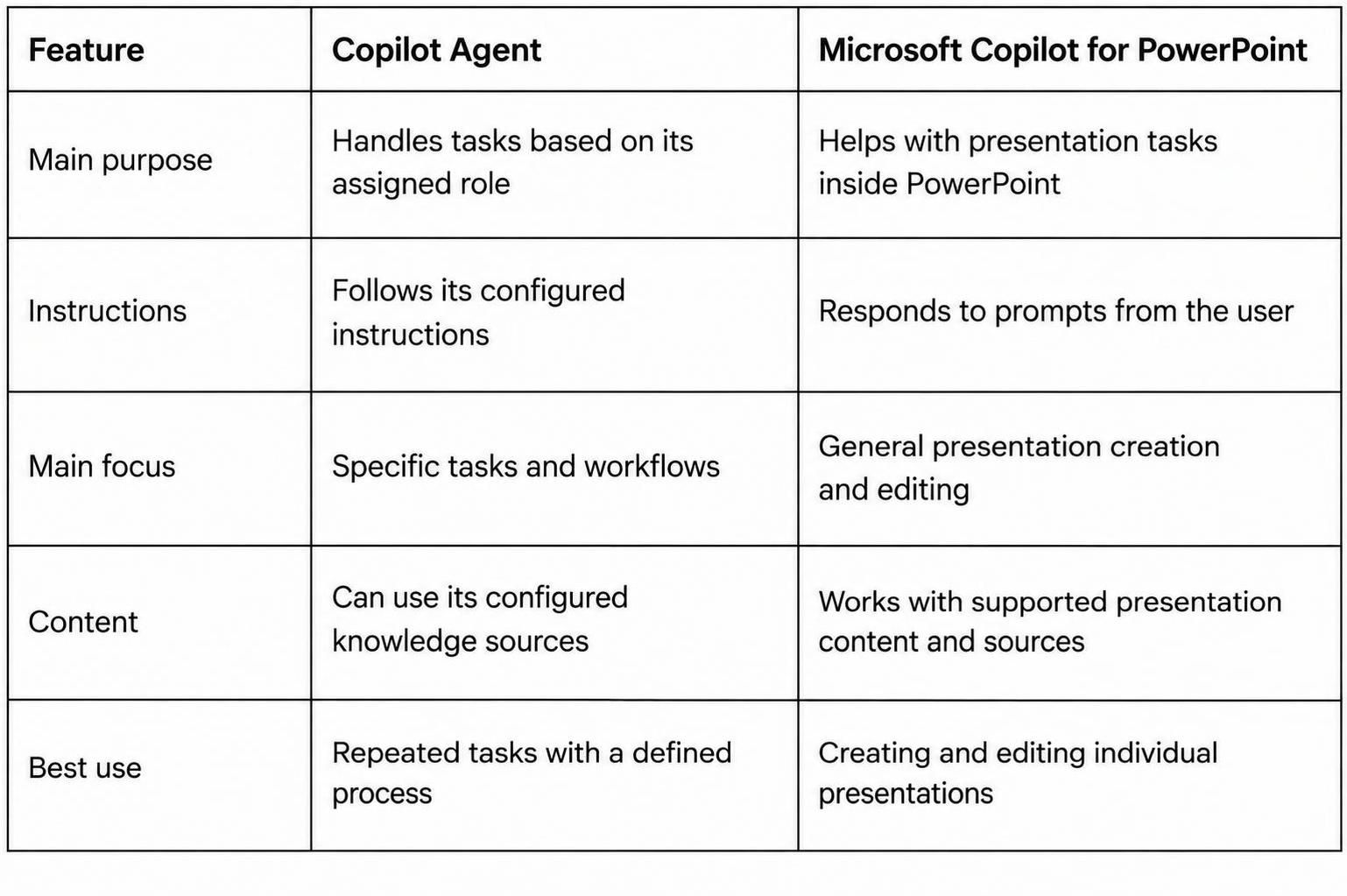
A Copilot agent may be a good choice for repeated presentation tasks. For example, a team may set up an agent to prepare sales presentations using a shared format and set of instructions.
Microsoft Copilot for PowerPoint may be a better fit for everyday slide work. You can use it to create new slides, edit content, and work on an existing presentation.
Both options can support your workflow. The right choice depends on how much control you need over repeated tasks and how you prefer to work inside PowerPoint.
Final Notes
A Copilot agent can help you prepare PowerPoint presentations with less manual work. You can set its role, add custom instructions, provide reference files, and configure actions for specific presentation tasks. It can help create slide outlines, write content, prepare speaker notes, and organize key points.
Microsoft Copilot Studio gives you control over how the agent works. You can also connect it with PowerPoint and Power Automate to support your presentation workflow.
Start with a clear purpose and simple instructions. Test the agent with different prompts. Review its content, facts, and slide design before using the final presentation. Regular updates to its instructions and reference files can help keep its output useful for future projects.
Frequently Asked Questions
1. What is a Copilot agent for PowerPoint presentations?
A Copilot agent is a custom AI assistant that helps with presentation tasks. It can create slide outlines, write slide content, suggest titles, and prepare speaker notes based on your instructions.
2. Can I create a PowerPoint presentation with a Copilot agent?
Yes. A Copilot agent can help prepare slide content and organize information. You can also connect it with Power Automate to create workflows that generate PowerPoint files.
3. Do I need Microsoft Copilot Studio to create a Copilot agent?
Yes. Microsoft Copilot Studio provides tools to create, customize, test, and publish custom agents. You need access to the platform to build your own agent.
4. Can a Copilot agent use my existing PowerPoint files?
Yes. You can provide existing PowerPoint files as reference materials. The agent can use their content to prepare new slide text, organize key points, and suggest updates.
5. Can I customize a Copilot agent for business presentations?
Yes. You can add instructions for business reports, sales pitches, training sessions, and other presentation types. You can also set rules for tone, slide structure, and content length.
6. Can I connect a Copilot agent with PowerPoint?
Yes. You can use Microsoft 365 Copilot with PowerPoint and connect supported workflows through tools such as Power Automate. The available features depend on your account and permissions.
7. Can a Copilot agent create speaker notes?
Yes. You can instruct your agent to prepare speaker notes for each slide. It can use the slide content and presentation topic to create notes for the speaker.
8. Why does my Copilot agent generate incorrect slide content?
Incorrect content may result from unclear instructions or limited source information. Provide accurate reference files and tell the agent to use only approved information. Review all facts and figures before using the slides.
9. Is a Copilot agent better than Microsoft Copilot for PowerPoint?
They serve different purposes. A Copilot agent is useful for repeated tasks with set instructions. Microsoft Copilot for PowerPoint is useful for creating and editing individual presentations inside PowerPoint. Your choice depends on your workflow.
10. Can I use a Copilot agent to create presentations automatically?
Yes, with the right setup. You can connect the agent to Power Automate and supported Microsoft 365 services. This can help automate tasks such as collecting content, creating files, sending notifications, and managing approvals.




You may also be interested in ...

How To Create An Eye-Catching Portfolio
If you’re looking to create an eye-catching portfolio, this post will come in handy. In this article, you can find the easies...
23 Jun, 2024

How To Easily Create An Infographic
Infographics are the perfect way to make a presentation that will impact an audience, but their design and composition might...
08 Jun, 2024

PowerPoint Template Tips & Tricks You Ne...
PowerPoint seems to be an unknown world for many people, especially those who have been assigned to create a presentation out...
08 Jun, 2024