How to Change and Customize Text Color in Google Slides
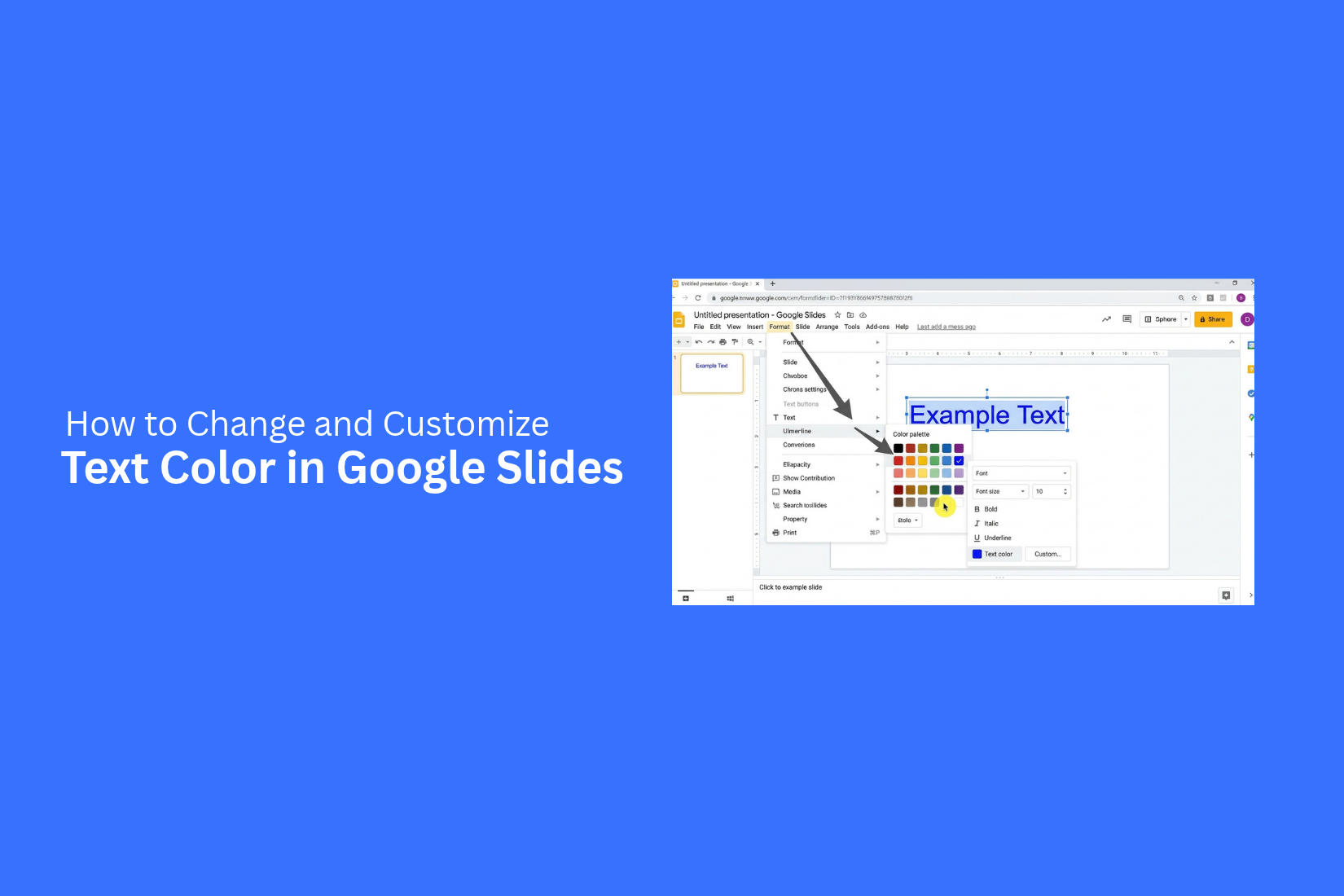
Text color plays a key role in how people read a Google Slides presentation. Yet, the default color may not fit your design, and some text may blend into the background. Editing one word or matching a brand shade can also take extra steps.
Poor color choices can make key points hard to read. They can make slides look uneven, distract from your message, and weaken your visual style.
This guide shows you how to change text color across a text box or within selected words and letters. You’ll learn to use custom HEX and RGB values, highlight text, adjust colors on mobile, and set theme colors. These steps will help you create clear, consistent slides.
Why Change Text Color in Google Slides?
Text color plays a key role in how people read and understand a slide. The right color can make key points stand out. It can also help viewers follow the main message.
Changing text color in Google Slides offers several benefits:
• Improve readability: Dark text on a light background is easy to read. Good color contrast helps viewers read your content without strain.
• Highlight key points: Use a different color for important words, numbers, or phrases. This helps draw attention to the details that matter most.
• Create visual order: Use different colors for titles, headings, and body text. This makes each part of your slide easier to follow.
• Match your presentation theme: Choose text colors that fit your brand, topic, or slide design. This gives your presentation a consistent look.
• Add visual interest: A few well-chosen colors can make plain text more appealing without making the slide look crowded.
A good text color choice does more than improve the look of a slide. It helps viewers focus on your message and understand the content with ease.
How to Change Text Color in Google Slides
Google Slides lets you change text color in just a few clicks. You can apply one color to an entire text box or use different colors for specific words and letters. Both options are easy to use. The choice depends on the look you want for your slide.
Change the Color of an Entire Text Box
Changing the color of an entire text box is simple. You only need to select the text and choose a new color.
Follow these steps:
- Open your presentation in Google Slides.
- Click the text box that contains the text you want to edit.
- Select all the text inside the box. You can press Ctrl + A on Windows or Command + A on Mac while editing the text.
- Find the Text color icon in the toolbar. It looks like an A with a colored line below it.
- Click the small arrow beside the icon to open the color menu.
- Choose a color from the available options.
- Click outside the text box to see the change.
The selected text will now appear in your chosen color. Pick a shade that stands out from the slide background. Dark text works well on light backgrounds, while light text is easier to read on dark backgrounds.
Change the Color of Individual Words or Letters
You do not need to apply the same color to every word. Google Slides also lets you change the color of selected words or even single letters. This is useful for highlighting key terms, names, or short phrases.
Here is how to do it:
- Open your slide and double-click the text box you want to edit.
- Use your mouse to select the word, phrase, or letter you want to change.
- Click the Text color icon in the toolbar.
- Choose your preferred color from the palette.
- Click outside the text box to apply the change.
Only the selected text will change color. The rest of the text will keep its original color. You can repeat these steps to give different words or letters different colors. For a clean slide design, use a small color palette. Apply one main color and use another shade to highlight key words. This keeps the text easy to read and helps the main points stand out.
How to Apply Custom Text Colors in Google Slides
Google Slides offers more than the standard text color options. You can choose a custom shade to match your presentation theme. This gives you better control over the look of your slides. You can also use exact color values to keep your text colors consistent across the presentation.
Choose a Custom Color from the Color Picker
The color picker lets you select a shade that is not listed in the default palette. Follow these steps:
- Select the text you want to change.
- Click the Text Color icon in the toolbar.
- Click the Custom option at the bottom of the color panel.
- A color picker window will appear.
- Choose your preferred color using the color field and slider.
- Click OK to apply the color.
Your selected text will now display the custom color. You can repeat these steps for other text elements.
Enter HEX or RGB Color Values
Do you have a specific brand color or color code? Google Slides lets you enter exact color values. This helps you use the same shade across different slides.
Follow these steps:
- Select the text you want to edit.
- Click the Text Color icon in the toolbar.
- Select Custom from the color panel.
- Find the HEX or RGB input field in the color picker.
- Enter your preferred color value.
- Click OK to apply the changes.
For example, enter #1A73E8 in the HEX field to use a blue shade. You can also enter RGB values to set a color with specific red, green, and blue levels. This method helps keep your text colors consistent. It also makes it easier to match your presentation with your brand colors.
How to Highlight Text in Google Slides
Google Slides does not have a built-in text highlight tool like Google Docs. However, you can create a similar effect by adding a colored shape behind your text. This helps key words and phrases stand out on a slide.
Apply a Background Color Behind Text
Follow these steps to add a color behind your text:
- Open your presentation in Google Slides.
- Select the Text box tool and add your text.
- Click Insert from the top menu.
- Select Shape, then choose a rectangle.
- Draw the rectangle around the text you want to highlight.
- Click the Fill color icon in the toolbar.
- Choose a background color for the shape.
- Right-click the shape and select Order > Send backward to place it behind the text.
Your text will now have a colored background. Adjust the shape size to add space around the text.
Customize Text Highlight Colors
You can change the background color to match your slide design. Select the shape and click the Fill color icon. Pick a color from the palette or use a custom color.
Here are a few tips for choosing highlight colors:
• Use light colors: Light yellow, blue, or green can help dark text stand out.
• Keep good contrast: Choose a background that makes the text easy to read.
• Match your theme: Use colors that fit the rest of your presentation.
• Highlight key details: Apply color to short phrases or important words instead of large blocks of text.
A well-chosen background color can draw attention to key points without making the slide look crowded.
How to Change Text Color in Google Slides on Mobile
You can change text color in Google Slides from your phone or tablet. The steps are similar on Android and iOS devices. Open your presentation in the Google Slides app and select the text you want to edit. The formatting tools let you choose a new color for your text.
Change Text Color on Android
Follow these steps to change text color on an Android device:
- Open the Google Slides app on your Android phone or tablet.
- Open the presentation you want to edit.
- Tap the text box that contains the text you want to change.
- Tap the text again and drag the selection handles to highlight the words.
- Tap the Format icon (A) in the top toolbar.
- Select the Text tab.
- Tap Text Color to open the color options.
- Choose your preferred color from the palette.
The selected text will now appear in the new color. Tap outside the text box to view the change.
Change Text Color on iPhone and iPad
The Google Slides app also lets you edit text color on an iPhone or iPad. Follow these steps:
- Open the Google Slides app on your iPhone or iPad.
- Open the presentation you want to edit.
- Tap the text box you want to edit.
- Tap the text again to enter editing mode.
- Select the words you want to change by dragging the selection handles.
- Tap the Format icon (A) at the top of the screen.
- Open the Text tab.
- Tap Text Color and select a color from the available options.
Your selected text will now use the new color. Tap outside the text box to see how it looks on the slide.
How to Change the Default Text Color in Google Slides
Google Slides lets you set a default text color for your slides. This helps keep your presentation style consistent. You can use the Theme Builder to set text colors for titles, subtitles, and body text. Once you make these changes, new slides that use the updated layout will follow your chosen text colors.
Customize Text Colors Using Theme Builder
Follow these steps to change the default text color in Google Slides:
- Open your presentation in Google Slides.
- Click Slide in the top menu.
- Select Edit theme to open the Theme Builder.
- Choose the slide layout you want to edit from the left panel.
- Click the title, subtitle, or body text box.
- Select the Text color icon in the toolbar.
- Pick a color from the palette. You can also add a custom color using the color picker.
- Repeat these steps for other text boxes and slide layouts.
- Close the Theme Builder to return to your presentation.
Your changes will apply to slides that use the edited layouts. Existing text with manual color settings may not update. You may need to reset its formatting or change the color by hand.
Common Google Slides Text Color Problems and How to Fix Them
Changing text color in Google Slides is usually simple. Still, a few issues can stop the color from appearing as expected. You may click a new color, but the text stays the same. Custom colors may also fail to apply. In some cases, the text may look different on another device.
Here are some common text color problems and ways to fix them.
Text Color Is Not Changing
You may select a new text color, but nothing seems to happen. This often occurs because the text is not selected. Google Slides may apply the color to new text instead of the text you want to edit.
Follow these steps to fix the issue:
- Double-click the text box to enter editing mode.
- Highlight the exact words or letters you want to change.
- Click the Text color button in the toolbar.
- Select a new color from the palette.
- Check if the selected text now shows the new color.
Also, check if the text box is part of a grouped object. You may need to ungroup the objects before editing the text. Select the text box itself and try changing the color again.
Custom Text Colors Are Not Applying
You may enter a custom color code, but Google Slides does not apply it as expected. This can happen if the color code is incorrect or the wrong text is selected.
Try these steps:
- Select the text you want to edit.
- Open the Text color menu.
- Click the Custom option.
- Enter the correct HEX color code.
- Click OK to apply the color.
Check the color code before applying it. A HEX code usually starts with a # sign and contains six letters or numbers. For example, #3366CC is a blue color. You can also use the color picker to select a shade manually. This helps you match the text color to other elements in your slide.
Text Color Looks Different on Other Devices
A text color may look slightly different on another computer, tablet, or phone. This can happen because each screen uses different display settings. Brightness, contrast, and color settings can also affect how colors appear.
Here are a few ways to check the issue:
- Open the same Google Slides presentation on another device.
- Check the display brightness and color settings.
- Use a standard HEX color code for more consistent color selection.
- Avoid very light text colors on white or bright backgrounds.
- Export the slide as a PDF to check how the colors appear outside Google Slides.
For a more consistent look, use a small set of standard colors across your presentation. Test the slides on more than one screen before sharing or presenting them.
Best Practices for Using Text Colors in Google Slides
Text color plays a big role in how people read and understand your slides. The right colors make key points easy to spot. They also help your presentation look clean and organized. Follow these best practices to use text colors well.
Maintain Good Contrast and Readability
Text should be easy to read from a distance. Use dark text on light backgrounds or light text on dark backgrounds. Avoid colors that blend into the background. For example, light gray text on a white background can be hard to read.
Also, use colors that are easy on the eyes. Keep body text clear and simple. Save bright colors for short titles or key points. Always check your slides in presentation mode to see how the text looks on a large screen.
Use Brand Colors Consistently
Brand colors help your slides match your company's style. Use the same colors across titles, headings, and other key text. This gives your presentation a consistent look.
You can use one main brand color for headings and another for small details. Keep body text in a neutral color, such as black or dark gray. This keeps the slides easy to read while still showing your brand style.
Limit the Number of Text Colors
Too many text colors can make slides look messy. They can also distract people from your main points. A small color palette helps your presentation look neat and clear.
Try to use two or three main text colors throughout your slides. Use one color for headings, one for body text, and one for key details. Keep the same color choices across all slides. This makes the content easier to follow.
Use Highlight Colors Selectively
Highlight colors help draw attention to key words, numbers, and short phrases. They can make important details stand out from the rest of the text.
Use a bright color for a few key points, such as dates, figures, or action items. Avoid coloring full paragraphs. Too much color can make it hard to know which details matter most. Keep highlights short and use the same color for similar types of information.
Final Notes
Changing text color in Google Slides helps make your presentation easier to read and more organized. You can apply one color to an entire text box or use different colors for selected words and letters. Custom HEX and RGB values also give you more control over your slide design.
You can also add colored shapes behind text to create a highlight effect. The mobile app offers text color options on Android, iPhone, and iPad. Theme Builder lets you set text colors for titles, subtitles, and body text.
For the best results, use a small color palette, maintain good contrast, and apply highlight colors with care. Keep your text colors consistent across all slides. This will help your audience focus on your message and follow your presentation with ease.
FAQs
1. How do I change the text color in Google Slides?
Select the text you want to edit. Click the Text color icon in the toolbar. Choose a color from the palette. The selected text will now use the new color.
2. Can I change the color of one word in Google Slides?
Yes. Double-click the text box and select the word you want to edit. Click the Text color icon and choose a new color. Only the selected word will change.
3. How do I add a custom text color in Google Slides?
Select your text and open the Text color menu. Click Custom at the bottom of the color panel. Choose a shade or enter a HEX or RGB value. Click OK to apply it.
4. Can I use HEX color codes in Google Slides?
Yes. Open the Custom color picker from the Text color menu. Enter your HEX code in the input field. For example, #1A73E8 gives you a blue shade.
5. How do I highlight text in Google Slides?
Google Slides does not have a built-in text highlight tool. You can create a similar effect by adding a colored shape behind your text. Use the Order option to send the shape backward.
6. Can I change text color in Google Slides on my phone?
Yes. Open your presentation in the Google Slides app. Select the text and tap the Format icon. Open the Text tab, tap Text Color, and choose a shade.
7. How do I change the default text color in Google Slides?
Open Slide > Edit theme to access Theme Builder. Select a slide layout and choose the title, subtitle, or body text box. Change its text color from the toolbar. New slides using that layout will follow the updated style.
8. Why is my text color not changing in Google Slides?
You may not have selected the text correctly. Double-click the text box and highlight the exact words or letters. Open the Text color menu and choose a new shade. Also, check if the text box is part of a grouped object.
9. How many text colors should I use in a Google Slides presentation?
Two or three main text colors are often enough. Use one for headings, another for body text, and a third for key details. This keeps your slides neat and easy to read.
10. How can I make text colors consistent across Google Slides?
Use the same HEX or RGB values across your slides. You can also set text colors through Theme Builder. This helps maintain a consistent style throughout your presentation.





You may also be interested in ...

How To Create An Eye-Catching Portfolio
If you’re looking to create an eye-catching portfolio, this post will come in handy. In this article, you can find the easies...
23 Jun, 2024

How To Easily Create An Infographic
Infographics are the perfect way to make a presentation that will impact an audience, but their design and composition might...
08 Jun, 2024

PowerPoint Template Tips & Tricks You Ne...
PowerPoint seems to be an unknown world for many people, especially those who have been assigned to create a presentation out...
08 Jun, 2024