How to Add Equations in Canva: Quick and Easy Guide
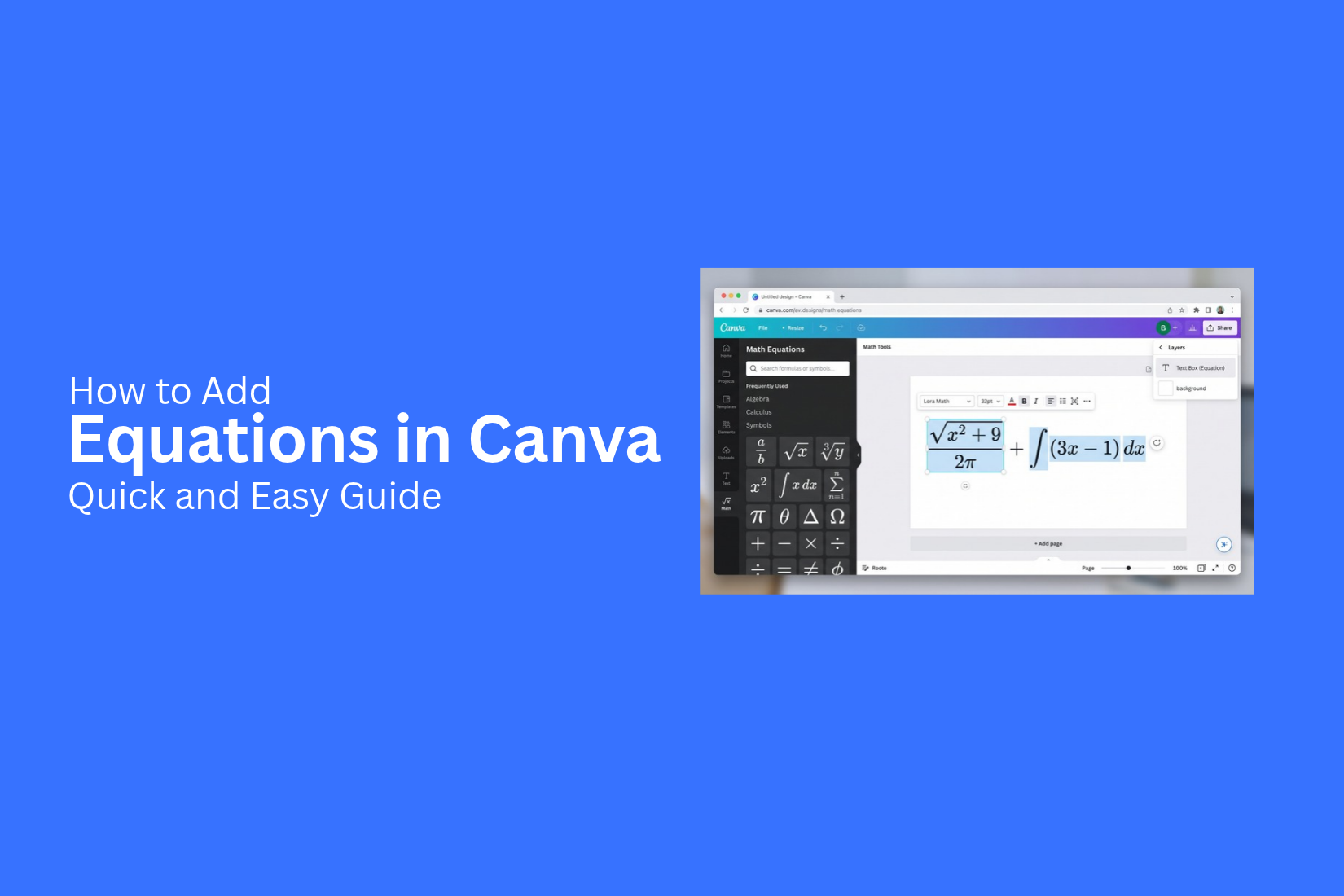
Adding equations to a Canva design can be useful for school projects, lessons, reports, and presentations. Yet, typing math formulas is not always as simple as adding regular text. Fractions, exponents, and special symbols may need extra care to look right.
A poorly formatted equation can make your design harder to read. It may also look out of place beside other content. The good news is that Canva gives you simple ways to add and format equations.
This guide shows how to add equations in Canva step by step. You will also learn how to work with complex formulas, special symbols, LaTeX, and equation formatting. Plus, you will see how to add equations to Canva presentations and fix common formatting problems.
What Are Equations in Canva?
Equations in Canva are math expressions that you can add to a design. They help you show numbers, symbols, and math rules in a clear format. This can make a design easier to read and follow. You can use equations in a range of Canva designs. They work well for slides, study materials, worksheets, reports, and other content that needs math. An equation also helps keep math content separate from regular text.
Common Types of Equations You Can Add
You can add many types of math expressions to a Canva design. Simple equations can show basic math operations such as addition, subtraction, multiplication, and division. You can also use equations with fractions, powers, roots, and other math symbols. More detailed expressions can help explain a math rule or show a step in a calculation. The type of equation you use depends on the content of your design. A simple expression may work for basic lessons. A more detailed equation can help explain a math topic in greater detail.
What Are Equations in Canva?
Equations in Canva are math expressions that you can add to a design. They help you show numbers, symbols, and math rules in a clear format. This can make a design easier to read and follow. You can use equations in a range of Canva designs. They work well for slides, study materials, worksheets, reports, and other content that needs math. An equation also helps keep math content separate from regular text.
Common Types of Equations You Can Add
You can add many types of math expressions to a Canva design. Simple equations can show basic math operations such as addition, subtraction, multiplication, and division.
You can also use equations with fractions, powers, roots, and other math symbols. More detailed expressions can help explain a math rule or show a step in a calculation. The type of equation you use depends on the content of your design. A simple expression may work for basic lessons. A more detailed equation can help explain a math topic in greater detail.
Where Equations Can Be Used in Canva
Equations can fit into many types of Canva designs. They can help present math content in a clean and easy-to-read way.
For example, you can use them in:
Presentations: Show formulas during a lesson or talk.
Worksheets: Add math problems for students to solve.
Study materials: Show formulas and key math rules.
Reports: Present calculations or math-based information.
Educational graphics: Explain math ideas with text and visuals.
Adding an equation can also make math content easier to spot. It gives the expression its own space instead of placing it in a long line of regular text.
How to Add Equations in Canva
Adding an equation to a Canva design starts with a text box. You can enter the equation into the box and adjust its look to fit your design. The steps are simple and work well for slides, worksheets, study notes, and other visual content.
Open Your Canva Design
Start by opening Canva and selecting the design you want to edit. You can open an existing design or create a new one. Once the design is open, go to the page where you want to place the equation. Leave enough space for the equation and any text around it.
Add a Text Box
Click Text from the Canva editor. Then select the option to add a text box. Place the text box on the page. Resize it based on the length of your equation. A wider box gives you more room for longer equations.
Type or Paste Your Equation
Click inside the text box and enter your equation. You can type the equation directly or paste it from another source. Check the equation after adding it. Make sure the numbers, symbols, and other parts appear as you want them.
Adjust the Equation Format
Select the equation text to change its format. You can adjust the font, size, spacing, and alignment. Keep the equation easy to read. Match its size and style with the rest of your Canva design. Place it in a clear spot so readers can find it quickly.
How to Add Complex Math Equations in Canva
Some math equations need more than basic numbers and letters. Canva lets you add special symbols and use text from other sources. These options help you add more detailed equations to your design.
Use Special Math Symbols
Special math symbols help you write equations with less effort. You can add symbols such as π, √, ≤, ≥, ∑, and ∞ to your text. Copy the symbol you need and paste it into a Canva text box.
This method works well for simple and medium-level equations. It also gives you more control over how the equation looks in your design.
Copy Equations From Other Sources
You can copy a complete equation from another source and paste it into a Canva text box. This can save time for longer equations.
Paste the equation first. Then check the spacing, symbols, and font. Some symbols may look different after pasting. Make small changes to keep the equation clear and easy to read.
Use LaTeX for Advanced Equations
LaTeX is a common way to write complex math equations. It uses text commands to create math symbols and structures.
You can write an equation in LaTeX using a tool that converts the code into a formatted equation. Copy the result and add it to your Canva design. This approach can help with fractions, exponents, roots, and other detailed math formats.
How to Format Equations in Canva
A clear equation should fit well with the rest of your Canva design. Simple formatting makes it easier to read. You can change the text size, alignment, spacing, and overall look. Keep the equation clear and easy to follow.
Change the Font and Text Size
Start by selecting the equation text. Use the font menu to choose a style that matches your design. Keep the font easy to read, especially for slides, worksheets, or study materials.
You can also change the text size. Larger text works well for headings or key equations. Smaller text can fit better with body text. Keep the size large enough to read without effort.
Adjust Alignment and Spacing
Use the alignment options to place the equation where it fits best. Center alignment can work well for equations that stand alone. Left alignment may work better with notes or other text.
Spacing also affects readability. Leave enough space around the equation so it does not feel crowded. Keep a clear gap between the equation and nearby text or images.
Match Equations With Your Design
The equation should look like part of the full design. Use a font and text size that fit the other content. Keep the style consistent across the page or slide.
Check the equation with the rest of your layout. Make sure it does not cover other elements or sit too close to the edge. A clean layout helps the equation stand out without taking attention away from the main content.
How to Add Equations to Canva Presentations
Equations can help explain math, science, finance, and other topics in a Canva presentation. A clear layout makes each equation easier to follow. Keep the equation close to the text or visual that explains it. This helps the audience connect the numbers with the main idea.
Add Equations to a Presentation Slide
Start by opening the Canva presentation you want to edit. Select the slide where you want the equation to appear. Add a text box to the slide. Type or paste the equation into the text box.
Keep the equation on its own line for a clean look. This works well for formulas, calculations, and short math examples. Check the equation after adding it to make sure every number and symbol is correct.
Position Equations With Other Content
Place the equation near the content that explains it. A short explanation can sit above or below the equation. Charts, images, or examples can also sit beside it.
Leave enough space around the equation. Crowded slides can make math harder to follow. A simple layout helps the equation stand out without taking attention away from the main point.
Make Equations Easy to Read
Use a font size that is easy to read from a distance. Keep the text clear and avoid making the equation too small. Strong contrast between the text and the slide background also helps.
Keep the equation style consistent across the presentation. Use the same font and size for similar equations. Check the slide in presentation view before you finish. This gives you a better view of how the equation will look to your audience.
Common Problems When Adding Equations in Canva
Adding equations in Canva may not always give the same result as the original text. Symbols can change, spacing can shift, and some math characters may not display as expected. A few common issues can make the equation look different from the version you typed or pasted.
Equation Symbols Look Different
Some equation symbols may look different after you add them to Canva. The shape, size, or spacing can change based on the font you use. This can affect symbols such as plus signs, minus signs, or special math characters.
Check the equation after adding it to your design. Look closely at each symbol. A small change can affect how the full equation looks.
Fractions and Exponents Do Not Format Correctly
Fractions and exponents may lose their original layout after you paste them into Canva. A fraction may appear as regular text instead of a stacked fraction. An exponent may also appear on the same line as the main number.
Check the position of each part of the equation. Adjust the text size or spacing to make the equation easier to read.
Fonts Do Not Support Certain Symbols
Some fonts may not include every math symbol you need. A missing symbol may appear as a blank space or a different character. Try a font that supports the symbols in your equation. Keep the same font style across the full equation for a cleaner look.
Equation Formatting Changes After Pasting
Pasting an equation from another app can change its format. Line breaks, spaces, symbols, and text size may not stay the same. After pasting, check the full equation in Canva. Fix any spacing or text changes before you finish the design. This helps keep the equation clear and easy to read.
Tips for Using Equations in Canva
Equations should be easy to read and understand. A few simple design choices can help keep them clear on the page. These tips can help you present equations in a clean way.
Keep Equations Clear and Readable
Use a font size that is easy to read. Leave enough space around each equation. Avoid placing an equation too close to other text or design elements. A clean layout helps readers follow the math without extra effort.
Use Consistent Formatting
Keep the same font style and size for similar equations. Use the same alignment across your design. This creates a neat look and makes the equations easier to follow. Consistent spacing also helps keep the page organized.
Check Equations Before Presenting
Review each equation before you present or share your design. Check numbers, signs, symbols, and other details. A small error can change the meaning of an equation. Take a quick look at the full design to make sure everything appears as expected.
Keep Supporting Text Close to the Equation
Place related text near the equation it explains. This helps readers connect the explanation with the math. Keep enough space between different sections so the content does not look crowded. A clear layout makes the equation easier to understand.
Final Notes
Adding equations in Canva is a simple way to present math in a clear format. You can use text boxes to add basic equations, special symbols, and longer formulas. LaTeX can also help with more detailed math formats.
Good formatting makes equations easier to read. Choose a clear font, use a suitable text size, and leave enough space around each equation. Keep the style consistent with the rest of your design.
Before sharing or presenting your Canva design, check each equation carefully. Look for missing symbols, spacing issues, and formatting changes. A quick review can help keep your math content clear and accurate.





You may also be interested in ...

How To Create An Eye-Catching Portfolio
If you’re looking to create an eye-catching portfolio, this post will come in handy. In this article, you can find the easies...
23 Jun, 2024

How To Easily Create An Infographic
Infographics are the perfect way to make a presentation that will impact an audience, but their design and composition might...
08 Jun, 2024

PowerPoint Template Tips & Tricks You Ne...
PowerPoint seems to be an unknown world for many people, especially those who have been assigned to create a presentation out...
08 Jun, 2024