How to Effectively Use Placeholders in PowerPoint Slides
Many PowerPoint users spend extra time adjusting text, images, and layouts on each slide. Content may look uneven, and slides can lose a consistent structure. This often happens because placeholders are ignored or replaced with manual formatting tools. As presentations grow, these issues become harder to manage. Teams may struggle to keep slides aligned, and updates can take longer than expected. A small layout change can affect several slides and create unnecessary work.
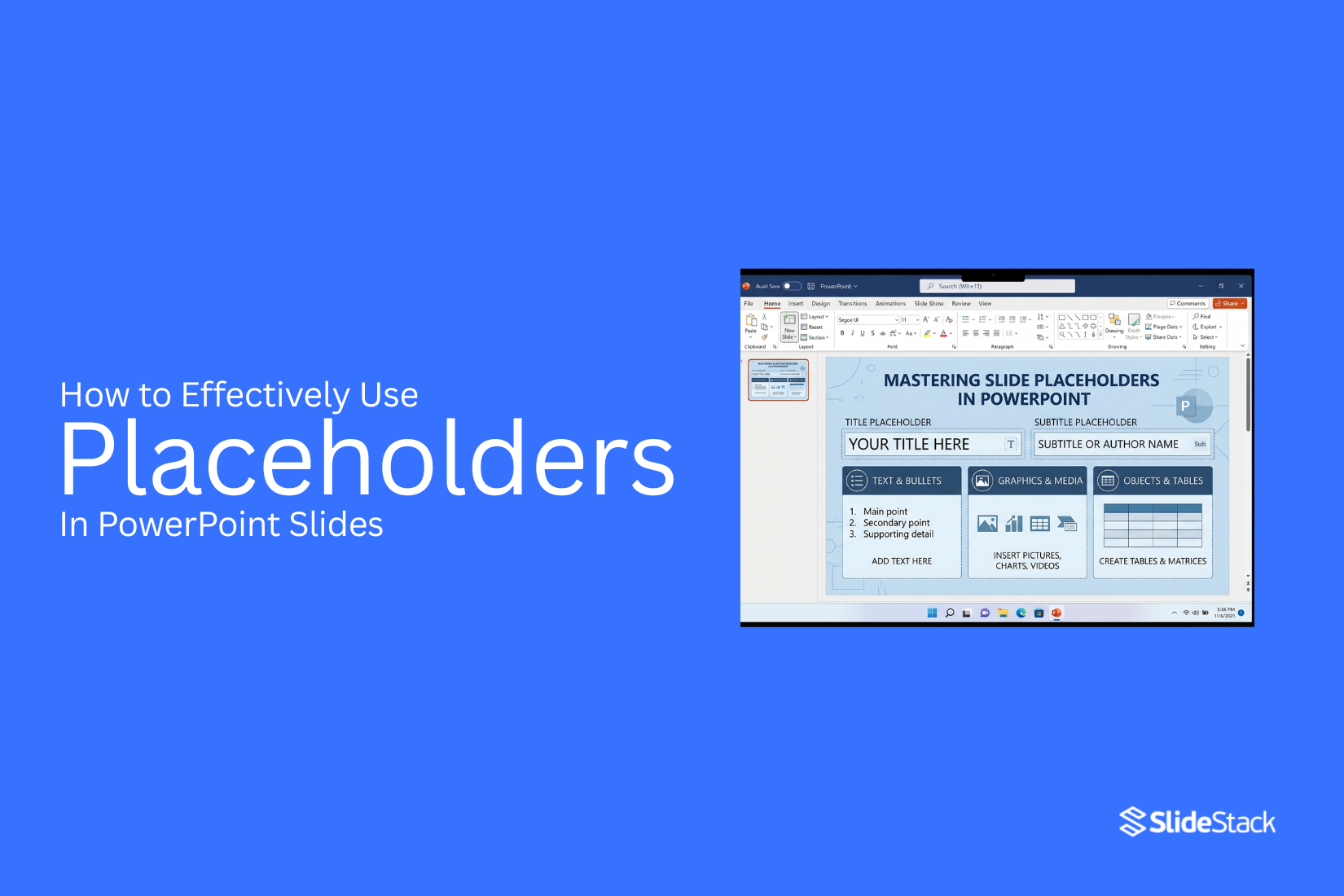
Placeholders help solve these problems. They provide a clear structure for content and support a consistent slide design. This article explains the different types of placeholders, how to use them, common mistakes to avoid, and practical ways to work with them in PowerPoint.
Understanding PowerPoint Placeholders
Placeholders play a key role in PowerPoint slides. They act as ready-made areas where content goes. Each slide layout uses them to guide structure and keep content organized. A placeholder is not just empty space. It is a fixed area built into a slide layout. It tells you where to add text, images, charts, or other elements.
What Are Placeholders?
A placeholder is a pre-set container on a slide. It holds content like text, pictures, tables, or charts. It comes from the slide layout, not something you add manually each time. You click inside a placeholder and start typing or inserting content. The size and position are already set. This makes slide creation easier and more consistent. A placeholder works like a labeled box in a form. Each box has a purpose, and you fill in the needed information.
Types of Placeholders
PowerPoint includes several placeholder types. Each one serves a clear function. Text placeholders hold titles and body text. They help structure written content on a slide. Content placeholders can hold different items like images, charts, tables, or videos. They adjust based on what you insert. Title placeholders sit at the top of slides. They give each slide a clear heading. Footer placeholders appear at the bottom. They often show dates, slide numbers, or notes. Each type helps keep slides consistent across a presentation.
Where Placeholders Are Found
Placeholders are part of slide layouts. You see them when you choose a layout in PowerPoint. They appear in the Slide Master view and normal editing view. The layout decides how many placeholders a slide has and where they sit. For example, a title slide layout usually has a title and subtitle placeholder. A content slide layout may include a title and one large content area. A text box is different from a placeholder. A text box is added manually and can go anywhere on a slide. It does not follow layout rules. A placeholder follows a fixed design and keeps content aligned across slides.
Why Placeholders are Important in PowerPoint
Placeholders guide how content fits on a slide. They set clear spaces for text, images, charts, and other elements. Slides stay structured and easier to manage. Work moves faster because each part of a slide already has a defined area.
1. Maintain Consistency Across Slides
Placeholders keep layout patterns steady from slide to slide. Titles stay in the same position. Images follow the same alignment rules. This creates a uniform look across the full deck. Consistency also helps readers follow the message without distraction. Each slide feels connected to the next one through structure rather than random placement.
2. Improve Editing Efficiency
Editing becomes quicker with placeholders in place. Text boxes already exist in fixed spots. Content can be added without adjusting the layout each time. A common case appears during last-minute updates. A team member can replace text in seconds. Charts can be swapped without moving other elements. Work time is reduced because design decisions are already set.
3. Enforce Brand and Template Standards
Placeholders help keep branding rules in place. Fonts, colors, and spacing stay aligned with the approved template. No slide drifts away from the set design style. This keeps presentations aligned with the company identity. Every slide reflects the same visual system. The audience sees a unified brand message across all content.
4. Streamline Collaboration
Multiple people often work on the same presentation. Placeholders create clear zones for each type of content. One person can add text while another adds visuals without overlap. This structure reduces confusion during team edits. Files stay organized even after many changes from different contributors. Shared work becomes easier to manage.
5. Give a Standard Layout to Slides
Placeholders set a fixed structure for every slide type. Title slides, content slides, and comparison slides all follow a known format. This reduces guesswork during slide creation. A standard layout also supports clarity. Each slide carries a predictable structure, so the audience understands where to focus first. Consistent layout rules keep presentations stable across large slide decks.
Common Types of Placeholders in PowerPoint
A few common examples include different placeholder types. These are not just layout guides. PowerPoint uses them to control how content behaves on slides. Each type follows set rules for size, position, and formatting. For this post, the Elevator Pitch Deck PowerPoint Template is used to show how placeholders work.
1. Title Placeholder
This placeholder holds the main slide title. It sets the font, size, alignment, spacing, and position for the title. It keeps all slide titles consistent across the deck. Even a blank slide comes with this placeholder in most layouts.
2. Subtitle Placeholder
This placeholder appears mostly on title slides. It is used for short supporting text under the main title. It keeps the same style across slides. It also controls spacing between the title and subtitle.
3. Content Placeholder
This is the most flexible placeholder type. It supports text, images, charts, tables, SmartArt, and media. It adjusts its format based on the content placed inside. It is used in most standard slide layouts for general content.
4. Picture Placeholder
This placeholder is made for images only. It keeps image size, alignment, and cropping consistent. It prevents images from breaking the slide layout. It is often used for team photos, product images, and case study visuals.
5. Media Placeholder
This placeholder is used for video, audio, voiceovers, and screen recordings. It gives a fixed area for playback content. It keeps media aligned with the slide design. It is common in training decks and product demos.
6. Cameo
Cameo is a PowerPoint feature that places a live camera feed on a slide. It was first announced in March 2022. Rollout started in September 2022. It became widely available for Microsoft 365 users in January 2023. A Cameo element can be placed on a slide or layout. It can be moved, resized, and formatted like other objects.
7. Chart Placeholder
This placeholder is used for charts and graphs. It keeps the chart style aligned with the slide theme. It helps present data in a clear way. It is often used in reports, KPI slides, and business reviews.
8. Table Placeholder
This placeholder holds structured tables. It keeps rows, columns, spacing, and colors consistent. It helps present data in a clean format. It is used for comparisons, lists, schedules, and contact details.
9. SmartArt Placeholder
This placeholder is used for SmartArt graphics. It turns text into diagrams like processes, cycles, and hierarchies. It keeps diagram formatting consistent across slides. It is used to show structured ideas in a clear visual form.
Understanding Slide Master and Placeholders
To work with placeholders, you first need to know where they come from. Placeholders are controlled inside the Slide Master. This is the main design system in PowerPoint. It sets the structure for all slides in a presentation. From this area, you can place new placeholders, remove unwanted ones, and shape consistent layouts.
Each slide layout has its own placeholders. These include Title Slide, Title and Content, Two Content, Comparison, and more. Each layout follows a fixed structure. This helps every slide stay aligned in design and spacing.
Note: Never delete placeholders directly from a slide view. Changes belong in the Slide Master. Direct edits break layout control and cause uneven slide design.
Adding Placeholders in the Slide Master
Slide Master gives full control over slide structure. You can open it, adjust layouts, and save changes for the whole presentation.
Step 1: Open the Slide Master from the View tab in PowerPoint. Select Slide Master. The layout panel appears on the left side.
Step 2: Select an existing layout or create a new one. Each layout works as a template for slides.
Step 3: Go to Slide Master tools and choose Insert Placeholder. Pick the placeholder type you need. The options include Content, Text, Picture, Chart, Table, SmartArt, Media, Online Image, and Cameo.
Step 4: Place the placeholder on the slide layout. Adjust its position and size. Use alignment guides for clean placement.
Step 5: Finish the changes and close the Slide Master view. Select Close Master View. All slides are linked to that layout update with the new placeholders.
How to Use Placeholders in Everyday Slide Building
Placeholders guide how content fits on a slide. They set clear spaces for text, images, charts, and more. Each one keeps the layout steady and helps you build slides faster. You work inside them instead of placing items from scratch.
1. Select a layout
Start in the Home tab. Click New Slide. Pick a layout from the list. Each layout comes with built-in placeholders. One may show a title box. Another may show text and image areas. The layout choice sets how your slide will look before you add content. This step keeps the structure consistent across slides.
2. Type Text into Text or Content Placeholders
Click inside a text placeholder on the slide. Start typing. The text follows preset styles. Font size, spacing, and position stay aligned with the slide design. You do not need to adjust each line manually. Content placeholders also accept text. They hold typed content in a structured box, keeping alignment steady.
3. Inserting Images
Click the image icon inside a content placeholder. Open a file window and pick an image. The image fits inside the placeholder automatically. It adjusts to the space without breaking the layout. The slide keeps its structure even with different image sizes. You can replace images later without changing the rest of the slide.
4. Inserting Media and Cameo
Open the Insert tab on the top menu. Choose Media for video or audio. Select Cameo for live camera input. Placeholders hold the media in a fixed area on the slide. Video and audio stay aligned with other elements. Cameo sits inside the same structured space, matching the slide layout. This keeps the media from overlapping with other content.
5. Inserting Charts, Tables, and SmartArt
Click inside a content placeholder. Pick the chart, table, or SmartArt icon. A chart opens with sample data. A table creates rows and columns ready for input. SmartArt adds visual structure like lists or steps. Each element stays inside the placeholder box. This keeps spacing clean and aligned across the slide.
6. Replacing Existing Content
Click any placeholder that already has content. Add new text, image, or media on top of it. The new content takes the same space. Fonts, alignment, and size rules stay in place. No extra formatting steps are needed. This makes updates quick and keeps the slide design stable.
Working with Placeholders in the Slide Master
Placeholders in the Slide Master control how slides look and behave. They help set a clear structure for every slide in a presentation. Working inside the Slide Master gives full control over these elements.
Accessing Slide Master View
Start by opening Slide Master View in PowerPoint. This view shows the main slide layouts used in the file. Each layout connects to different slide types in the presentation. The left panel shows a list of layouts. The top one controls global settings. Changes made here affect all slides linked to it.
Editing Existing Placeholders
Each layout contains placeholders for text, images, charts, and other content. Click on any placeholder to adjust its size or position. You can also change font style, alignment, or spacing. Removing a placeholder clears that space from the layout. This helps simplify slides that need a cleaner structure. Small edits here can improve consistency across many slides. Every change applies to all slides using that layout.
Creating Custom Layouts
Custom layouts help fit specific content needs. In Slide Master View, select the option to add a new layout. A blank layout appears with default placeholders. Add or remove placeholders based on the slide's purpose. Titles, images, and content blocks can be arranged in any order. Each layout can serve a different type of slide. This setup gives control over the structure before building slides. It reduces repeated manual adjustments during editing.
Common Mistakes to Avoid
Many slide issues come from small habits that build up over time. These mistakes affect how clear and clean a presentation looks. A few simple changes in how placeholders are used can prevent most of these problems.
Replacing Placeholders with Text Boxes
Many users delete placeholders and add text boxes instead. This breaks the built-in slide structure. Text boxes do not follow layout rules. This leads to uneven spacing and messy alignment. Placeholders keep everything in order. They help text stay in the right place across all slides.
Overcrowding Slides
Some slides end up with too much content. People try to fit long paragraphs, many images, and extra notes on one slide. This makes the slide hard to read. Viewers lose focus quickly. A better approach is to keep one main idea per slide. Placeholders guide where content should go, which helps keep the balance.
Ignoring the Slide Master
Slide Master controls the full design system of a presentation. Some users skip it and edit slides one by one. This creates mixed fonts, uneven layouts, and style gaps. Changes also take more time. Slide Master keeps everything consistent and saves effort during edits.
Best Practices for Using Placeholders Effectively
Placeholders help shape each slide. They guide where text, images, and other elements go. Good use of them keeps the slides clean and easy to follow.
Using Built-in Layouts
PowerPoint offers ready-made layouts. Each layout comes with set placeholders for titles, text, images, or charts. Picking the right layout saves time and keeps the structure clear. A title slide works best for opening ideas. A two-column layout fits side-by-side points. A section header slide helps break large topics into smaller parts. Each choice shapes how the message appears on screen.
Maintaining Consistency
Slides feel stronger when they follow the same structure. Placeholders keep fonts, spacing, and alignment steady across the deck. Small changes in position or size can distract viewers. Sticking to the same placeholder style avoids that issue. It also helps the audience focus on the message instead of layout shifts.
Supporting Story Flow
Each slide should connect to the next one. Placeholders help guide that flow by keeping content in expected spots. A clear title sets the idea. Body placeholders carry the main points. Image areas add support without crowding the slide. This structure helps ideas move in a straight line from start to finish.
Final Notes
Placeholders in PowerPoint help keep slide structure steady and clear. They guide how content sits on each slide and how it behaves.
Common placeholder types include title, text, image, chart, and table areas. Each one has a set role in the slide layout. The slide follows these roles without extra effort from the user.
- Title placeholders set the main heading space
- Content placeholders hold text, images, and other items
- Image placeholders keep visuals in fixed positions
- Chart and table placeholders support data display
These elements support steady formatting across slides. They reduce manual adjustments. They also help teams work on the same file with fewer layout changes. Slide Master controls how placeholders appear across all slides. Default layouts apply preset placeholder sets for quick use. Templates combine both structure and design for repeat use across presentations. Different methods give different ways to manage placeholders. Each method supports a clear structure and repeatable slide building.
FAQs
1. What is a placeholder in PowerPoint?
A placeholder is a fixed box on a slide. It holds text, images, charts, tables, or media. It comes from the slide layout and guides where the content goes.
2. Why should placeholders be used instead of text boxes?
Placeholders follow the slide layout rules. Text boxes do not follow those rules. Placeholders keep spacing, alignment, and structure steady across slides.
3. Where do placeholders come from?
Placeholders come from the Slide Master and slide layouts. Each layout sets the position and type of placeholders used on a slide.
4. What types of placeholders are available in PowerPoint?
PowerPoint includes title placeholders, text placeholders, content placeholders, picture placeholders, media placeholders, chart placeholders, table placeholders, SmartArt placeholders, and Cameo elements.
5. How do placeholders help keep slides consistent?
Placeholders keep titles, images, and content in the same position across slides. This creates a steady design across the full presentation.
6. What is Slide Master in relation to placeholders?
Slide Master controls all placeholders in a presentation. It sets layout rules for every slide and keeps design changes consistent across the deck.
7. How are images added using placeholders?
Images are placed inside content or picture placeholders. The image fits into the set area and stays aligned with the slide design.
8. What happens when content is added to a placeholder?
Content fills the set space inside the placeholder. The layout keeps font style, size, and alignment consistent without extra adjustments.
9. What mistake do users often make with placeholders?
Many users replace placeholders with text boxes. This breaks the layout and causes uneven spacing and misaligned content.
10. How do placeholders help in team presentations?
Placeholders create clear sections for content. Different people can work on text, visuals, or data while keeping slides structured.


You may also be interested in ...

How To Create An Eye-Catching Portfolio
If you’re looking to create an eye-catching portfolio, this post will come in handy. In this article, you can find the easies...
23 Jun, 2024

How To Easily Create An Infographic
Infographics are the perfect way to make a presentation that will impact an audience, but their design and composition might...
08 Jun, 2024

PowerPoint Template Tips & Tricks You Ne...
PowerPoint seems to be an unknown world for many people, especially those who have been assigned to create a presentation out...
08 Jun, 2024