How to Do Strikethrough in Google Slides Presentation
Strikethrough can be a small but powerful tool in Google Slides, yet many users struggle to apply it correctly. Without it, marking changes, showing edits, or highlighting updates can become confusing, leaving your slides cluttered and hard to follow.
Luckily, adding strikethrough doesn’t have to be complicated. You can use the Format menu, keyboard shortcuts, or even the right-click menu to make your text clear and organized.
This guide will show each method step by step, including how to strikethrough specific portions of text and how to remove them when needed. By the end, your slides will look neat and professional, with every change clearly visible.
What is Strikethrough in Google Slides?
Strikethrough in Google Slides is a text style. It draws a line through words. The words stay visible, but they look crossed out. This style helps show changes in ideas. It also helps mark completed tasks. You may see it in edits or drafts.
A simple use is in lists. One item gets crossed out after it is done. The rest of the list stays clear and easy to read. It also helps during reviews. Old text stays in place while new text replaces it. This keeps the slide clean without removing information.
Add Strikethrough with the Google Slides Format Menu Step-by-Step
Sometimes the toolbar doesn’t show a Strikethrough button. You can still cross out text using the Format menu. Follow these steps to do it quickly.
Step 1: Select the Text
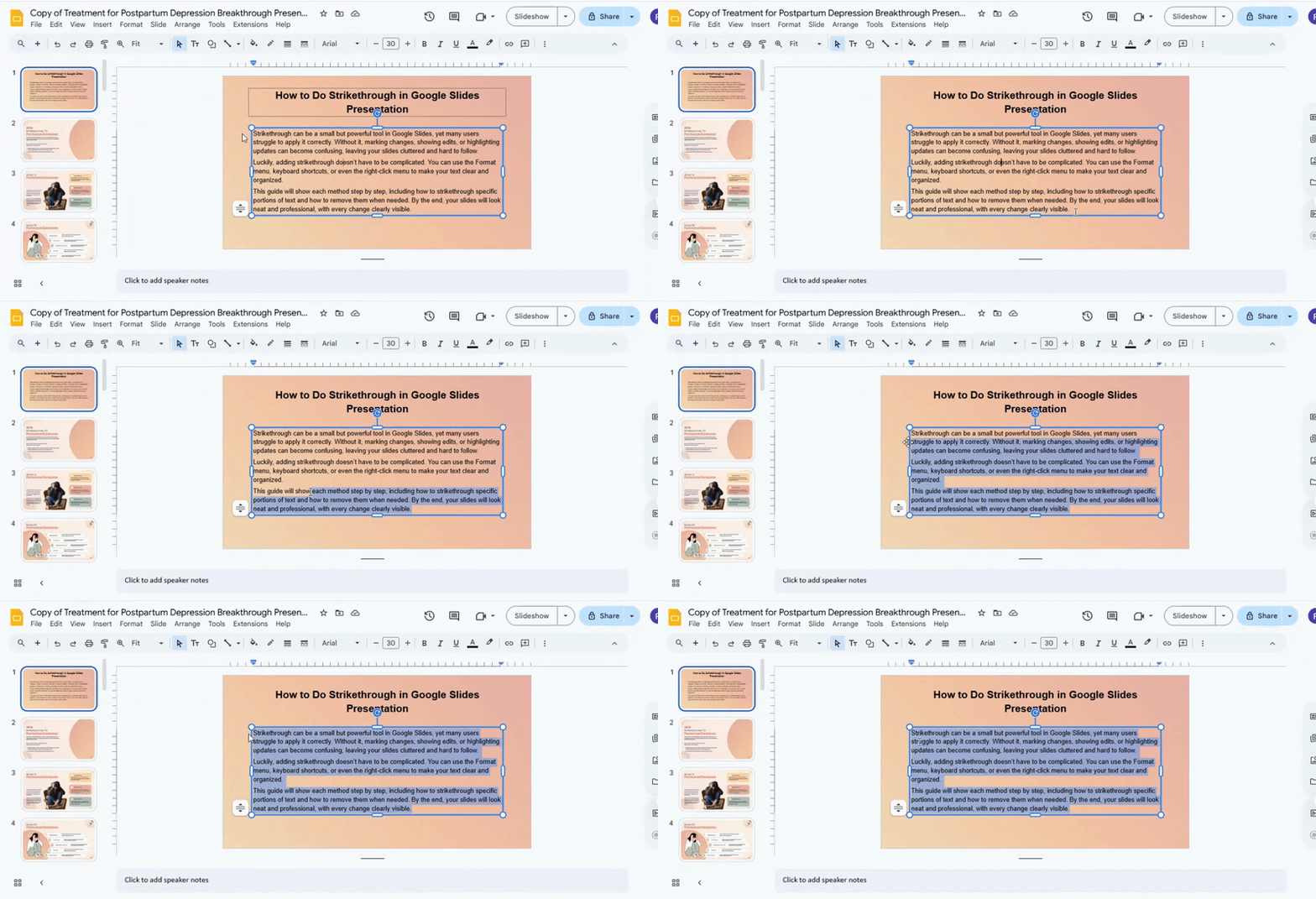
Click and drag to highlight the text you want to strike through. Make sure only the words you want to change are selected.
Step 2: Open the Format Menu
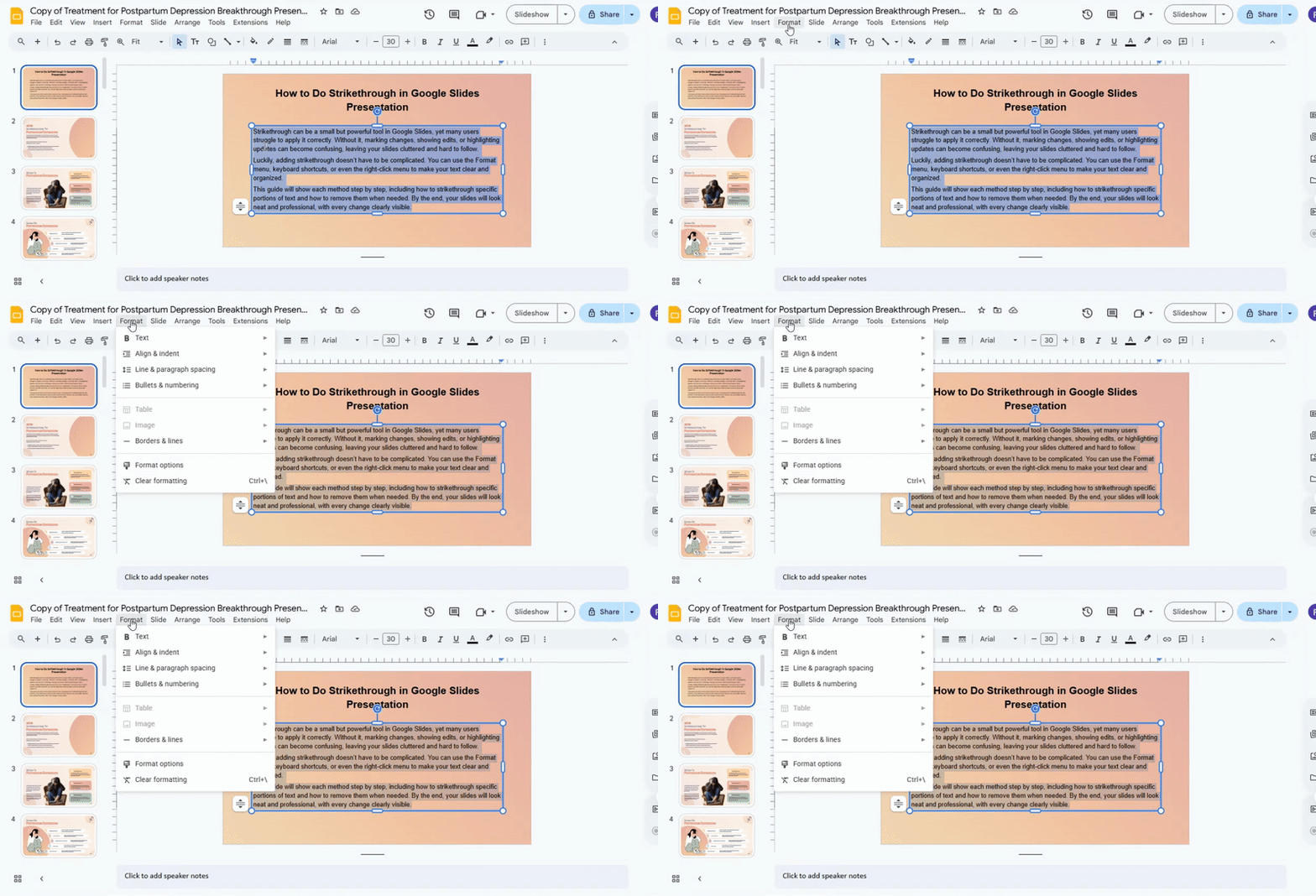
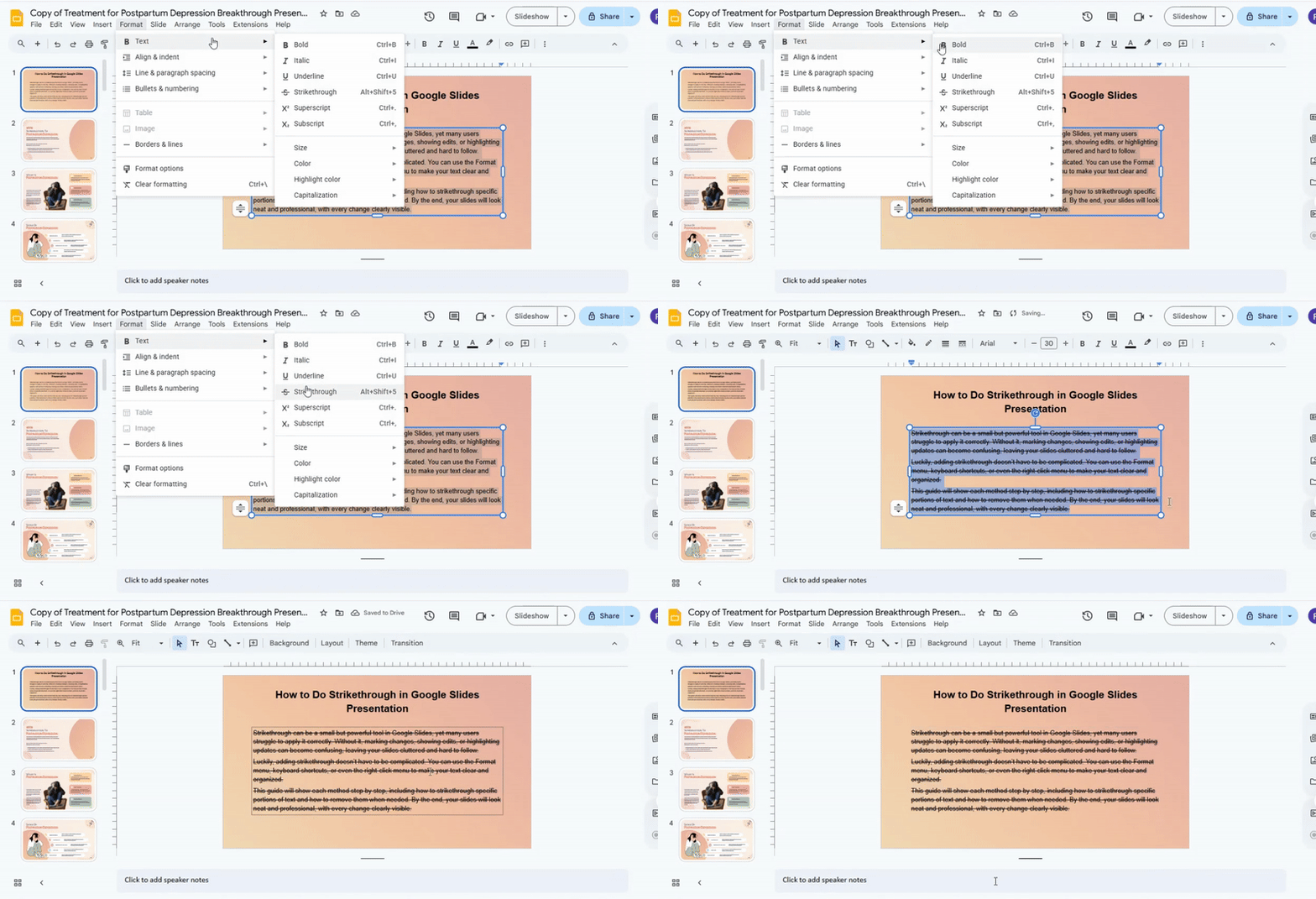
At the top of the screen, click Format. A dropdown menu will appear.
Step 3: Choose Text
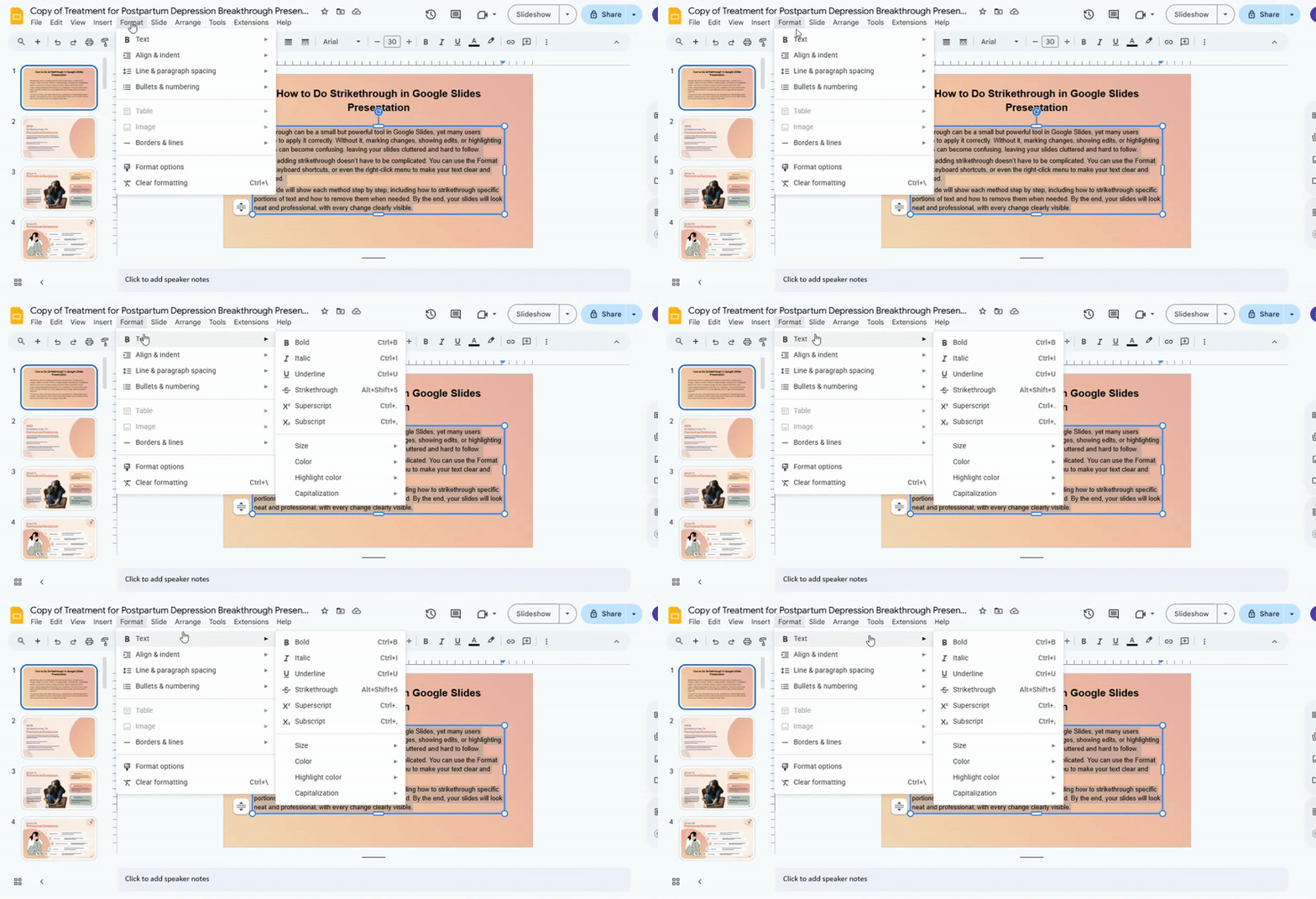
In the Format menu, hover over Text. A side menu will open with more text options.
Step 4: Apply Strikethrough
Click Strikethrough in the side menu. The highlighted text will now have a line through it.
Step 5: Adjust if Needed
If you selected the wrong text, undo the action by pressing Ctrl + Z (Windows) or Cmd + Z (Mac). Then select the correct text and repeat the steps.
Tip: Use the Format menu even when you can’t see a toolbar button. It ensures your strikethrough looks consistent across slides.
Read more: How to Easily Add or Change Fonts in Google Slides for a Professional Look
Add strikethrough with a keyboard shortcut
You can use a shortcut to add strikethrough in Google Slides. This works well if you prefer using the keyboard for quick actions.
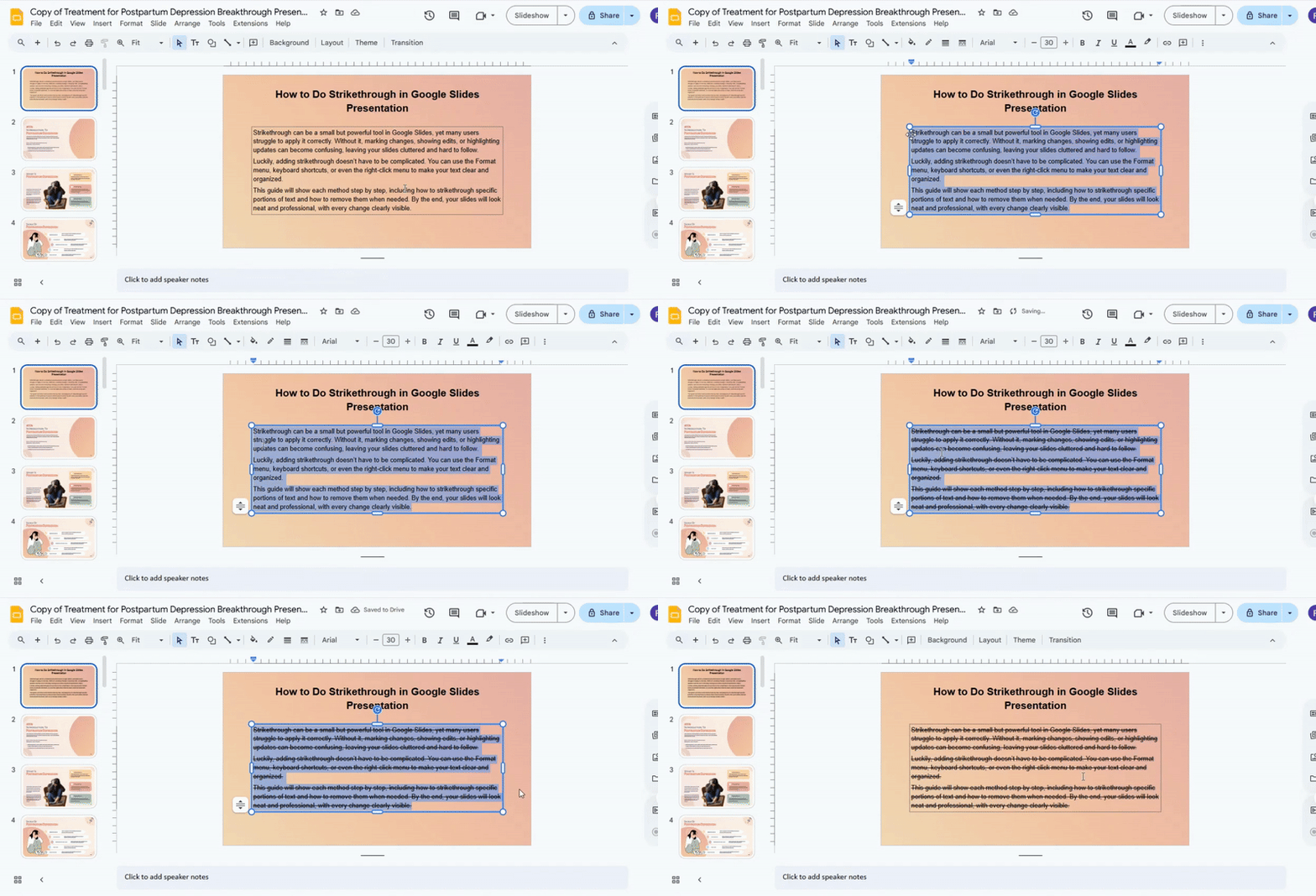
Select the text, then press Alt + Shift + 5 on Windows or Command + Shift + X on Mac.
How to Add Strikethrough to Different Portions of Text
Sometimes you may want to strike through multiple sections of text at once. This method helps you do that more efficiently. Keep in mind that some programs do not allow multi-selection strikethrough, so results may vary.
Step 1: Select the First Portion of Text
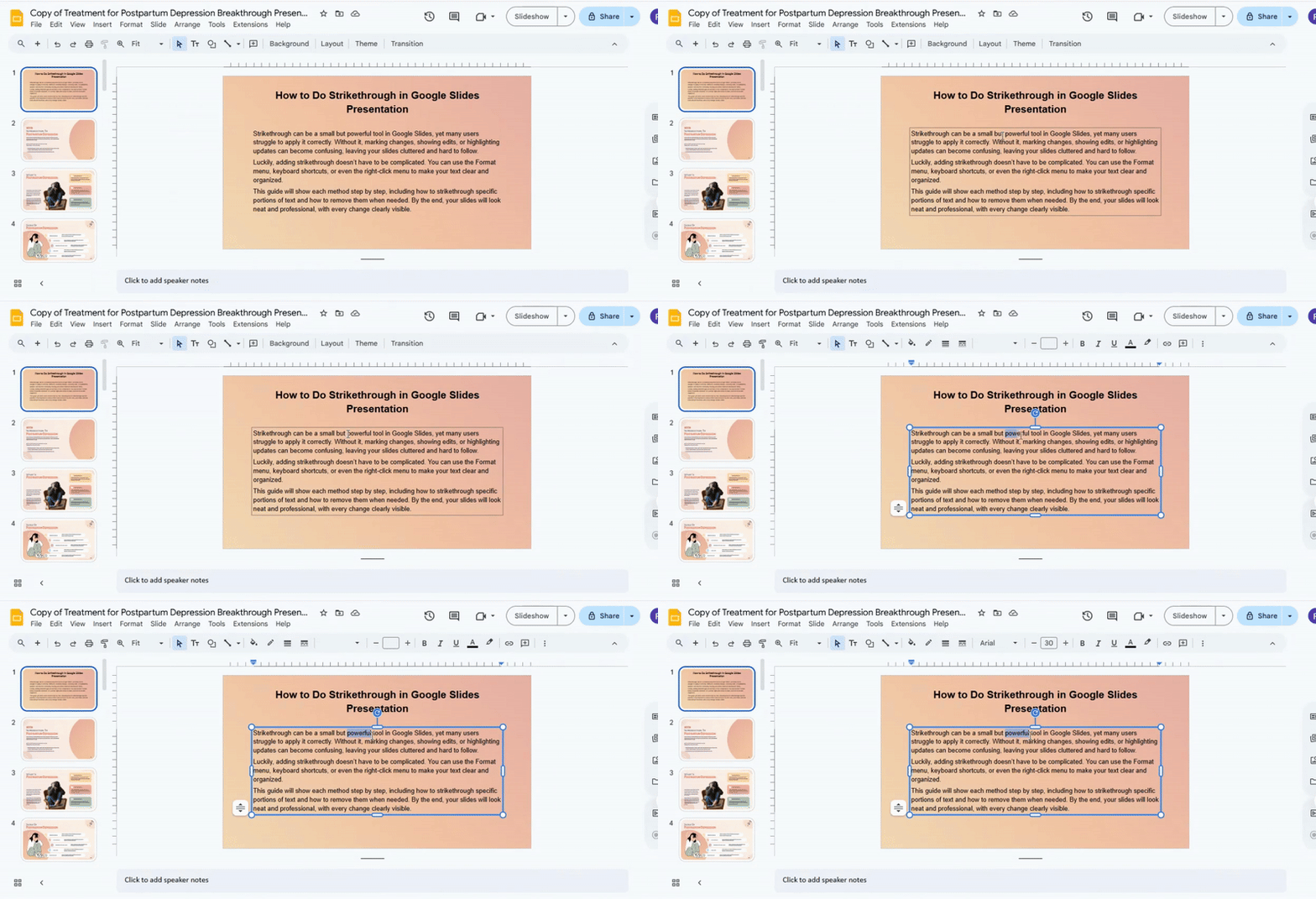
Click and drag to highlight the first section you want to strike through.
Step 2: Hold the Multi-Select Key
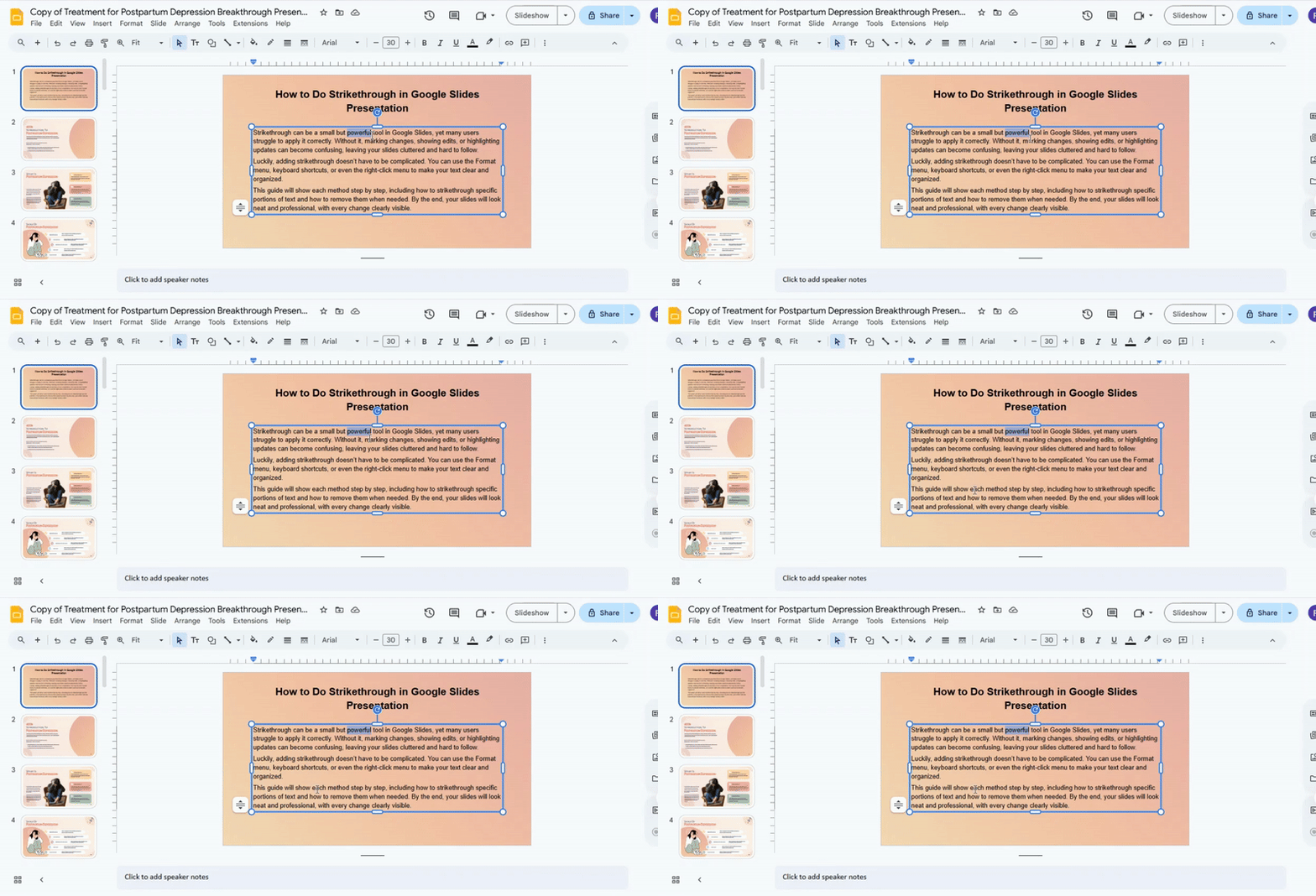
Press and hold the key for multi-selection. On most programs, this is Ctrl on Windows or Command on Mac.
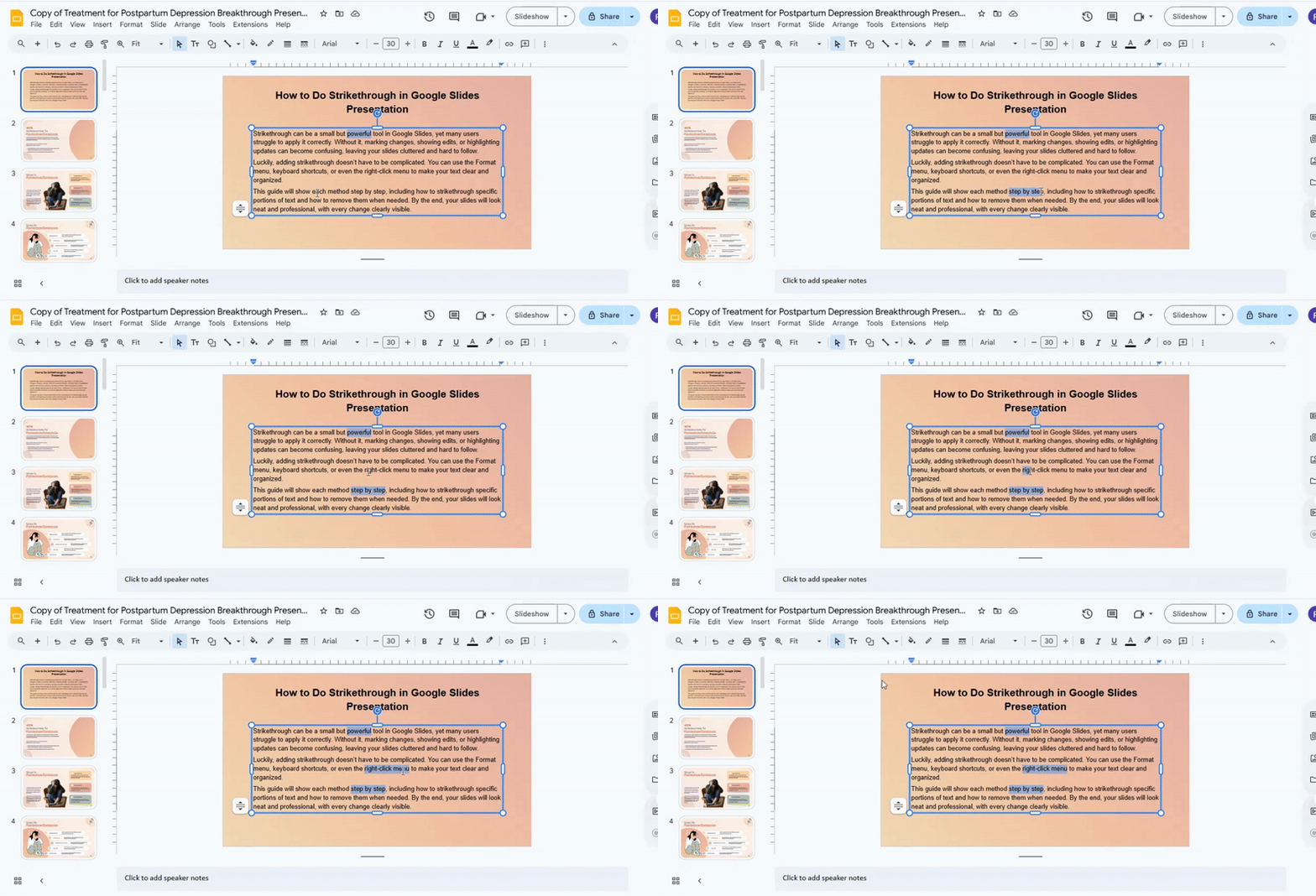
Step 3: Select Additional Portions
While holding the key, click and drag to highlight other sections you want to strike through. You can repeat this for as many sections as needed.
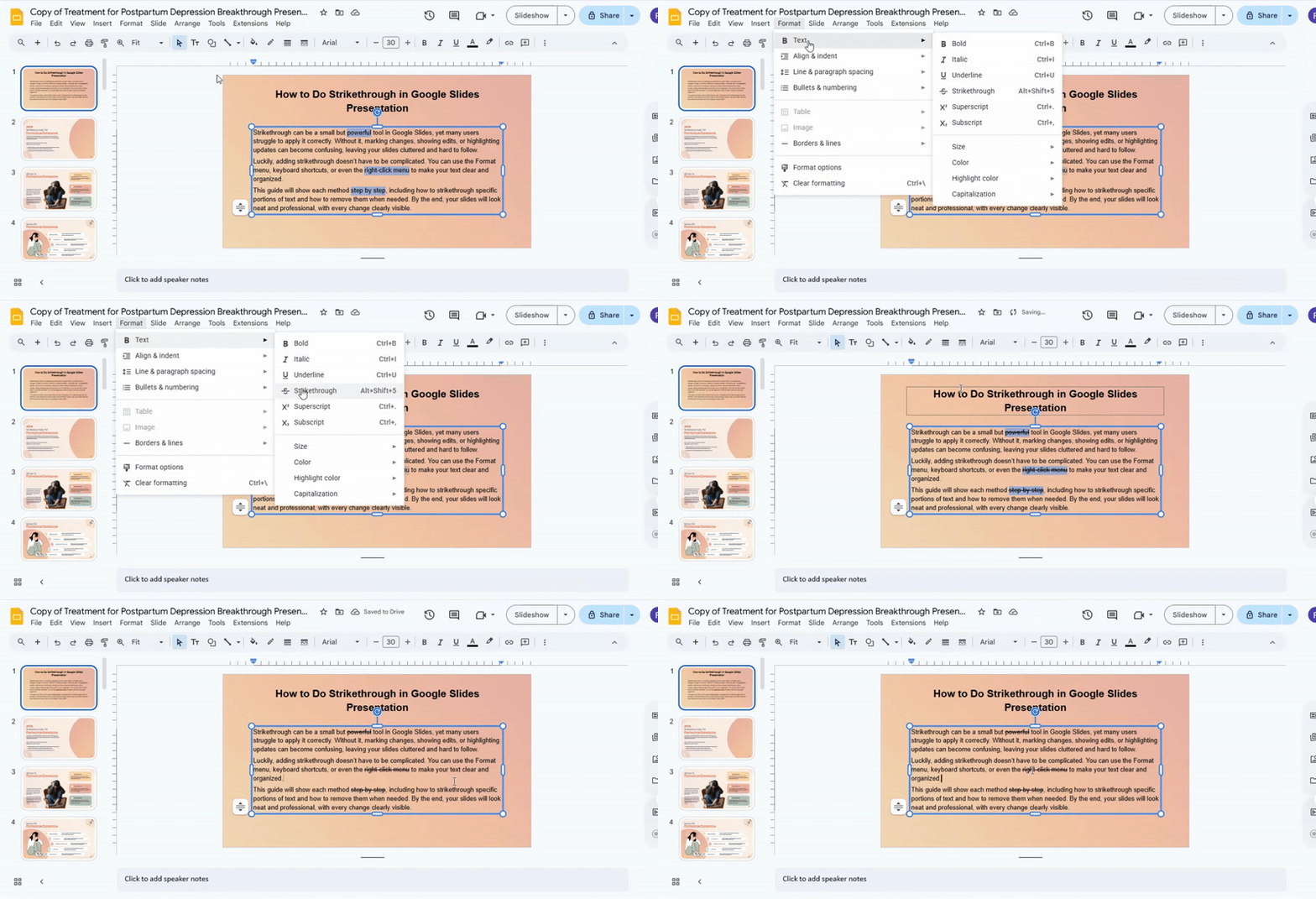
Step 4: Apply Strikethrough
Once all desired sections are highlighted, apply strikethrough using the toolbar button or the keyboard shortcut. Usually, this is Ctrl + Shift + X on Windows or Command + Shift + X on Mac.
Step 5: Check for Limitations
Some programs may not allow all selections to keep strikethrough at once. If the formatting doesn’t apply correctly, try doing smaller selections or applying the style one portion at a time.
This method builds on the basic strikethrough steps you learned earlier. By combining multi-selection with standard strikethrough, you can save time and keep your text editing consistent.
Read more: How to Change Text Color in Google Slides the Easy Way
How to Remove Strikethrough in Google Slides
Sometimes you may apply strikethrough to text and later want to remove it. The good news is that undoing strikethrough is simple and quick.
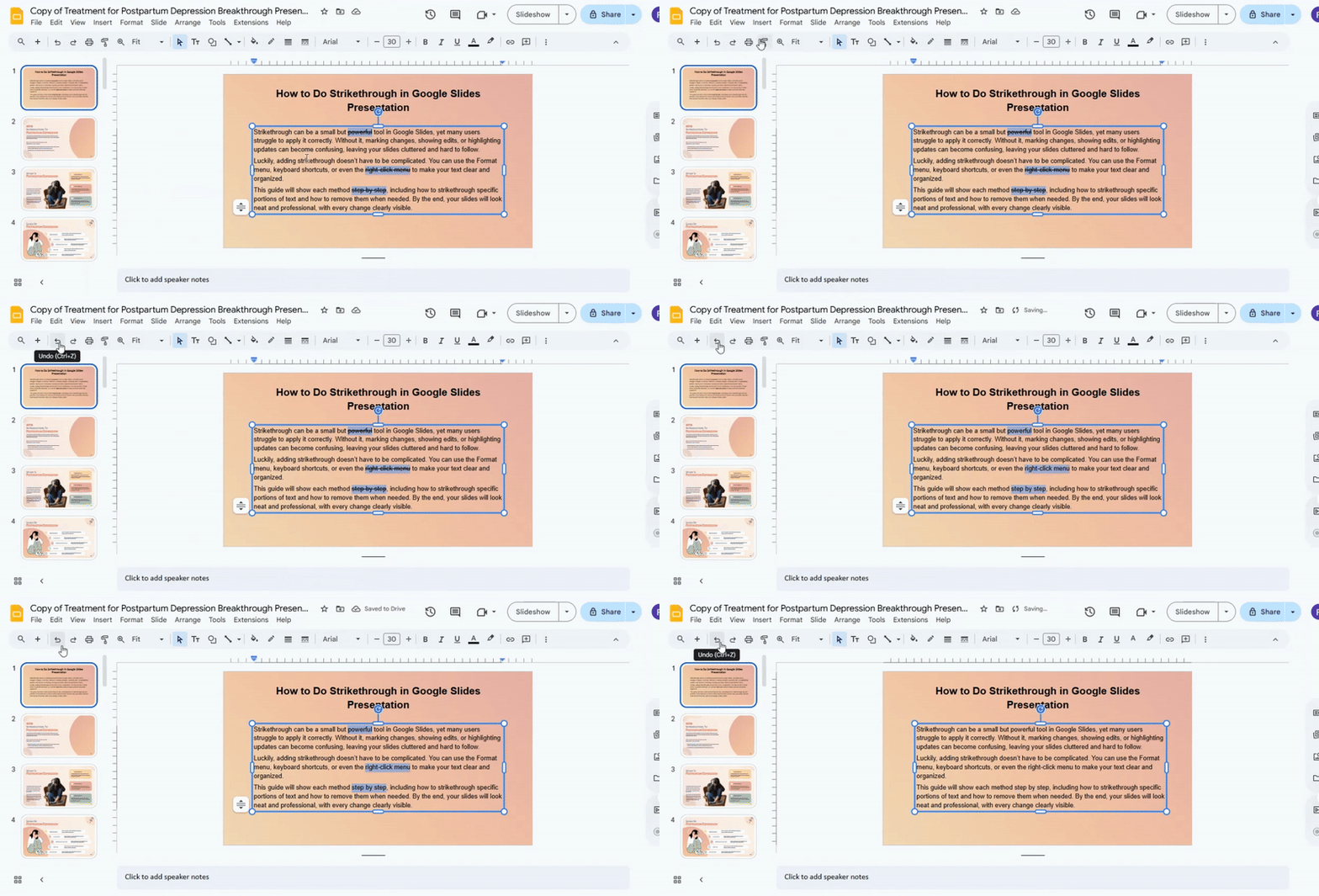
Method 1: Use the Undo Button
The fastest way is to click the Undo button at the top left of your screen. This will immediately remove the strikethrough if you just added it.
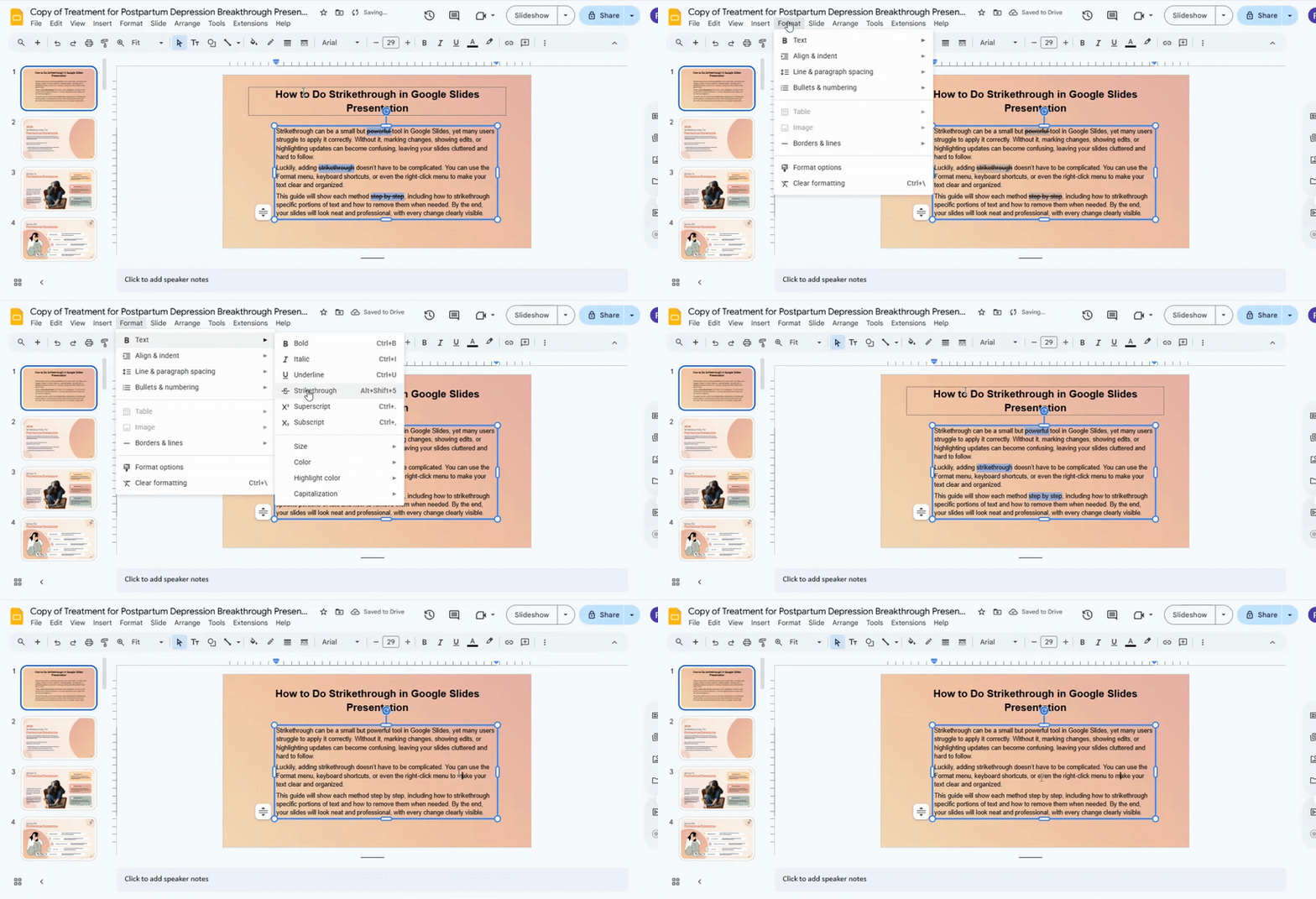
Method 2: Use the Format Menu
- Select the text with strikethrough.
- Click Format in the menu bar.
- Hover over Text and select Strikethrough.
- The checkmark will disappear, and the strikethrough will be removed.
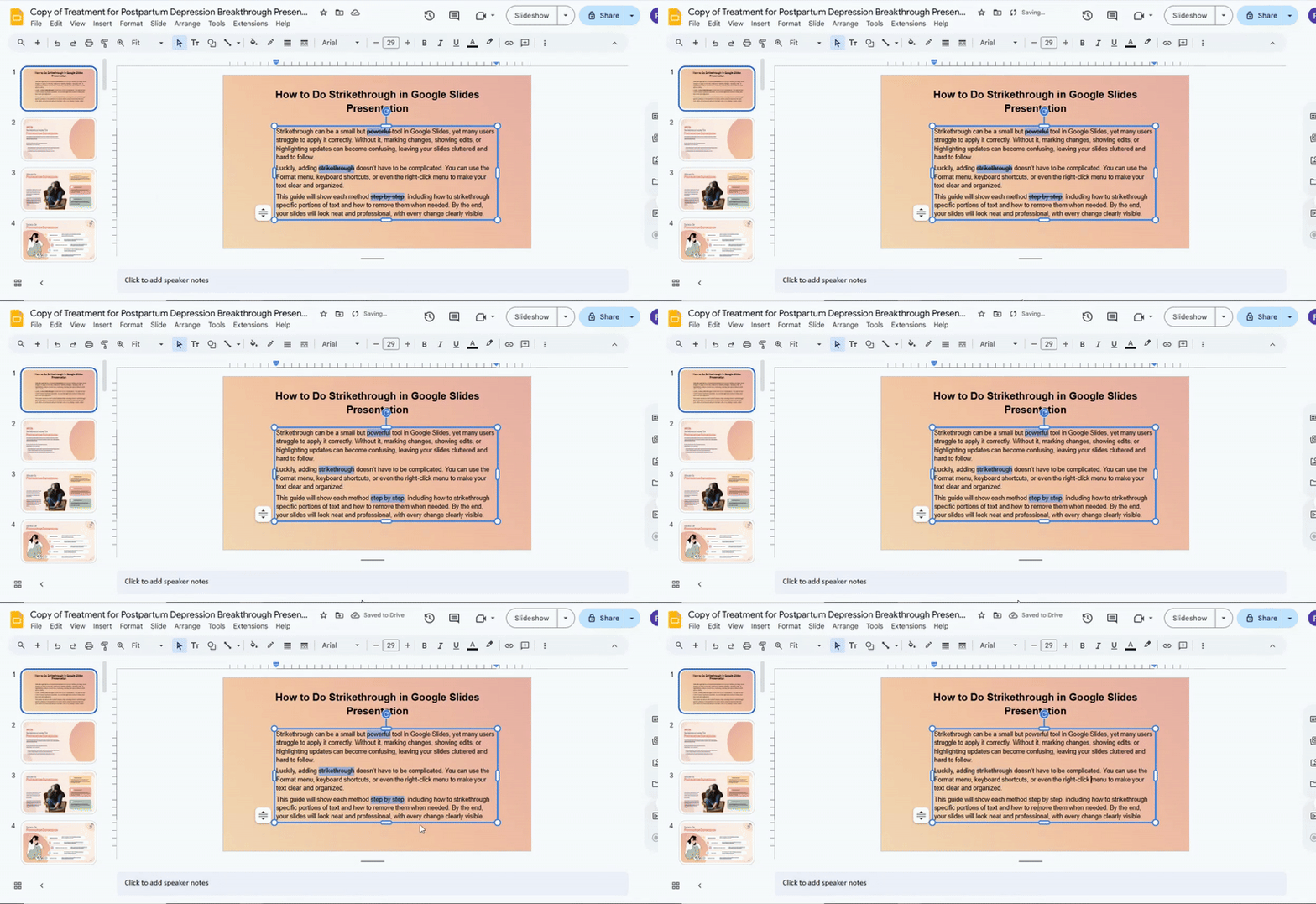
Method 3: Use a Keyboard Shortcut
For a quick fix, highlight your text and press:
• Windows / Chrome OS: Alt + Shift + 5
• Mac: Command + Shift + X
The strikethrough will turn off instantly.
Removing strikethrough in Google Slides is easy with these options. You can choose the method that fits your workflow and continue editing without distraction.
Alternative Methods for Strikethrough
Google Slides gives a direct tool for strikethrough. That is not the only way to do it. Other options can help in different situations. One simple option is using Google Docs first. Write your text there. Apply strikethrough. Copy the text. Paste it into Google Slides. The formatting usually stays the same. This works well for quick edits or longer text. Another option is keyboard shortcuts. On Windows, highlight the text and use Alt + Shift + 5. On Mac, use Command + Shift + X. This saves time during editing. It also keeps your focus on writing instead of menus. A third option is using a text box workaround. Type the text twice. Place a line shape across the middle of the text. Adjust the line position to cut through the words. This method helps when formatting tools are not working as expected.
When Should You Use Strikethrough?
Strikethrough helps show text that is no longer needed. The text stays visible, but a line goes through it. It works well for showing edits in a slide. You can cross out a word and replace it with a better one. This keeps changes clear. It also helps with task lists. A completed item can stay on the slide, but it looks marked as done. This makes progress easy to see. You can use it for comparing ideas. One option can be crossed out while another stays clean. This helps the viewer notice the final choice. It also works in planning slides. Old points can stay for reference without taking focus. The slide stays organized and easy to read.
Common Problems (And How to Fix Them)
Strikethrough in Google Slides looks simple, but small issues often show up during use. These problems can slow down editing or make text look uneven. Here are the most common ones and how to fix them.
Strikethrough Not Working
Sometimes the strikethrough option does nothing. The text stays the same. This often happens when the text box is not active. Click inside the text first. Highlight the exact words you want to change. Then try the shortcut again or use the format menu. A browser issue can also cause trouble. Refresh the page. A quick restart of Google Slides also helps.
Shortcut Key Not Responding
Some users try the shortcut, and nothing happens. This can be caused by keyboard settings or browser extensions. Try using the format menu instead of the shortcut. Go to the top menu, open “Format,” then select “Text,” then “Strikethrough.” If it starts working there, the shortcut is the issue, not the tool.
Only Part of the Text Gets Strikethrough
Sometimes, only a few letters get the line through them. This happens when the selection is not clean. Drag carefully over the full word or phrase. Make sure no extra space is left out or included by mistake.
Strikethrough Looks Uneven
The line may look too high or too low across words. This often links to font style. Switch to a simple font like Arial or Roboto. These fonts keep formatting more stably. Text size can also affect alignment. Try adjusting the font size slightly and check the result.
Format Keeps Disappearing
You add strikethrough, but it vanishes after edits. This can happen during copy and paste actions. Paste text first, then apply strikethrough after. Avoid copying formatted text from other tools when possible. Working step by step keeps the format stable.
Pro Tips (Make Your Slides Look Professional)
Clean slides help people focus on your message. Strikethrough text can support that goal when used with care. Small design choices also change how your slides feel. Keep strikethrough use limited. Too much crossed text makes a slide harder to read. It pulls attention in many directions at once. A single crossed word or line works better than full paragraphs. Keep spacing clean around the text. Crowded slides feel messy. Extra space around key points helps each idea stand out.
Use the same style across all slides. If one slide uses a thin line for strikethrough, keep that style on every slide. Consistency helps the design feel stable and clear. Pair strikethrough with strong contrast. Dark text on a light background or light text on a dark background makes the crossed text easier to notice. Weak contrast makes it fade into the background. Keep text short. Short phrases are easier to scan. Long sentences lose focus quickly, especially when part of the text is crossed. Use it only where it supports meaning. Strikethrough works best for showing changes, edits, or removed ideas. It should not become a decoration.
Rewrite Slide Content with SlideStack
Creating presentations can take a lot of time. SlideStack makes it easier by letting you rewrite your slides quickly. You can improve existing slides or start fresh without losing your ideas.
Edit Your Slides with Ease
SlideStack lets you adjust text, images, and layouts effortlessly. You can fix errors, change wording, or update content in minutes. The tool works with your existing slides, so you don’t have to start from scratch.
Create New Slides Quickly
If you need new slides, SlideStack helps you generate content fast. Add your ideas, and the tool formats them into clear, professional slides. You can focus on your message while SlideStack handles the design.
Reformat and Improve Your Presentation
SlideStack can reformat slides for consistency and style. Change fonts, colors, and layouts in one click. Your presentation will look polished and professional without extra effort.
Ready to make your slides better and save time? Visit SlideStack and start your free trial today. Transform your presentations with ease and confidence.
Final Takeaway
Strikethrough is a small feature, but it can make a big difference in your slides. It helps show changes clearly and keeps your presentation organized. Using the Format menu, keyboard shortcuts, or multi-selection makes applying it simple. Removing strikethrough is just as easy.
Tools like SlideStack can save even more time. They help you edit, reformat, and improve your slides quickly. With these tips, your presentations will stay clear, professional, and easy to follow.
FAQs:
How do you cross out text in a PowerPoint presentation?
Select the text you want to cross out. Go to the Home tab, click the small arrow in the Font section, and check the Strikethrough box. The text will now have a line through it.
Can you do strikethrough in Google Docs?
Yes. Highlight the text, then go to Format > Text > Strikethrough. You can also press Alt + Shift + 5 (Windows) or Command + Shift + X (Mac) as a shortcut.
How to do a strikethrough on Google Sheets?
Select the cell or text you want to cross out. Click Format > Text > Strikethrough. The line will appear across the text in the cell.
What is the shortcut for strikethrough in Google Slides?
Highlight the text, then press Alt + Shift + 5 on Windows or Command + Shift + X on Mac. This will add a line through the text quickly.
How do I remove a strikethrough in Google Slides?
Select the text with the line. Press the same shortcut you used to add it (Alt + Shift + 5 on Windows or Command + Shift + X on Mac) or go to Format > Text > Strikethrough to uncheck it.


You may also be interested in ...

How To Create An Eye-Catching Portfolio
If you’re looking to create an eye-catching portfolio, this post will come in handy. In this article, you can find the easies...
23 Jun, 2024

How To Easily Create An Infographic
Infographics are the perfect way to make a presentation that will impact an audience, but their design and composition might...
08 Jun, 2024

PowerPoint Template Tips & Tricks You Ne...
PowerPoint seems to be an unknown world for many people, especially those who have been assigned to create a presentation out...
08 Jun, 2024