How to Convert Power BI to PowerPoint: Step-by-Step Guide
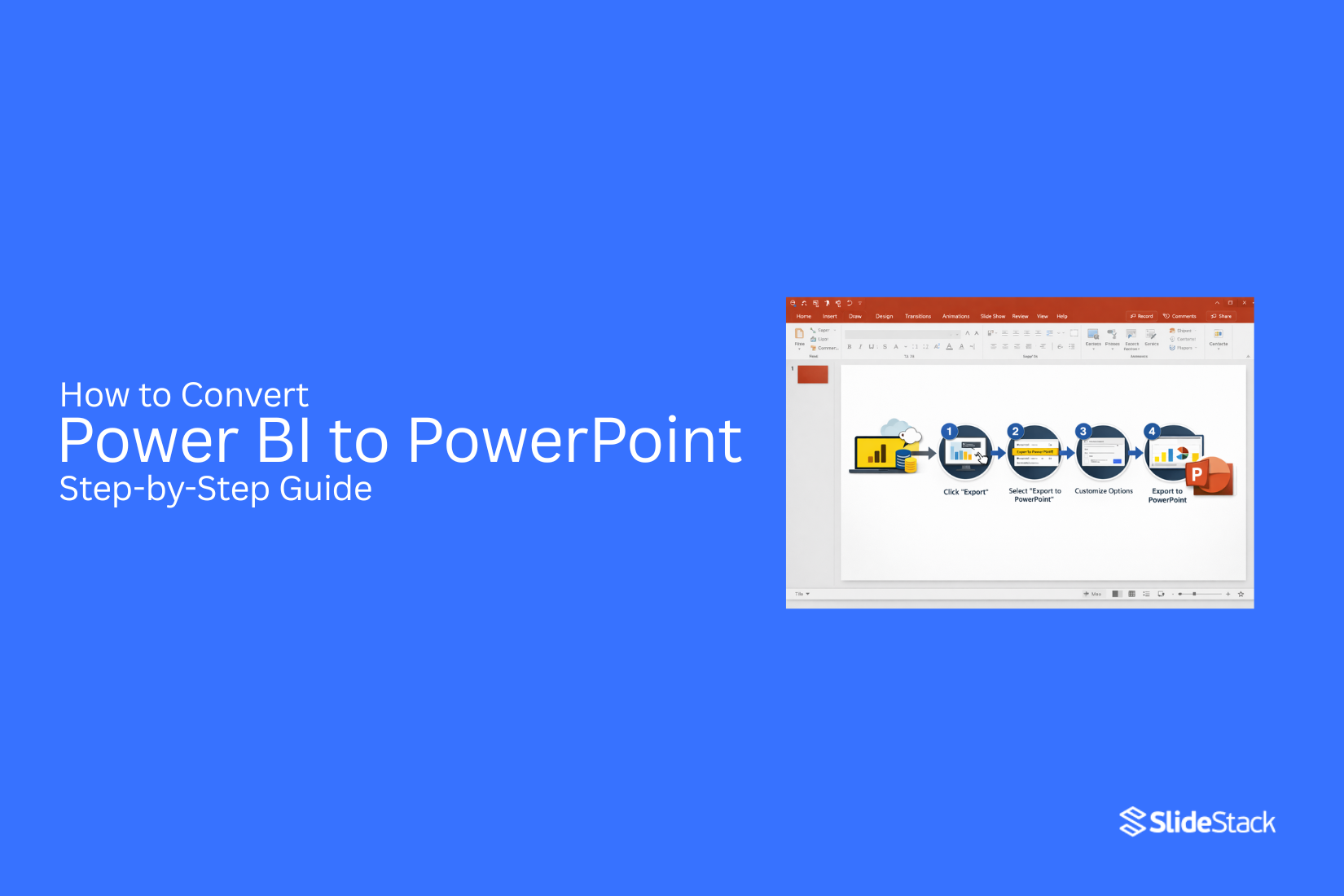
Power BI is widely used for building dashboards, tracking performance, and analyzing business data. But most meetings still rely on PowerPoint for sharing insights with teams, clients, and decision makers. This creates a gap between interactive reports and slide-based presentations. Converting Power BI to PowerPoint helps close that gap and makes data easier to present in a structured way.
This guide explains practical ways to move Power BI content into PowerPoint. It covers exporting full reports and single visuals, adding live dashboards, fixing common issues, and improving slide design for clearer data storytelling.
What Is Power BI and Why Use It for Reporting?
Power BI is a tool that works with data. It turns numbers into visuals. Many people use it for reports. It helps teams see patterns in data quickly. It also supports better choices in work and planning.
Overview of Power BI
Power BI is a Microsoft tool. It collects data from many places. It can pull data from files, apps, and databases. The tool turns raw data into charts and tables. Users can build reports that update as data changes. This keeps reports current without extra work.
Key Features of Power BI Dashboards
Power BI dashboards show key data on one screen. Charts and graphs sit together in one place. Users can move between views with clicks. Filters help narrow down the data. This helps users focus on what matters most. The layout stays clear and easy to read.
Benefits of Power BI for Business Intelligence
Power BI helps people understand data faster. It reduces time spent on manual reports. Teams can track results in a simple way. It also helps compare numbers across time. Reports can be shared with others in the company. This keeps everyone on the same page.
Why Convert Power BI to PowerPoint
Power BI shows data in interactive dashboards. PowerPoint helps present ideas in a simple slide format. Many teams move reports into slides for clearer sharing. This helps people focus on the message without extra tools or clicks. It also supports meetings where time is limited and attention needs structure.
1. Presenting to Non-Technical Audiences
Some audiences do not work with data tools. They prefer clear slides with simple visuals. PowerPoint makes reports easier to follow. Key numbers can be shown without filters or menus. This reduces confusion during meetings and discussions.
2. Sharing Offline or Archived Summaries
Not every report needs live access. Some reports are stored for later use. PowerPoint allows reports to be saved as static summaries. These files can be opened without a platform or internet access. This helps with record-keeping and future review.
3. Integrating Data into Broader Presentations
Business meetings often include more than data. Strategy, planning, and updates appear in the same deck. Power BI content placed in PowerPoint fits into these mixed presentations. Charts and insights sit alongside other business points. This keeps all information in one place during a presentation.
4. Ensuring the Message is Controlled
Live dashboards allow users to change views. That can shift focus away from the main point. PowerPoint fixes the view of each slide. The presenter decides what is shown and in what order. This helps keep attention on the intended message.
5. Live Presentations With Real-Time Data
Some meetings still need updated numbers. Power BI data can be shown inside slides with live links or refreshed images. This keeps reports current during the presentation. Teams can review up-to-date figures while still using a slide format.
How to Convert Power BI to PowerPoint
There are different ways to move a Power BI report into PowerPoint. Some methods create static slides. Some keep the data live and interactive. Follow the steps below to complete the process.
Note: Power BI reports must be published to the Power BI Service before exporting. Access through app.powerbi.com is required. Some export and live features depend on workspace access and license setup. Restricted access may limit sharing due to security controls.
Step 1: Open the Power BI Report
Go to app.powerbi.com and sign in. Open the report from the workspace. The report loads inside the Power BI Service in your browser.
Step 2: Start the Export Process
Select the Export option from the top menu. Choose PowerPoint from the list. Power BI prepares the report for download.
Step 3: Select Export Type and Download
Choose how the report should be exported. One option uses static images. Another option keeps data connected for live viewing. The file downloads as a PowerPoint presentation after processing.
Export Full Reports and Individual Visuals
Exported reports appear as slides in PowerPoint. Each page becomes one slide. Charts and tables turn into images in static mode. Single visual export is also possible. One chart or table can be selected instead of the full report. This supports quick snapshots for reporting needs. Static export keeps the data fixed. No updates happen after download. This format works for sharing results or performance summaries across teams.
Add a Live Power BI Report Page to PowerPoint (Interactive Embedding)
Live embedding keeps Power BI connected inside PowerPoint. The Power BI add-in is used for this setup. It places a report page inside a slide. Open PowerPoint and go to the Insert menu. Select the Power BI add-in. Paste the report link from the Power BI Service. The report loads inside the slide frame. Filters stay active during presentation mode. Data updates remain visible when the source changes. Viewer access depends on permission settings inside Power BI.
Using Power BI Data with PowerPoint Templates
Power BI content can also fit into slide templates. Exported visuals can be placed into branded layouts. This keeps reports consistent across different presentations. Teams often reuse exported slides for monthly reporting. Updated visuals replace older versions in the same template. This supports a steady reporting structure while data keeps changing in Power BI.
Requirements Before Exporting Power BI to PowerPoint
Moving Power BI content into PowerPoint needs some setup work first. A few basic checks help avoid errors later and keep the slides clear for viewers.
Power BI Licensing Requirements
Power BI access depends on the type of license. Some features only work with certain plans. A paid plan often gives more export options and better sharing control. Access level also affects what can be shared. Limited plans may block some export features or restrict dashboards.
User Permissions and Access Settings
Access rights decide what a user can see or export. A report owner controls these settings. Editing access allows changes to reports and visuals. View-only access limits actions to viewing data. Export features depend on these permissions.
Preparing Your Dashboard for Presentation
A clean dashboard helps the presentation look clear on slides. Remove visuals that do not support the main message. Keep charts simple. Use clear labels. Arrange visuals in a logical order so the slide flow stays easy to follow. Small layout adjustments in Power BI can improve how it appears in PowerPoint.
Ensuring Data Is Up to Date
Fresh data keeps the presentation accurate. Outdated numbers can lead to wrong conclusions. Refresh the dataset before exporting. Check key visuals after refresh to confirm everything still displays correctly. A final review of data helps avoid surprises during the presentation.
How to Add Power BI Visuals to PowerPoint Manually
Power BI visuals often need to be shown in slides for reports or meetings. Manual transfer gives full control over layout and design. It also helps keep key data clear for the audience.
Capturing High-Quality Dashboard Images
Start with a clean view of the Power BI dashboard. Full-screen mode helps remove distractions. Make sure all numbers and labels are easy to read.
Use the screenshot tool on your device. Capture only the part of the dashboard that matters. Avoid extra space around the visual. Keep the image sharp so text does not blur in PowerPoint.
Copying Charts and Graphs from Power BI
Power BI allows direct copying of visuals. Right-click on a chart or graph. Select the copy option for the visual. Move to PowerPoint and paste it into the slide. Each visual keeps its structure. This helps save time and keeps data consistent across tools.
Maintaining Consistent Formatting
Slides look better with a steady style. Use the same font type across all slides. Keep font sizes similar for titles and labels. Match colors between Power BI and PowerPoint. Align charts so they sit in the same position on each slide. This keeps the presentation neat and easy to follow.
Organizing Visuals for Better Storytelling
Place related charts together on one slide. Start with simple data, then move into detailed insights. Arrange visuals in a clear order from top to bottom. This creates a natural flow across the slide. Each chart should support the main point of the slide without confusion.
How to Embed Live Power BI Reports in PowerPoint
Live Power BI reports can sit inside PowerPoint slides. This setup keeps data connected while you present. It helps you show updated numbers without extra steps. The process uses a simple add-in and a direct link between tools.
Understanding Live Data Integration
Live data integration links Power BI reports to PowerPoint slides. The data stays connected to the original source. Any change in the report appears in the slide view. This keeps information current during presentations. A live connection also removes the need for manual updates. Slides always reflect the latest report version.
Installing the Power BI PowerPoint Add-In
The Power BI PowerPoint add-in gives access to live reports inside slides. It sits inside PowerPoint as a tool panel. Users sign in with a Power BI account to begin. After setup, the add-in becomes part of the PowerPoint workspace. Reports can then be pulled directly into slides without extra steps.
Connecting Power BI Reports to Slides
Power BI reports can be added by selecting the report inside the add-in panel. The report loads into the slide as an interactive view. Each slide keeps a link to the original dashboard. This link supports real-time updates from Power BI. Navigation inside the report stays active. Filters and visuals respond inside the slide view.
Presenting Interactive Dashboards During Meetings
Interactive dashboards help during live meetings. Users can click filters and adjust views while presenting. This allows a clear focus on different data points without switching tools. Reports stay active inside the slide deck. Meeting flow stays steady since all data sits inside PowerPoint. The audience sees changes as they happen in the dashboard view.
How to Automate Power BI to PowerPoint Reporting
Automating reports between Power BI and PowerPoint helps remove manual work. Data updates move into slides with less effort. This keeps reports current and easy to share. The process also helps teams stay consistent with reporting.
Introduction to Power Automate
Power Automate connects different Microsoft tools in one flow. It helps move data from Power BI into PowerPoint without copying and pasting. A simple flow can take a report and turn it into slides. This helps reduce repeated work and saves time during reporting cycles.
Setting Up Automated Report Generation
Start by linking Power BI to Power Automate. Choose the report you want to use. Select the data fields that need to appear in the slides. Set the output format for PowerPoint. Run a test flow to check if the report builds correctly. Once it works, the system can repeat the same steps each time.
Scheduling Recurring PowerPoint Reports
Scheduled flows keep reports updated without manual effort. Set a time for daily, weekly, or monthly runs. The system will generate a new PowerPoint file each time. Reports can be saved in a shared folder or sent to email. This keeps everyone working with the latest version.
Benefits of Automated Reporting Processes
Automated reporting reduces manual tasks and saves time. It keeps slide content consistent across updates. Errors from manual copy work are reduced. Teams can focus more on analyzing data instead of preparing slides. Reports also reach decision makers faster.
Static Export vs. Live Integration: Which Should You Use?
Power BI data often moves into PowerPoint for reporting and meetings. Two main methods exist. One is a static export. The other is live integration. Each method serves a different goal. The right choice depends on how the data will be used, how often it changes, and how the audience needs to view it.
When to use Power BI Data as a Static Image in PowerPoint
Static export means the data becomes an image in the slide. It does not change after export. It stays fixed.
• Board meetings often work better with static slides. The data stays stable during the discussion. No updates shift the message during the presentation.
• Printed reports need fixed visuals. A static image keeps layout consistent across paper copies and PDFs.
• Client decks benefit from controlled snapshots. One version of the truth is shared. This avoids confusion from changing numbers.
• Offline presentations run without risk. No internet or login is needed. Slides open anywhere without system checks.
• Slide design stays clean. The layout does not break or reload during presentation flow.
Static export fits situations where clarity and control matter more than real-time updates.
When to Embed Live Power BI Data in PowerPoint
Live integration connects Power BI directly to the slide. Data updates from the source system.
• Operational meetings rely on current numbers. Live data keeps reports aligned with the latest state of the business.
• Dashboard-style presentations need movement in data. Teams can review shifts in metrics during the session.
• Internal review sessions benefit from real-time checks. Questions can be answered with updated figures on the spot.
• Data-heavy teams reduce manual slide updates. One connected report replaces repeated export work.
• Cloud access is required for stability. The system must stay connected for visuals to load correctly.
Live embedding brings accuracy from real-time systems, but it depends on connection quality and platform stability. Interruptions can affect the flow of the presentation.
Troubleshooting Tips When Converting Power BI to PowerPoint
When using Power BI for exporting data to PowerPoint, especially during early use, several issues may appear. These issues usually relate to permissions, connectivity, visuals, or export settings. The points below explain common problems and how to fix them.
1. Unable to Export Report to PowerPoint
When you are unable to export a report from Power BI to PowerPoint, several factors may be responsible:
• The report is still in Power BI Desktop instead of Power BI Service
• You do not have permission to access the report or dataset
• Export features are disabled by the admin
• Some visuals in the report are not supported for export
• Browser settings or security tools are blocking downloads
To resolve this, make sure the report is published to the Power BI Service and check access rights. If needed, try another browser or adjust security settings.
2. Live Visuals Not Loading in PowerPoint
When live visuals do not appear in PowerPoint, the connection between Power BI and PowerPoint may not be active:
• The internet connection is not stable
• You are not signed in to Power BI inside PowerPoint
• Workspace access is missing for your account
• Custom visuals are not supported in the slide environment
Fix this by signing in again through the Power BI add-in in PowerPoint and confirming that you have access to the dataset.
3. Exported Slides Look Stretched or Blurred
When slides appear stretched or blurred after export, layout or resolution settings are usually the cause:
• Slide size does not match the Power BI canvas size
• Visuals were resized after export
• Export quality settings are too low
• Browser zoom level was not set correctly during export
To correct this, align the Power BI canvas size with PowerPoint slide dimensions and avoid resizing visuals inside PowerPoint.
4. Embedded Visuals Ask for Sign-in
When PowerPoint asks for sign-in during presentation, authentication has not been completed properly:
• Power BI session has expired
• The user account is not signed in to PowerPoint
• Dataset access is not granted to the viewer
• Organization security policies require re-authentication
Sign in through the Power BI pane inside PowerPoint before starting the presentation and confirm access permissions.
5. Exported File Missing Filters or Slicers
When filters or slicers do not appear in the exported file, it usually relates to how the report state was saved:
• Filters were not applied before export
• Slicer selections were not saved in the report view
• Export captures only the current report state
• Bookmarks were not used to lock a specific view
Apply all filters first, confirm the correct view is active, and use bookmarks if a fixed state is needed before exporting.
Design Recommendations for Presentation-Friendly Power BI Visuals
Power BI dashboards work well for exploration. They let users filter, click, and drill into details. That same flexibility does not carry over to slides. A presentation needs clarity at a glance. The goal shifts from interaction to communication. Each visual must carry a clear message without extra effort from the audience.
1. Simplify Clutter
Many dashboards include dense charts, filters, and labels. On a slide, that density becomes noise. Remove non-essential elements like slicers, heavy gridlines, and repeated labels. Keep only what supports the message. A cleaner visual helps the audience focus on the insight instead of the structure of the chart. This also reduces cognitive load during live presentations, where attention is limited.
2. Use Larger Fonts for Presentations
Small text that works in dashboards often fails on a projected screen. Increase font sizes for titles, axis labels, and key numbers. Keep text readable from a distance. This improves accessibility in meeting rooms and ensures that insights are not lost during delivery. Larger fonts also guide attention to the most important parts of the visual.
3. Choose the Right Visual for the Story
Not every chart type fits every message. Bar charts work well for comparisons. Line charts support trends over time. Pie charts should be used sparingly and only for simple proportions. The selected visual should match the single idea being communicated. This alignment helps the audience understand the point without explanation overload.
4. Keep One Insight Per Slide
A slide overloaded with multiple insights weakens impact. Each slide should focus on a single takeaway. That could be a trend, a comparison, or a key change in performance. Supporting visuals and text should all reinforce that one idea. This structure helps the audience retain information and follow the narrative without confusion.
5. Add Your Commentary
Power BI visuals alone do not always tell the full story in a presentation setting. Short annotations or speaker notes can guide interpretation. A simple line explaining what the viewer should notice can change how the slide is understood. This adds context and reduces misinterpretation, especially when presenting to non-technical audiences.
Final Notes
Power BI and PowerPoint work together to support clear data communication. One tool builds the analysis. The other presents it in a structured format for meetings and decision-making. Several methods support this shift from reports to slides. Full report exports move visuals into slide form. Static images capture key charts for fixed presentations. Embedded Power BI pages bring live data into PowerPoint for real-time viewing. PowerPoint templates add another layer of control. They bring order to layout, spacing, and style. Power BI visuals placed inside these templates gain a clearer structure. The message becomes easier to follow across slides.
Static visuals also help control focus. Each chart stands alone with a defined purpose. The audience does not need to explore filters or dashboards. Attention stays on the main point of each slide.
Live dashboards serve a different role. They allow direct interaction during discussions. This works well in review sessions where deeper exploration of data is needed. Strong presentations come from combining these approaches with intention. Data provides the facts. Slide design shapes how those facts are understood.
FAQs:
1. What is the Power BI to PowerPoint conversion?
Power BI to PowerPoint conversion moves report visuals into slide format. Charts and tables appear in PowerPoint slides. This helps present data in meetings using a familiar format.
2. Why do people move Power BI reports into PowerPoint?
Many meetings use slides for communication. Power BI shows data in an interactive way. PowerPoint presents fixed points in a clear order. This makes it easier for groups to follow the message.
3. What are the main ways to export Power BI to PowerPoint?
There are three common methods. One method exports full reports as slides. Another method saves visuals as images. A third method places live Power BI reports inside slides using an add-in.
4. What is the difference between static export and live integration?
Static export turns visuals into images inside slides. The content stays fixed. Live integration keeps a link to Power BI. Data updates appear inside the presentation view.
5. Why do exported Power BI slides look blurry?
Blurry slides often come from low export quality or layout mismatch. Resizing visuals inside PowerPoint can also reduce clarity. Matching canvas size with slide size helps improve sharpness.
6. Why do some Power BI visuals not appear after export?
Some visuals are not supported in PowerPoint export. Restricted permissions can also limit results. Certain report settings may block parts of the dashboard from showing.
7. How does the Power BI add-in work in PowerPoint?
The add-in connects Power BI reports to slides. A report link is added inside PowerPoint. The report then appears as an interactive view inside the slide.
8. Can Power BI reports update inside PowerPoint?
Live reports can update inside PowerPoint through a connected link. The view reflects changes from the Power BI source. This depends on account access and internet connection.
9. What causes missing filters in exported slides?
Only the current report state is captured during export. Filters or slicers must be set before exporting. Saved views or bookmarks help keep the same filter setup.
10. Can Power BI reports be automated into PowerPoint files?
Power Automate can create scheduled flows for reports. It sends Power BI data into PowerPoint at set times. This reduces manual slide creation work.


You may also be interested in ...

How To Create An Eye-Catching Portfolio
If you’re looking to create an eye-catching portfolio, this post will come in handy. In this article, you can find the easies...
23 Jun, 2024

How To Easily Create An Infographic
Infographics are the perfect way to make a presentation that will impact an audience, but their design and composition might...
08 Jun, 2024

PowerPoint Template Tips & Tricks You Ne...
PowerPoint seems to be an unknown world for many people, especially those who have been assigned to create a presentation out...
08 Jun, 2024