How to Add Bullet Points in Google Slides for Better Readability
Many slides are packed with long blocks of text that make it hard for the audience to follow. This can distract viewers and reduce the impact of your message. Google Slides offers a simple way to fix this problem.
By adding bullet points, you can break text into clear, digestible pieces. This makes information easier to read and helps your audience stay focused. Using bullets also highlights key ideas, giving your slides a clean, professional look. Learning how to format and customize them can transform ordinary slides into engaging, readable presentations.
Why Bullet Points Improve Slide Readability
Slides should be easy to read. Long blocks of text slow people down. The eye has to work harder to find the key idea.
Bullet points fix this problem. They break text into small pieces. Each line shares one clear idea. The message becomes easier to scan.
Clear spacing also helps the viewer. The eye moves down the list with little effort. This simple structure keeps attention on the slide.
Short points also guide the speaker. Each bullet acts as a cue. The speaker expands the idea with words instead of reading from the screen.
As a result, the slide stays clean. The audience listens more. They also remember the main points with less effort.
How to Put Bullet Points in Google Slides
Adding bullet points in Google Slides is simple. They help organize your ideas and make slides easier to read. Follow these steps to add bullets quickly.
Method 1: Using the Toolbar
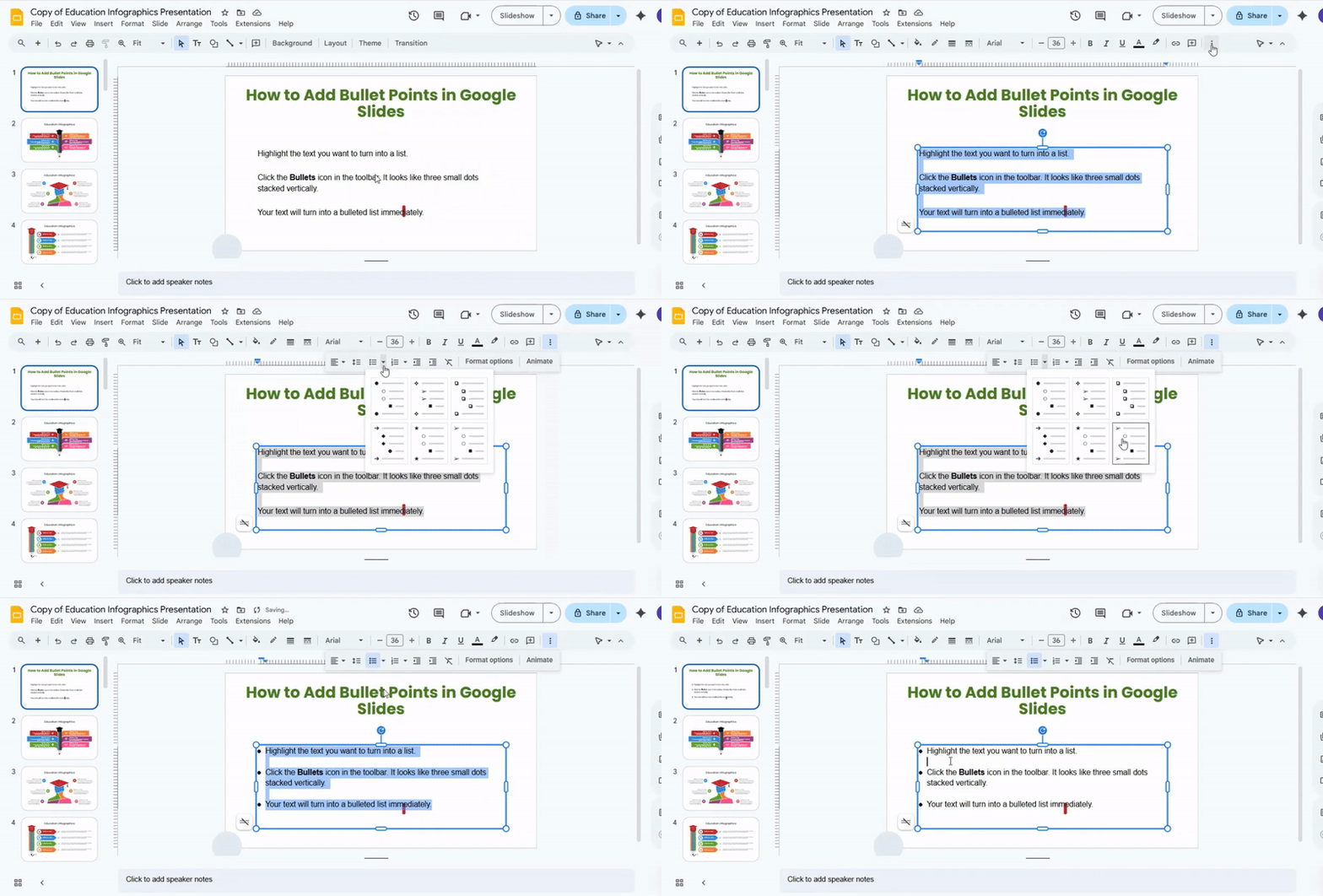
- Highlight the text you want to turn into a list.
- Click the Bullets icon in the toolbar. It looks like three small dots stacked vertically.
- Your text will turn into a bulleted list immediately.
Method 2: Using the Format Menu
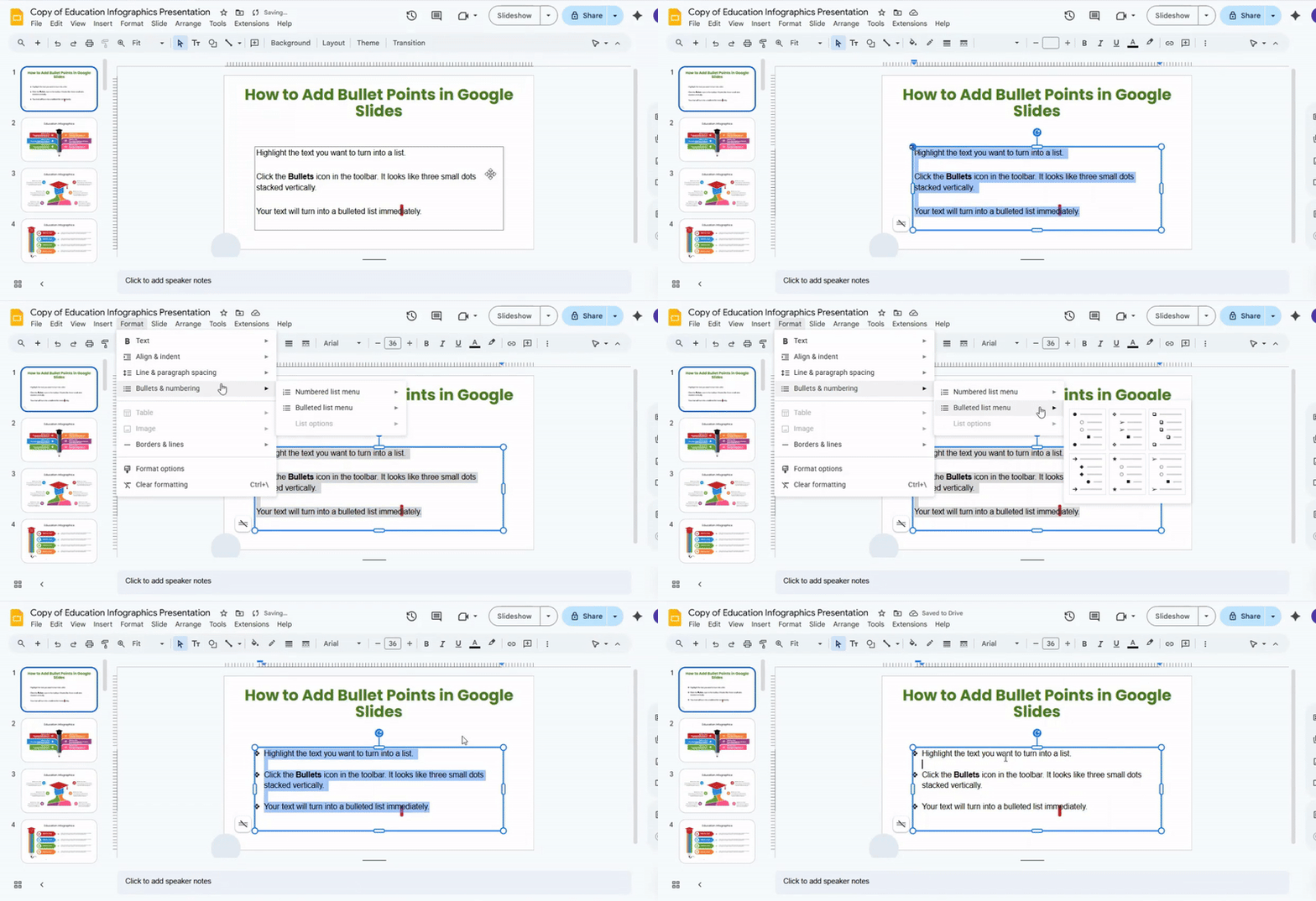
- Highlight your text.
- Go to Format in the top menu.
- Hover over Bullets & numbering.
- Click the Bulleted list. Your text will now have bullets.
Shortcut Method
• Press Ctrl + Shift + 8 (Windows) or Cmd + Shift + 8 (Mac) to add bullets without using menus.
• This works after you highlight the text you want to format.
Formatting Your Bullets
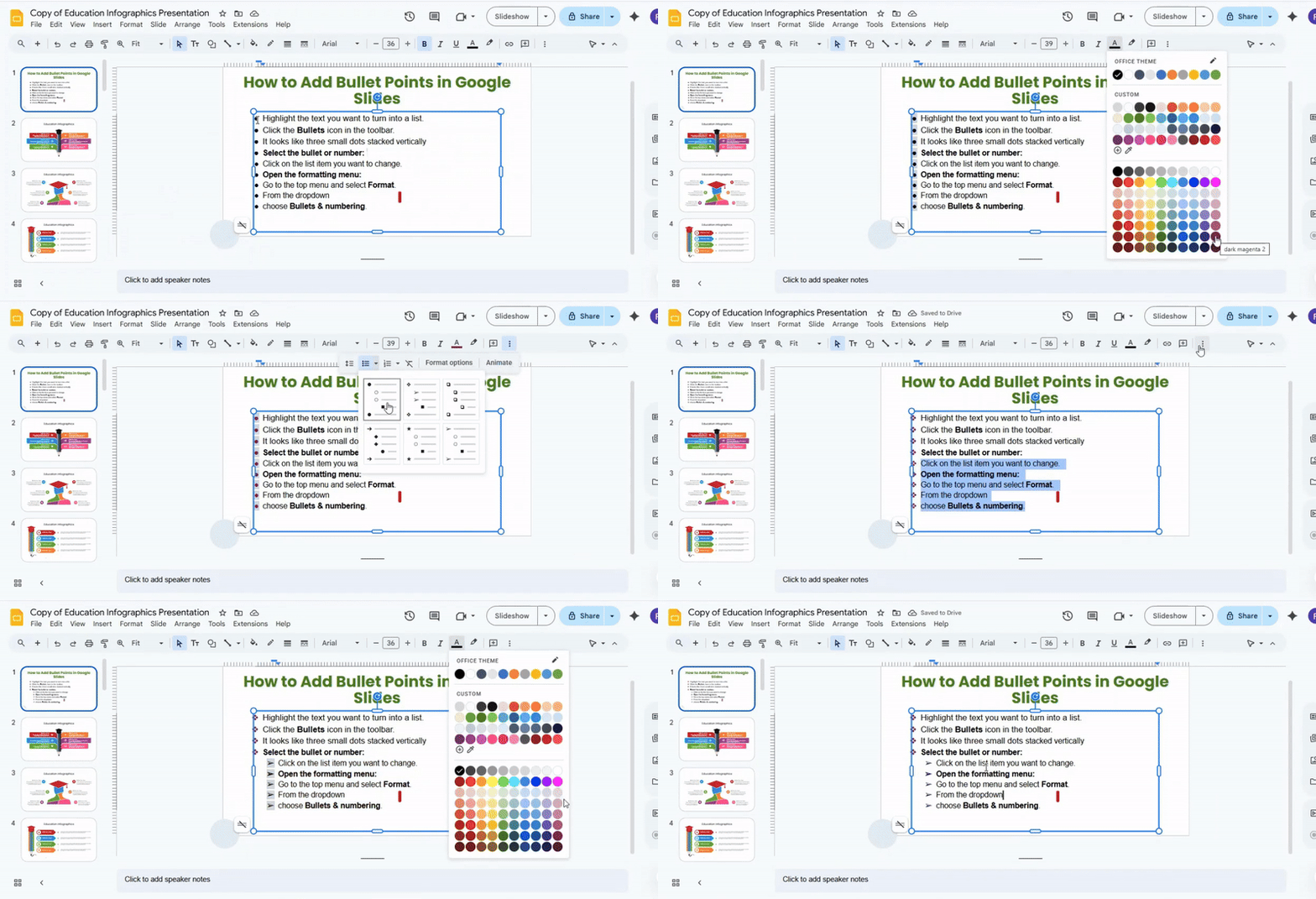
• Change bullet style: Click the dropdown next to the Bullets icon. Choose from circles, squares, or custom symbols.
• Adjust size and color: Highlight bullets and use the text options in the toolbar.
• Indent bullets: Press Tab to create sub-bullets or Shift + Tab to move back.
Visual Example
You can see the effect of bullets in this layout:
• Main point one
• Main point two
• Subpoint A
• Subpoint B
• Main point three
Bullets help break down information and make your slides easier to follow. Use them for lists, steps, or key points.
Changing the Format of a List
Select the bullet or number: Click on the list item you want to change. If you want to format multiple items, click and drag to highlight them all.
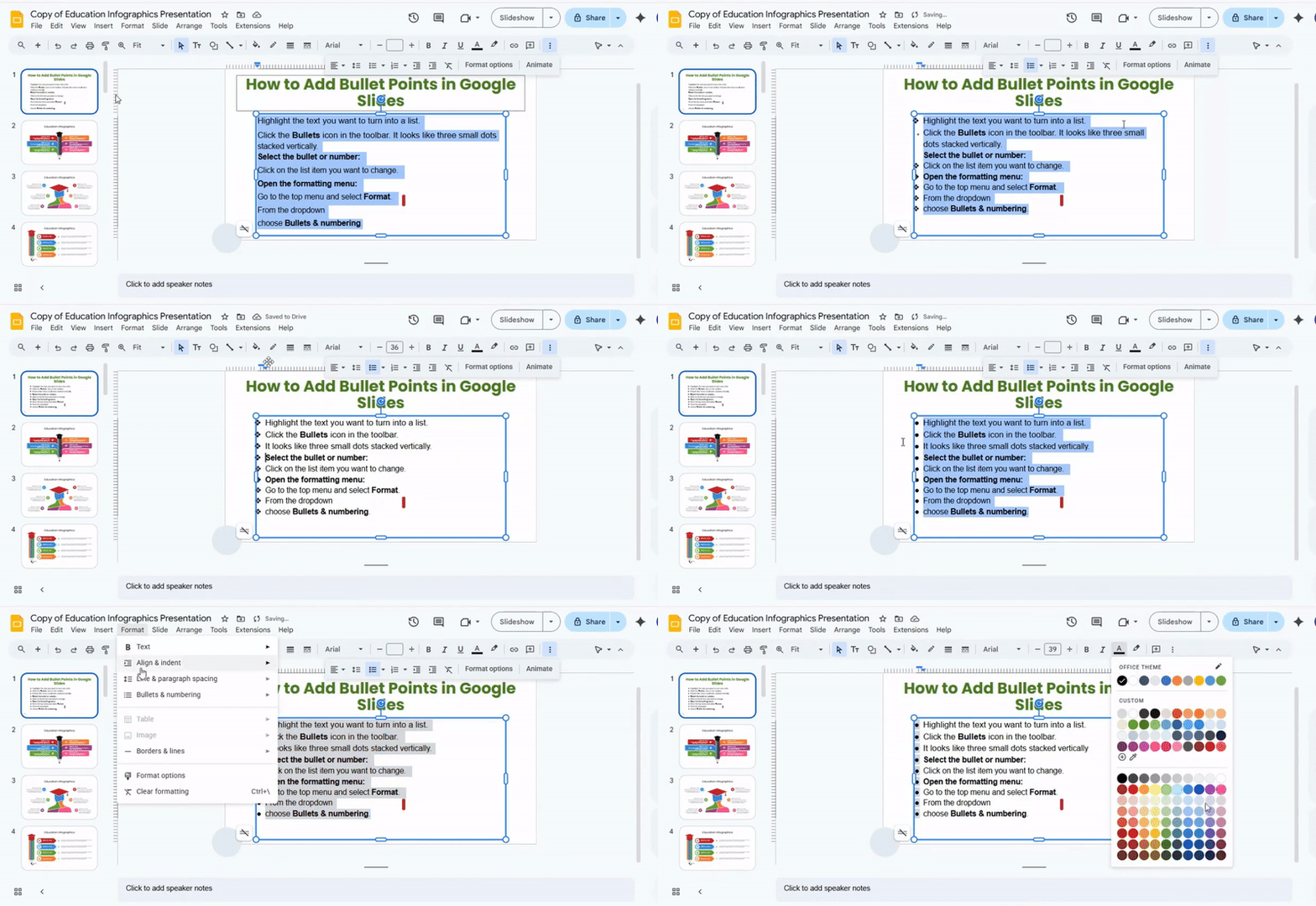
Open the formatting menu: Go to the top menu and select Format. From the dropdown, choose Bullets & numbering.
Choose your list type: Pick a Bulleted list or Numbered list, depending on what you need. The menu will show different styles for each type.
Adjust numbering options: You can restart numbering if the list is part of a new section. Use prefix or suffix options to add symbols or text before or after numbers.
Change bullet style: For bullets, select a different shape, like circles, squares, or checkmarks. The menu updates the selected items immediately.
Change color: Highlight the list items again if needed. Go to the Text color option in the toolbar. Pick a color to make your bullets or numbers stand out.
Check your list: Make sure all items look correct. Adjust spacing or alignment if needed for clarity.
Customizing Bullet Points
Bullet points can help organize information. You can also make them unique to match your content. Custom bullets make lists easier to read and more engaging.
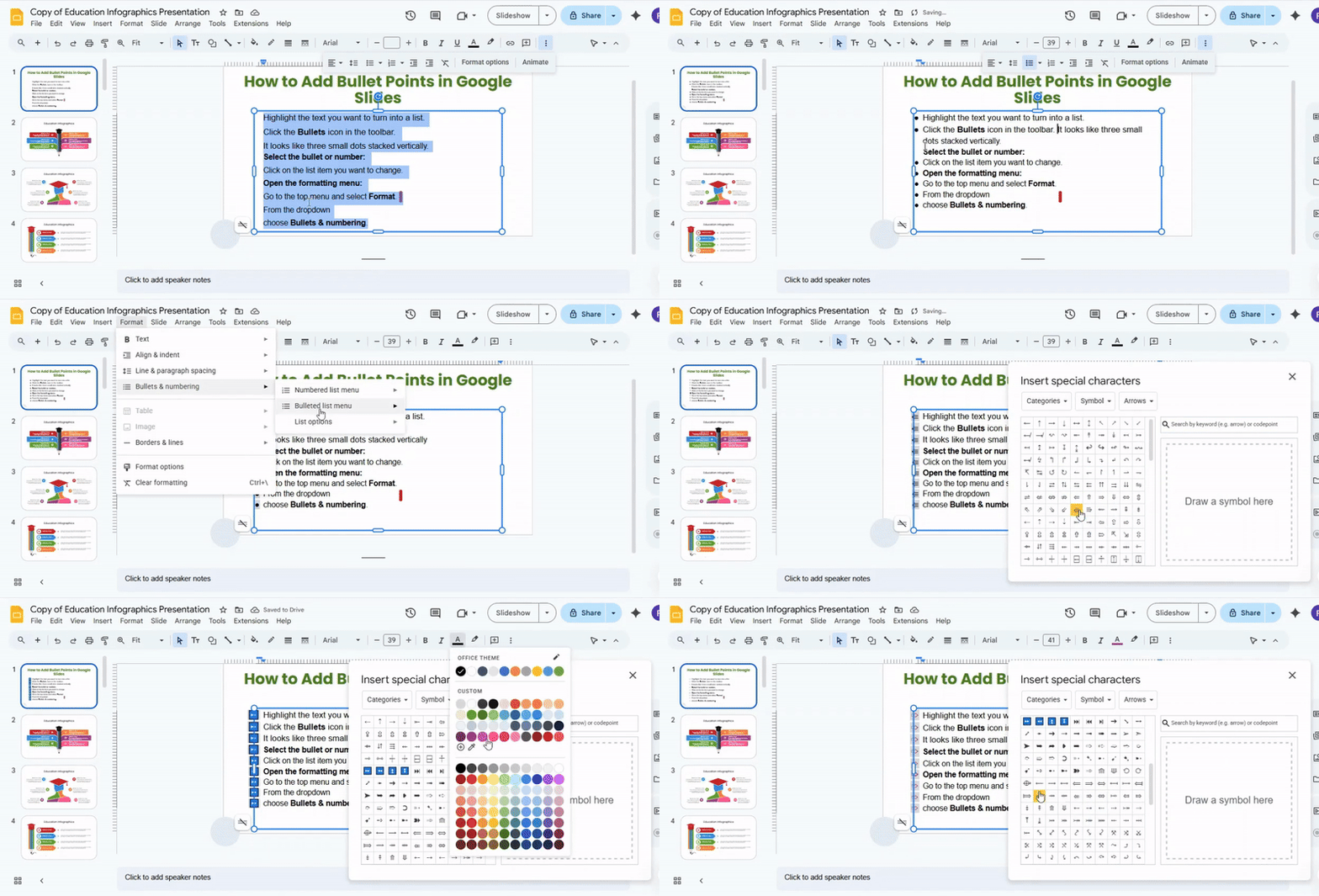
To start, select the text you want to turn into a list. Then go to the Format menu. Choose Bullets & numbering and click More bullets. This opens a library of symbols.
You can scroll to find shapes or icons that fit your list. Another option is to type a keyword to search for specific symbols. For example, you can enter “star” or “check” to find matching bullets.
Emojis are a simple way to add personality. You can also use custom shapes from your graphics. Copy and paste them into the bullet space. Each bullet can be different if needed.
Custom bullets make your lists clearer. They also help highlight key points. By using symbols and shapes, you can create lists that stand out and guide readers smoothly through your content.
How to Color Bullets in Google Slides
Changing bullet colors in Google Slides is simple. Follow these steps to customize your list.
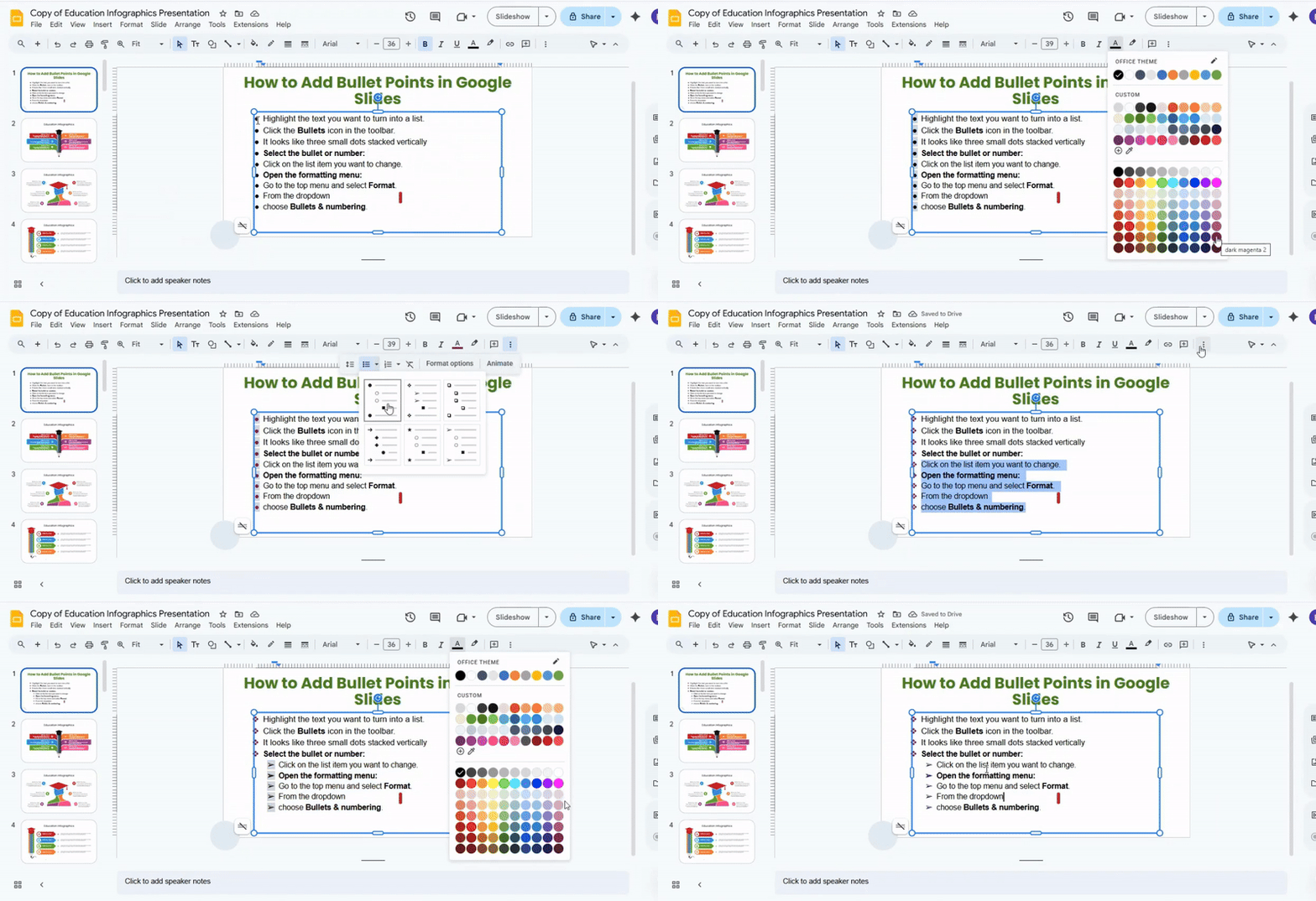
Step 1: Click on the text box that has your bullets. Highlight the lines you want to change.
Step 2: Go to the top toolbar. Click the Text color icon. It looks like a letter "A" with a color bar underneath.
Step 3: A menu will appear. You can choose Text or Bullets.
• Select Bullets if you only want the bullet points to change color.
• Select Text if you want both the text and bullets to change.
Step 4: Click the color you want. You can use the default colors or pick a custom one. The bullets update instantly.
Step 5: Look at your slide to see the new bullet colors. Make sure they match your style.
Final Note: Once you finish, click outside the text box. Your custom bullets are ready.
Advanced Bullet Formatting Techniques
Basic bullet points work well. Still, small changes can make them clearer and easier to scan.
Use Consistent Structure: Each bullet should follow the same pattern. Start each line in a similar way. This keeps the list neat and easy to read.
Keep Bullets Short: Long bullets feel heavy. A short line is easier to scan. Aim for one idea in each bullet.
Highlight Key Words: Bold or color can draw attention to key terms. The eye lands on the important part first. This helps the audience follow the message.
Group Related Points: Place similar ideas in the same list. A mixed list can feel messy. Clear groups help the reader stay focused.
Align Text Properly: Good alignment keeps slides clean. Text that lines up well looks more organized.
Use Sub-Bullets Carefully: Sub-bullets show extra detail. They work well for steps or small explanations. Too many levels can make the slide look crowded.
Add Space Between Points: Space improves readability. Tight lists feel hard to scan. A bit of space gives each idea room.
Match Bullets with Visual Style: Bullets should match the slide theme. A clean style works best for most presentations.
Common Mistakes to Avoid
Even simple bullet points can go wrong. Some habits make slides harder to read.
Writing Long Sentences: Bullets should stay brief. A long sentence defeats the purpose of a list.
Adding Too Many Points: A slide with many bullets feels busy. Limit the list to key ideas.
Mixing Different Styles: One bullet may start with a verb. Another may start with a noun. This breaks the flow. Keep the style consistent.
Using Complex Words: Hard words slow the reader. Simple language keeps the message clear.
Ignoring Visual Balance: Crowded text can overwhelm the viewer. Good spacing keeps the slide clean.
Overusing Sub-Bullets: Too many levels create clutter. The main point can get lost.
Forgetting the Main Message: A list should support the slide topic. Random points confuse the audience.
In Summary:
Long blocks of text can make slides hard to follow. Bullet points break information into clear, easy-to-read pieces. They highlight key ideas and give your slides a clean, professional look.
Adding bullets in Google Slides is simple. You can use the toolbar, the Format menu, or keyboard shortcuts. Once added, bullets can be customized. You can change their style, size, color, and even create sub-bullets. Custom symbols or emojis make lists more engaging and help emphasize important points.
Coloring bullets is also easy. Highlight your text, select the Text color option in the toolbar, and choose whether to change the bullets, the text, or both. This helps your slides match your style and makes key points stand out.
Using bullet points makes presentations easier to read, keeps your audience focused, and turns ordinary slides into organized, readable content.
FAQs:
What should I do if I can’t find the Bulleted List menu in Google Slides?
The Bulleted List menu is usually in the toolbar at the top. If you don’t see it, click on Format, then choose Bullets & numbering, and select Bulleted list. You can also use the keyboard shortcut Ctrl + Shift + 8 (Windows) or Cmd + Shift + 8 (Mac).
Can I change the style of bullet points in Google Slides?
Yes, you can. Highlight your text, click Format > Bullets & numbering > Bulleted list, and pick a style. You can also click the small arrow next to the bullet icon in the toolbar to see more options.
Is there a way to add numbered lists instead of bullet points in Google Slides?
Yes. Highlight your text and go to Format > Bullets & numbering > Numbered list. You can also click the numbered list icon in the toolbar to switch quickly.
Can I customize the color of bullet points independently of the text color?
Not directly. Changing the text color will also change the bullets. A workaround is to use special characters or shapes as custom bullets and color them separately.
How do I remove bullet points from text in Google Slides?
Highlight the text and click the Bulleted List button again, or go to Format > Bullets & numbering > None. The bullets will disappear, leaving your text plain.
Why can’t I see the Bulleted List button in the toolbar?
It may be hidden if your window is too small. Try expanding your browser or clicking the More button (three dots) in the toolbar. You can also access bullets from Format > Bullets & numbering.
Can I use custom bullet points in Google Slides?
Yes. Highlight your text, go to Format > Bullets & numbering > Bulleted list > More bullets, and choose a symbol. You can also copy and paste emojis or special characters as bullets.
How do I create sub-bullets or nested bullet points in Google Slides?
Place the cursor in the line you want to indent, then press Tab. This will create a sub-bullet. Press Shift + Tab to move it back to the main level.
Can I apply bullet points to multiple text boxes at once in Google Slides?
No, Google Slides applies bullets to one text box at a time. You can select all the text inside a single box and apply bullets, but multiple boxes must be done individually.
Is there a shortcut to quickly add bullet points in Google Slides?
Yes. Use Ctrl + Shift + 8 on Windows or Cmd + Shift + 8 on Mac to toggle bullet points for the selected text.


You may also be interested in ...

How To Create An Eye-Catching Portfolio
If you’re looking to create an eye-catching portfolio, this post will come in handy. In this article, you can find the easies...
23 Jun, 2024

How To Easily Create An Infographic
Infographics are the perfect way to make a presentation that will impact an audience, but their design and composition might...
08 Jun, 2024

PowerPoint Template Tips & Tricks You Ne...
PowerPoint seems to be an unknown world for many people, especially those who have been assigned to create a presentation out...
08 Jun, 2024