How to Turn Google Slides into a Video in Minutes
Using Google Slides for presentations is simple and popular. But if you don’t plan to present live multiple times, turning your slides into a video can be a smarter option. This lets you add narration, and viewers won’t need to click through each slide manually.
Videos are easier to share and avoid the compatibility problems that slideshows sometimes have. They can play on almost any device or platform, from desktops to YouTube.
Google Slides doesn’t include a built-in video feature, but free add-ons, recording apps, and AI video makers make the process easy.
In this guide, we’ll cover several methods to convert your presentations into videos quickly, so you can share content that’s simple to watch and more engaging.
Things to Know Before Converting Google Slides to Video
Turning your Google Slides into a video can make your presentation more engaging. Before you start, there are a few key points to keep in mind.
First, check your slide design. Videos need clear text and visuals. Crowded slides may be hard to follow.
Next, think about timing. Each slide should stay on screen long enough for viewers to read and understand it. Too fast, and the message can be lost.
Also, review any animations or transitions. Not all effects work the same way in video format. Simple animations are usually safer.
Finally, check your audio. If you plan to add a voiceover or background music, make sure it matches the pace of your slides.
Keeping these points in mind will make your video smoother and easier for viewers to follow.
How to Convert Google Slides to Video?
You have your slides ready. They look great, but sharing them can be tricky. A video makes your slides easy to share and more engaging. People can watch without opening Google Slides. Videos also keep viewers’ attention longer.
You can turn your slides into a video in a few simple ways. Each method is easy to follow and does not need advanced tools. Let’s walk through the steps so you can pick the one that works best for you
1. Make Use of Add-ons
Creator Studio is a useful tool you can add to Google Slides from the Google Workspace Marketplace. It can turn your slides into GIF images or MP4 videos. You can also add an MP3 audio file or record your voice to narrate the presentation. When the video is ready, it includes any background sound you added.
Steps:
- Install: Go to Extensions > Add-ons > Get add-ons. Search for “Creator Studio” and install it.
- Open: Go to Extensions > Creator Studio > Create Video.
- Customize: Set the output width and interval between slides. Choose Video File (MP4) or Video with Audio if you want narration.
- Convert: Click Go and wait for the video to render.
2. Using PowerPoint
Microsoft PowerPoint can turn your slides into a video with advanced control over quality and resolution. This is ideal for professional presentations.
Steps:
- Download: Go to File > Download as > Microsoft PowerPoint (.pptx).
- Open in PowerPoint: Launch PowerPoint and open the downloaded file.
- Export to Video: Go to File > Export and choose Create a Video.
- Customize: Pick your desired video quality and resolution.
- Record Narration (Optional): Add voiceover if needed.
- Save: Click Create Video and select where to save the file.
3. Using ScreenPal
ScreenPal is a screen recording and editing tool. You can import Google Slides, add narration, and create a polished video.
Steps:

Prepare and Import Slides: Save your Google Slides as a PDF. Open ScreenPal and start a new project using Storyboard. Select “Import from PDF.”
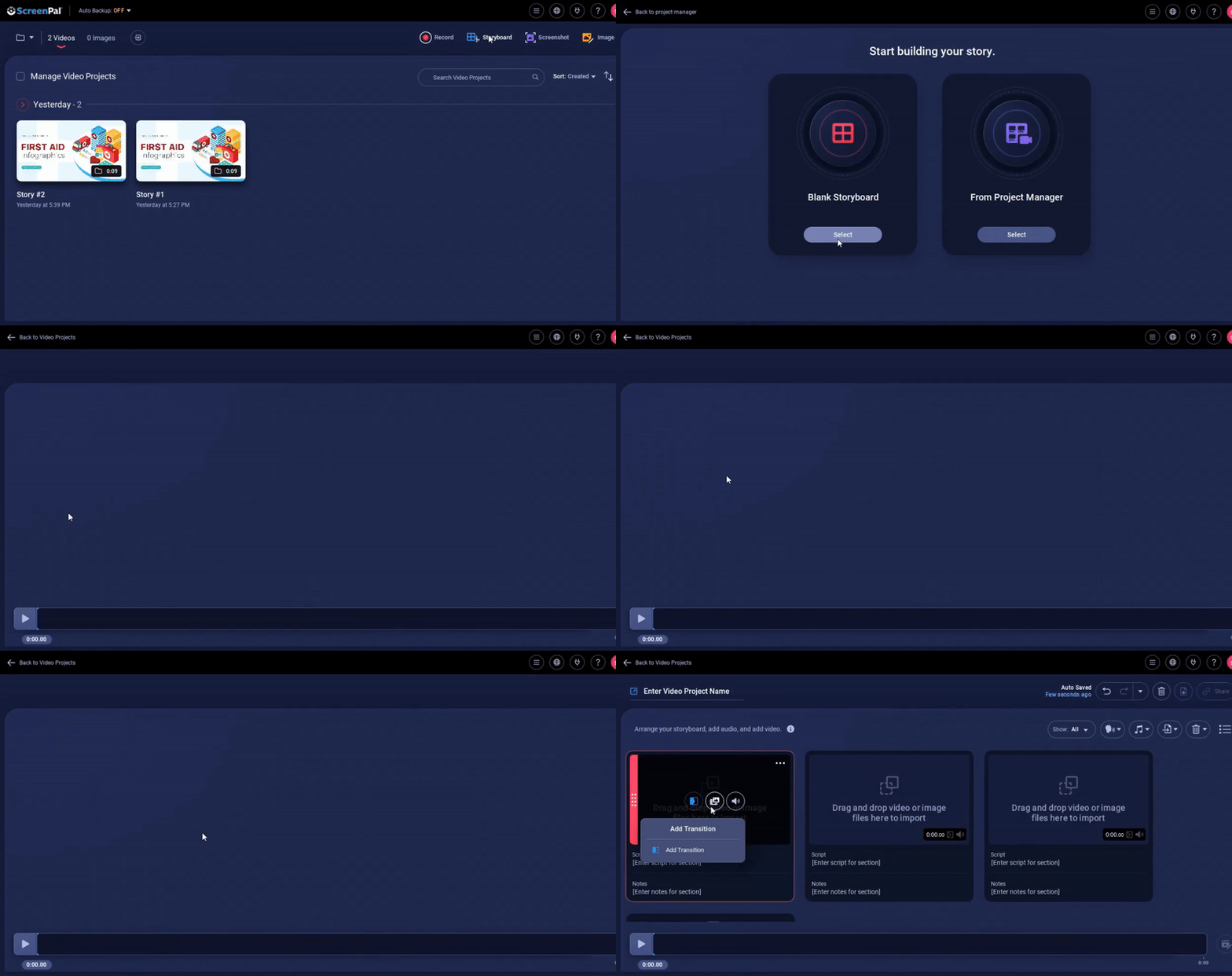
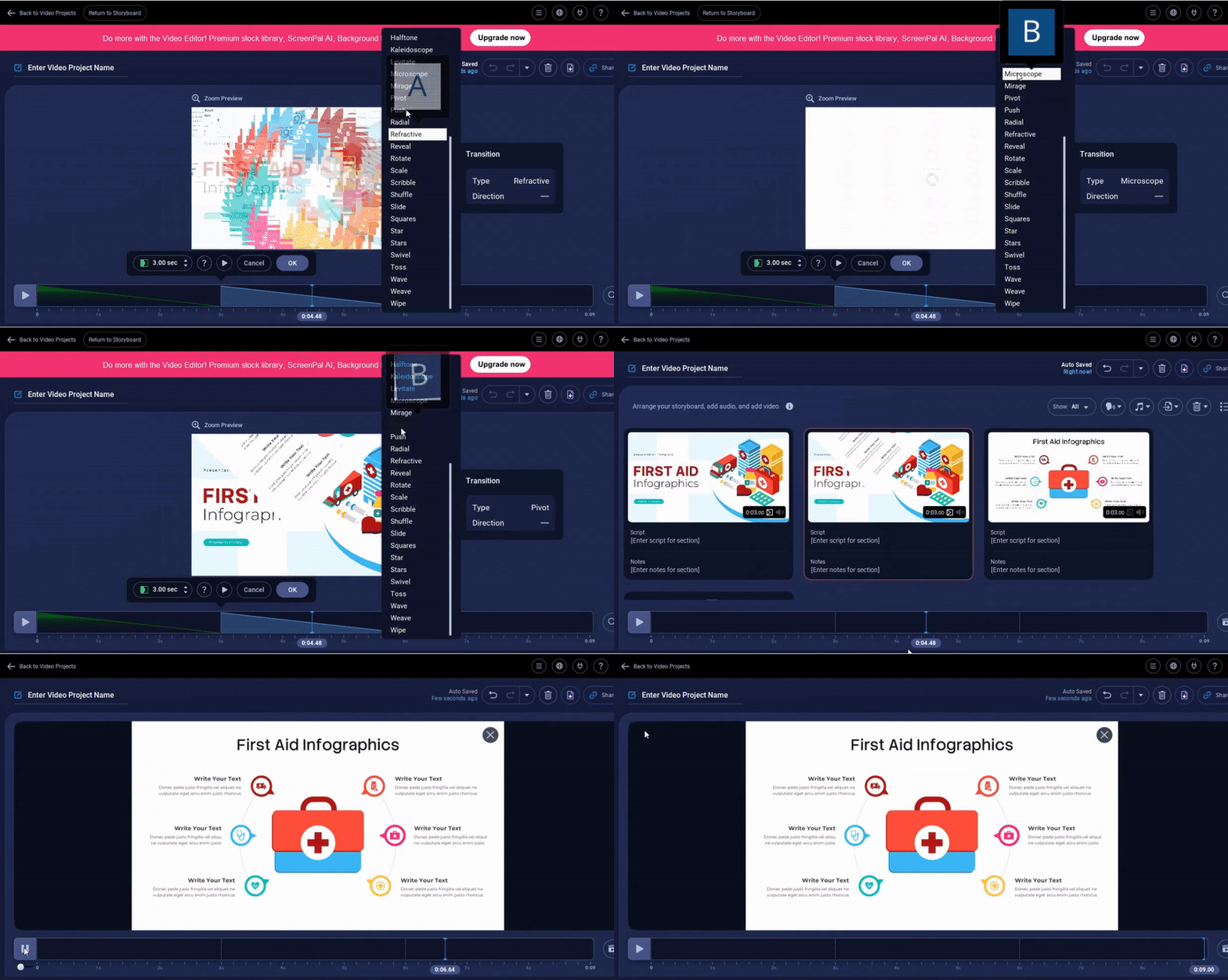
Edit Slides: Add transitions, adjust slide timing (5–10 seconds per slide), record narration, insert text animations, or add cursor effects.
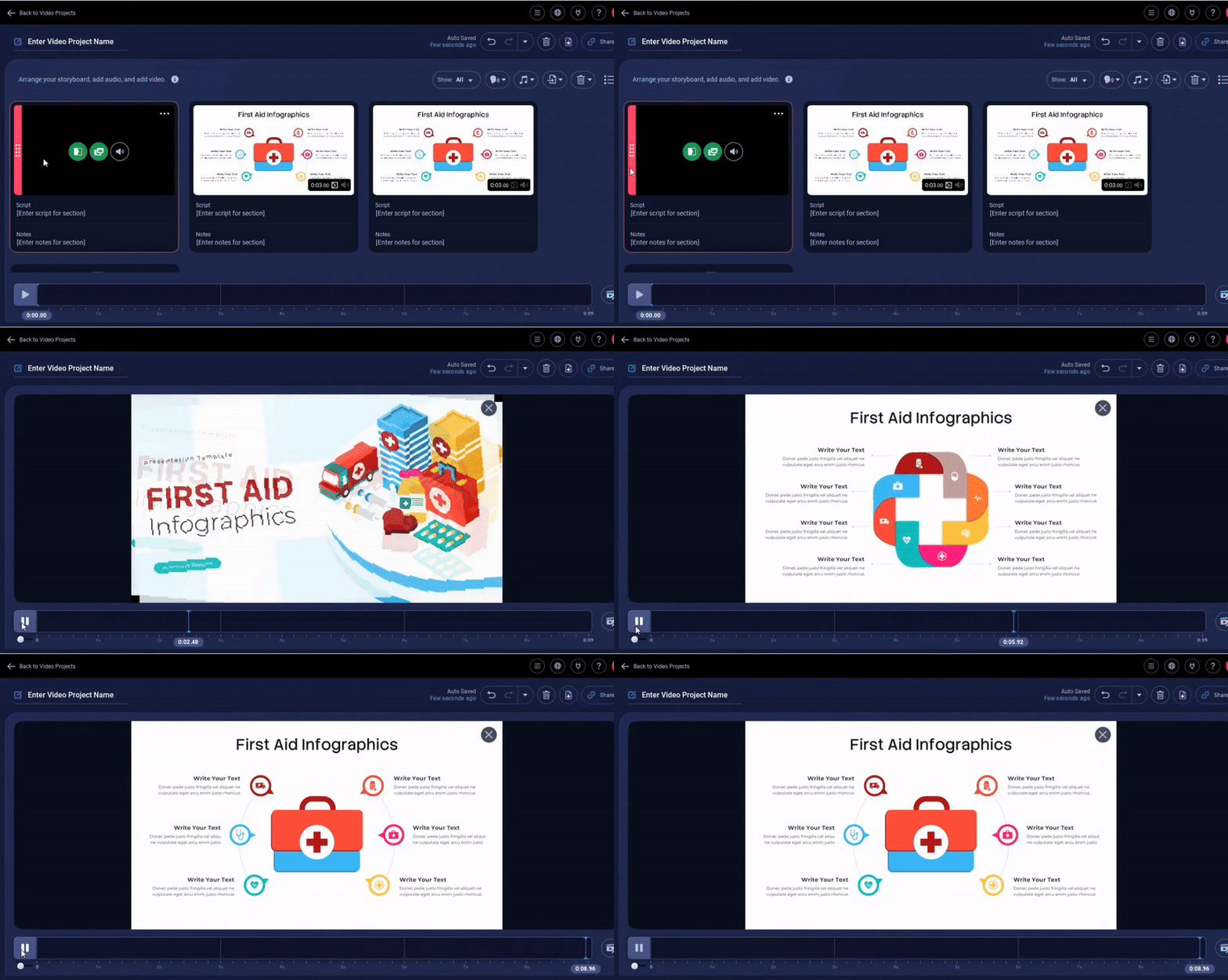
Export Video: Click the download button, choose a video format, and save.
4. Using Canva
Canva allows you to import slides and turn them into videos using its templates and editing tools. This is great for visually appealing presentations without heavy editing.
Steps:
- Import Slides: Go to Canva, click Create a Design, choose Presentation, and select Import from Google Slides.
- Edit (Optional): Make changes using Canva’s editing tools.
- Convert to Video: Click Share > Download and choose MP4.
5. Using a Recording App
Screen recording apps are simple and fast for narrating slides. They may not have advanced editing, but they work well for quick presentations.
Steps:
Choose an App: Use Loom, Screencastify, or another screen recorder.
Set Up Recording: Choose the area to record (full screen or window).
Record: Play your slides while narrating. Add annotations if the app allows.
Stop Recording: Finish and edit the video if needed.
Save: Download your video in the desired format.
6. Using an AI Video Maker
AI video tools like Heygen can quickly turn slides into professional videos. They add voiceovers, music, and animations automatically. You don’t need advanced editing skills.
Steps:
- Open the AI video tool and upload your slides.
- Pick a style or template.
- Add voice, music, or text overlays if needed.
- Let the AI generate the video.
- Download the final video.
7. Exporting Slides as Images and Creating a Video
If other tools are not available, export slides as images and turn them into a video.
Steps:
- Export each slide as PNG or JPG.
- Open a video editor or slideshow app.
- Import the images in order.
- Set timing for each slide.
- Add audio or narration if needed and export as a video.
What are the Benefits of Converting Google Slides into a Video?
Turning your Google Slides into a video can make your content more useful and reach more people. Here are four main benefits and how they can help you.
1. Easy to Watch and Share
Videos are simple to view on any device. You don’t need Google Slides or an internet connection to open them. You can send the video by email, share it on social media, or upload it to a website. For example, if you create a training presentation, your team can watch it on their phone anytime without opening Google Slides. Using formats like MP4 or HEVC ensures good quality without large file sizes.
2. Engaging Content
Videos grab attention better than static slides. Adding voiceovers, music, or animations can make your message clearer and more interesting. For instance, a short video explaining a product feature is easier to follow than reading bullet points. You can also add text highlights or transitions to emphasize key points.
3. Better Storytelling
Videos help you tell a story instead of just showing slides. You can guide viewers from one idea to the next with voice narration or on-screen instructions. For example, a sales pitch video can start with a problem, show solutions, and end with a call to action. This makes the message more memorable and easier to understand.
4. Easy Offline Viewing
Once converted, your video can be watched without an internet connection. This is useful for classrooms, workshops, or remote locations where internet access is limited. You can also store videos on USB drives or share them at events without relying on a computer or projector.
Common Issues When Converting Google Slides to Video
Converting Google Slides into a video can seem simple, but several issues often appear. One common problem is that the audio is not syncing properly with the slides. Sounds may start too early or too late, which can confuse viewers.
Another issue is video quality. Sometimes the exported video appears blurry or pixelated. This usually happens if the slides contain high-resolution images or animations.
Timing can also cause trouble. Slide transitions or animations may not play at the intended speed. This can make the video feel rushed or uneven.
File size is another concern. Videos can become very large, making them hard to upload or share.
Finally, certain elements may not convert at all. Embedded charts, external videos, or special fonts may not appear correctly in the video format.
Mistakes to Avoid When Turning Google Slides Into a Video
Many people try to make videos from Google Slides but run into simple mistakes. These errors can make your video look unprofessional or confusing.
One common mistake is using slides that are too busy. Slides with too much text or too many images can overwhelm viewers. Keep each slide focused on one idea.
Another problem is poor timing. Some slides stay on screen too long or too short. This can make your video feel slow or rushed. Test the timing to match your narration or background music.
A third mistake is ignoring transitions. Bad or missing transitions make your video jumpy. Use smooth slide changes that match the flow of your story.
Finally, check your video format. Google Slides exports best in certain formats. Using the wrong format can cause playback issues on some devices.
Avoid these errors, and your video will look polished and easy to follow.
Final Thoughts:
Turning your Google Slides into a video makes your presentations more flexible and easier to share. Videos keep viewers engaged and let you add voiceovers, music, or simple animations. You can reach more people, tell your story clearly, and let them watch on any device, even offline.
By choosing the right method and checking your slides, timing, and audio, you can create a video that looks professional and is easy to follow. Whether you use an add-on, a screen recorder, or an AI tool, the process is simple and gives your slides a new life.
Making a video from your slides takes a few steps, but it can make a big difference in how your content is seen and remembered.
FAQs:
How do I convert Google Slides to PowerPoint?
Open your Google Slides file, click File, then Download, and choose Microsoft PowerPoint (.pptx). Your slides will save as a PowerPoint file ready to open in Microsoft PowerPoint.
How do I convert Google Slides to PowerPoint with audio?
Google Slides doesn’t natively keep audio when exporting to PowerPoint. You’ll need to add audio separately in PowerPoint after downloading the file.
Will my slide animations work in the video?
Most basic animations, like fades or simple moves, will play in the video. Complex animations or transitions may not appear exactly as in Google Slides.
How long does it take to convert Google Slides to video?
Conversion usually takes a few minutes, depending on the number of slides and the size of any media like images or audio. Large files may take longer.
What video formats can I export when converting Google Slides to video?
Common formats include MP4 and MOV. MP4 is widely supported and works on most devices and platforms.
Can I add background music or voice narration to a Google Slides video?
Yes, you can add audio during the video export process or by recording narration directly in Google Slides using a separate tool. This audio will play along with your slides.
Does converting Google Slides to video affect quality?
Video quality is usually high, but very large images or detailed graphics may lose some clarity. Keeping images at a good resolution helps maintain quality.
Is there a free way to convert Google Slides to video?
Yes, you can use free tools like Loom, Screencast-O-Matic, or PowerPoint itself after exporting your slides. Some free tools may have limits like watermarks or time restrictions.


You may also be interested in ...

How To Create An Eye-Catching Portfolio
If you’re looking to create an eye-catching portfolio, this post will come in handy. In this article, you can find the easies...
23 Jun, 2024

How To Easily Create An Infographic
Infographics are the perfect way to make a presentation that will impact an audience, but their design and composition might...
08 Jun, 2024

PowerPoint Template Tips & Tricks You Ne...
PowerPoint seems to be an unknown world for many people, especially those who have been assigned to create a presentation out...
08 Jun, 2024