How to Add Narration in Google Slides
Creating a presentation can take time and careful thought. You want your slides to be both clear and interesting. One way to make your Google Slides more engaging is by adding narration. Narration is a recording of your voice that guides your audience through each slide. It can help explain ideas, tell a story, or highlight important points. Adding narration brings your slides to life and keeps viewers focused. This blog post will walk you through the steps to easily add narration to your Google Slides presentations.
Benefits of Adding Narration to My Google Slides Presentation
Adding narration to your Google Slides presentation can make your message clearer and more engaging. It helps your audience connect with your content while making your presentation feel polished and professional. Here are the key benefits of including narration:
Boost Engagement
Narration grabs attention and keeps viewers interested. Hearing your voice adds a personal touch, making the slides feel more lively and easier to follow.
Clarify Your Message
Sometimes text and images alone are not enough. Narration lets you explain ideas in your own words, reducing confusion and helping your audience understand key points.
Open Up Accessibility
Narration benefits people who learn better by listening or have difficulty reading. It allows a wider audience to access your content comfortably.
Maintain Consistency
With narration, every viewer hears the same explanation. This ensures your message stays consistent, even when you cannot present live.
Enhance Professionalism
Adding narration shows preparation and attention to detail. It can make your presentation look more polished and credible.
Save Time During Live Sessions
Narration can replace lengthy live explanations. Viewers can watch at their own pace, leaving more time for questions or discussion.
How to Add Narration to Google Slides
Learn how to add audio narration to your Google Slides for a more engaging presentation.
Prepare Your Audio
Record your narration using a microphone or audio app. Save the file in MP3 or WAV format. Make sure the audio is clear and easy to understand.
Open Your Presentation
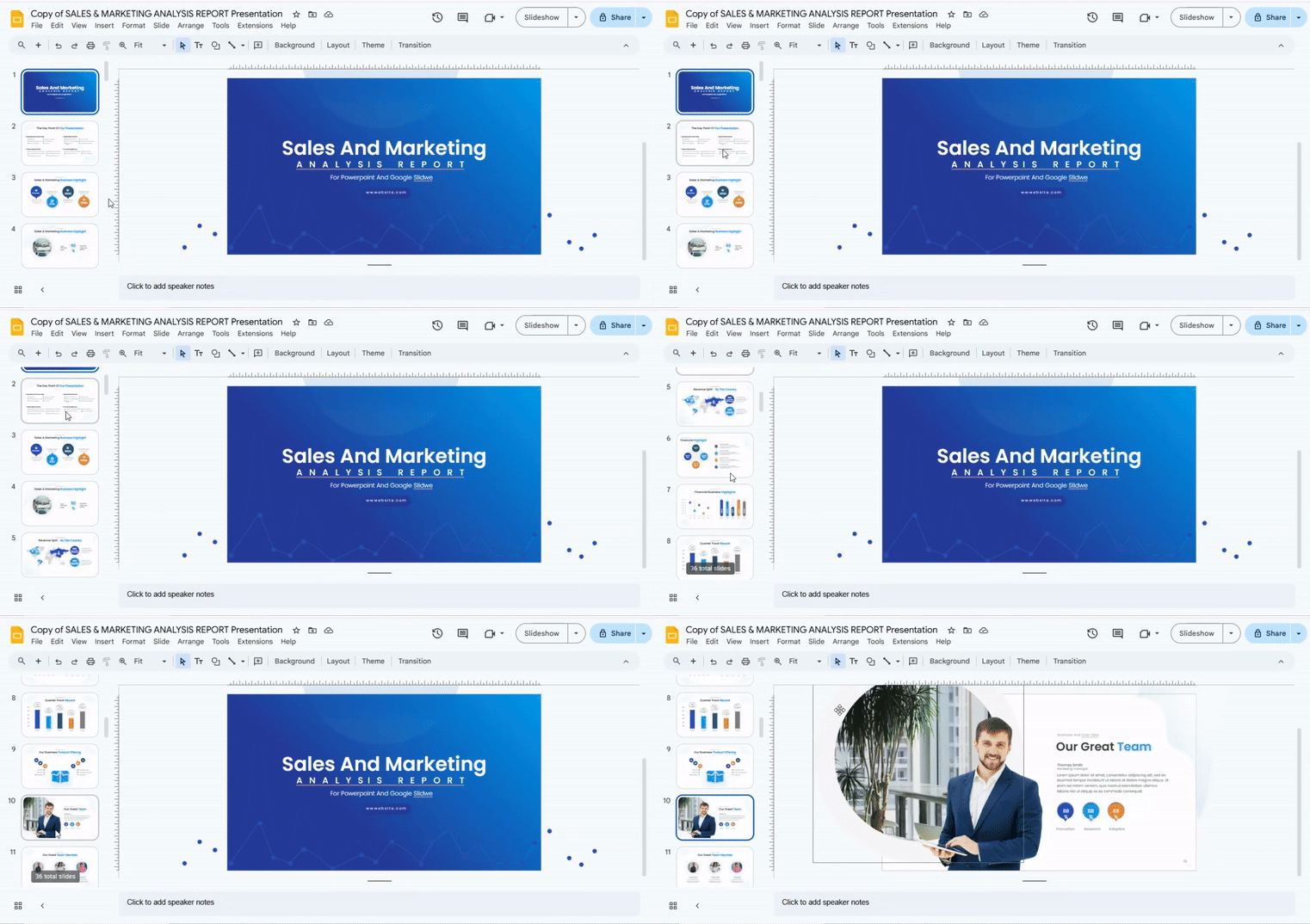
Launch Google Slides and open the presentation you want to add narration to.
Select the Slide
Click on the slide where you want to insert your narration. You can add audio to one slide at a time or multiple slides as needed.
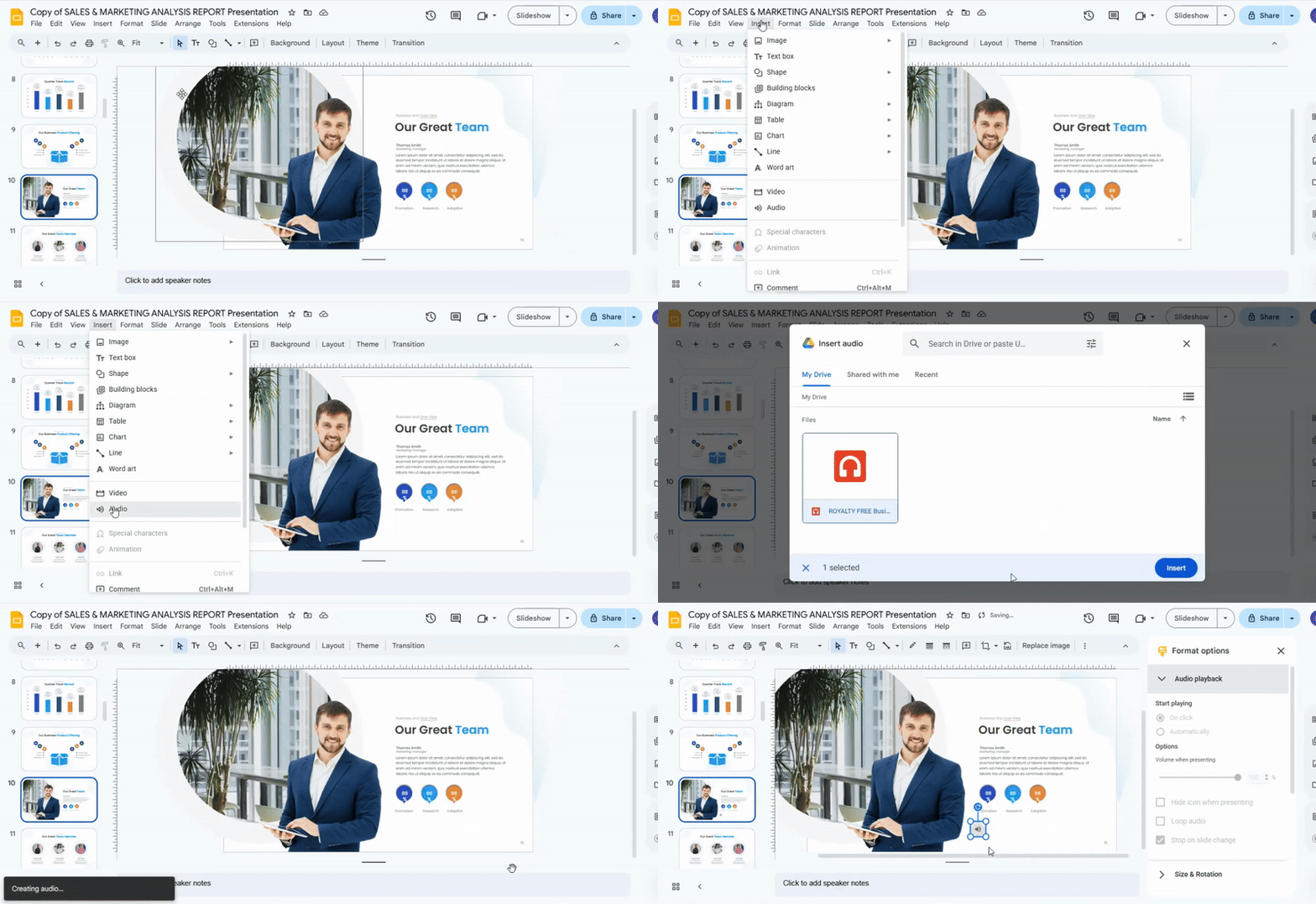
Insert the Audio File
Go to the “Insert” menu and select “Audio.” Choose the file you recorded and upload it. Wait for the audio to appear on the slide.
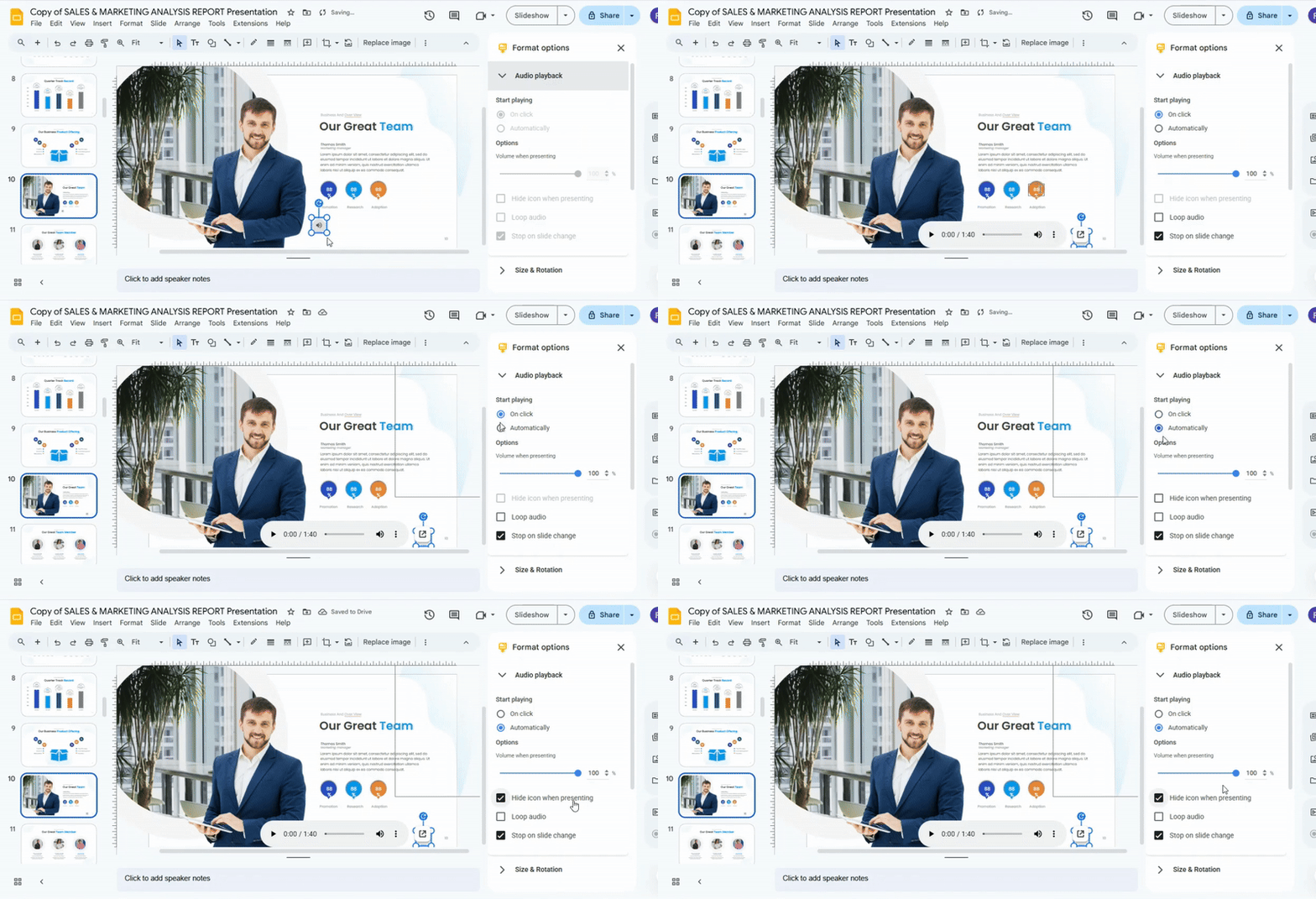
Adjust Playback Settings
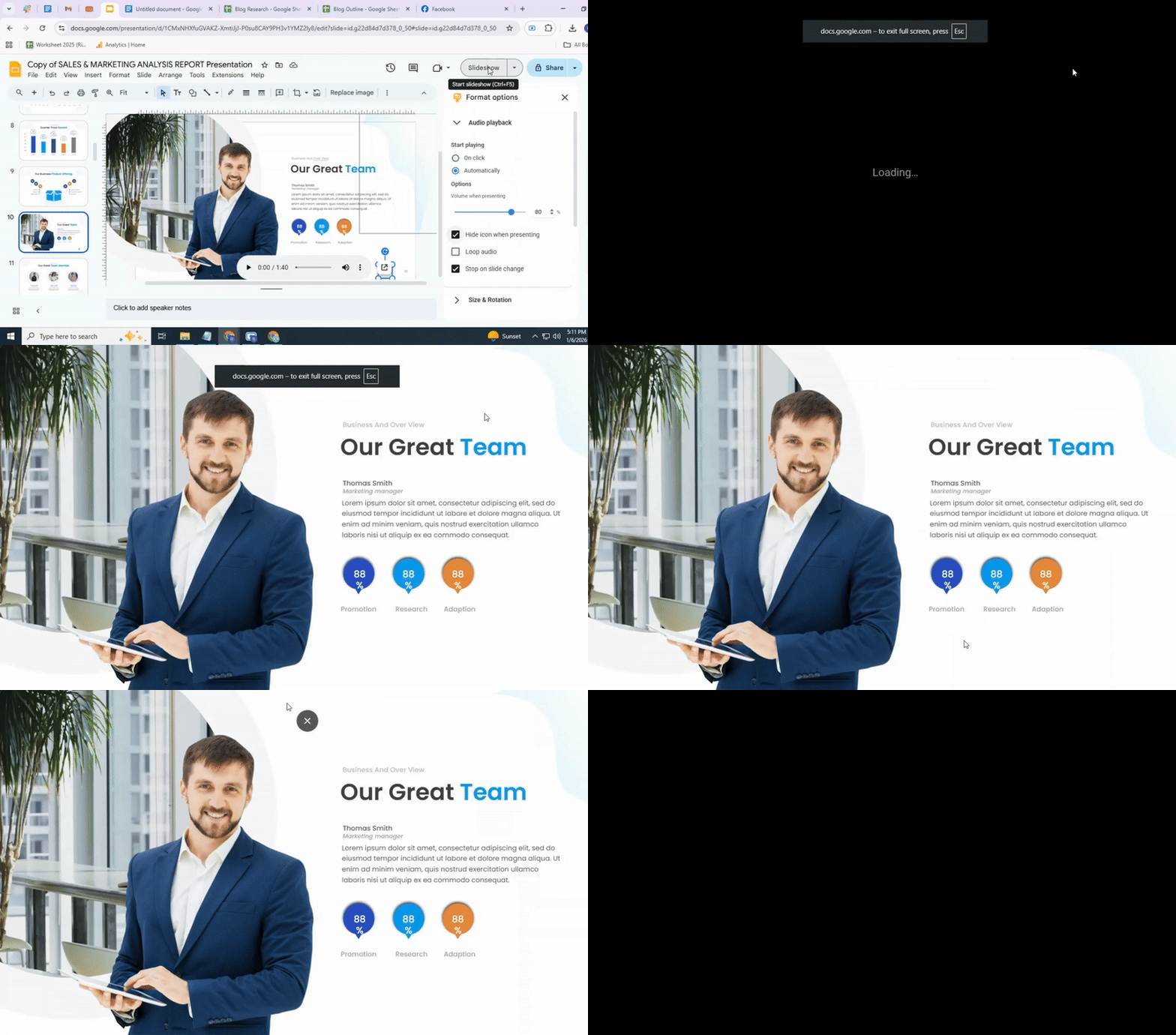
Click the audio icon on the slide. In the settings panel, select how you want the audio to play: automatically when the slide opens or when clicked. You can also choose to hide the icon during the presentation.
Test the Narration
Play your slide to make sure the narration works as expected. Check volume, timing, and whether it starts automatically or on click.
Repeat for Other Slides
If you have more slides to narrate, repeat steps 3–6 for each slide.
Share Your Presentation
Once all narration is added, share the presentation by clicking “Share” in the top-right corner. You can give access to others via email or a link.
Conclusion:
Adding narration to your Google Slides can make your presentations clearer and more engaging. It helps your audience follow along, understand your ideas, and stay focused. By recording your voice and adding it to your slides, you create a more personal and professional experience. With narration, your message is consistent, accessible, and easier to share. Taking the time to include audio can make a big difference in how your content is received.
FAQs:
What’s the best file format for my narration audio?
MP3 is usually the best choice. It keeps the file size small and works well on most devices. WAV files give higher quality but take up more space.
The audio sounds too fast/slow in my presentation. Can I adjust it?
Yes, most presentation software lets you change the speed. Look for playback or audio settings and adjust the rate until it sounds right.
How long should I keep the narration for each slide?
Aim for 30 to 60 seconds per slide. Shorter slides keep your audience engaged and make the presentation easier to follow.
What if I have multiple narrators for different parts of the presentation?
You can record each person separately and insert their audio on the right slides. Make sure the volume and tone are consistent across all recordings.
Can I control the narration during a live presentation?
Yes, you can pause, play, or skip audio while presenting. Use the playback controls or presenter view to manage it smoothly.


You may also be interested in ...

How To Create An Eye-Catching Portfolio
If you’re looking to create an eye-catching portfolio, this post will come in handy. In this article, you can find the easies...
23 Jun, 2024

How To Easily Create An Infographic
Infographics are the perfect way to make a presentation that will impact an audience, but their design and composition might...
08 Jun, 2024

PowerPoint Template Tips & Tricks You Ne...
PowerPoint seems to be an unknown world for many people, especially those who have been assigned to create a presentation out...
08 Jun, 2024