How to Make a Google Slides Font Metallic Easily?
Many people want their Google Slides to stand out, but plain text just doesn’t catch the eye. Regular fonts can make your slides look flat and dull, especially when you want a professional or creative touch. It’s frustrating to try different tricks that take too long or don’t give the look you want.
Luckily, there’s a simple way to give your text a metallic finish without extra software or complicated steps. In this guide, you’ll learn how to make your fonts shine and add a polished, eye-catching effect to your slides. By the end, your presentation will look more dynamic and professional.
How to Create Metallic Text Effect in Google Slides Through Word Art
You can make your text look metallic using Word Art in Google Slides. Follow these steps to achieve the effect.
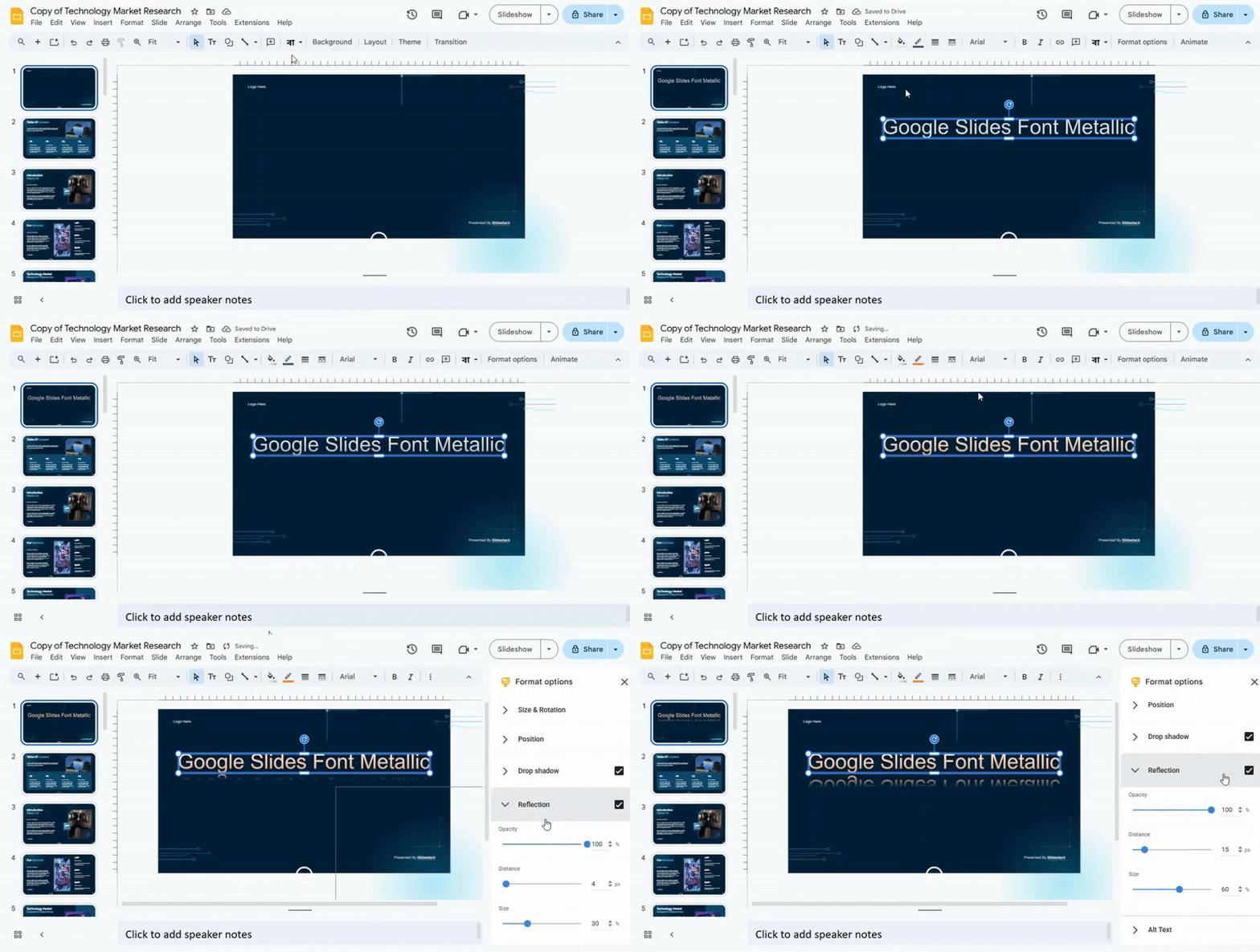
1. Open your Google Slides presentation.
2. Click Insert in the top menu, then select Word Art.
3. Type the text you want and press Enter.
4. Select the Word Art text by clicking on it.
5. Click the Fill color icon in the toolbar.
6. Choose a gradient or custom color that resembles metal, such as silver, gold, or bronze.
7. Click the Border color icon to adjust the outline if needed.
8. Use the Format options panel to add shadows or reflections to enhance the metallic look.
9. Adjust the size and position to fit your slide design.
Tip: Try combining different gradients and shadow settings to make the metallic effect more realistic.
How to Make a Font Metallic in Google Slides Using a Third-Party Tool
If you want your text to stand out with a metallic look, a third-party tool can help you create more detailed effects than Google Slides alone allows. Follow these steps to add shiny, metallic text to your slides.
Step 1: Pick a Third-Party Tool
Choose an online text generator that offers metallic effects. Examples include InkPx, Text Studio, or similar platforms. For this guide, we’ll use InkPx.
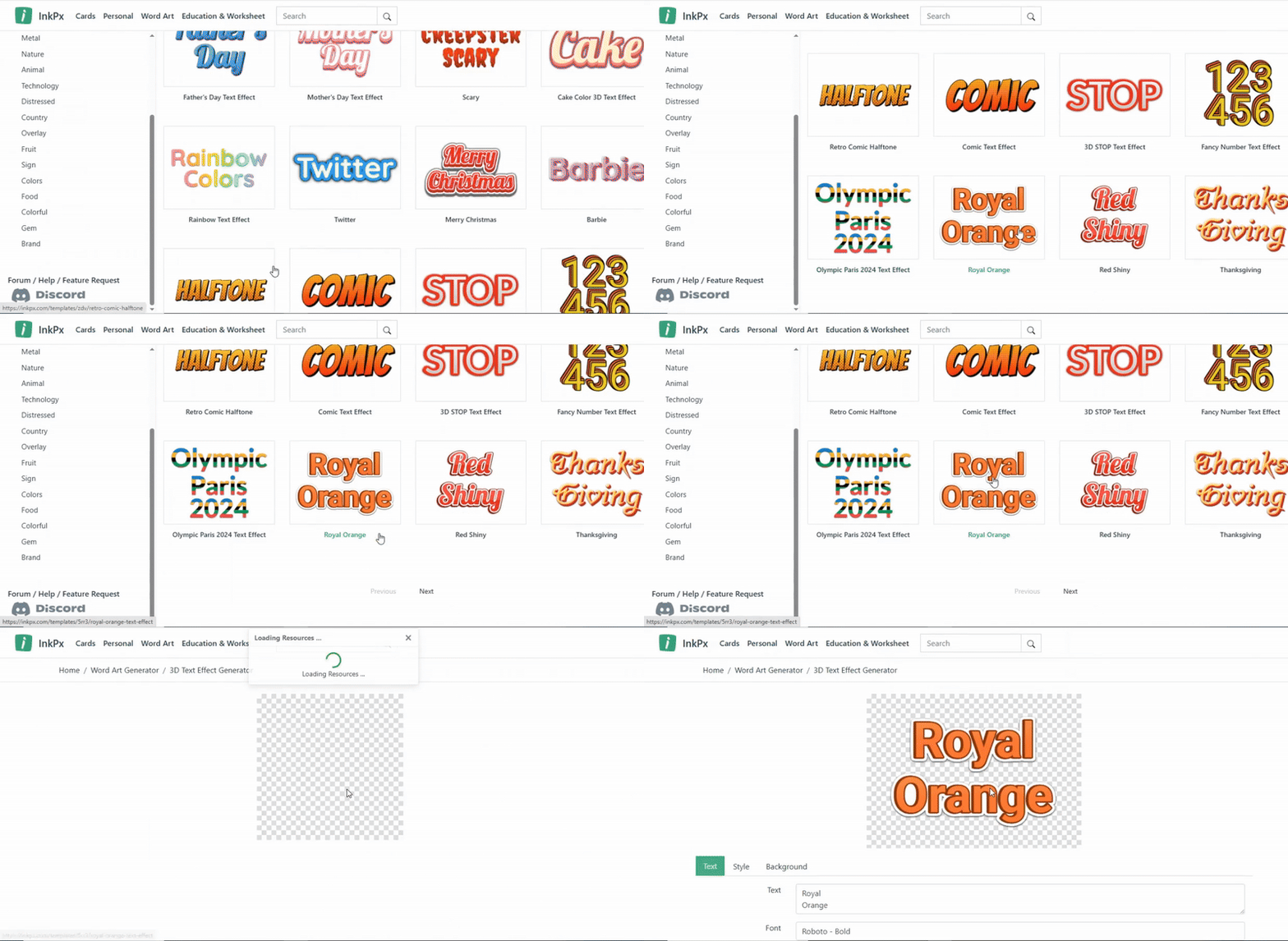
Step 2: Select the Metallic Effect
Browse the tool’s options and pick the metallic style you like. Some tools offer gold, silver, or bronze finishes.
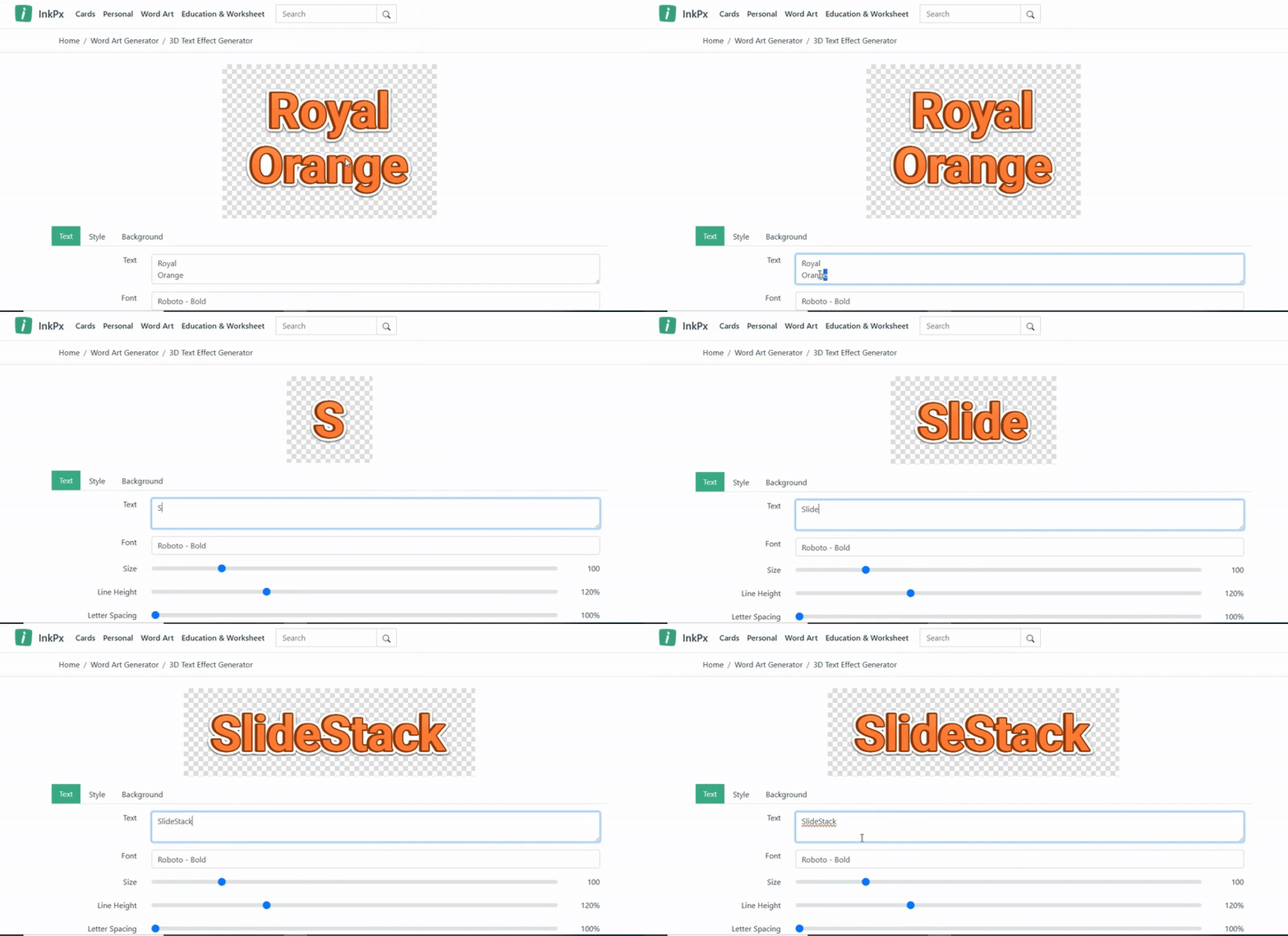
Step 3: Enter Your Text
Type in the words you want to appear metallic. Make sure the spelling and capitalization are correct. You can also choose a clean background color, like white, to make the metallic effect pop
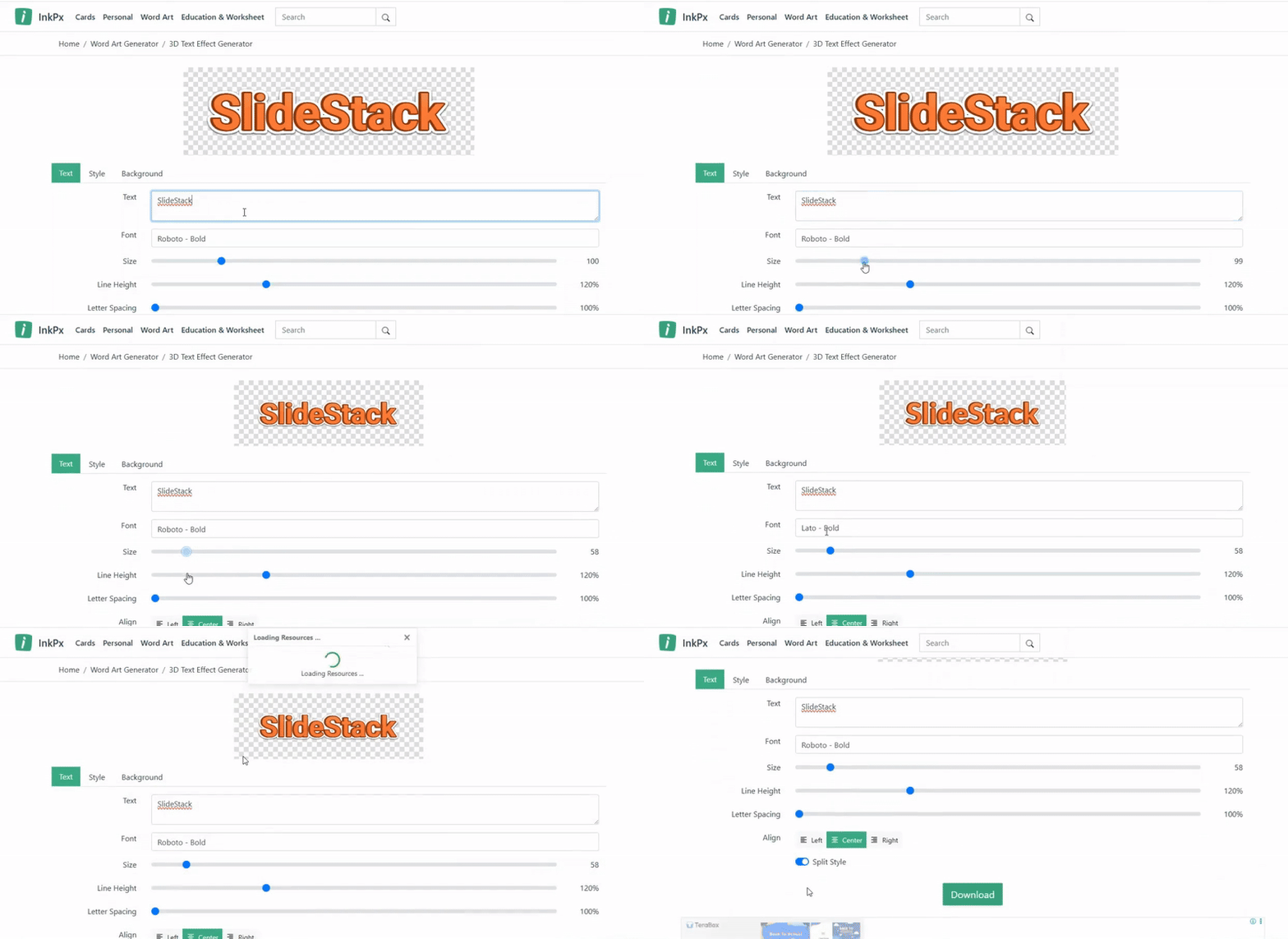
Step 4: Customize the Text
Adjust the font size, style, and shine if the tool provides these options. This will help the text fit the look you want for your slide.
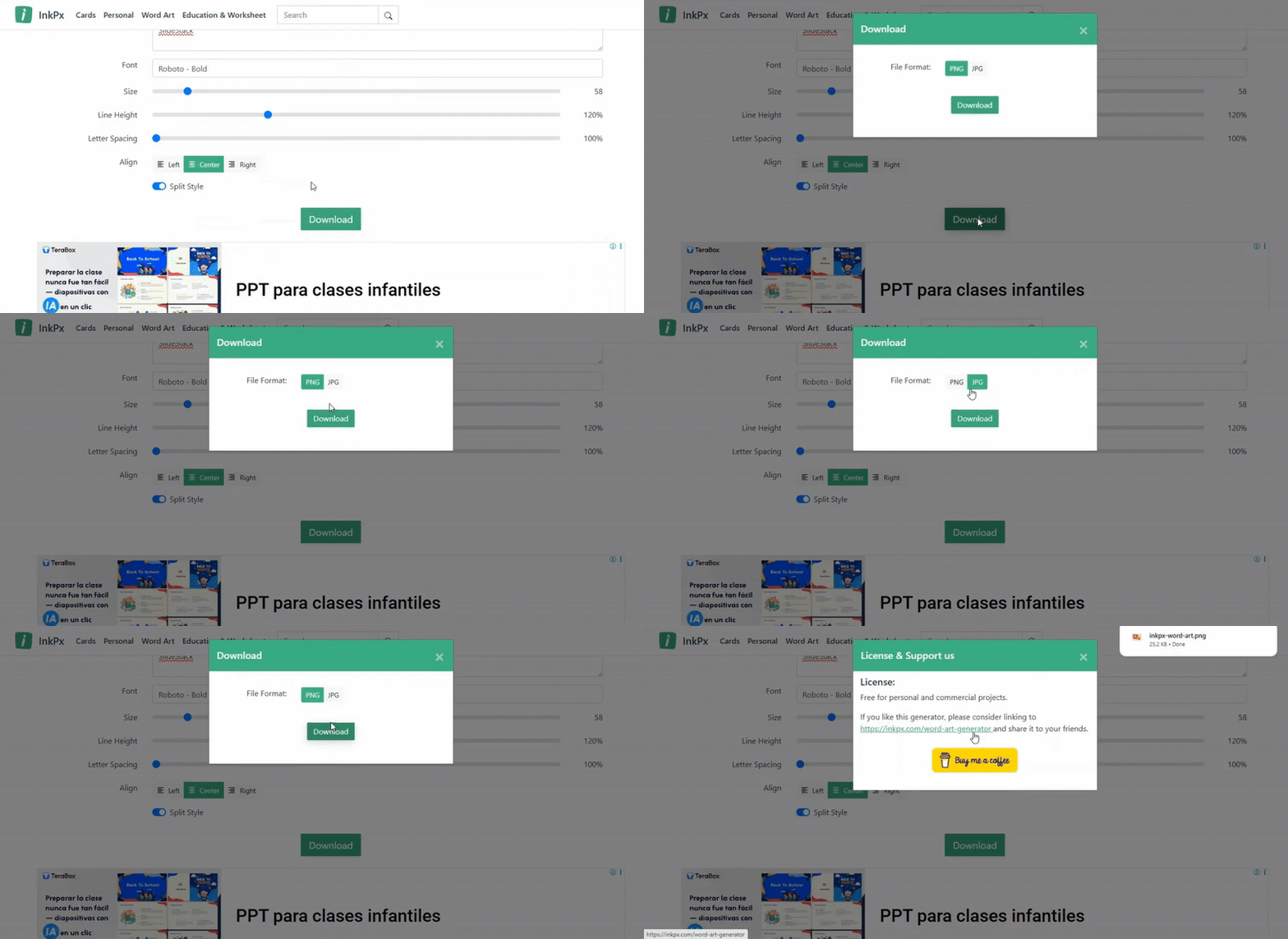
Step 5: Generate and Download the Image
Once you are happy with the text, click the generate button. Save the metallic text as an image, usually in PNG or JPEG format.
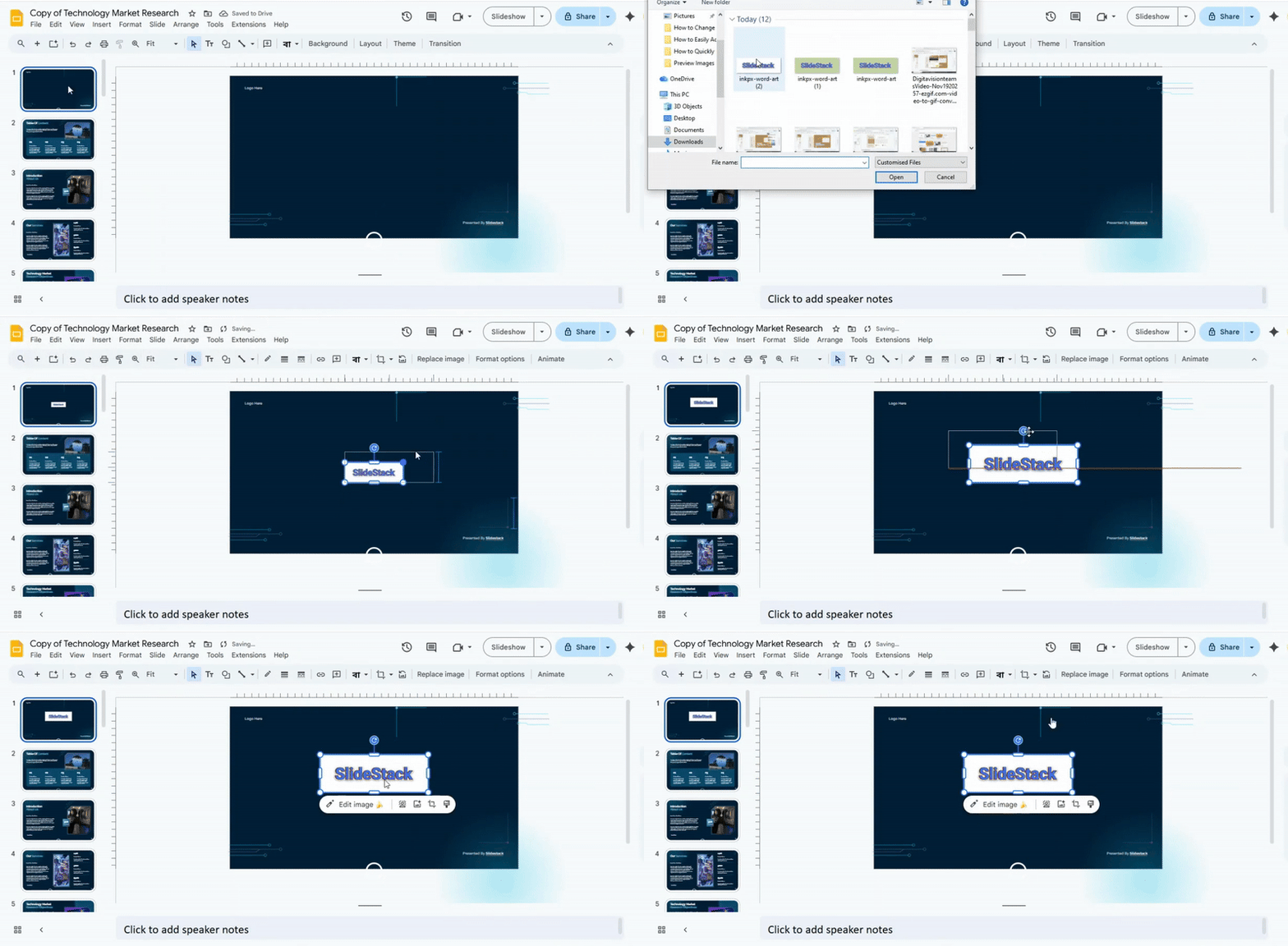
Step 6: Insert the Image into Google Slides
Open your presentation, go to the slide where you want the metallic text, and click Insert > Image > Upload from Computer. Select the image you just downloaded.
Step 7: Adjust Placement and Size
Move the image to the right position on your slide. Resize it if needed so it looks balanced with the other content.
Make Your Google Slides Shine with SlideStack
Bring your presentations to life with metallic text effects using SlideStack. Whether you use Word Art or third-party tools, SlideStack helps you create slides that catch the eye and look professional. Add polished, shiny text that fits your style and impresses your audience.
Final Words:
With these methods, adding a metallic finish to your text is simple and effective. Whether you use Word Art in Google Slides or a third-party tool, you can make your slides more engaging and polished. Experiment with colors, gradients, and shadows to find a style that fits your presentation. A little shine can make your text stand out and give your slides a professional, refined look.
FAQs:
1. Which fonts are best for metallic effects in Google Slides?
Fonts with bold, clean shapes work best for metallic effects. Sans-serif or block-style fonts show gradients clearly. Avoid very thin or decorative fonts, as the metallic look may not show well.
2. Can I use custom colors for my metallic gradient?
Yes, you can use custom colors to create a unique metallic gradient. Pick colors that mimic real metals, like gold, silver, or bronze. Make sure the colors blend well for a smooth effect.
3. What are some popular third-party tools for creating metallic fonts?
Some popular tools include Canva, CoolText, and FlamingText. These let you apply metallic effects and download the text as images. Many offer easy, pre-set metallic styles.
4. Why is it important to set the background to white before downloading the text?
A white background ensures your metallic text looks clean and sharp. It also prevents unwanted colors or transparency issues when you use the text in other slides.
5. What to do if my gradient stops in Google Slides, doesn’t look smooth?
Try adjusting the gradient stops and color positions. Make the color changes more gradual. You can also use lighter shades near the edges to smooth the transition.
6. Can metallic fonts be animated in Google Slides?
Yes, you can animate metallic fonts just like regular text. Effects like fade, appear, or fly-in work well. Avoid overly complex animations that may hide the metallic look.
7. Do I need an account to use third-party tools for metallic fonts?
Some tools let you create metallic text without an account. Others may require signing up to save or download your designs. Check the tool’s website to see its rules.


You may also be interested in ...

How To Create An Eye-Catching Portfolio
If you’re looking to create an eye-catching portfolio, this post will come in handy. In this article, you can find the easies...
23 Jun, 2024

How To Easily Create An Infographic
Infographics are the perfect way to make a presentation that will impact an audience, but their design and composition might...
08 Jun, 2024

PowerPoint Template Tips & Tricks You Ne...
PowerPoint seems to be an unknown world for many people, especially those who have been assigned to create a presentation out...
08 Jun, 2024