How to Insert GIFs in Google Slides the Right Way
Adding GIFs to a Google Slides presentation can make your slides more lively and engaging, but many people struggle to get them to work correctly. It’s frustrating when a GIF won’t play, appears blurry, or breaks the flow of your presentation. You might spend hours trying different methods, only to end up with a static image or a distracting animation.
Fortunately, there’s a clear way to add GIFs without the headaches. This guide breaks down everything you need to know, from supported formats to simple step-by-step methods for inserting GIFs, resizing them, and keeping your slides professional. You’ll also learn tips to prevent common mistakes and ensure smooth playback every time.
What GIFs Are and Why They Work in Presentations
GIFs are short, moving images that repeat over and over. They are easy to watch and can show ideas quickly. People remember moving images more than still ones.
Adding GIFs to presentations can make slides more engaging. They help explain steps, show reactions, or highlight key points. A GIF can replace long text and make information easier to follow.
They also keep the audience’s attention. Slides with motion feel lively and less boring. GIFs are small files, so they load fast and work on most devices.
Supported GIF Formats in Google Slides
Google Slides lets you add GIFs to make presentations more lively. Only certain types of GIFs work well. Animated GIFs in the standard GIF format are supported. Static GIFs also display correctly. Avoid using GIFs with uncommon compression or color settings, as they may not play smoothly.
GIFs must be properly sized. Large files can slow down your slides. Small, clear GIFs load faster and look better.
You can insert GIFs by using the “Insert Image” option. Choose a file from your computer or a URL. Once added, the GIF will play automatically when you present the slide.
This ensures your slides remain interactive and visually engaging without technical glitches.
What GIFs Are and Why They Work in Presentations
GIFs are short, looping animations. They show movement without needing a video player. This makes them easy to add to slides.
They grab attention quickly. A moving image stands out more than static text or pictures. People notice GIFs almost instantly.
GIFs can explain ideas clearly. A step-by-step action or change can be shown in seconds. This helps viewers understand faster than long explanations.
They also make presentations more engaging. Watching a GIF feels natural and fun. It keeps the audience interested without overwhelming them.
Finally, GIFs save space. Instead of a long video, a small GIF can do the same job. This keeps your slides simple and easy to share.
How to Insert GIFs in a Google Slides: 4 Easy Methods
Adding GIFs to your Google Slides can make your presentation more lively. Here are four simple ways to do it.
Method 1: Insert a GIF from Your Computer
- Open your Google Slides presentation.
- Select the slide where you want the GIF.
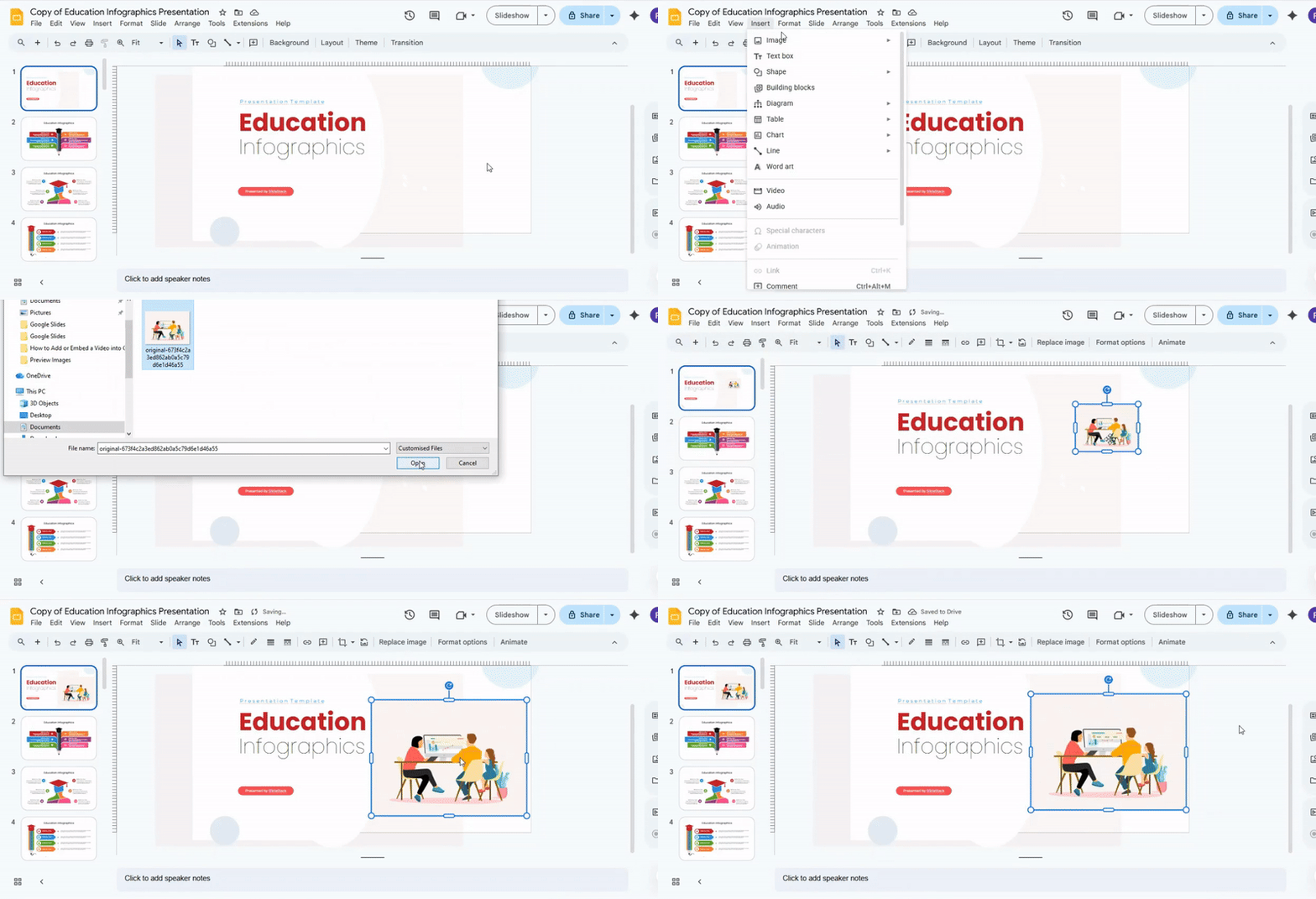
- Click on Insert in the top menu.
- Choose Image, then Upload from computer.
- Find your GIF file and click Open.
- The GIF will appear on your slide. You can move or resize it as needed.
Method 2: Insert a GIF Using Google Image Search
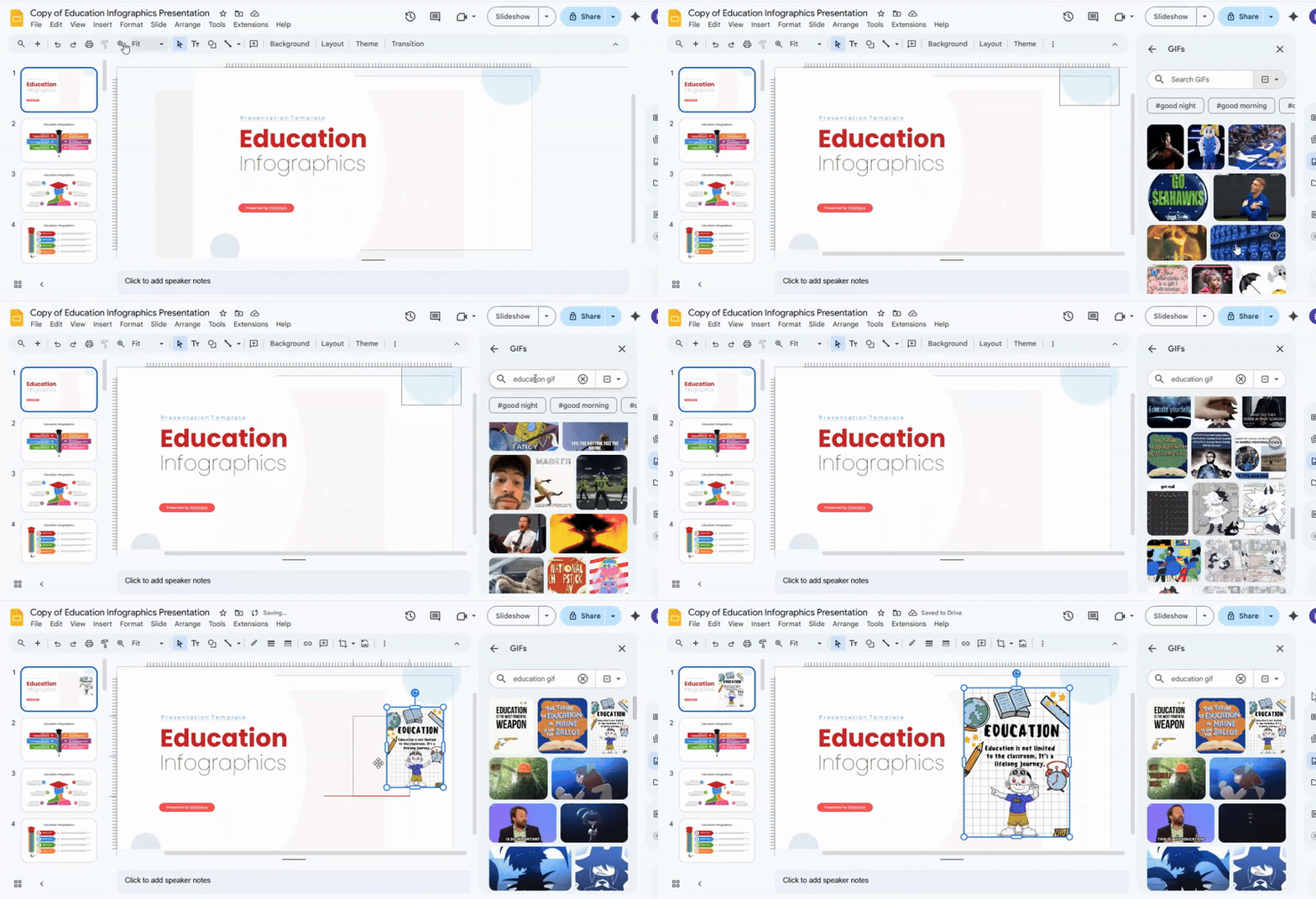
- Open your slide and click Insert.
- Select Image, then Search the web.
- Type what you want in the search box. Add “GIF” at the end to find animated images.
- Click on the GIF you like and then click Insert.
- The GIF will appear on your slide and can be adjusted for size and position.
Method 3: Inserting a GIF Using URLs
- Find the GIF online that you want to use.
- Right-click the GIF and select Copy image address.
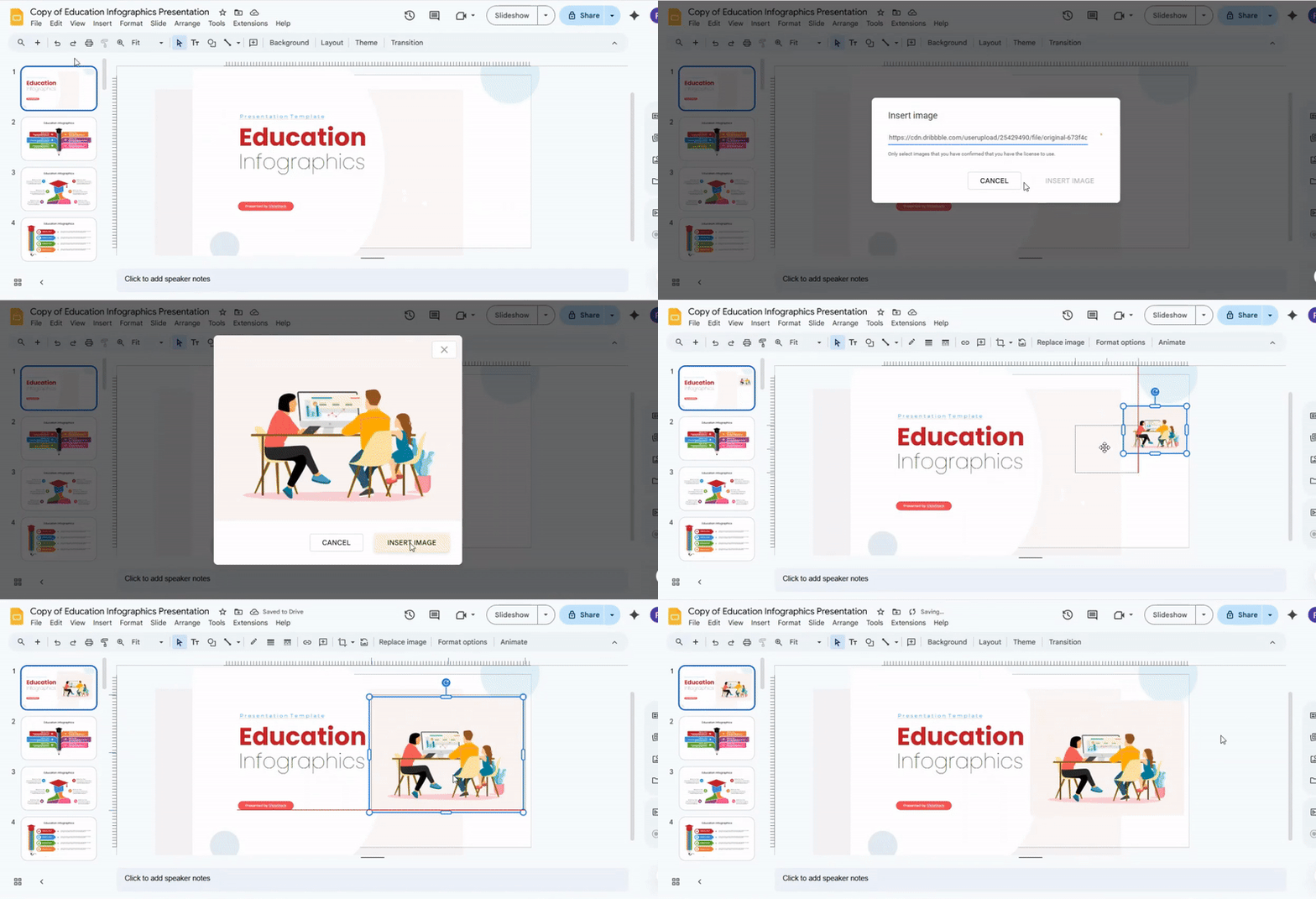
- Go to Google Slides, click Insert, then Image, and select By URL.
- Paste the GIF link and click Insert.
- Your GIF will appear and can be moved or resized.
Method 4: Insert a GIF from Google Drive
- Upload your GIF to Google Drive first.
- Open your Google Slides presentation.
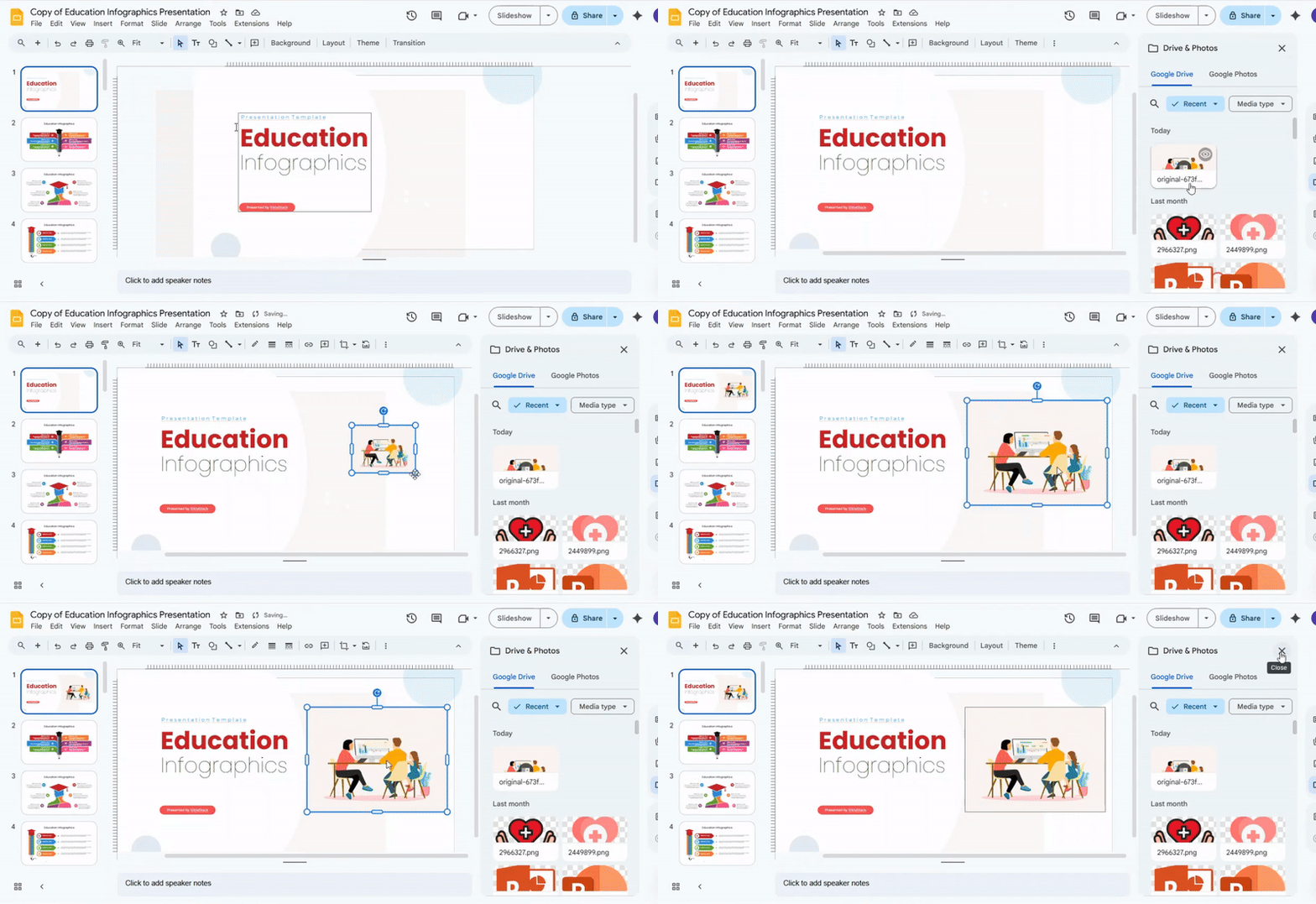
- Click Insert, then Image, and choose Drive.
- Locate your GIF in Google Drive and click Insert.
- The GIF will appear on your slide. Adjust it as needed.
Read also: How to Add Animation to Google Slides: A Step-by-Step Guide
How to Resize and Reposition GIFs
GIFs often come in different sizes. Some may be too big, while others are too small for your slide.
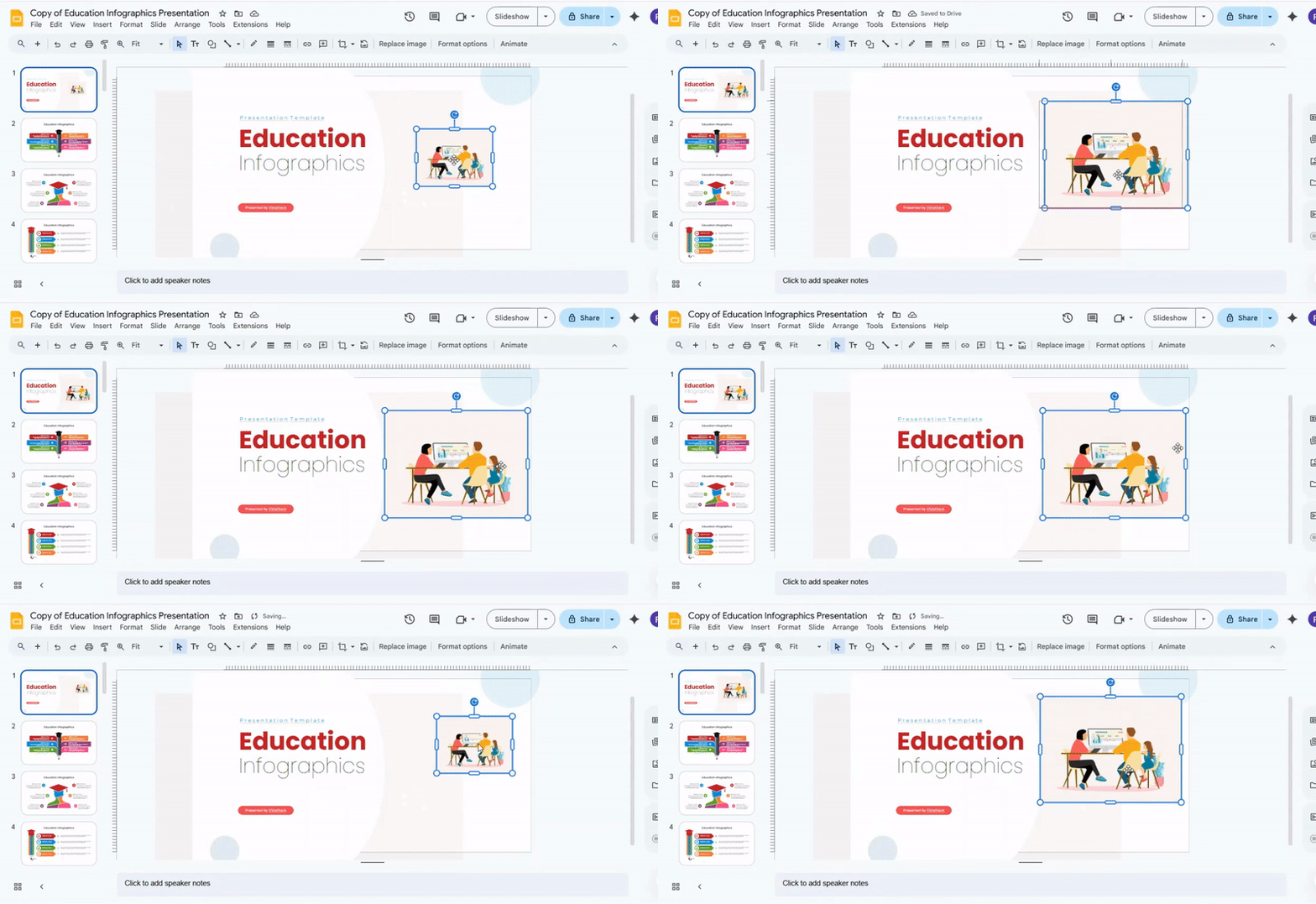
To fix this, click on the GIF to select it. Small squares will appear around it. Drag these squares inward to make the GIF smaller or outward to make it larger. Keep the corners pressed to maintain the shape.
To move the GIF, click and hold it. Then drag it to the spot you want on the slide. Place it where it fits best with your other content. Make sure it does not cover text or other important visuals.
Check how the GIF looks during the slideshow. Adjust the size and position if needed. Doing this helps your slides stay clean and easy to follow.
How GIFs Play During Present and Edit Modes
GIFs behave differently depending on the mode you are in. In Present mode, GIFs play automatically. This makes your slides look lively without any extra clicks.
In Edit mode, GIFs usually pause. You can still move, resize, or adjust them, but they won’t animate while you work on your slide. This helps you focus on editing without distractions.
Some GIFs may not loop perfectly in Edit mode, but they always return to normal when you start presenting. Knowing this can save time and keep your slides smooth.
Tips for Using GIFs Without Distracting Your Audience
GIFs can make a presentation lively. They grab attention and highlight points. But too many can pull focus away from your message. Use them carefully to keep your audience engaged.
Pick GIFs that support your content. Each animation should add value, not just decorate the slide. Avoid GIFs that loop endlessly or move too fast. These can make it hard for viewers to focus.
Place GIFs near the text or idea they relate to. This helps the audience understand the connection quickly. Keep them small or subtle so they don’t dominate the slide.
Test your presentation before sharing. Make sure the GIFs play correctly on different devices. Check that the movement doesn’t interrupt the flow of your points.
Using GIFs with purpose keeps your slides interesting. They can make explanations clearer and add a bit of fun without stealing attention from your main message.
Common Issues When Adding GIFs to Google Slides
Adding GIFs can make your slides more engaging, but several problems can appear. One common issue is that GIFs may not play automatically. Sometimes they show only the first frame, leaving your slide looking still.
Another problem is file size. Large GIFs can slow down your presentation or cause it to lag. They may also fail to load on slower connections.
GIFs can also appear blurry if they are low resolution. Stretching a small GIF to fit a slide can make it look pixelated.
Finally, some GIFs may not loop correctly. Google Slides sometimes stops a GIF after one play, which can break the intended effect.
Best Practices for Performance and File Size
Keep your files small to make them easier to open and share. Large files can slow down devices and take longer to upload.
Use images with lower resolution when great detail is not needed. PNGs and JPEGs work well for slides. Compress images before adding them.
Limit the number of animations and transitions. Extra effects can increase file size and cause playback lag. Stick to simple movements that add value.
Break long presentations into smaller parts if possible. This keeps each file manageable and helps prevent crashes.
Remove unused elements. Extra shapes, hidden slides, or leftover graphics take up space without helping your presentation.
Check the final file before sharing. Open it on different devices to make sure it runs smoothly and loads quickly.
Read also: How to Add Google Slides Transitions Easily
Final Thoughts
Adding GIFs to Google Slides can make your presentation more engaging and easier to follow. They show movement, highlight points, and can replace long text. Using them the right way keeps your slides clear and professional.
Always test your GIFs before presenting. Make sure they play correctly, fit the slide, and do not distract from your main message. Keep file sizes small and place animations where they support your content.
When used carefully, GIFs add energy and clarity. They help your audience understand ideas faster and keep slides interesting without overwhelming viewers.
FAQs:
1. Can I add any GIF to Google Slides?
Only standard animated GIFs work well. Avoid unusual formats or very large files, as they may not play smoothly.
2. Will my GIF play automatically during the presentation?
Yes. GIFs start moving as soon as you enter Present mode. They may stay still in Edit mode.
3. How do I resize a GIF without making it blurry?
Use the corner handles to keep the shape while resizing. Avoid stretching a small GIF too much.
4. Can I use a GIF from the internet?
Yes. You can insert a GIF using its URL or search for it through Google Slides’ “Search the web” option.
5. Do GIFs work on all devices?
Most devices support GIFs. Large files or unusual formats may load slowly or fail on some devices.
6. How many GIFs should I use per slide?
Use GIFs only when they add value. Too many can distract viewers from your main points.
7. Can I move a GIF after adding it?
Yes. Click and drag the GIF to place it where it fits best on your slide.
8. Will GIFs increase my file size?
Yes. Large or many GIFs can make your presentation heavier. Keep files small to avoid slow loading.


You may also be interested in ...

How To Create An Eye-Catching Portfolio
If you’re looking to create an eye-catching portfolio, this post will come in handy. In this article, you can find the easies...
23 Jun, 2024

How To Easily Create An Infographic
Infographics are the perfect way to make a presentation that will impact an audience, but their design and composition might...
08 Jun, 2024

PowerPoint Template Tips & Tricks You Ne...
PowerPoint seems to be an unknown world for many people, especially those who have been assigned to create a presentation out...
08 Jun, 2024