How to Insert a Checkbox in Google Slides Using 3 Easy Methods
Want to make your Google Slides presentations more interactive? Checkboxes can solve that problem. They let you create clear checklists, track tasks, or even run simple quizzes without extra tools. Many users miss out on this simple feature and end up with plain, static slides.
Adding checkboxes is easier than it seems. There are three straightforward methods you can use, whether you prefer bullets, special characters, or shapes. Each method works well and can be applied in minutes, no technical skills required.
Using checkboxes makes your slides more organized and engaging. You can keep track of tasks, guide your audience, and add a touch of interactivity that improves every presentation.
Why Use Checkboxes in Google Slides?
Before diving into the “how,” let’s consider the “why.” Checkboxes transform static presentations into dynamic tools. They’re ideal for:
Interactive Quizzes & Polls: Gauge audience understanding or gather opinions in real-time.
Task Management & Checklists: Visually show progress and let participants mark tasks as complete.
Decision-Making Processes: Present options and let the audience indicate their choices.
Engagement & Participation: Adding interactive elements increases attention and involvement.
How to Make Checkboxes in Google Slides? 3 Methods
Creating checkboxes in Google Slides can be done in a few simple ways. You can use bullets, special characters, or shapes. Each method works differently, so pick the one that suits your slide design. Here’s how to do each.
Method 1: Using Bullets
This method uses bullet points to create checkboxes quickly. It works best for lists, but won’t give interactive checkboxes.
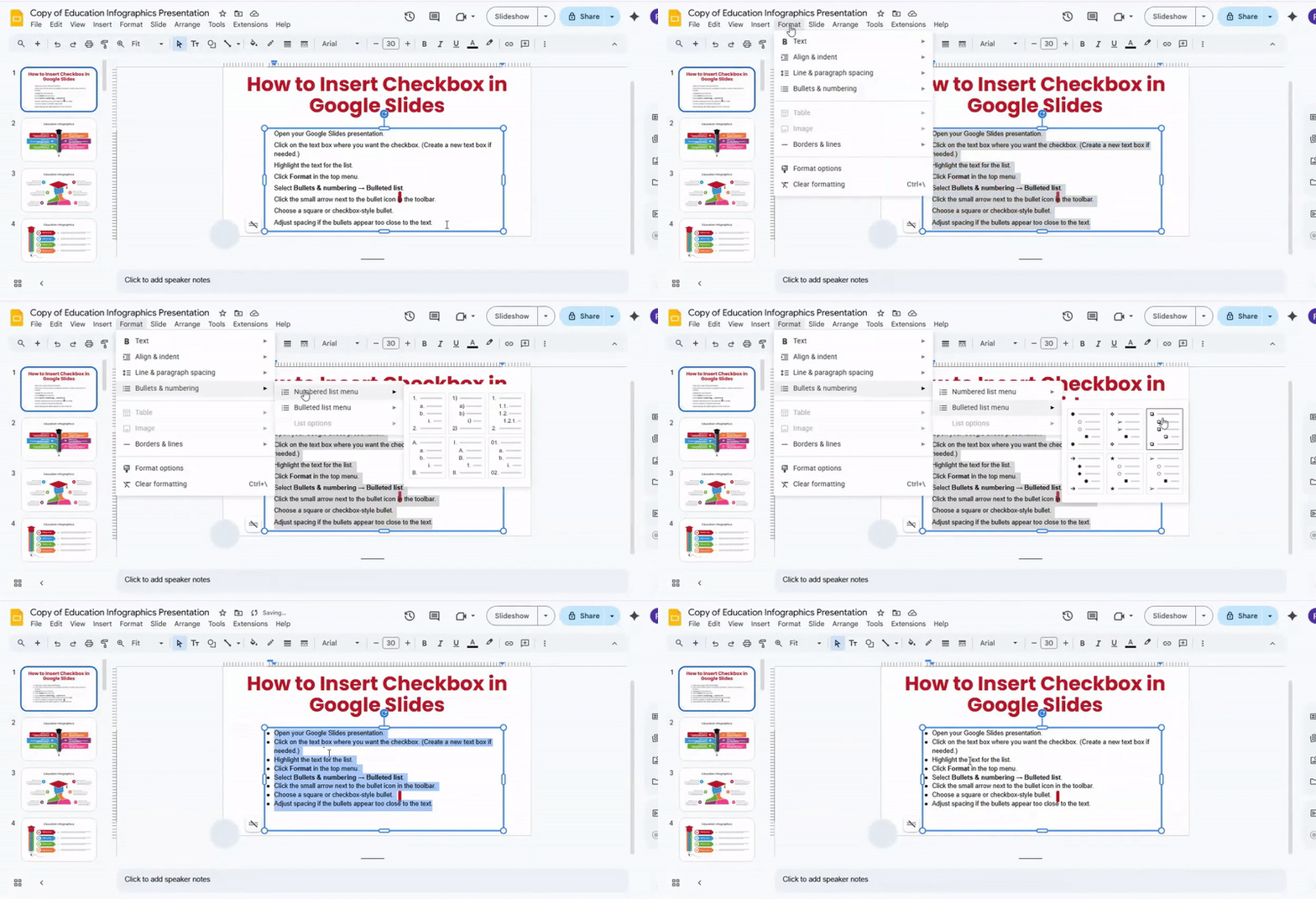
- Open your Google Slides presentation.
- Click on the text box where you want the checkbox. (Create a new text box if needed.)
- Highlight the text for the list.
- Click Format in the top menu.
- Select Bullets & numbering → Bulleted list.
- Click the small arrow next to the bullet icon in the toolbar.
- Choose a square or checkbox-style bullet.
- Adjust spacing if the bullets appear too close to the text.
Tip: This method is fast for static checklists, but doesn’t allow clicking to mark items.
Method 2: Using Special Characters
Special characters give you a checkbox symbol. You can choose empty or checked boxes. Keep in mind, these are symbols only and are not interactive.
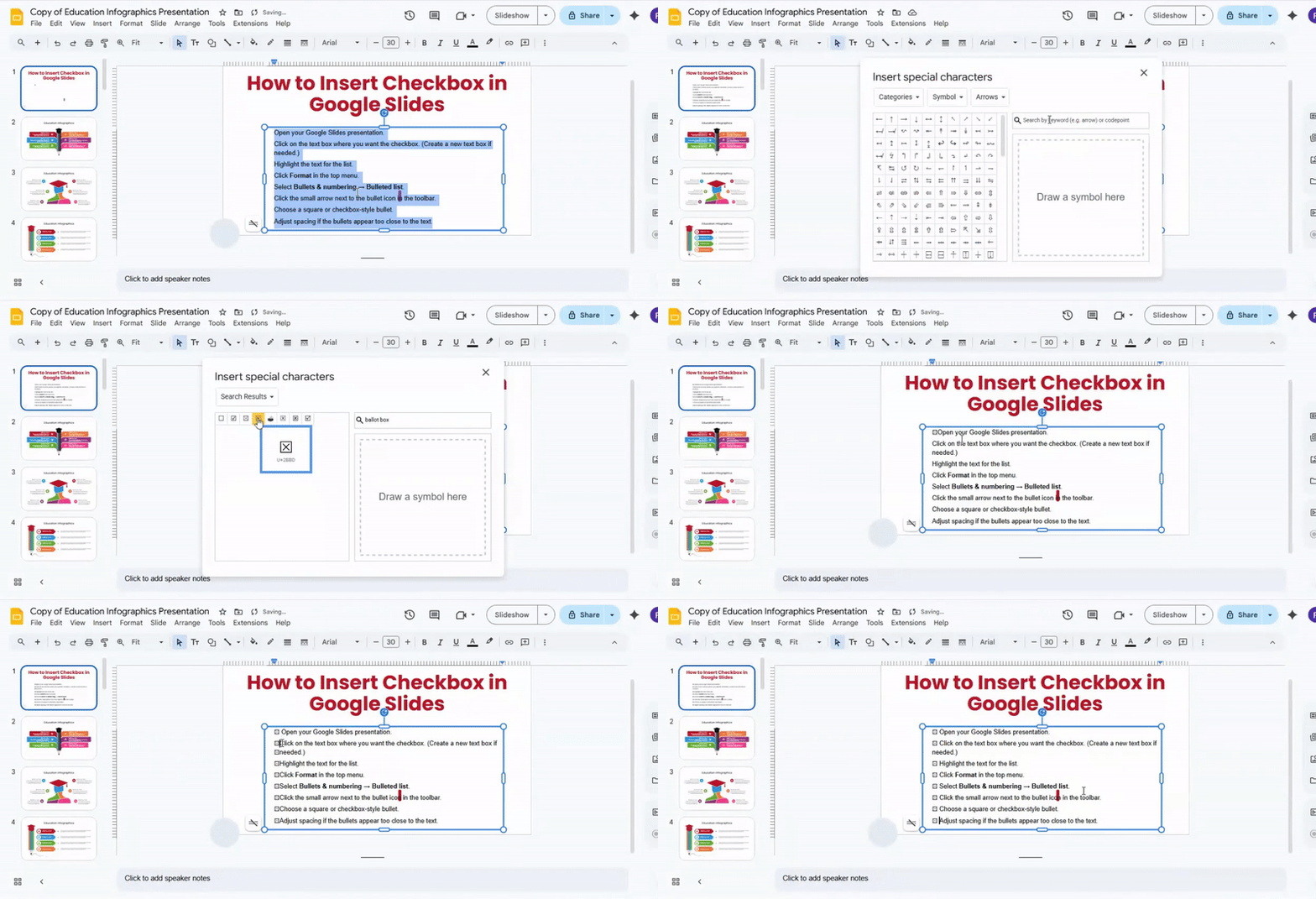
- Open your slide and select a text box.
- Click Insert → Special characters.
- In the search bar, type “checkbox” or “ballot box.”
- Click the symbol you want. It will appear in your text box.
- Repeat for each item in your list.
Note: You can copy and paste the symbol for faster use. This is useful for consistent styling across slides.
Method 3: Inserting Shapes
This method uses actual shapes to make checkboxes. You can resize them and place them anywhere on your slide.
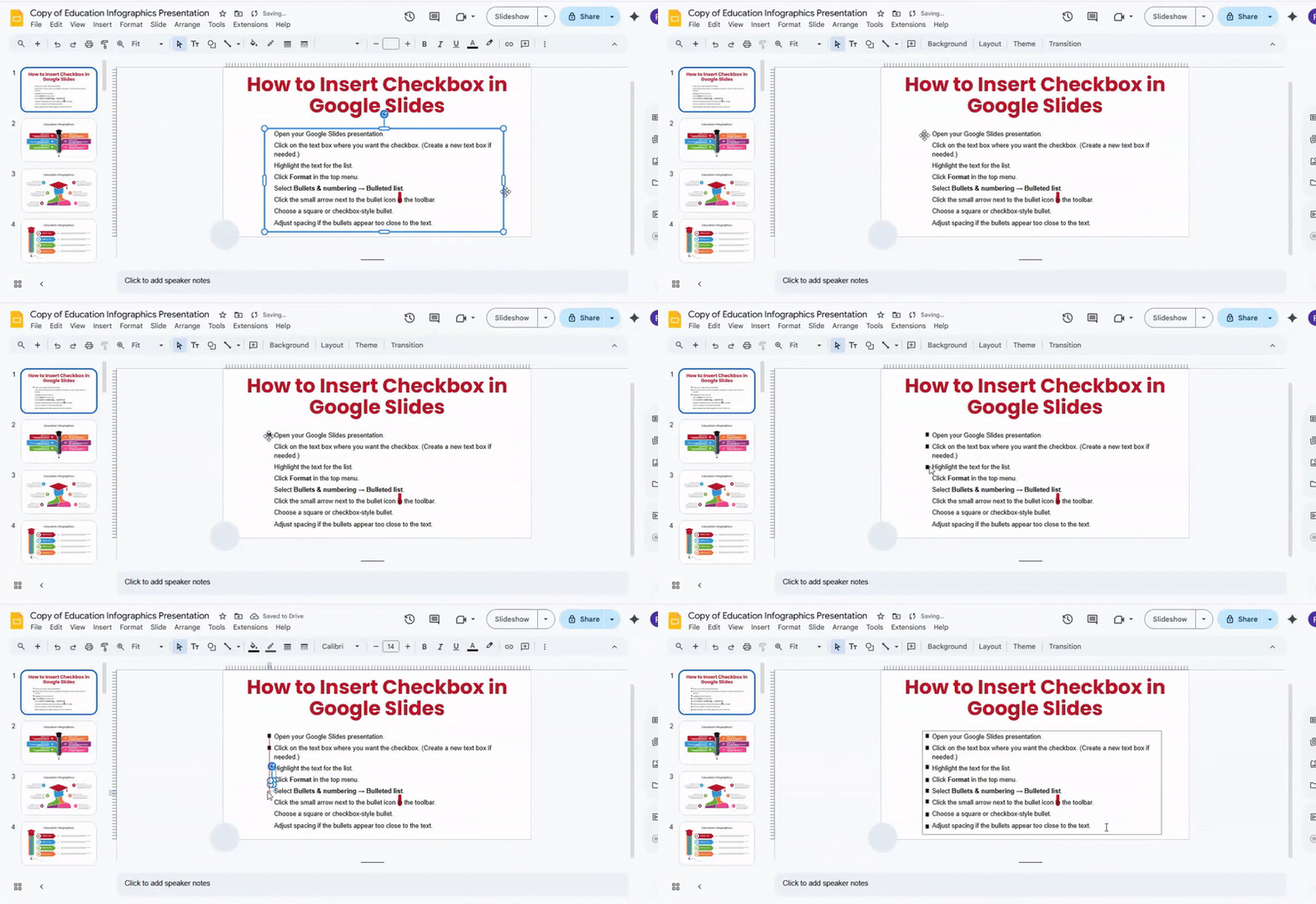
- Go to the slide where you want a checkbox.
- Click Insert → Shape → Shapes → select the square shape.
- Click and drag to draw the square.
- Resize or move the shape to fit your list.
- Copy and paste the shape for additional items.
- Add text next to each shape by inserting a text box or typing directly beside it.
Tip: You can fill the square with a color or leave it empty. This method works well for visual checklists and interactive slides if combined with links or animations.
Each method lets you add checkboxes to Google Slides. Bullets are fastest for simple lists. Special characters add symbols quickly. Shapes offer the most control for design and layout.
Limitations of Checkboxes in Google Slides
Checkboxes in Google Slides do not work interactively during presentations. You cannot click them to check or uncheck while presenting.
You can try some workarounds:
- Manual updates: Edit the slide before presenting to check or uncheck boxes. This is useful when you know the status ahead of time.
- Pre-ticked slides: Create multiple versions of the slide with different boxes already checked. Swap slides during the presentation to show changes.
These methods let you show progress or selections, even if live interactivity isn’t available.
Closing Thoughts:
Checkboxes can transform your slides from plain to organized and engaging. They let you track tasks, guide your audience, and add a simple touch of interactivity. While they are not clickable during presentations, the methods we outlined, including bullets, special characters, and shapes, solve that limitation creatively. You can show progress, mark items in advance, or swap slides to simulate interaction.
Go ahead and try these techniques in your next presentation. They can make your slides clearer, more structured, and more engaging for your audience. Small changes like this can have a big impact on how your message lands.
FAQs:
Can I create a checklist in Google Slides?
Yes, you can. You can use text boxes with bullet points or shapes to make a list. Then add checkboxes or symbols next to each item.
How do I mark items off my checklist in Google Slides?
Click the checkbox or shape next to the item. You can change it to a check mark or another symbol. This shows the item is complete.
How do I create a box around text or objects in Google Slides?
Select the text or object, then go to the “Shape” or “Border” option. Choose a rectangle or any shape you like. Adjust the line thickness and color to suit your style.
Can I change the look of my checkboxes?
Yes, you can. Use shapes, icons, or special symbols for checkboxes. You can also change their size and color to match your slide.
How do I make my checklist interactive in Google Slides?
You can link checkboxes or shapes to slides or actions. For example, clicking a box can jump to another slide or change its color. This makes your checklist feel interactive.
How do I add a checkbox in Google Slides?
Insert a shape like a square or use a symbol from the “Insert → Special characters” menu. Place it next to your list item. Resize or style it as needed.
Can I customize the checkbox appearance in Google Slides?
Yes. You can change the color, size, or style of the box. You can also swap it with different symbols or icons to make it match your design.


You may also be interested in ...

How To Create An Eye-Catching Portfolio
If you’re looking to create an eye-catching portfolio, this post will come in handy. In this article, you can find the easies...
23 Jun, 2024

How To Easily Create An Infographic
Infographics are the perfect way to make a presentation that will impact an audience, but their design and composition might...
08 Jun, 2024

PowerPoint Template Tips & Tricks You Ne...
PowerPoint seems to be an unknown world for many people, especially those who have been assigned to create a presentation out...
08 Jun, 2024