How to Easily Add a Timer in Google Slides
Presenting in Google Slides can be challenging when you need to keep track of time. Without a timer, it’s easy to lose track, rush through important points, or leave your audience waiting. This can make presentations feel unorganized and stressful.
Adding a timer solves this problem and keeps your slides running smoothly. In this article, we will show simple ways to add a timer in Google Slides, including using Chrome extensions, timer videos, and manual insertion. By the end, you’ll know exactly how to keep your presentation on track and look professional.
How to Insert a Timer Into Google Slides
Adding a timer to your slides helps keep your presentation on track. Follow these steps to set it up easily.
Step 1: Open Your Google Slides Presentation
Begin by opening the Google Slides file where you want the timer. Make sure you are signed in to your Google account.
Step 2: Navigate to the Slide Where You Want the Timer
Click on the slide that will show the timer. You can add it to any slide in your presentation.
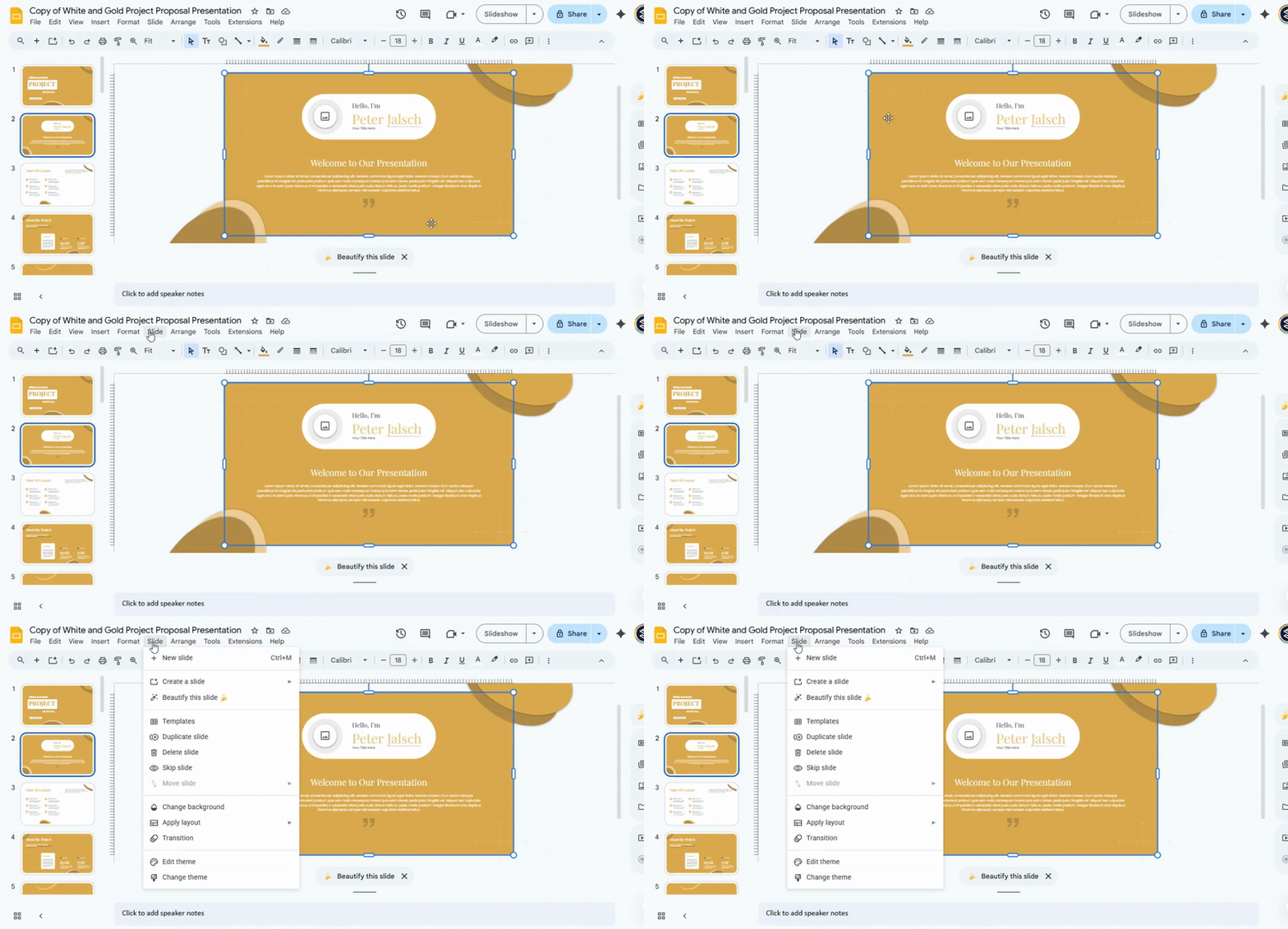
Step 3: Access the Slide Menu
At the top, click the “Slide” menu. This menu gives you options for managing your slides.
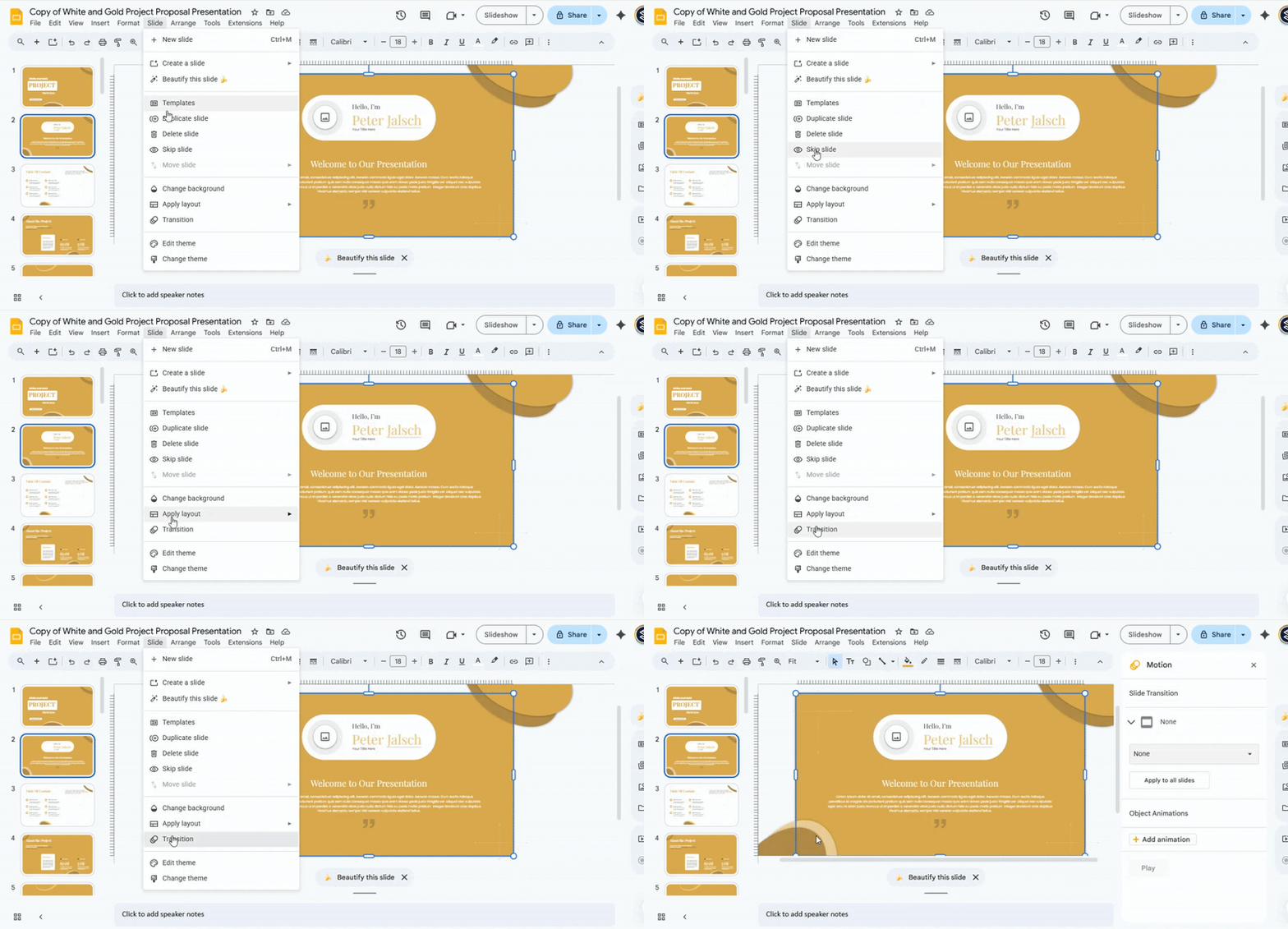
Step 4: Choose "Transition"
Select “Transition” from the drop-down. A panel will appear on the right side of your screen.
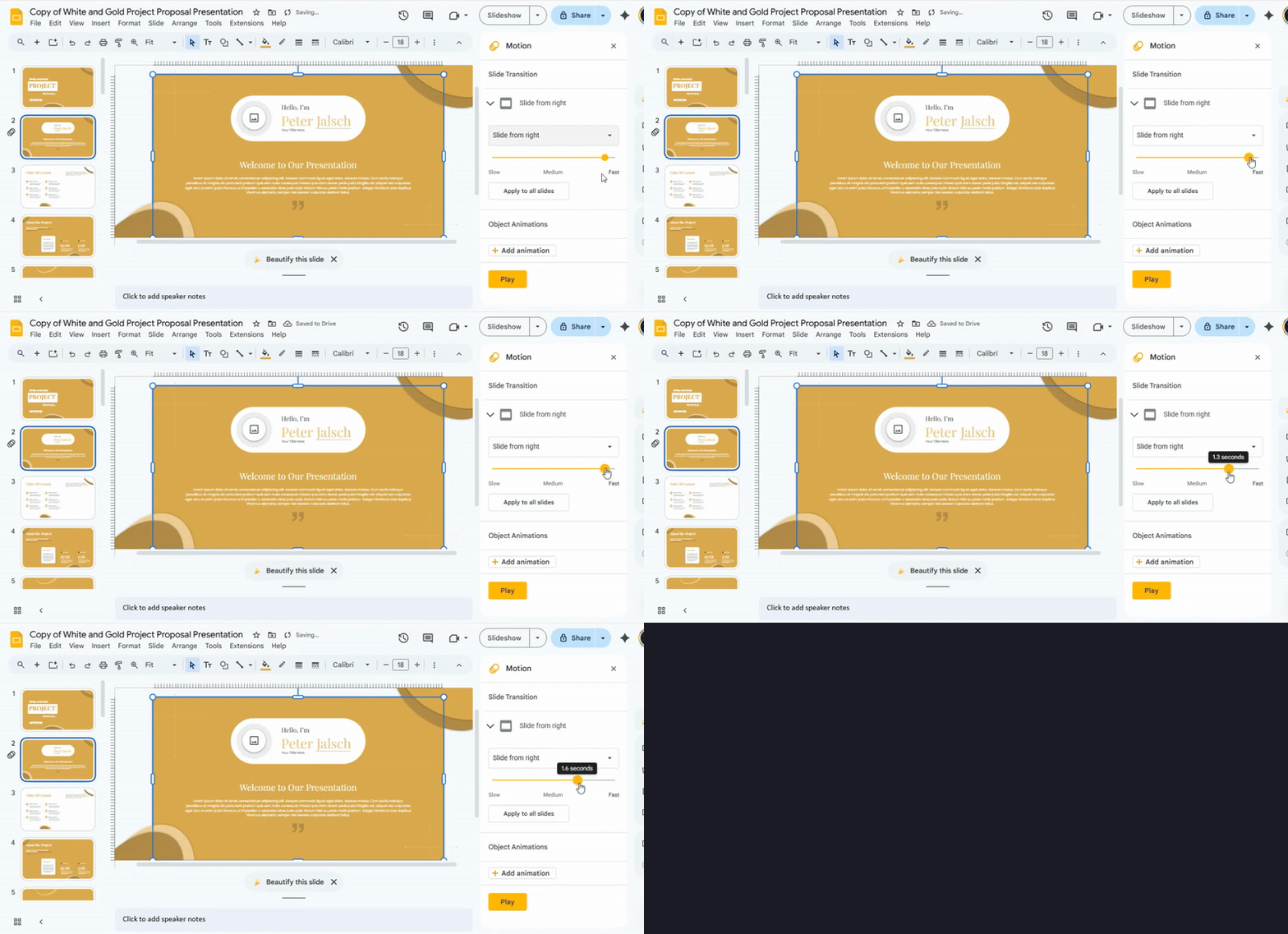
Step 5: Set the Slide Duration
In the panel, locate the slide duration option. Enter the number of seconds you want the timer to run.
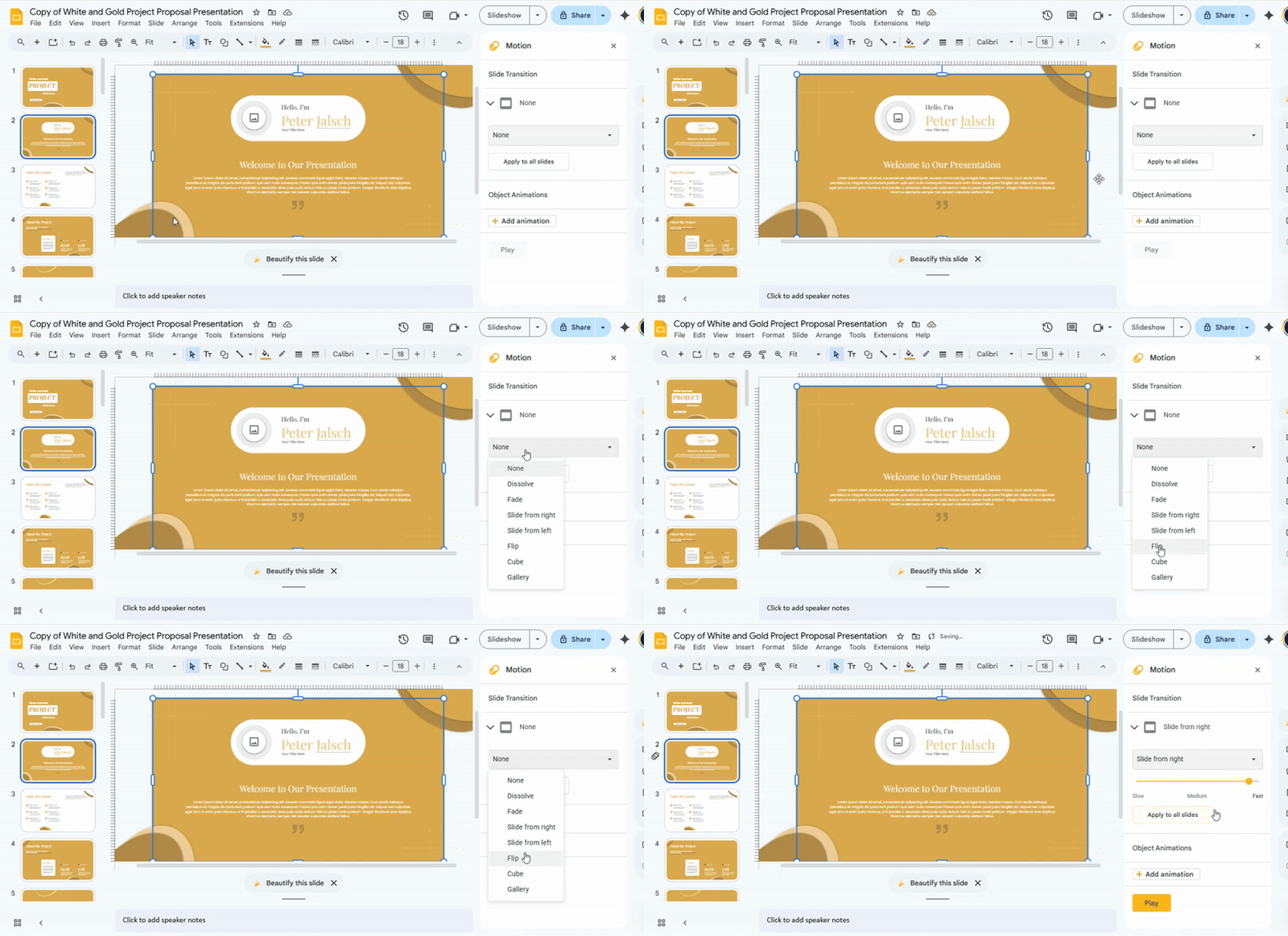
Step 6: Customize the Transition
Choose how the slide changes after the timer ends. You can pick from several transition effects or leave it as the default.
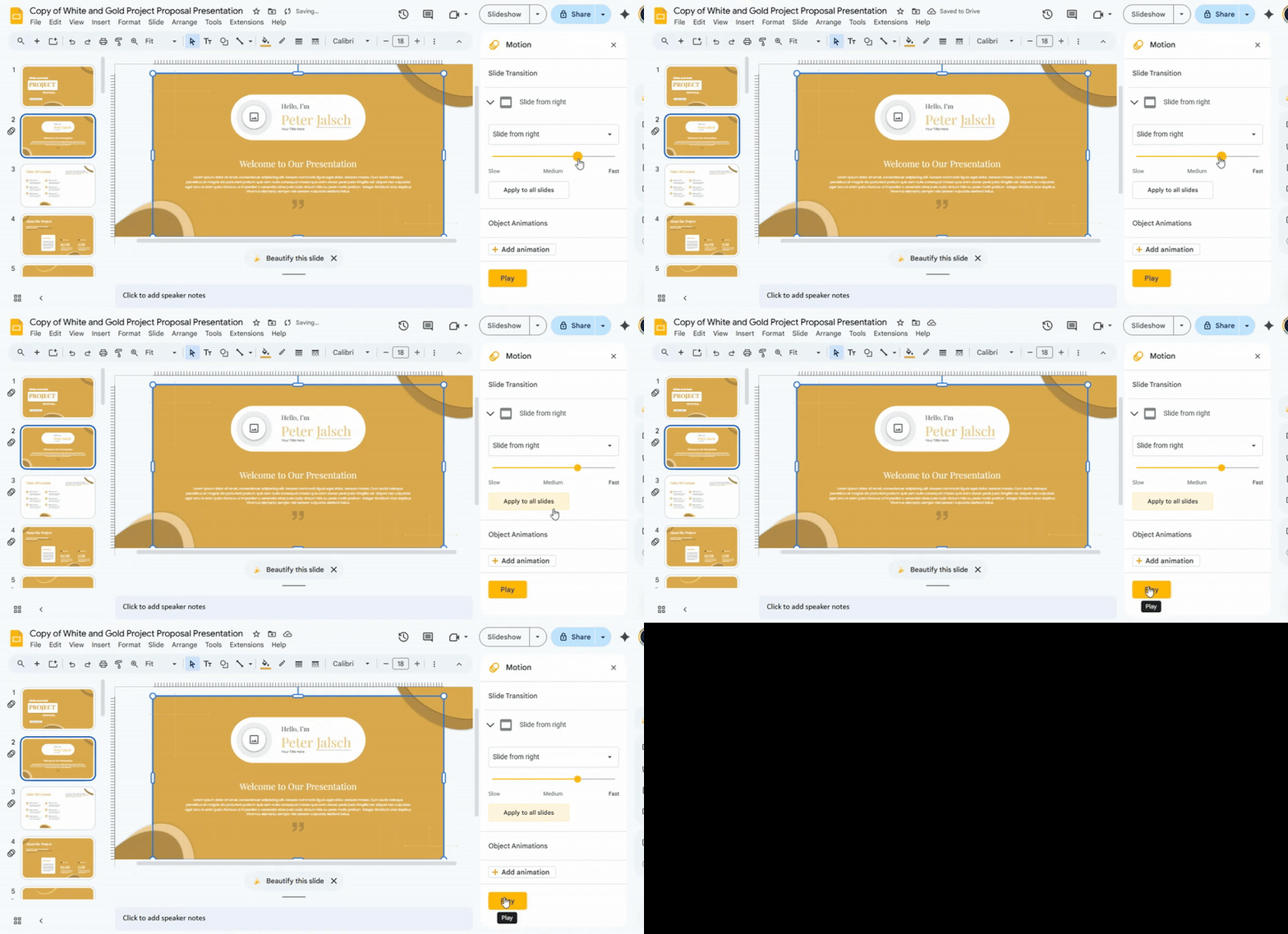
Step 7: Repeat for Each Slide (Optional)
If you want timers on multiple slides, repeat these steps for each slide. This keeps the timing consistent throughout your presentation.
Method 1: Use a Chrome Extension
A Chrome extension can make adding timers to your slides quick and easy. It puts the tool right in your browser, ready to use without extra software.
Start by opening the Chrome Web Store. Search for a timer extension that works with presentations. Click “Add to Chrome” and follow the prompts to install it. Once installed, the extension icon will appear in your browser toolbar.
To use the timer, open your Google Slides presentation. Click the extension icon and choose the type of timer you want. For example, select a countdown timer if you want to track how long a slide is shown, or a count-up timer to see elapsed time. Set the time and click “Start.” The timer will appear on your slide, running as you present.
You can adjust the size, color, and position of the timer to match your slides. Keep in mind that some extensions may need updates to stay compatible with Google Slides. Also, test the timer before presenting to ensure it works smoothly.
Method 2: Use a Timer Video
Using a timer video is a simple way to add a countdown without installing an extension. You can pick a video that matches your style and control how it appears on your slide. This method is flexible and quick.
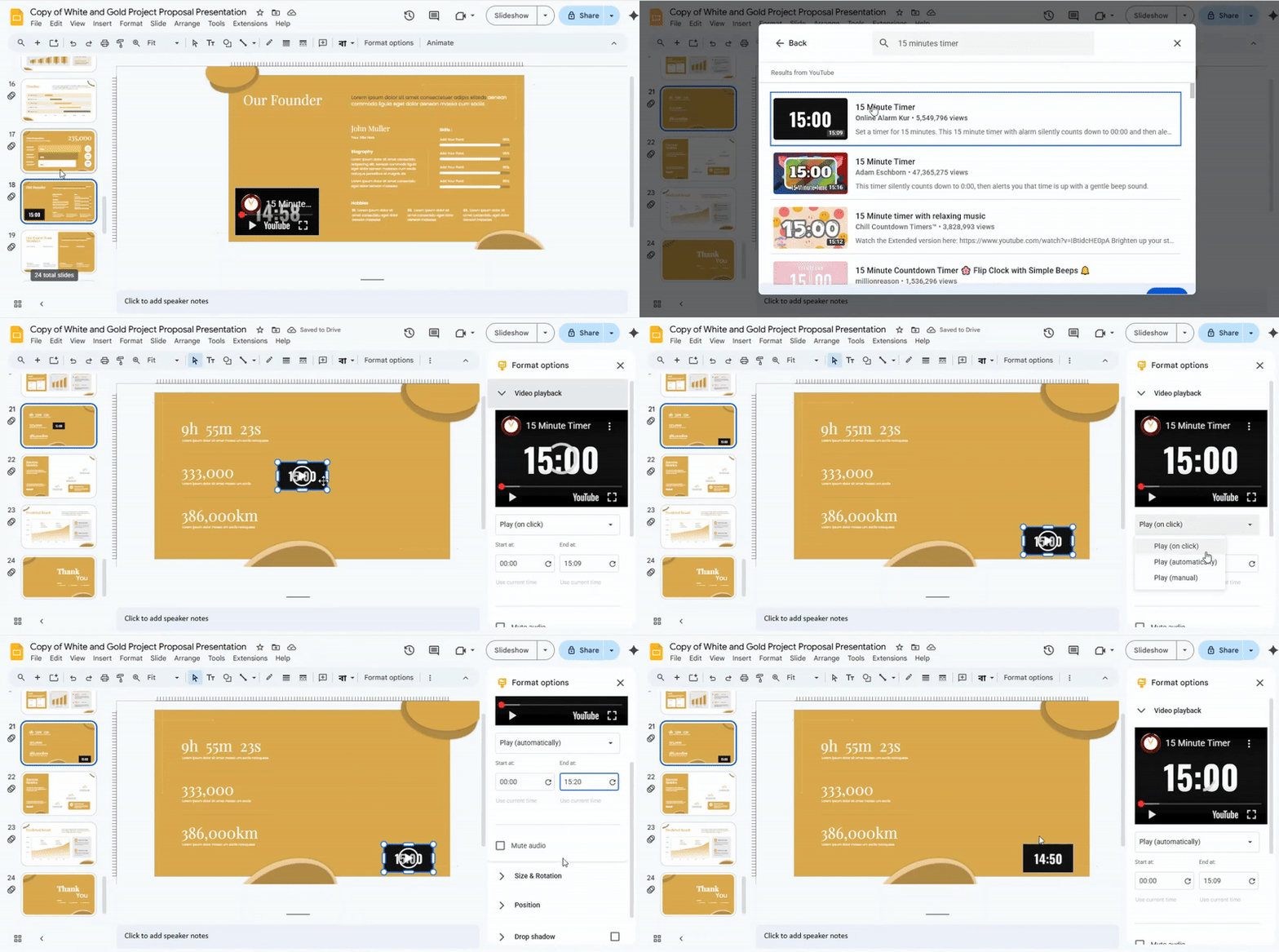
- Search for a timer video – Open YouTube and type “timer” plus the length you need, like “15-minute timer.”
- Insert the video – Click Insert, the Video. Or you can choose by URL and paste the link.
- Adjust size and position – Drag the corners to resize. Place it where it fits best on the slide.
- Set playback options – Select how you want to start the timer. You can have it play automatically or when clicked.
- Optional enhancement – Add background music by inserting a short audio clip. This makes the timer more engaging.
Using a timer video keeps your presentation interactive. You can change the video at any time without extra tools.
Keep Your Presentations on Track with SlideStack
Make every minute count with SlideStack. Our easy guides show you how to add timers to Google Slides, helping your presentations stay smooth, organized, and professional. Try SlideStack today and take control of your time on every slide.
Conclusion:
Adding a timer in Google Slides keeps your presentations organized and on schedule. Whether you use a Chrome extension or a timer video, these tools help you manage time without stress. Try these methods in your next presentation to stay focused and make every slide count.
FAQs:
Can you insert a clock into Google Slides?
You can’t add a live clock directly inside Google Slides. A simple option is to take a screenshot of a clock and insert it as an image. Another approach is to use a web-based clock and embed it via a link.
How do I insert a timer into Google Docs?
Google Docs doesn’t have a built-in timer. You can use an external timer app or website and keep it open while working. Some users add a countdown using Google Slides and link to it from the document.
How do you set a timer between slides?
In Google Slides, go to File → Publish to the web. Set the slide duration under “Auto-advance slides” to the time you want for each slide. Then start the presentation, and the slides will move automatically at that interval.
Can I set different timers for each slide in Google Slides?
Not directly in Google Slides. The auto-advance timer applies to all slides when published to the web. As a workaround, you can split slides into separate presentations with different timings and link them together.
Is the timer feature available in the mobile version of Google Slides?
No, the mobile version doesn’t support slide auto-advance or timers. You need to use the desktop version for timing features.
Can I use the timer feature during a Google Slides live presentation?
Yes, if you use the “Publish to the web” auto-advance feature, slides will change automatically during your presentation. Standard presenter mode doesn’t allow manual timers, but you can combine it with a separate timer app.
Are there creative ways to use timers in Google Slides beyond simple slide transitions?
Yes, you can use timers for activities, quizzes, or group exercises during presentations. They can also create visual suspense or countdowns for announcements. Adding a countdown image or animated GIF can make the timer more engaging.


You may also be interested in ...

How To Create An Eye-Catching Portfolio
If you’re looking to create an eye-catching portfolio, this post will come in handy. In this article, you can find the easies...
23 Jun, 2024

How To Easily Create An Infographic
Infographics are the perfect way to make a presentation that will impact an audience, but their design and composition might...
08 Jun, 2024

PowerPoint Template Tips & Tricks You Ne...
PowerPoint seems to be an unknown world for many people, especially those who have been assigned to create a presentation out...
08 Jun, 2024