How to Insert LaTeX in PowerPoint Quickly and Easily
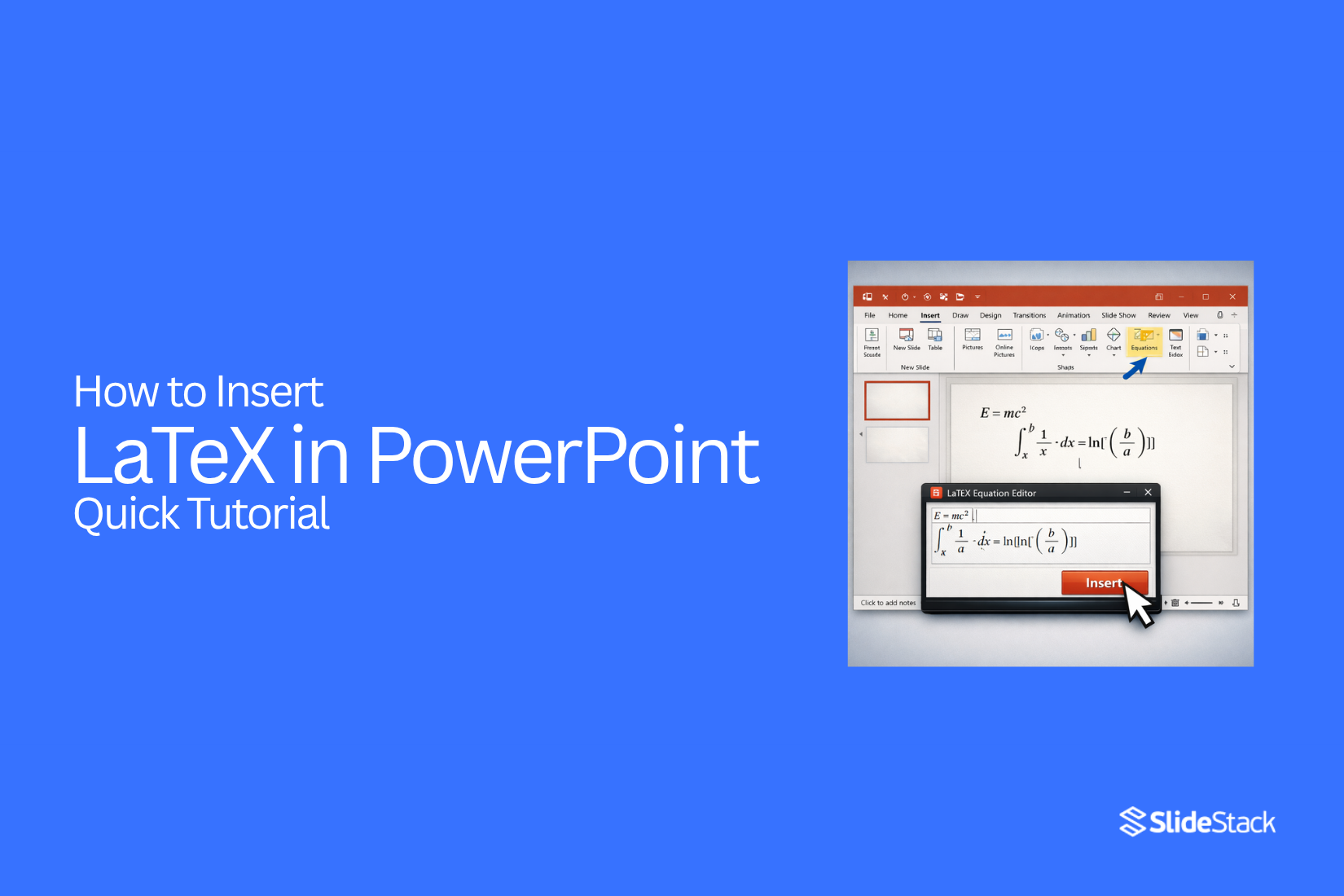
For scientists, engineers, researchers, and academic writers, presenting equations clearly matters as much as the data itself. PowerPoint has a built-in equation tool, but many users prefer LaTeX for precise math writing and clean notation, especially for complex expressions.
The interface can feel unclear at first, and finding the right option inside menus takes extra time during slide creation. This article explains a clear way to insert LaTeX in PowerPoint using available tools and simple steps. The focus stays on practical steps for writing and formatting equations inside slides. Readers get a smoother path for academic and technical presentation work.
What is LaTeX in PowerPoint
LaTeX is a way to write math using text symbols. It helps show equations in a clear form. It is widely used in science and math work.
PowerPoint does not always show complex math well on its own. LaTeX helps fix that. It turns math code into clean, readable equations inside slides.
You write math using simple commands. PowerPoint then displays it as a formatted equation. This makes formulas easier to read during a presentation.
Many users rely on it for school, research, and technical slides. It keeps math neat and consistent across slides.
Why Use LaTeX in PowerPoint?
LaTeX is a standard system for writing mathematical and scientific content. It is widely used in academic and technical fields. Compared to manual equation tools in PowerPoint, it gives a clearer structure and more control over how equations appear on slides. It removes many of the limits found in drag-and-drop equation editing.
With LaTeX in PowerPoint, users get precise control over symbols, spacing, and structure. Equations stay consistent across all slides, even in large presentations. It also supports advanced math, physics, and engineering notation that is difficult to format manually. Experienced users can write equations faster using simple LaTeX syntax instead of building expressions step by step in the editor.
For professionals already working with LaTeX in papers or reports, the same syntax can be reused inside PowerPoint. This keeps formatting accurate and reduces the time spent reworking equations for slides.
Methods to Insert LaTeX in PowerPoint
Below are simple methods to insert LaTeX in PowerPoint. These include the built-in equation tool, online converters, and PowerPoint add-ins.
Method 1: Use PowerPoint’s Built-In Equation Editor with LaTeX Syntax
Recent versions of PowerPoint include an equation editor. It supports basic LaTeX-style commands. It does not support full LaTeX. It works for simple math expressions. It is not suitable for advanced equations.
Step 1: Go to Insert -> Equation -> Insert New Equation, and an equation box appears on the slide.
Step 2: Type a LaTeX-style command inside the box.
Example:
\frac{a}{b}, \int_0^1 x^2 dx, \alpha + \beta
Step 3: PowerPoint formats the expression automatically. Some versions allow conversion from LaTeX input inside the Equation tab.
Method 2: Use Online LaTeX Equation Generators to Create Equation Images
Online tools help convert LaTeX code into image format. These tools are useful when PowerPoint does not support full LaTeX editing.
Step 1: Open an online LaTeX tool such as CodeCogs, Overleaf, or QuickLaTeX.
Step 2: Enter LaTeX code into the editor and preview the result.
Step 3: Download the output as a PNG or SVG file. Some tools also allow PDF export.
Step 4: Open PowerPoint and go to Insert -> Pictures.
Step 5: Insert the saved image into the slide. The image can be resized and positioned using Picture Format options.
Method 3: Use a LaTeX Add-In for PowerPoint
Some users use add-ins to write LaTeX directly inside PowerPoint. These tools help with equation rendering, formatting, and alignment.
Step 1: Open PowerPoint.
Step 2: Go to Insert -> Get Add-ins.
Step 3: Search and install a LaTeX add-in.
Step 4: Open the add-in panel inside PowerPoint.
Step 5: Enter LaTeX code and render the equation.
Step 6: Insert the equation into the slide.
Add-ins provide a faster workflow for users who work with many equations.
Method 4: Converting LaTeX to an Image and Inserting
This method turns LaTeX code into an image before adding it to PowerPoint. It is useful for static slides where editing is not needed later.
Step 1: Open a LaTeX editor or compiler tool.
Step 2: Enter the LaTeX code and render the equation.
Step 3: Export the output as a PNG or SVG image.
Step 4: Open PowerPoint and go to Insert -> Pictures.
Step 5: Insert the saved image into the slide.
Step 6: Adjust size and position using Picture Format tools.
Example:
\sqrt{a^2 + b^2}
Features of Commonly Used LaTeX Add-ins for PowerPoint
Below is a list of commonly used LaTeX add-ins for PowerPoint, along with platform support and basic features.
MathType: MathType works on Windows, Mac, and iOS. It supports LaTeX-style input and a visual equation editor. It converts equations into formatted math objects inside PowerPoint slides.
TexPoint: TexPoint works on Windows and Mac. It compiles LaTeX externally and imports the output into PowerPoint. It is often used in academic workflows where LaTeX documents are already part of the process.
IguanaTeX: IguanaTeX works on Windows and Mac. It allows users to type LaTeX directly inside PowerPoint and renders equations as vector graphics. It is widely used in academic presentations for high-quality math output.
Choosing the Right Method to Insert LaTeX in PowerPoint
While you can use the built-in equation editor, images, or add-ins, the best choice depends on how the equations will be used in your slides. Each method fits a different need based on clarity, editing, and sharing. Below is a breakdown of where each option works best.
Simple Equations: If your presentation only includes simple equations such as fractions, exponents, or basic symbols, PowerPoint’s built-in equation editor is usually enough. This method keeps equations editable directly on the slide. It also allows quick changes during slide editing. It works well for short math content that does not need advanced formatting.
Complex Mathematical Notations: For complex mathematical notations such as integrals, matrices, summations, or long structured expressions, exporting LaTeX equations as images is often the better choice. This keeps the layout fixed and accurate. Every symbol stays in the correct place across all slides. It also helps avoid formatting shifts between different PowerPoint versions.
Frequent Equation Reuse: For cases where the same equations appear across multiple slides, a LaTeX add-in or the built-in equation editor works well. Editable equations make it easy to adjust values or notation without rebuilding content. This supports repeated use of formulas in teaching materials or long presentations.
Cross-platform Sharing: For presentations shared across different devices or operating systems, image-based equations or the built-in equation editor provide steady results. This keeps the appearance of equations consistent across Windows, Mac, web, and mobile versions of PowerPoint. It reduces changes in layout during file sharing.
Poster Presentations: For poster layouts where size and clarity matter, exporting equations as PNG or SVG files is often preferred. These formats keep high quality even when scaled. They also help place equations cleanly in large designs used for academic posters or research displays.
Step-by-Step Guide to Insert LaTeX Using the Equation Tool
LaTeX helps you write math in a clean way inside PowerPoint. The Equation Tool makes this easier. It keeps math neat and readable on slides.
Opening the Equation Editor
Start by opening your PowerPoint slide. Go to the top menu and click Insert. Look for the Equation option. Click it. A box appears on your slide. This box is where you will type math.
The slide is now ready for math input. The cursor blinks inside the equation box. You can start right away.
Writing LaTeX Commands Correctly
Inside the equation box, type LaTeX commands. These commands follow a simple pattern. Letters and symbols form the math structure.
For fractions, use \frac{a}{b}. For powers, use x^2. For square roots, use \sqrt{x}.
Spaces matter less inside LaTeX. Focus on correct symbols and brackets. Each part must stay inside curly braces where needed.
Small mistakes in symbols can change the result. Check each part as you type.
Formatting and Adjusting Equations
After writing the equation, look at how it appears on the slide. The size may look too small or too large. Click the equation box to adjust it.
Use the corner handles to resize it. Keep the equation clear and readable from a distance.
You can also move the equation anywhere on the slide. Place it where it fits the layout best. Avoid crowding other content so the math stays easy to read.
Common LaTeX Commands Used in PowerPoint
LaTeX helps you write clean math inside slides. It is often used in science, math, and data slides. PowerPoint supports it through equation tools or add-ins.
Basic symbols come first. The plus, minus, multiply, and divide signs are simple. You can type them directly in an equation box.
Fractions use a command structure. The common form is \frac{a}{b}. This shows a divided value in a clear way.
Superscripts and subscripts are also common. A superscript uses x^2. A subscript uses x_1. These help show powers and indices.
Greek letters appear often in formulas. Commands like \alpha, \beta, and \theta create them. These are useful in math and science topics.
Square roots use \sqrt{}. Inside the brackets, you place the value. It displays a root sign over the number or expression.
Summation uses \sum. It often comes with limits placed above and below the symbol. This helps show totals in math equations.
Integrals use \int. This is used in calculus slides. Limits can be added for range-based equations.
Brackets help group parts of an equation. You can use (), [], or {}. They keep formulas clear and easy to read.
These commands build most equations used in PowerPoint slides.
Tips for Better Equation Formatting
Good equation formatting keeps your work clear. It also helps others read your slides or documents without confusion.
Start with consistent spacing. Keep symbols and numbers evenly spaced so nothing looks crowded or uneven.
Use the same style for all equations in one document. If you use fractions in one place, avoid switching styles in the next line.
Break long equations into smaller lines. This makes each part easier to follow.
Align equations neatly. Center alignment often works well for slides. Left alignment can help in written notes.
Use clear symbols that are easy to read. Avoid mixing similar-looking characters that may cause confusion.
Check readability on different screens. What looks fine on a laptop may look tight on a projector or phone screen.
Troubleshooting LaTeX Issues in PowerPoint
LaTeX in PowerPoint can display problems during use. Some equations do not render as expected. Others may break into plain text or show missing symbols. These issues often come from how PowerPoint handles math formatting and fonts.
Missing or broken symbols are a common issue. Some equations show empty boxes or incorrect characters. This happens when PowerPoint does not support certain LaTeX symbols. Using the built-in equation editor helps fix this since it supports math formatting better.
Some formulas may not appear at all after pasting. PowerPoint may treat them as normal text instead of math. Using the equation tool again usually brings the formula back into proper format.
At times, LaTeX content turns into images after insertion. This makes it hard to edit later. Re-entering the equation through the editor restores edit control and keeps it adjustable.
Layout issues can also appear. Parts of an equation may shift or look uneven. Small spacing edits inside the equation editor help clean up the structure and improve alignment on the slide
Best Practices for Clean Mathematical Presentations
Clear math slides help people follow ideas without effort. The goal is simple: every step should feel easy to read and easy to track.
Keep one main idea per slide. Too much content on a single slide creates confusion. A single equation or concept per slide gives the audience space to focus.
Line up equations in a neat structure. Consistent spacing between symbols and steps makes patterns easier to see. Alignment matters more than decoration.
Use clear labels for variables. A short label near a symbol removes guessing. Readers should not stop to figure out the meaning.
Break long expressions into smaller parts. Each line should move forward one step. This keeps the flow steady and reduces visual pressure.
Keep fonts simple and readable. Avoid fancy styles that distort numbers or symbols. A clean font supports accuracy.
Color should stay limited. Use it only to highlight key parts of an equation or step. Too many colors create distraction instead of clarity.
Spacing between elements should stay generous. Crowded slides make math harder to process. Space gives structure and balance.
Test readability from a distance. If something feels hard to read on a small screen, it will be harder in a presentation setting.
Consistency across slides matters. Same formatting for equations, symbols, and steps builds familiarity for the viewer.
Common Mistakes to Avoid
Slide design issues in LaTeX-based presentations often reduce clarity and weaken the visual structure of mathematical content. These mistakes affect how the audience reads and understands each slide, even when the math itself is correct.
Inconsistent math formatting is a frequent problem. Equations may shift in size, spacing, or alignment from one slide to another. This breaks visual flow and forces extra effort from the viewer. A fixed style for font size, equation placement, and spacing keeps slides steady and easier to follow. Uniform formatting also builds a clear visual rhythm across the full presentation.
Poor slide spacing also creates reading difficulty. Equations and text are sometimes placed too close together, leaving little room for separation. This makes slides feel crowded and harder to scan. Proper spacing between elements helps each part stand out. It also guides the eye smoothly from one piece of information to the next without strain.
Overcrowded equations are another common issue. Multiple expressions often appear on a single slide along with extra notes or labels. This increases visual load and reduces focus. Each slide should carry a limited amount of content. Breaking complex math into smaller sections keeps attention on one idea at a time and improves understanding.
Low contrast colors and small font sizes reduce readability. Light text on light backgrounds or dark text on dark backgrounds makes equations harder to see. Small fonts also become unclear from a distance. Strong contrast between text and background improves visibility. Clear and readable font sizes ensure that every mathematical element remains accessible during presentation delivery.
Final Words
LaTeX supports clear math writing in PowerPoint presentations. It helps keep equations clean and easy to read on slides. This improves how mathematical ideas appear during presentations.
Three main ways exist for adding LaTeX in PowerPoint. The built-in equation editor offers a direct option inside the software. External tools support writing and converting equations outside PowerPoint. Add-ins connect LaTeX features directly to presentation work.
Each method fits different work needs and system limits. Some setups focus on speed inside PowerPoint. Others rely on outside tools for more control. Some use add-ins for a smoother connection between writing and slides.
Several points help guide the choice of method. Equation type affects which tool works best. Software compatibility shapes what can run without issues. Collaboration needs to influence how easily files are shared. Visual output needs affect how polished equations appear on slides.
FAQs:
1. Can PowerPoint use full LaTeX code?
PowerPoint does not support full LaTeX. It only supports a limited set of LaTeX-style commands inside the equation tool. Complex LaTeX needs add-ins or external tools.
2. Where is the equation tool in PowerPoint?
Go to the Insert tab. Click Equation. A math box will appear on the slide. You can type math inside it.
3. Why do LaTeX equations sometimes not display correctly?
Some symbols are not supported by PowerPoint. Fonts or formatting issues can also cause errors. Using the built-in equation editor often fixes this.
4. Can I copy LaTeX from other software into PowerPoint?
Yes, but results may vary. Simple expressions usually work. Complex equations may break or show as plain text.
5. What is the easiest way to add LaTeX in PowerPoint?
The easiest way is the built-in equation editor. It supports basic math commands and does not need extra tools.
6. How can I keep equations clear on slides?
Use large fonts, clear spacing, and simple layouts. Avoid placing too many equations on one slide.
7. Can I edit equations after inserting them?
Yes. If you used the equation tool or an add-in, you can click and edit the equation anytime. Images cannot be edited directly.
8. Which method works best for complex math?
External LaTeX tools or add-ins work better for complex equations. They keep formatting stable and accurate.
9. Do LaTeX add-ins work on all devices?
No. Some add-ins only work on Windows or Mac. Always check compatibility before installing.
10. Can I use LaTeX in older versions of PowerPoint?
Older versions have limited support. You may need add-ins or image-based methods for proper display.


You may also be interested in ...

How To Create An Eye-Catching Portfolio
If you’re looking to create an eye-catching portfolio, this post will come in handy. In this article, you can find the easies...
23 Jun, 2024

How To Easily Create An Infographic
Infographics are the perfect way to make a presentation that will impact an audience, but their design and composition might...
08 Jun, 2024

PowerPoint Template Tips & Tricks You Ne...
PowerPoint seems to be an unknown world for many people, especially those who have been assigned to create a presentation out...
08 Jun, 2024