How to Resolve "An Error Occurred While PowerPoint Was Saving the File
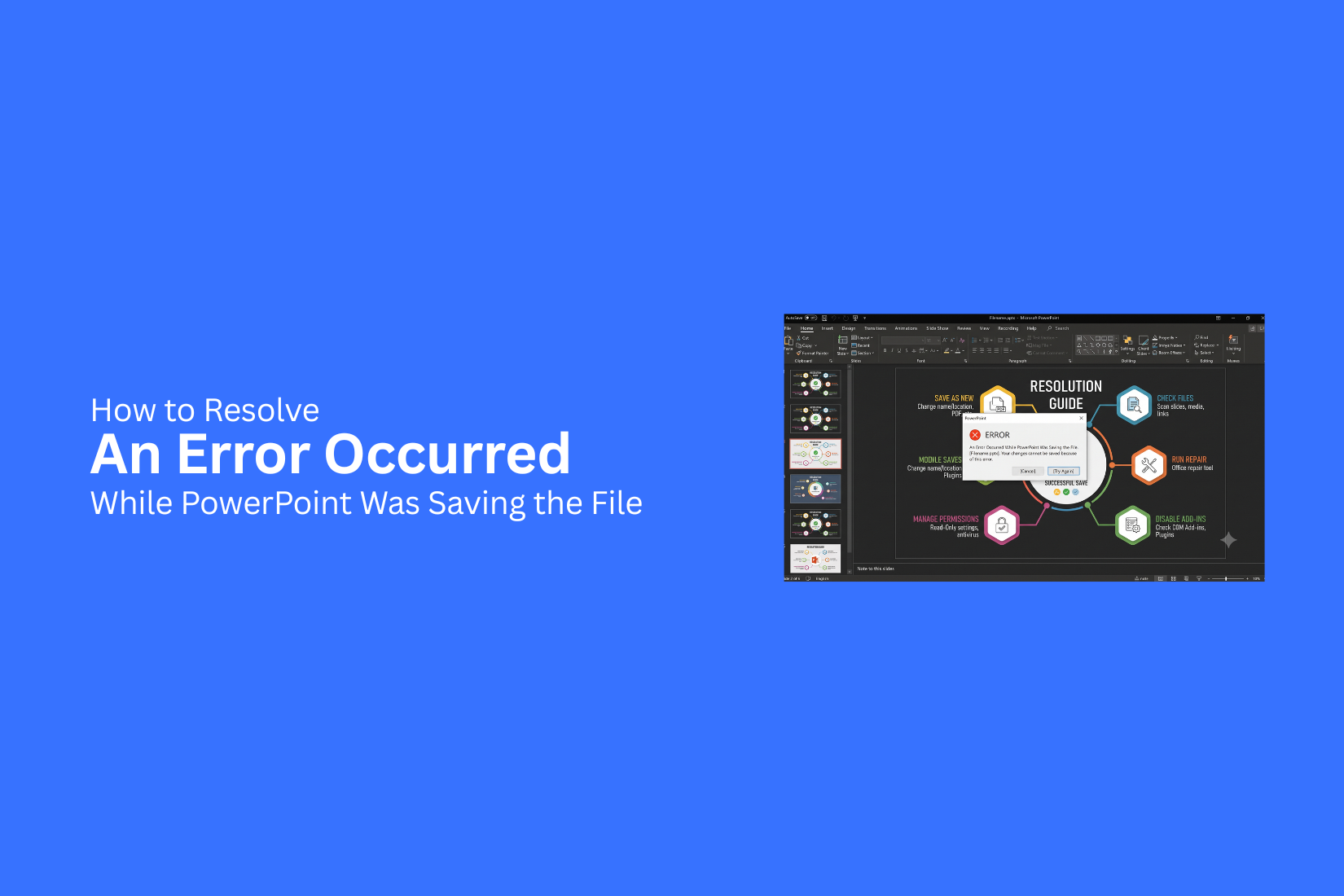
PowerPoint users may see the message “An Error Occurred While PowerPoint Was Saving the File” while trying to save a presentation. This issue can stop the saving process and put recent changes at risk. Finding the right cause is not always easy for many users. However, this guide explains common reasons behind this PowerPoint error and shows practical ways to fix it. You will learn how to save files again, recover unsaved presentations, and prevent future saving problems. The steps cover file settings, storage issues, cloud conflicts, and PowerPoint options. These methods can help you restore your workflow and handle saving errors with more confidence during future presentation work sessions.
Why PowerPoint Shows This Saving Error
PowerPoint may show the message “An Error Occurred While PowerPoint Was Saving the File” for different reasons. The problem can come from the file itself, your computer settings, or the way PowerPoint connects with storage locations. Finding the cause makes it easier to fix the issue. Below are some common reasons this error appears.
File Name or Path Issues
PowerPoint may fail to save a file if the file name or location has a problem. A very long file path, special characters in the name, or a folder with access limits can stop the saving process. Try saving the presentation with a shorter name. You can also move the file to a different folder, such as the Desktop, and save it again.
Insufficient Storage Space
A lack of storage space can prevent PowerPoint from creating a new saved version of your file. Your computer needs enough free space to complete the saving process. Check your available storage and remove unnecessary files if needed. After making space, open PowerPoint again and try saving the presentation.
Corrupted PowerPoint File
A damaged presentation file may cause saving errors. Large files, broken slides, or damaged media elements can affect how PowerPoint saves the file. Try opening the presentation on another device or copy the slides into a new PowerPoint file. Saving a fresh copy may help remove the issue.
Permission or Read-Only Restrictions
PowerPoint needs permission to edit and save a file. A file marked as read-only or stored in a restricted folder may block changes. Check the file properties and make sure editing access is allowed. You can also save the file in a different folder where you have full access.
Conflicts With OneDrive or Cloud Storage
Files stored in OneDrive or other cloud services may face syncing problems. A connection issue or sync conflict can interrupt the saving process. Try saving a local copy on your computer first. After the file saves correctly, you can upload it back to your cloud storage.
Add-ins Causing Problems
PowerPoint add-ins add extra features, but some add-ins may create conflicts. A faulty add-in can affect normal actions like opening, editing, or saving files. Disable unnecessary add-ins and check if PowerPoint can save the file again. You can enable them one by one to find the source of the problem.
Antivirus or Security Software Interference
Security programs may block PowerPoint from saving files. Some settings can prevent Office apps from making changes to certain folders. Check your antivirus or security settings and allow PowerPoint to access your files. Temporarily adjusting these settings can help identify the cause.
Outdated PowerPoint or Microsoft Office
An older version of PowerPoint may have issues with file saving. Updates often include fixes for problems that affect Office apps. Check for available updates and install the latest version of Microsoft Office. Restart PowerPoint after updating and try saving the file again.
How to Resolve "An Error Occurred While PowerPoint Was Saving the File"
PowerPoint saving errors can happen while creating, editing, or updating a presentation. The error message may appear after you click the save button, leaving your latest changes unsaved. This issue can come from different sources, such as file damage, storage limits, blocked permissions, or problems with PowerPoint settings. Finding the cause makes it easier to apply the right fix. Follow these solutions to save your presentation without losing your work.
Save the Presentation With a New File Name
The current presentation file may have a problem that stops PowerPoint from saving new changes. Creating a new copy with another name can help fix this issue. Open your presentation and select File > Save As. Choose a new file name and save the copy in your preferred folder. A new file name creates a separate version of your presentation. It also keeps your original file safe while you test the new copy. Use a short and clear name for the new file. Avoid using too many characters or symbols. After saving, make a small edit and try saving again to check if the error is gone.
Save the File to a Different Location
The folder location can affect how PowerPoint saves a file. A folder with limited access or connection problems may prevent the save process from completing. Try moving the presentation to another folder. Save it on your desktop or in your Documents folder. This step helps you find out if the issue is related to the file location. A presentation that saves in a new folder may have a problem with the original storage area. Files stored on shared drives can also face access problems. Copying the file to your computer can create a better saving environment.
Copy All Slides to a New Presentation
A damaged slide or hidden file issue can prevent PowerPoint from saving the presentation. Moving your content to a new file can remove the problem. Open a blank PowerPoint presentation. Then copy the slides from the original file and paste them into the new one. Check each slide after moving it. Some elements, such as charts, videos, or animations, may need to be added again. Save the new presentation with a different name. This method keeps your content while creating a fresh PowerPoint file.
Check Available Disk Space
PowerPoint needs enough free space to create and update presentation files. A full drive can stop the saving process before it finishes. Check your computer storage before trying to save again. Open File Explorer, select your drive, and view the available space. Remove files you no longer need to create more room. You can also move large videos, images, or documents to another storage location. After freeing up space, restart PowerPoint. Open the presentation and try saving the file again.
Remove Special Characters From the File Name
The name of your PowerPoint file can affect the saving process. Certain symbols may create problems with file handling. Rename the presentation and use only simple letters and numbers. Avoid symbols such as:
- /
- \
- :
- ?
- "
- <
- |
For example, change Marketing Plan: Version 1? to Marketing Plan Version 1. A simple file name makes it easier for your computer to store and manage the presentation.
Turn Off Read-Only Mode
A read-only file allows you to view a presentation but may block saving changes. This setting can appear on files received from another person or downloaded from the internet. Right-click the PowerPoint file and select Properties. Find the Read-only option and remove the checkmark. Click Apply and open the file again. Make a small change and save it to test the result. You should also check if the file is stored in a protected folder. Moving it to another location can help remove access limits.
Disable PowerPoint Add-ins
PowerPoint add-ins can add extra tools and features. However, some add-ins may create problems with normal PowerPoint functions. To check your add-ins, open PowerPoint and go to:
File > Options > Add-ins
Select COM Add-ins and click Go. Turn off the active add-ins and restart PowerPoint. Try saving your presentation again. If the file saves properly, one of the add-ins may be causing the issue. You can turn add-ins back on one at a time to find the problem feature.
Repair Microsoft Office
A damaged Microsoft Office installation can affect PowerPoint features. Repairing Office can fix missing or damaged program files. Open your computer settings and find Microsoft Office in the installed apps list. Select the repair option.
Many Office versions provide two repair choices:
• Quick Repair: Checks common problems and fixes them.
• Online Repair: Reinstalls Office files and performs a deeper repair.
After the repair process finishes, restart your computer. Open PowerPoint and test the presentation again.
Update PowerPoint
Older PowerPoint versions may have software problems that affect saving features. Installing the latest updates can fix these issues.
Open PowerPoint and select:
File > Account > Update Options > Update Now
Allow PowerPoint to install available updates. Restart the application after the update is complete. Open your presentation and try saving it. Regular updates can also help PowerPoint work better with newer file formats.
Save a Local Copy Instead of Cloud Storage
Cloud storage services make file sharing easier, but syncing problems can affect saving. A connection issue may interrupt the save process. Save a copy of your presentation directly to your computer. Use Save As and select a local folder. After saving the local version, open the file and edit it. This helps you check if cloud storage caused the problem. You can upload the updated file again after making sure the presentation saves correctly.
Run PowerPoint in Safe Mode
PowerPoint Safe Mode starts the program with fewer features. It helps check if an extra setting or add-in is causing the saving issue.
Press Windows + R on your keyboard. Type:
powerpnt /safe
Press Enter to open PowerPoint in Safe Mode. Open your presentation and try saving it. If the file saves without problems, an add-in or setting may need attention.
Restart Your Computer
A simple restart can fix temporary problems that affect PowerPoint. Background programs or system processes may sometimes interfere with saving. Close PowerPoint and save any other open work. Restart your computer and wait for the system to load completely. Open PowerPoint again and try saving the presentation. This step is simple but can fix many temporary software issues. If the error continues after restarting, move to the other fixes in this guide to find the cause.
How to Recover an Unsaved PowerPoint Presentation
Losing a PowerPoint file before saving can be frustrating. PowerPoint has built-in recovery options that can help you restore your work. These methods can help you find an unsaved file and continue editing.
Use AutoRecover
PowerPoint has an AutoRecover feature that saves temporary copies of your presentation while you work. These copies can help you restore a file after a crash or unexpected shutdown.
Follow these steps:
- Open PowerPoint.
- Go to File and select Info.
- Click Manage Presentation.
- Select Recover Unsaved Presentations.
- Find your file from the list and open it.
- Save the recovered file with a new name.
To avoid losing recent changes, check your AutoRecover settings. Go to File > Options > Save and make sure the AutoRecover option is enabled.
Check Temporary Files
PowerPoint creates temporary files during the editing process. These files may contain a copy of your unsaved presentation.
Try these steps:
- Press Windows + R on your keyboard.
- Type %temp% and press Enter.
- Search for files with PowerPoint-related names or the .tmp file extension.
- Open possible files in PowerPoint.
- Save the file if you find your missing presentation.
Temporary files may not always contain the latest changes. Still, they can help recover part of your work.
Recover an Earlier Version From OneDrive
If your PowerPoint file is stored on OneDrive, you can restore an earlier version of the file. OneDrive keeps previous versions that let you return to a saved copy.
Follow these steps:
- Open OneDrive and find your PowerPoint file.
- Right-click the file.
- Select Version History.
- Choose an earlier version from the list.
- Click Restore to replace the current file.
This option works best for files saved and synced with OneDrive. It can help you recover a version from before the saving error appeared.
How to Prevent PowerPoint Saving Errors
PowerPoint saving errors can interrupt your work and create problems at the wrong time. A few simple habits can help reduce the chance of losing your progress. These steps can help you keep your presentations safe and avoid common saving issues.
Save Your Work Frequently
Saving your PowerPoint file often helps protect your changes. A sudden app crash, system issue, or unexpected shutdown can remove recent edits. Press Ctrl + S on Windows or Command + S on Mac to save your work quickly. You can also turn on AutoSave if your version of PowerPoint supports it. Saving after making major changes keeps your latest updates stored. It also reduces the risk of losing hours of work.
Keep PowerPoint Updated
Older versions of PowerPoint may have bugs that affect file saving. Installing the latest updates helps keep the software working properly. Check for available updates through Microsoft Office settings. Updated software often includes fixes for problems related to performance, file handling, and stability. Regular updates can help prevent saving errors caused by outdated features.
Avoid Very Long File Paths
A long file path can cause problems while saving a PowerPoint file. This happens if the file name, folder names, and storage location create a very long address. Use short and clear file names. Keep your presentation in folders with simple names. Avoid placing files inside many layers of folders. A shorter file path makes it easier for PowerPoint to locate and save your presentation.
Store Files in Reliable Locations
The place where you save your presentation can affect the saving process. Files stored on unstable drives or disconnected locations may face errors. Save important PowerPoint files on your local drive or trusted cloud storage. Check that your internet connection works properly before saving files online. Reliable storage helps keep your presentations available and reduces file access problems.
Back Up Important Presentations
A backup copy gives you another version of your presentation if the original file has issues. This is helpful for work, school, or important projects. Save copies in another folder, external drive, or cloud storage. Keep older versions if you make major edits. A backup plan helps you recover your work without starting from the beginning.
Final Notes
The “An Error Occurred While PowerPoint Was Saving the File” message can stop you from saving important presentation updates. This problem may happen because of file issues, storage limits, permission settings, cloud syncing problems, or PowerPoint settings.
Start with simple fixes like saving the file with a new name, moving it to another folder, or checking available storage space. Other solutions include removing damaged slides, disabling add-ins, repairing Microsoft Office, updating PowerPoint, and saving a local copy instead of using cloud storage.
If your work is lost before saving, PowerPoint recovery tools like AutoRecover, temporary files, and OneDrive version history can help you find an earlier copy. Regular saving, software updates, shorter file paths, reliable storage, and backups can reduce future saving problems. These habits help protect your presentations and keep your workflow smooth.
FAQs
Why does PowerPoint say “An Error Occurred While PowerPoint Was Saving the File”?
This error can happen because of file damage, storage issues, permission limits, cloud syncing problems, outdated software, or conflicts with PowerPoint add-ins.
How can I fix the PowerPoint saving error quickly?
Try saving the file with a new name, moving it to another folder, checking storage space, and restarting PowerPoint. These steps can fix many common saving problems.
Can a damaged PowerPoint file cause saving errors?
Yes. A damaged presentation file can stop PowerPoint from saving changes. Copying slides into a new presentation can help create a working version.
Why is PowerPoint not saving my file to OneDrive?
OneDrive sync problems or connection issues can interrupt the saving process. Save a local copy on your computer first, then upload the file again after it works properly.
How do I recover an unsaved PowerPoint presentation?
You can use PowerPoint AutoRecover, check temporary files, or restore an earlier version from OneDrive. These options can help you find a lost presentation copy.
Can PowerPoint add-ins cause saving problems?
Yes. Some add-ins may interfere with PowerPoint features. Disable add-ins from PowerPoint settings and check if the file saves correctly.
How do I remove read-only restrictions from a PowerPoint file?
Right-click the file, open Properties, and remove the checkmark from the Read-only option. Apply the changes and try saving the file again.
Does updating PowerPoint fix saving errors?
Updating PowerPoint can fix software problems that affect saving features. Install available Microsoft Office updates and restart the app before testing the file.
How can I prevent PowerPoint saving errors in the future?
Save your work often, keep PowerPoint updated, use simple file names, store files in reliable locations, and keep backup copies of important presentations.




You may also be interested in ...

How To Create An Eye-Catching Portfolio
If you’re looking to create an eye-catching portfolio, this post will come in handy. In this article, you can find the easies...
23 Jun, 2024

How To Easily Create An Infographic
Infographics are the perfect way to make a presentation that will impact an audience, but their design and composition might...
08 Jun, 2024

PowerPoint Template Tips & Tricks You Ne...
PowerPoint seems to be an unknown world for many people, especially those who have been assigned to create a presentation out...
08 Jun, 2024