How to Use a Laser Pointer in Google Slides – Tips & Tricks
Back in the day, presenters relied on standalone laser pointer gadgets to highlight key parts of their slides. These devices later became integrated into presentation remotes, making it slightly easier to direct attention. Today, modern apps like Google Slides offer a built-in virtual laser pointer, turning your mouse into an onscreen pointer without needing extra tools. This not only keeps your setup simple but also works seamlessly in virtual meetings, large conference rooms, and on different devices such as laptops, projectors, or tablets. To make the most of it, ensure your pointer movements are deliberate and easy for your audience to follow.
What Is the Laser Pointer in Google Slides
The laser pointer in Google Slides is a tool that helps you guide your audience during a presentation. It shows a small colored dot on the slide. This dot moves as you move your mouse or finger. It works like a real laser pointer in a classroom or meeting.
Purpose of the Laser Pointer
The laser pointer helps highlight parts of your slides. You can point to text, images, or charts. This makes it easier for your audience to follow along. It keeps the focus on the key details. Presenters use it to make explanations clear and simple.
When the Laser Pointer Is Available
The laser pointer appears only in Present mode. You cannot use it while editing slides. You can activate it by clicking the pointer icon or pressing a key shortcut. It works on both computers and touch devices, but the controls may differ slightly.
How to Use the Laser Pointer in Google Slides
Start by opening your Google Slides file. Make sure the slides are ready to present. Click Slideshow in the top right corner. The presentation will open in full-screen mode.
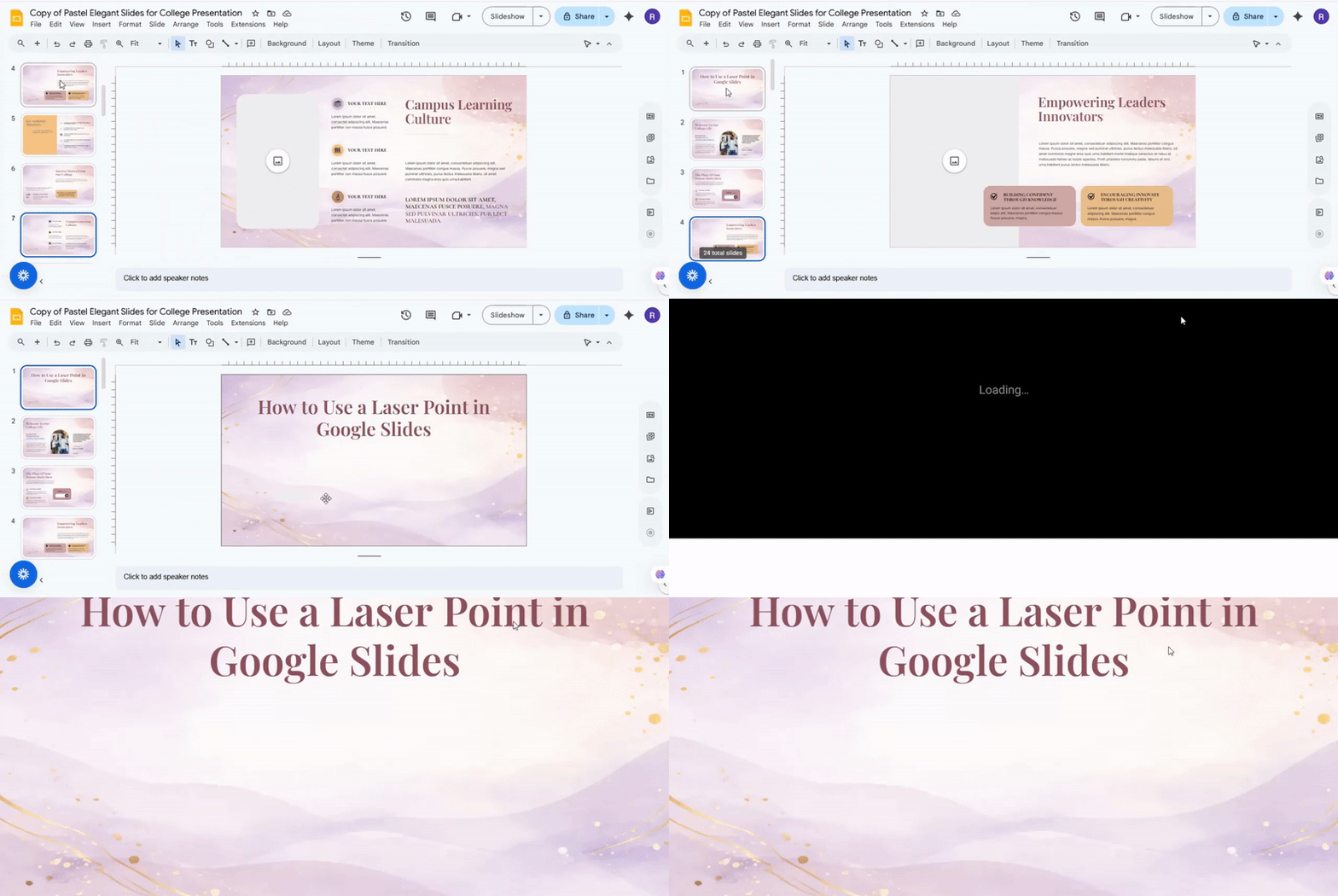
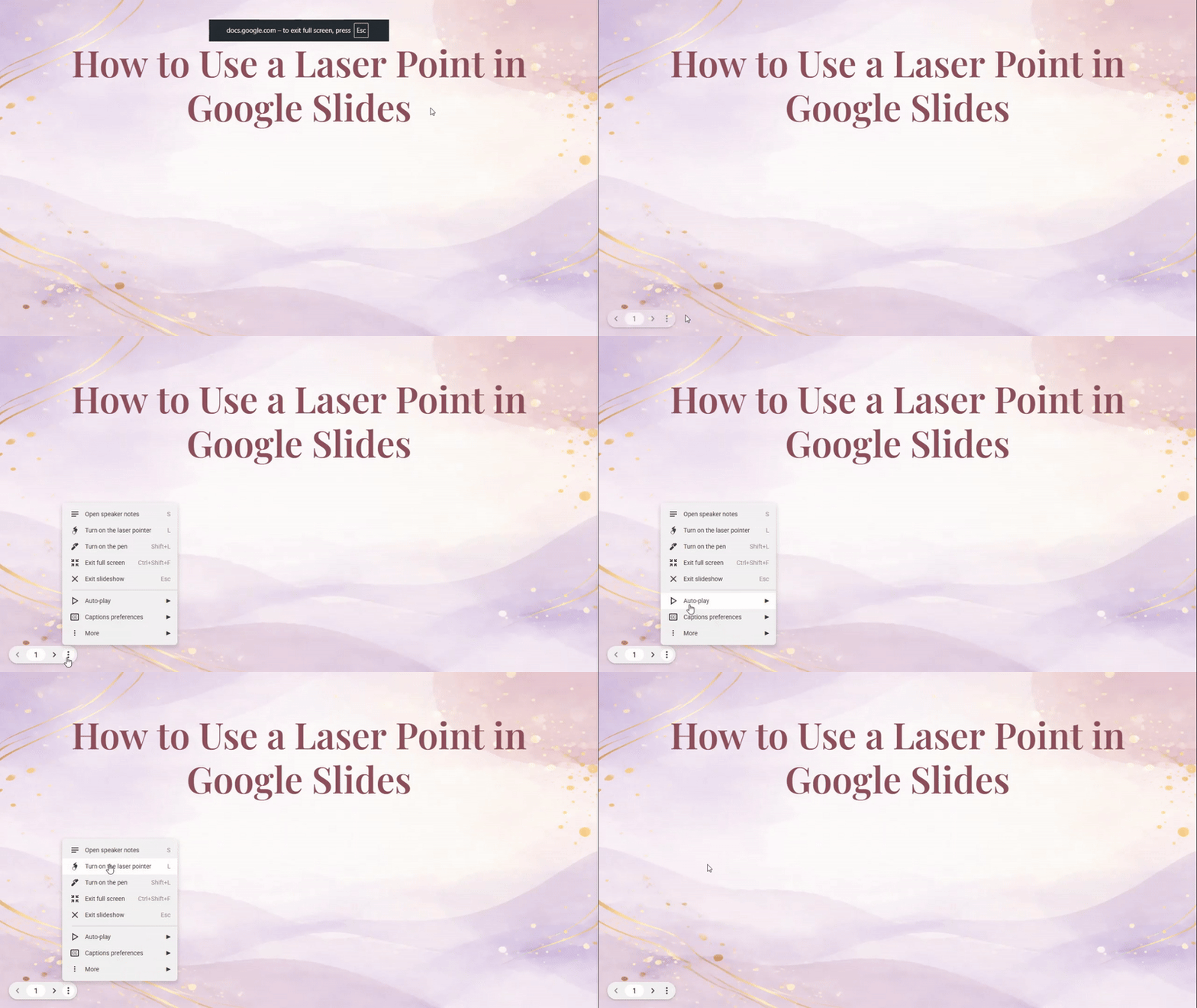
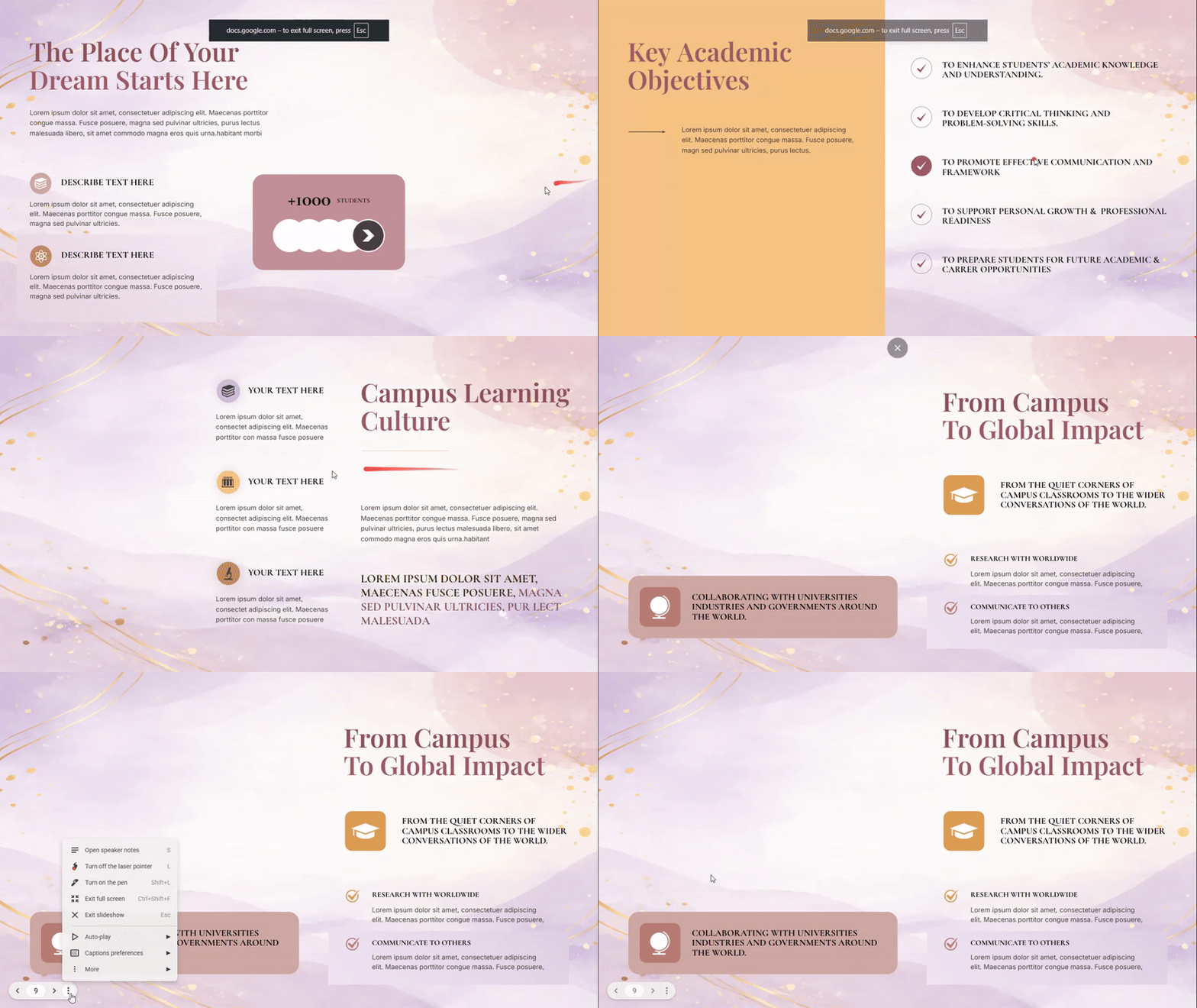
Move your mouse while the slides are playing. A small toolbar appears at the bottom left of the screen. Click the three dots icon to open more options. Select Turn on the laser pointer from the list. A red dot will appear on the slide right away.
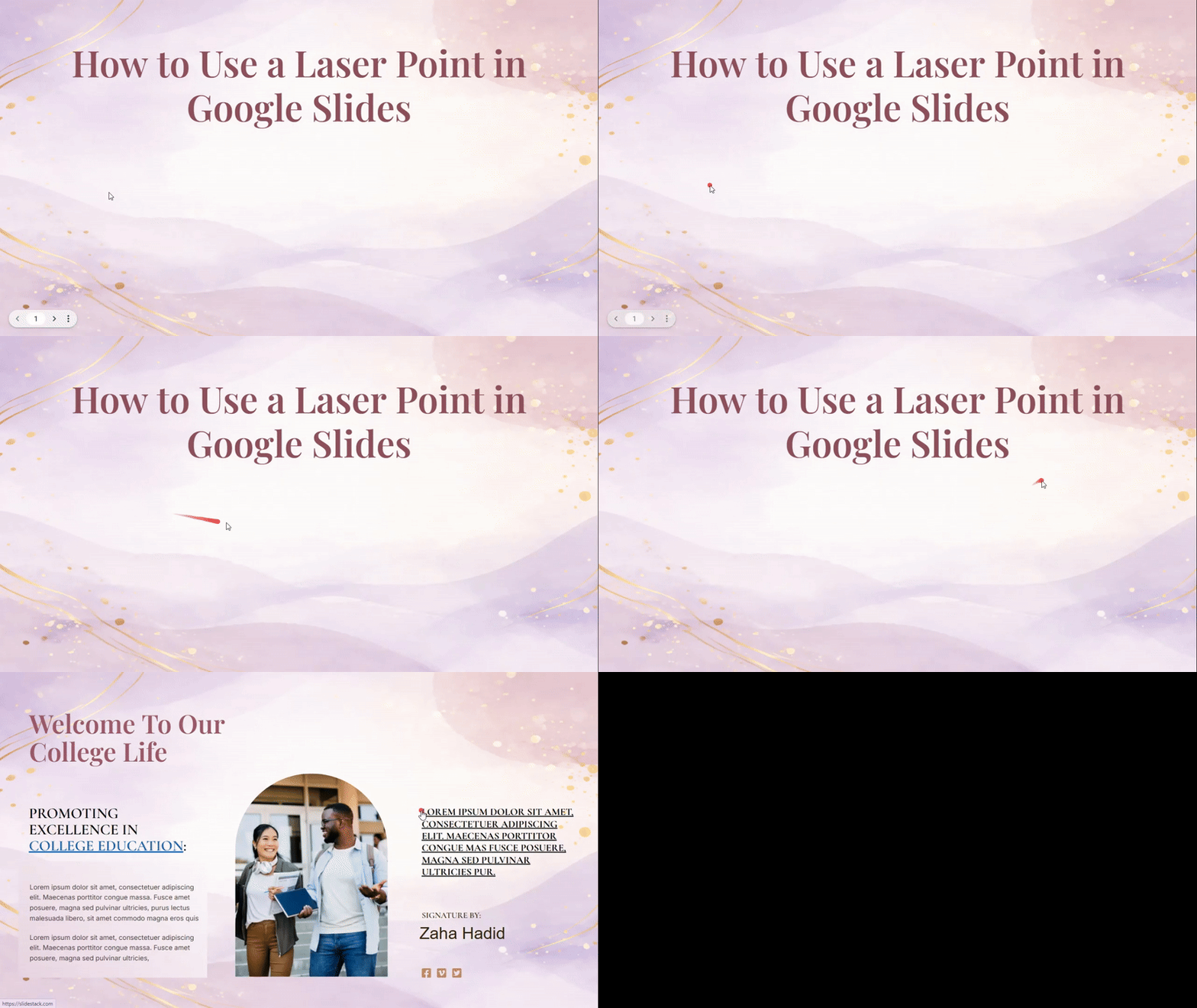
The laser pointer follows your mouse movement. Use it to point at titles, numbers, or images. This helps the audience follow along without guessing where to look. It also keeps attention on one detail at a time.
Keyboard shortcuts can save time during a live talk. Press the L key to turn the laser pointer on or off. Press it again to disable the pointer. This works only while the slideshow is running.
The laser pointer works best with a purpose. Focus on one idea per slide. Point only to the part you want people to notice. Too much movement can distract the audience.

Editing time also matters. Before presenting, review each slide. Decide which parts need extra focus. This makes your presentation feel clear and easy to follow.
Why Should You Use a Laser Pointer in Google Slides?
- Direct Attention Quickly – Highlights key points instantly.
- Works in Any Setting – Perfect for virtual meetings, classrooms, or crowded rooms.
- Helps Everyone Follow Along – Supports viewers who need visual cues to track slides.
- Adds Clarity to Your Talk – Makes explanations easier without cluttering the slide.
- Easy to Activate – Press
Ctrl + L(Windows) orCmd + L(Mac) in present mode. - Guides Focus Naturally – Move it slowly to keep the audience’s eyes on the right spot.
- Improves Accessibility – Assists viewers who struggle to see or read slides quickly.
- Boosts Confidence – Helps presenters feel in control of their pacing and visuals.
You can also pair it with gestures or verbal cues for extra clarity. Small moves make a big difference in keeping your audience on track.
Can You Change the Color of the Laser Pointer?
No, most laser pointers come with a fixed color.
Even with a single color, they work well across screens and projectors. Red is common because it stands out in most lighting.
If you want a different color, some apps or software let you simulate a pointer in blue, green, or other shades on your screen. For better visibility, use a pointer that contrasts with your background and avoid very bright lights behind it.
Tips and Tricks for Using the Laser Pointer
Using a laser pointer can make your presentation clearer. It helps your audience focus on key points.
Highlighting Important Points: Use the laser pointer to guide attention. Point directly at keywords or images. Move it slowly so the audience can follow easily.
Controlling Pointer Movement: Keep your hand steady. Practice smooth motions before speaking. Small, deliberate movements work better than quick, large ones.
Avoiding Distractions: Do not shine the pointer at faces or the audience. Stay focused on the slide content. Turn off the pointer when it is not needed.
Final Words
Using a laser pointer in Google Slides can make your presentations clearer and more engaging. It helps your audience focus on the key points. By following simple steps and practicing smooth movements, you can guide attention effectively. Remember to avoid distractions and use the pointer only when it adds value. If it stops working, check connections and settings before continuing.
Other tools, like slide animations or Zoom, can also help highlight content without a pointer. Choose the method that fits your style and your slides. With careful use, a small pointer can make your message easier to follow and your presentation more confident.
FAQs:
Does the laser pointer work in full-screen mode only?
Yes, the laser pointer works only in full-screen or presentation mode. You cannot use it while editing slides.
Can I use the laser pointer while sharing my screen in a video call?
Yes, you can. The pointer will show on your shared screen for viewers to see.
Is the laser pointer visible to the audience during a live presentation?
Yes, the audience sees the pointer while you are in presentation mode. It moves as you move your mouse or touchpad.
Does the laser pointer work with a wireless presenter or clicker?
Yes, most wireless presenters can control the pointer. Some clickers have a built-in pointer button.
Can multiple presenters use the laser pointer in the same slideshow?
Yes, but only one pointer can be active at a time. Each presenter can take turns controlling it.
Why does the laser pointer disappear after a few seconds?
The pointer is designed to fade automatically to avoid distraction. You can move the mouse or trackpad to make it appear again.
Does the laser pointer work on Chromebooks?
Yes, it works on Chromebooks in presentation mode. Some features may vary slightly depending on the browser.
Can I use the laser pointer with touch screens?
Yes, you can. Tap and drag on the slide to move the pointer across the screen.


You may also be interested in ...

How To Create An Eye-Catching Portfolio
If you’re looking to create an eye-catching portfolio, this post will come in handy. In this article, you can find the easies...
23 Jun, 2024

How To Easily Create An Infographic
Infographics are the perfect way to make a presentation that will impact an audience, but their design and composition might...
08 Jun, 2024

PowerPoint Template Tips & Tricks You Ne...
PowerPoint seems to be an unknown world for many people, especially those who have been assigned to create a presentation out...
08 Jun, 2024