How to Use Format Painter in PowerPoint: A Step-by-Step Guide
Formatting slides in PowerPoint can take extra time. You may need to repeat the same font, color, size, or style settings across several text boxes, shapes, and other objects. Doing this by hand can make slide editing slow and lead to uneven designs.
A consistent look helps your slides feel clear and organized. Yet, repeating the same steps for every object can interrupt your work and make small design tasks take longer than expected.
PowerPoint's Format Painter offers a simple way to copy formatting from one object or text to another. This guide explains how to use Format Painter step by step, apply it to different slide elements, and fix common problems.
What Is Format Painter in PowerPoint?
Format Painter is a tool in PowerPoint that lets you copy the formatting from one object or text and apply it to another. It copies the visual style without copying the actual content.
For example, you may have a title with a specific font, size, color, and alignment. You can use Format Painter to apply the same style to other titles in your presentation. This saves time and keeps your slides consistent.
You can find Format Painter in the Home tab of the PowerPoint ribbon. It works with text, shapes, and other slide objects.
The tool has two options:
- Single Use: Click Format Painter once to copy a style and apply it to one object.
- Multiple Use: Double-click Format Painter to apply the same style to several objects. Press the Esc key to stop using it.
Format Painter makes it easier to keep the same look across your slides. It also reduces the need to change each formatting setting by hand.
Why Use Format Painter in PowerPoint?
Keeping a PowerPoint presentation consistent can take time. You may need to apply the same font, color, size, or text style to many objects. Doing this by hand can lead to small differences across slides. Format Painter helps solve this problem.
Here are some key reasons to use Format Painter in PowerPoint:
1. Save Time: You do not need to apply each formatting option one by one. Copy the style from one object and apply it to another in just a few clicks.
2. Keep Slides Consistent: Format Painter helps you use the same text styles, colors, borders, and other formatting across your slides. This gives your presentation a clean and uniform look.
3. Reduce Manual Work: You can copy several formatting settings at once. This reduces the need to change fonts, sizes, colors, and other options separately.
4. Avoid Formatting Errors: Manual formatting can lead to small differences between objects. Format Painter helps you copy the exact style from the source object.
5. Improve Your Workflow: You can format text, shapes, and other objects without repeating the same steps. This makes slide editing easier and faster.
Overall, Format Painter is a useful tool for anyone who wants to create neat and consistent PowerPoint slides with less effort.
How to Use Format Painter in PowerPoint
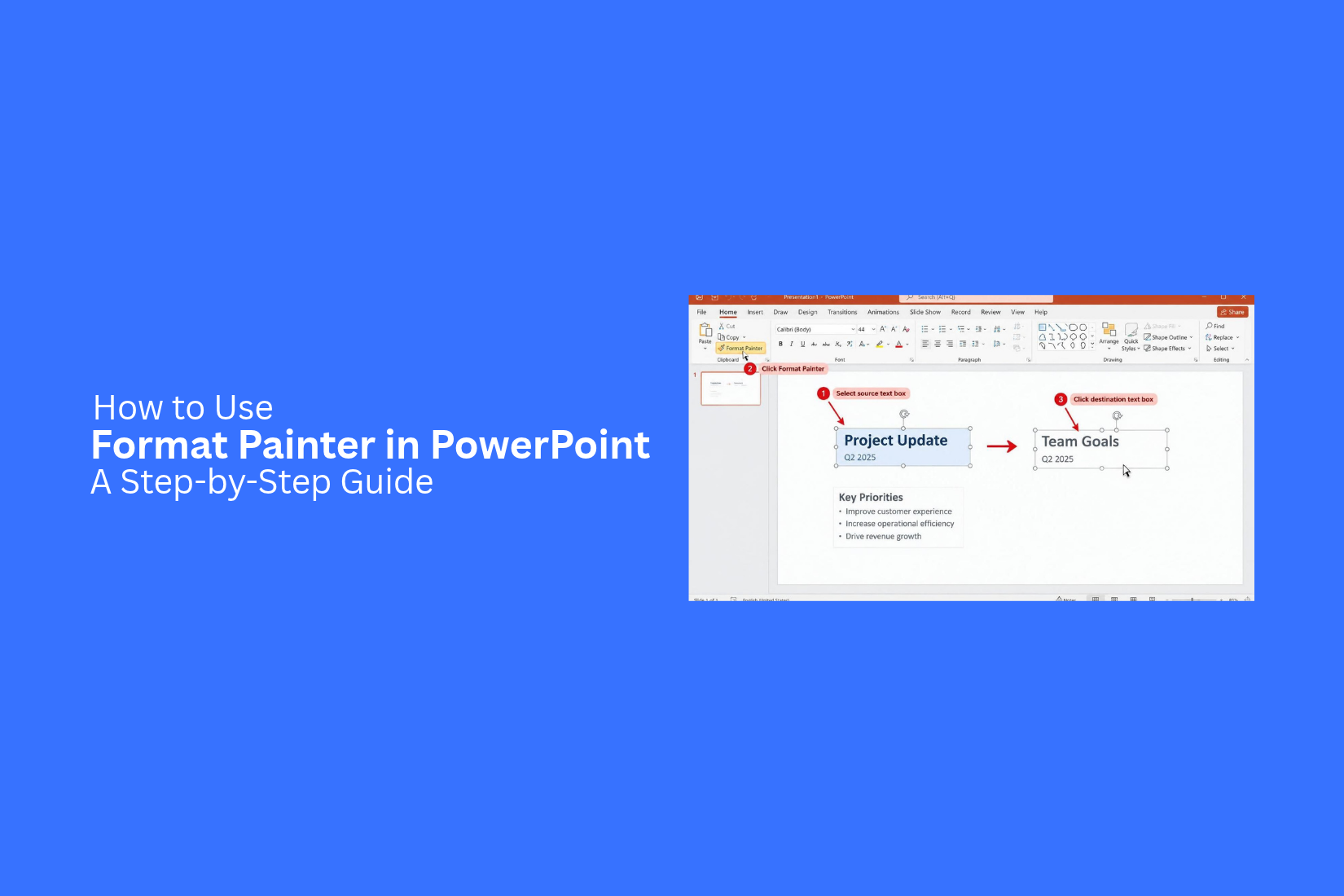
Format Painter helps you copy formatting from one object or text box to another. You do not need to change each font, color, size, or style by hand. Follow these steps to use Format Painter in PowerPoint.
Select the Object or Text with the Desired Formatting
Start by opening your PowerPoint presentation. Find the text or object with the formatting you want to copy. Click the text box, shape, image, or other object. For text formatting, select the exact text you want to use as a source. Make sure it has the font, size, color, and style you need.
Click the Format Painter Tool
Go to the Home tab on the PowerPoint ribbon. Find the Format Painter button in the Clipboard group. Click the button once. Your cursor will change to a paintbrush icon. This shows that Format Painter is ready to copy the selected formatting.
Apply Formatting to Another Object or Text
Move your cursor to the object or text that needs the same formatting. Click the target object to apply the copied style. For text, select the words or text range you want to format. PowerPoint will apply the copied text style to your selection. Check the result to make sure the new formatting matches your source. This saves time and keeps your slides consistent.
Use Format Painter Multiple Times
Need to apply the same style to several objects? PowerPoint lets you use Format Painter more than once. Double-click the Format Painter button instead of clicking it once. Now, you can apply the copied formatting to multiple objects or text areas.
Select each target object or text range one at a time. The copied style will stay active after each use. This is useful for slides with many shapes, text boxes, or other elements that need the same look.
Turn Off Format Painter
After applying the formatting, you can turn off Format Painter. Press the Esc key on your keyboard. You can also click the Format Painter button again. Your cursor will return to its normal state. You can now continue editing your slides without applying the copied style by mistake.
How to Use Format Painter for Different PowerPoint Elements
PowerPoint Format Painter works with different slide elements. You can use it to copy text styles, shape designs, image effects, table styles, and chart formatting. The steps may vary based on the type of element you select. Here is how to use Format Painter for each one.
Copy Text Formatting
Format Painter helps you copy text styles from one text box to another. It can copy font type, size, color, bold, italic, and other text settings.
Follow these steps:
- Select the text with the formatting you want to copy.
- Go to the Home tab.
- Click Format Painter in the Clipboard group.
- Select the target text or drag over the text you want to format.
- Release the mouse button to apply the copied style.
The selected text will now match the original text style. This saves time and keeps your slides consistent.
Copy Shape Formatting
You can use Format Painter to copy the design of one shape to another. This includes fill color, outline color, line style, and other shape effects.
Follow these steps:
- Select the shape with the design you want to copy.
- Open the Home tab.
- Click Format Painter.
- Select the target shape on your slide.
- Check the result to make sure the formatting looks right.
The target shape will now use the same visual style as the original. This is useful for matching buttons, callout boxes, arrows, and other slide shapes.
Copy Image Formatting
Format Painter can help copy image styles in PowerPoint. You can use it to apply the same border, shadow, and visual effects to other pictures.
Follow these steps:
- Select the picture with the formatting you want to copy.
- Go to the Home tab.
- Click Format Painter.
- Select the target picture.
- Review the image to check the applied effects.
The target picture will use the copied formatting. This helps keep image styles consistent across your presentation.
Copy Table Formatting
Tables often need the same visual style across multiple slides. Format Painter can help copy table formatting, such as borders, colors, and text styles.
Follow these steps:
- Select the table or table content with the formatting you want to copy.
- Open the Home tab.
- Click Format Painter.
- Select the target table or its content.
- Review the table to check the formatting.
The target table will receive the copied style. Some table settings may need manual changes after applying Format Painter.
Copy Chart Formatting
Charts use colors, fonts, borders, and other design settings. Format Painter can help apply a similar style to another chart.
Follow these steps:
- Select the chart with the formatting you want to copy.
- Go to the Home tab.
- Click Format Painter.
- Select the target chart.
- Review the chart and check its appearance.
The target chart will use the copied formatting where supported. You may need to adjust some chart settings manually to match the original design.
How to Use Format Painter Across Multiple PowerPoint Slides
You can use Format Painter to copy the same style across multiple PowerPoint slides. This saves time and keeps your presentation consistent.
Follow these steps:
- Select the text or object that has the formatting you want to copy.
- Go to the Home tab.
- Double-click the Format Painter button. This keeps the tool active.
- Open another slide and select the text or object where you want to apply the copied style.
- Repeat this step on other slides as needed.
- Press Esc on your keyboard to turn off Format Painter.
For example, you can copy the font style, size, and color from a heading on one slide. Then, apply the same formatting to headings on several other slides.
Note: Format Painter works best with similar types of objects. You can copy text formatting to other text and shape formatting to other shapes.
Format Painter vs. Copy and Paste Formatting in PowerPoint
PowerPoint offers two ways to reuse formatting: Format Painter and copy and paste formatting. Both help you keep your slides consistent. However, they work in different ways.
Format Painter lets you copy the formatting of one object and apply it to another. You do not need to copy the full object. Just select the source object, click Format Painter, and select the target object. This works well for text, shapes, and other slide elements.
Copy and Paste Formatting gives you another way to reuse styles. Select the object with the formatting you want. Copy it, then select the target object. Use the Paste Special options to apply only the formatting. This helps you keep the target content while changing its style.
Here is a quick comparison:
Feature
Format Painter
Copy and Paste Formatting
Main purpose
Copy formatting
Reuse formatting
Steps
Select, click, and apply
Copy, select, and paste formatting
Original content
Stays unchanged
Stays unchanged
Best for
Quick formatting changes
Reusing styles through paste options
Multiple objects
Double-click to apply formatting to several objects
Depends on the paste method
Which one should you use?
Choose Format Painter for quick changes across your slides. It takes fewer steps and works well for repeated formatting tasks. Use copy and paste formatting if you already copied an object and want to apply only its style to another object. Both methods can save time. The right choice depends on your task and workflow.
Tips for Using Format Painter Effectively
Format Painter can save time and help keep your slides neat. A few simple habits can make it easier to use. Follow these tips to get better results in PowerPoint.
1. Use Double-Click for Multiple Objects: Double-click the Format Painter button to apply the same formatting to several objects. Press Esc to stop using it.
2. Select the Right Source: Choose an object with the exact formatting you want to copy. Check its font, size, color, spacing, and alignment before using Format Painter.
3. Keep Text Styles Consistent: Use Format Painter to apply the same font, color, and size to text across different slides. This helps your presentation look neat and organized.
4. Check the Final Result: Review each object after applying the copied style. Some text or shapes may need small changes to fit the slide.
5. Use It for Similar Objects: Format Painter works well for matching text boxes, shapes, and other objects. It helps keep similar elements in the same style.
6. Avoid Unwanted Formatting Changes: Select the correct source object before copying its style. A wrong selection may change the look of your text or shape.
These simple habits can help you format slides faster. They also make it easier to keep a consistent style across your presentation.
Common Format Painter Problems and How to Fix Them
Format Painter is easy to use, but it may not always work as expected. Sometimes, it copies the wrong style or changes only part of an object. You may also find that it stops working after one use. These issues can affect your slide design. Here are some common problems and simple ways to fix them.
Format Painter Does Not Apply the Expected Style
Sometimes, Format Painter does not copy the style you want. This may happen if you select the wrong text or object before using the tool.
Try these steps to fix the issue:
- Select the source text or object again.
- Check that it has the correct font, size, color, and other styles.
- Click Format Painter.
- Select the target text or object.
- Check the result and repeat the steps if needed.
Make sure you select the right source before copying its style.
Formatting Changes Only Part of the Object
You may notice that Format Painter changes only part of a text box or object. This often happens because you select only a small part of the source or target.
For example, you may copy the font style from one word but apply it to a full text box. Some formatting may not carry over as expected.
To fix this issue:
- Select the full text box or object.
- Avoid selecting only a few words or letters.
- Click Format Painter.
- Select the full target object.
- Check that the formatting looks correct.
Use a full object selection to copy its overall style.
Format Painter Stops Working After One Use
Format Painter works for one use by default. After you apply the copied style, the tool turns off. This can be frustrating if you need to format several objects.
You can keep the tool active by double-clicking Format Painter.
Follow these steps:
- Select the text or object with the style you want.
- Go to the Home tab.
- Double-click Format Painter.
- Apply the copied style to each target object.
- Press Esc to turn off Format Painter.
This method lets you apply the same style to several objects without selecting the source again.
Text or Objects Lose Their Original Formatting
Format Painter replaces the existing style of the target with the copied formatting. This may change the font, color, size, borders, or other design details.
To fix this issue, use these steps:
- Press Ctrl + Z right after the change to undo it.
- Select the correct source object.
- Check its formatting before copying.
- Apply the style to the target object again.
- Review the slide to make sure the result looks right.
You can also create a copy of the target object before using Format Painter. This gives you a backup of its original design.
Final Notes
Format Painter is a useful PowerPoint tool for keeping your slides neat and consistent. It lets you copy formatting from one object and apply it to another without changing the original content. You can use it to copy text styles, shape designs, image effects, table styles, and chart formatting. A single click works for one object. A double-click lets you apply the same style to several objects. Press Esc to turn off the tool.
Choose the right source object before copying its style. Check the result after each use. These small steps can help you avoid unwanted changes and keep your slides looking consistent. With Format Painter, you can spend less time on repeated formatting tasks and more time working on your presentation.
Frequently Asked Questions
1. What is Format Painter in PowerPoint?
Format Painter is a PowerPoint tool that copies formatting from one object or text and applies it to another. It helps you keep the same fonts, colors, sizes, and styles across your slides.
2. Where can I find Format Painter in PowerPoint?
You can find Format Painter in the Home tab of the PowerPoint ribbon. It is located in the Clipboard group.
3. How do I use Format Painter for multiple objects?
Select the object with the formatting you want to copy. Double-click Format Painter in the Home tab. Then, select each target object one by one. Press Esc to stop using the tool.
4. Can I use Format Painter across multiple PowerPoint slides?
Yes. Double-click Format Painter to keep it active. Open another slide and select the objects or text that need the same formatting. Repeat this step across other slides. Press Esc when you finish.
5. Does Format Painter copy text content in PowerPoint?
No. Format Painter copies only the visual style. It does not copy the actual text or object content.
6. Can I use Format Painter for images, shapes, tables, and charts?
Yes. You can use it to copy formatting from images, shapes, tables, and charts. Some elements may need extra manual changes after applying the copied style.
7. How do I turn off Format Painter in PowerPoint?
Press the Esc key on your keyboard. You can also click the Format Painter button again to turn it off.
8. Why is Format Painter not working in PowerPoint?
You may have selected the wrong source object or target area. Select the source again and check its formatting. Then, click Format Painter and select the target object. For multiple uses, double-click the tool.
9. How do I undo formatting applied by Format Painter?
Press Ctrl + Z right after applying the formatting. PowerPoint will undo the change and restore the previous style.
10. What is the difference between Format Painter and Copy and Paste Formatting?
Format Painter copies a style and applies it directly to another object. Copy and Paste Formatting uses the copy and Paste Special options to apply only the style while keeping the target content. Both methods help you reuse formatting in PowerPoint.




You may also be interested in ...

How To Create An Eye-Catching Portfolio
If you’re looking to create an eye-catching portfolio, this post will come in handy. In this article, you can find the easies...
23 Jun, 2024

How To Easily Create An Infographic
Infographics are the perfect way to make a presentation that will impact an audience, but their design and composition might...
08 Jun, 2024

PowerPoint Template Tips & Tricks You Ne...
PowerPoint seems to be an unknown world for many people, especially those who have been assigned to create a presentation out...
08 Jun, 2024