How to Present Tableau Analysis in PowerPoint
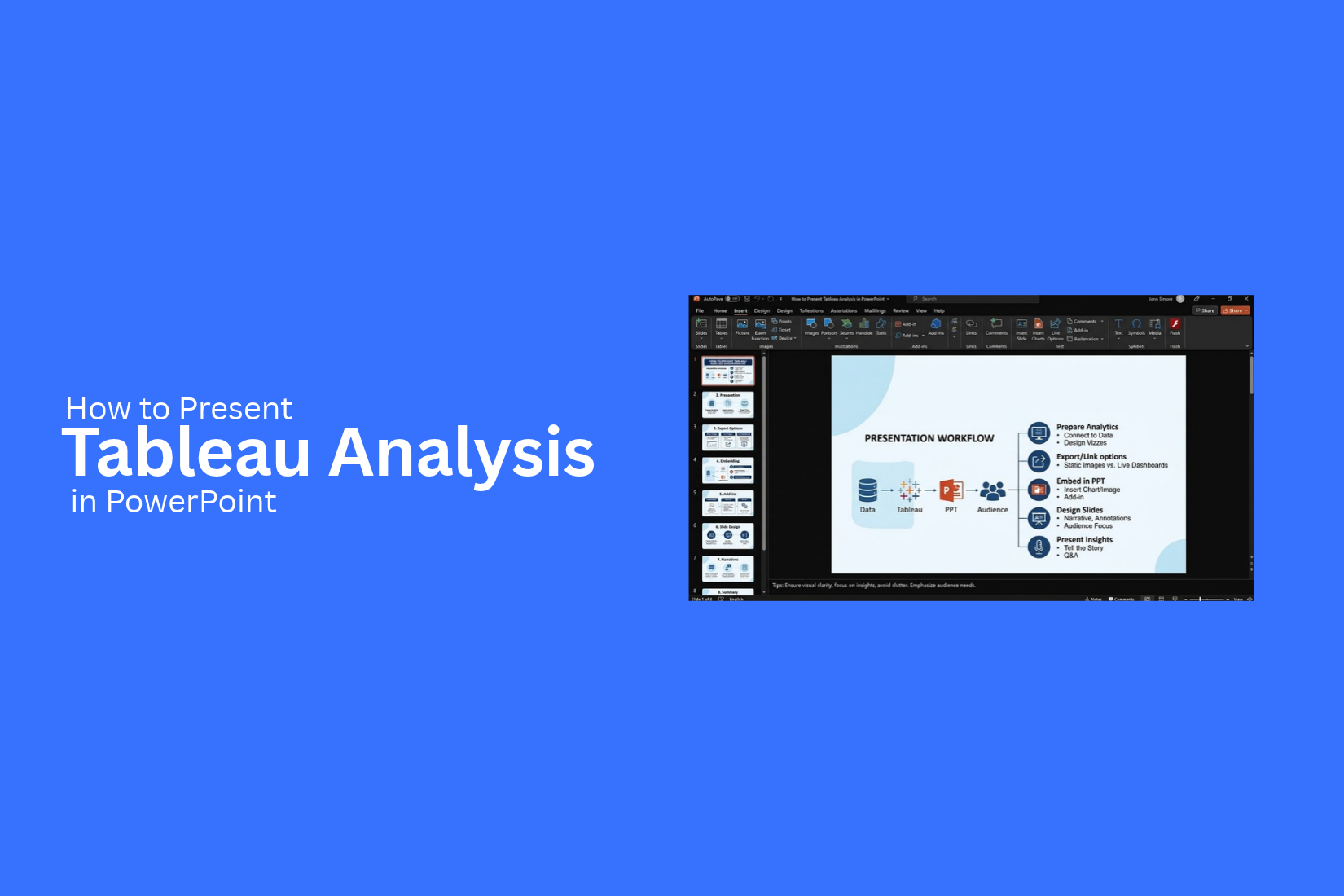
Tableau helps you turn data into charts and dashboards. But sharing your analysis in PowerPoint can be hard. Your charts may look good in Tableau, yet they may not fit your slides or explain the main findings clearly. A poor layout can also make key details hard to read.
A presentation needs more than charts and numbers. Your audience needs to know what the data means and why it matters. Too many visuals, blurry images, or missing context can hide useful insights. This can make it harder for people to follow your analysis and understand your message.
You can present Tableau analysis in PowerPoint with clear visuals and a simple slide structure. This guide covers ways to export Tableau views, add charts and dashboard screenshots, design slides, explain key findings, and avoid common mistakes.
Why Present Tableau Analysis in PowerPoint?
Tableau helps you turn data into charts, graphs, and dashboards. PowerPoint helps you explain what that data means to your audience. Using both tools can make your reports easier to follow.
A Tableau dashboard may contain many charts and filters. Showing the full dashboard during a meeting can make it hard for people to focus on the main findings. PowerPoint lets you select the most useful views and arrange them into a clear story.
Here are a few reasons to present Tableau analysis in PowerPoint:
1. Explain key findings: Use charts and short notes to highlight important results. This helps your audience understand the main points without reviewing every detail.
2. Keep your presentation organized: Arrange charts, data, and explanations in a logical order. Each slide can focus on one question or finding.
3. Add business context: Include goals, recommendations, and action steps alongside Tableau charts. This helps people connect the data to business needs.
4. Share reports easily: Save your slides as a PowerPoint file or PDF. You can share the report with people who do not use Tableau.
5. Support meetings and decisions: Use charts to explain trends, compare results, and discuss next steps. Your audience can review the evidence before making a decision.
The best method depends on how you plan to use the data. A static chart works well for a fixed report. An interactive Tableau view is more useful for live data checks and detailed analysis.
How to Prepare Tableau Analysis for PowerPoint
A clear PowerPoint presentation starts with well-organized Tableau data. Before adding charts and dashboards to your slides, review the analysis and decide which details matter most to your audience.
1. Define the main goal: Decide what you want your audience to learn from the analysis. Focus on the key question your data needs to answer.
2. Review the data: Check your Tableau charts and dashboards. Make sure the figures, labels, and dates are correct. Remove details that do not support your main point.
3. Select key charts: Choose charts that help explain your findings. A bar chart can compare values, while a line chart can show changes over time.
4. Organize the findings: Arrange your charts in a logical order. Start with the main result, then present the data that supports it.
5. Prepare the visuals: Check chart titles, labels, colors, and text size. Make sure each visual is easy to read on a PowerPoint slide.
6. Add context: Write a short note about what each chart shows. Explain the main result and why it matters to your audience.
Once your analysis is ready, you can move the selected Tableau charts and dashboards into PowerPoint. Keep each slide focused on one main point. This helps your audience follow the data and understand your findings.
How to Present Tableau Analysis in PowerPoint
Tableau charts and dashboards can help explain data in a PowerPoint presentation. The best way to add them depends on your goal. You can use images, PDF files, copied charts, or dashboard screenshots. You can also add a link to an interactive Tableau dashboard. Each method offers a different way to share your findings.
Export Tableau Views as Images
Exporting a Tableau view as an image is a simple way to add a chart to PowerPoint. The image keeps the chart's visual layout. You can place it on a slide, resize it, and add a title or short explanation.
- Open your workbook in Tableau.
- Select the chart or view you want to use.
- Open the Download menu.
- Choose the image export option, if available.
- Save the image to your computer.
- Open PowerPoint and select the slide for your chart.
- Go to Insert > Pictures and select the saved image.
Check the image size before adding it to your slide. A clear image helps the audience read chart labels, values, and legends. Keep the chart large enough to show the main findings.
Download Tableau Views as PDF
A PDF export can help you share a Tableau view with its layout intact. It also gives you a file that you can use as a source for your presentation. The available export options depend on your Tableau setup and access permissions.
- Open the required view in Tableau.
- Select Download.
- Choose PDF if the option is available.
- Set the page size and layout.
- Export and save the PDF file.
You can add the PDF to PowerPoint as an object or use an image of the relevant page. For a chart that needs to fill a slide, an image may be easier to position and resize. Review the exported file first. Make sure the chart labels and data values are easy to read.
Copy Tableau Charts Into PowerPoint
Copying a chart can save time if you need to move a single view into your presentation. Tableau's available copy options may vary by version and environment. Some options copy an image rather than an editable chart.
- Open the chart in Tableau.
- Look for the copy option in the menu or toolbar.
- Copy the view, if supported.
- Open your PowerPoint slide.
- Paste the copied content.
- Resize and position the chart.
Check the pasted chart before making other slide edits. Text and labels may appear smaller than expected. You may also need to adjust the chart's size to match the slide layout.
A copied image does not provide the same editing options as a native PowerPoint chart. Keep the original Tableau view available if you need to update the data later.
Add Tableau Dashboard Screenshots
A screenshot can show a full Tableau dashboard or a selected part of it. This method works well for reports with several charts, filters, and summary figures on one screen.
- Open the dashboard in Tableau.
- Set the filters and views you want the audience to see.
- Adjust the dashboard size so the key details fit on the screen.
- Capture a screenshot using your computer's screenshot tool.
- Save the screenshot as an image.
- In PowerPoint, select Insert > Pictures.
- Add the screenshot and adjust its size.
Use screenshots with care. A full dashboard may contain too much detail for a single slide. Crop out unused areas and keep the most useful charts in view. Add a short heading to explain the main finding. You can also use separate slides for different parts of a large dashboard.
Link to an Interactive Tableau Dashboard
A link lets your audience open the live Tableau dashboard instead of viewing a static image. This is useful for presentations that need filter changes, data exploration, or a closer look at specific values.
- Open the Tableau dashboard you want to share.
- Copy its URL or use Tableau's sharing option.
- Open your PowerPoint presentation.
- Select the text or object that should contain the link.
- Go to Insert > Link.
- Paste the dashboard URL and confirm the link.
- Test the link in Slide Show mode.
Before presenting, check that your audience has permission to access the dashboard. The link may require a Tableau account or sign-in. An internet connection may also be needed. Keep a static image of the key chart on the slide as a backup. This lets you explain the main finding even if the live dashboard cannot be opened during the presentation.
How to Design PowerPoint Slides With Tableau Visuals
A good PowerPoint slide helps the audience understand Tableau data without extra effort. Each slide should focus on one main idea. Use a clear layout, short text, and readable charts. Keep the design simple so the data stays at the center of the presentation.
Choose the Right Slide Layout
The layout should match the type of data you want to present. A chart with a few data points may need less space than a detailed dashboard. Give each visual enough room to remain clear.
- Use a single chart on a slide to explain one main finding.
- Place related charts side by side to show a direct comparison.
- Use a full-slide dashboard for a broad view of key business metrics.
- Leave enough space around charts, labels, and other text.
Avoid placing too many visuals on one slide. A clean layout helps the audience focus on the data that matters most.
Add Titles and Key Takeaways
Every slide needs a clear title. It should tell the audience what the chart shows. A short takeaway can explain why the data matters.
For example, a chart title such as "Monthly Sales by Region" tells the audience what they are viewing. A takeaway such as "The North region had the highest sales in June" points out the main finding.
Keep titles short and use simple language. Place the key takeaway near the chart so the audience can connect the message with the data. Avoid long paragraphs that take attention away from the visual.
Maintain Consistent Colors and Fonts
Consistent design makes a presentation easier to follow. Use the same font styles, title sizes, and color choices across your slides. This also helps Tableau visuals fit the PowerPoint theme.
Follow these simple rules:
- Use one font for headings and another for body text, or use a single font throughout.
- Keep title sizes and chart label sizes consistent.
- Use the same color for the same metric across slides.
- Choose text and background colors with strong contrast.
- Avoid extra colors that do not add meaning to the data.
Check the colors in your Tableau charts before adding them to PowerPoint. Make sure the labels remain readable, and the chart fits the slide design.
Highlight Important Data Points
A Tableau chart may contain many values, but not all of them need equal attention. Use visual cues to direct the audience toward the most useful information. You can highlight key values with a contrasting color, a short annotation, or a simple text label. For example, use one accent color to mark the region with the highest revenue.
Keep the other bars or chart elements in neutral colors. You can also add a short note beside a major increase, drop, or unusual result. This gives the audience context without filling the slide with extra text. Keep the focus on the main finding. Too many highlights can make the chart harder to read. Use only the visual cues that help explain your analysis.
How to Present Tableau Dashboards Effectively
A Tableau dashboard can show a lot of data on one screen. Your audience still needs to understand what the numbers mean. A clear presentation helps people follow the analysis and see why the findings matter. Focus on the main points, explain key changes, and link the data to business goals.
Explain the Main Findings
Start with the most useful findings from your Tableau dashboard. Avoid showing every chart without explaining its meaning. Pick the results that answer your main question.
For example, a sales dashboard may show total revenue, sales growth, and regional performance. Explain which region had the highest sales and which one fell below its target. Use exact figures from your dashboard to support each point. Keep your explanation short. Your audience should understand the main message without reading every number on the screen.
Use Annotations to Explain Data Trends
Charts show changes in data, but they may not explain why those changes happened. Annotations help you point out key events, unusual results, or important dates.
For example, a line chart may show a sharp drop in sales during one month. Add a short note to mark the change and explain the known reason behind it. This helps your audience understand the trend without searching through the data. Keep annotations brief and place them near the related chart or data point. Use clear labels and avoid adding too many notes to one slide.
Connect Charts to Business Goals
Your audience needs to know how the analysis relates to business goals. Link each chart to a clear goal, such as raising sales, reducing costs, or improving customer retention. For example, a chart showing monthly revenue can help explain progress toward a sales target. A chart showing customer complaints can point to areas that need attention.
Explain what the data means for the business. State whether the results meet the target, fall short, or show a need for action. This gives your audience a clear reason to pay attention to each chart.
Guide Your Audience Through the Analysis
Present your Tableau findings in a clear order. Start with the main question, show the relevant data, and explain the results. End with the key message or action your audience needs to take. Use one slide for each main point. Keep related charts together and give each slide a clear title. Avoid switching between unrelated topics, as this can make the analysis harder to follow.
You can also use simple transitions between slides to connect your findings. For example, start with overall sales performance, move to regional results, and then explain which areas need attention. A clear flow helps your audience follow the analysis from the first chart to the final recommendation.
Common Mistakes to Avoid When Presenting Tableau Analysis
A Tableau dashboard can contain useful data, but the way you present it matters. Poor chart choices, unclear labels, or old data can make your PowerPoint slides harder to follow. Avoid these common mistakes to keep your analysis clear and useful.
Adding Too Many Charts to One Slide
Too many charts on one slide can make your data hard to read. Each chart may show useful details, but the audience may not know where to look first. Keep each slide focused on one main point. Split large dashboards into several slides. Use only the charts that support your message.
Using Blurry or Low-Quality Images
Blurry dashboard images can hide labels, numbers, and chart details. This often happens when you use small screenshots or stretch an image to fill a slide. Export your Tableau views at a suitable size. Check the image in PowerPoint before your presentation. Make sure all text and chart details remain clear on a large screen.
Showing Data Without Explaining Its Meaning
Charts show what the data contains, but they may not explain why it matters. Your audience needs context to understand the results. Add a short headline that states the main finding. Use a brief note to explain a key change, trend, or difference. For example, a sales chart should point out which product had the highest growth and why that result matters to the business.
Relying on Interactive Features Not Available in PowerPoint
Tableau dashboards can include filters, tooltips, and interactive controls. These features may not work in a static PowerPoint slide. A screenshot cannot show every view or response to a filter. Capture the key views you need before building your deck. Add separate slides for important filter results. This helps your audience follow the analysis without needing access to Tableau.
Using Outdated Dashboard Exports
Old dashboard images can show figures that no longer match the latest data. This can lead to poor decisions or questions about your results. Check the data and update your Tableau views before exporting them. Add a date or reporting period to each relevant slide. Review every chart after placing it in PowerPoint. Make sure the figures, labels, and notes match the version you plan to present.
Tips for Creating Better Tableau Presentations
A good Tableau presentation makes data easy to read and understand. Clear charts, short labels, and useful details help your audience follow the results. These tips can help you build better PowerPoint slides with Tableau analysis.
Focus on One Main Insight Per Slide
Each slide should explain one main point. Too many charts or findings can make the message hard to follow. Choose the result that matters most to your audience. Add a short headline that explains the key finding. Use a chart or a few data points to support it.
For example, a sales slide might show which product had the highest sales last quarter. Keep other details on separate slides. This helps your audience focus on the main result.
Use Charts That Match Your Data
The right chart makes your findings easier to understand. Choose a chart based on the type of data you want to show.
- Bar charts: Compare sales, products, or regions.
- Line charts: Show changes over time.
- Pie charts: Show parts of a whole with a small number of categories.
- Scatter plots: Show the link between two values.
- Maps: Compare data across locations.
Avoid using a chart just because it looks good. Each chart should help explain the data. Remove chart elements that do not support your main point.
Keep Labels and Legends Readable
Small text can make a chart hard to read during a presentation. Use clear labels and a font size that works on a large screen. Keep chart titles short and direct. Use colors that are easy to tell apart. Apply the same colors to the same categories across slides. Place legends near the charts they explain. Remove extra labels if they make the chart look crowded. Your audience should be able to understand the chart without spending too much time reading it.
Add Sources and Relevant Context
Charts show numbers, but your audience also needs to know what those numbers mean. Add a short note about the data period, source, or key terms. This helps people understand the results. For example, a sales chart could include the reporting period and the data source. A short note might explain why sales dropped in one region. Keep these details brief and relevant to the main finding. Avoid adding background information that does not help explain the chart.
Test the Presentation Before Sharing
Review your PowerPoint slides before presenting or sending the file. Check each chart, label, title, and data point. Make sure the text is readable, and the colors look clear on a large screen.
Pay close attention to Tableau charts copied or exported into PowerPoint. Check for missing labels, cut-off text, blurry images, or changes in chart size. If your slides use linked data, check that the charts show the latest figures. Run through the full presentation once to check the order and flow of your key points. A final review helps you catch errors and present your Tableau analysis with confidence.
Final Notes
Presenting Tableau analysis in PowerPoint is easier with clear charts, short explanations, and a simple slide structure. Choose the views that support your main message. Use readable labels, consistent colors, and short titles to help your audience follow the data.
Keep each slide focused on one key finding. Explain what the numbers show and how they relate to your business goals. Check every chart for accuracy and clarity before sharing your presentation. These steps help you turn Tableau data into a clear report that supports better discussions and decisions.
FAQs
1. How do I add Tableau charts to PowerPoint?
You can export Tableau charts as images, copy supported views, or use dashboard screenshots. Open PowerPoint and insert the saved image into your slide. Adjust its size and add a short title or note to explain the main finding.
2. Can I export a Tableau dashboard to PowerPoint?
You can use exported images or screenshots of a Tableau dashboard in PowerPoint. You can also export a view as a PDF and use the relevant page in your slides. The available options depend on your Tableau setup and access permissions.
3. Can I make Tableau charts editable in PowerPoint?
Charts added as images cannot be edited like native PowerPoint charts. You can resize and position them, but you cannot directly change their data points. Keep the original Tableau workbook available for future updates.
4. How do I present Tableau dashboards clearly?
Focus on the main findings instead of showing every chart. Use clear titles, readable labels, and short notes to explain key results. Split large dashboards across several slides to give each finding enough space.
5. How can I keep Tableau charts clear in PowerPoint?
Export charts at a suitable size and avoid stretching small images. Check the labels, legends, and data values after adding each chart to PowerPoint. Use readable text and strong color contrast.
6. Can I link a live Tableau dashboard to a PowerPoint slide?
Yes. Add a hyperlink to the Tableau dashboard URL. Test the link before your presentation and check that your audience has access. Keep a static image of the key chart as a backup.
7. How often should I update Tableau charts in PowerPoint?
Update your charts whenever the data or reporting period changes. Review the figures, labels, and notes before sharing the slides. Add the reporting date to help your audience identify the period covered by the analysis.
8. What should I avoid in a Tableau PowerPoint presentation?
Avoid crowded slides, blurry images, small labels, outdated data, and charts without clear explanations. Focus on one main finding per slide and include only the details that support your message.




You may also be interested in ...

How To Create An Eye-Catching Portfolio
If you’re looking to create an eye-catching portfolio, this post will come in handy. In this article, you can find the easies...
23 Jun, 2024

How To Easily Create An Infographic
Infographics are the perfect way to make a presentation that will impact an audience, but their design and composition might...
08 Jun, 2024

PowerPoint Template Tips & Tricks You Ne...
PowerPoint seems to be an unknown world for many people, especially those who have been assigned to create a presentation out...
08 Jun, 2024